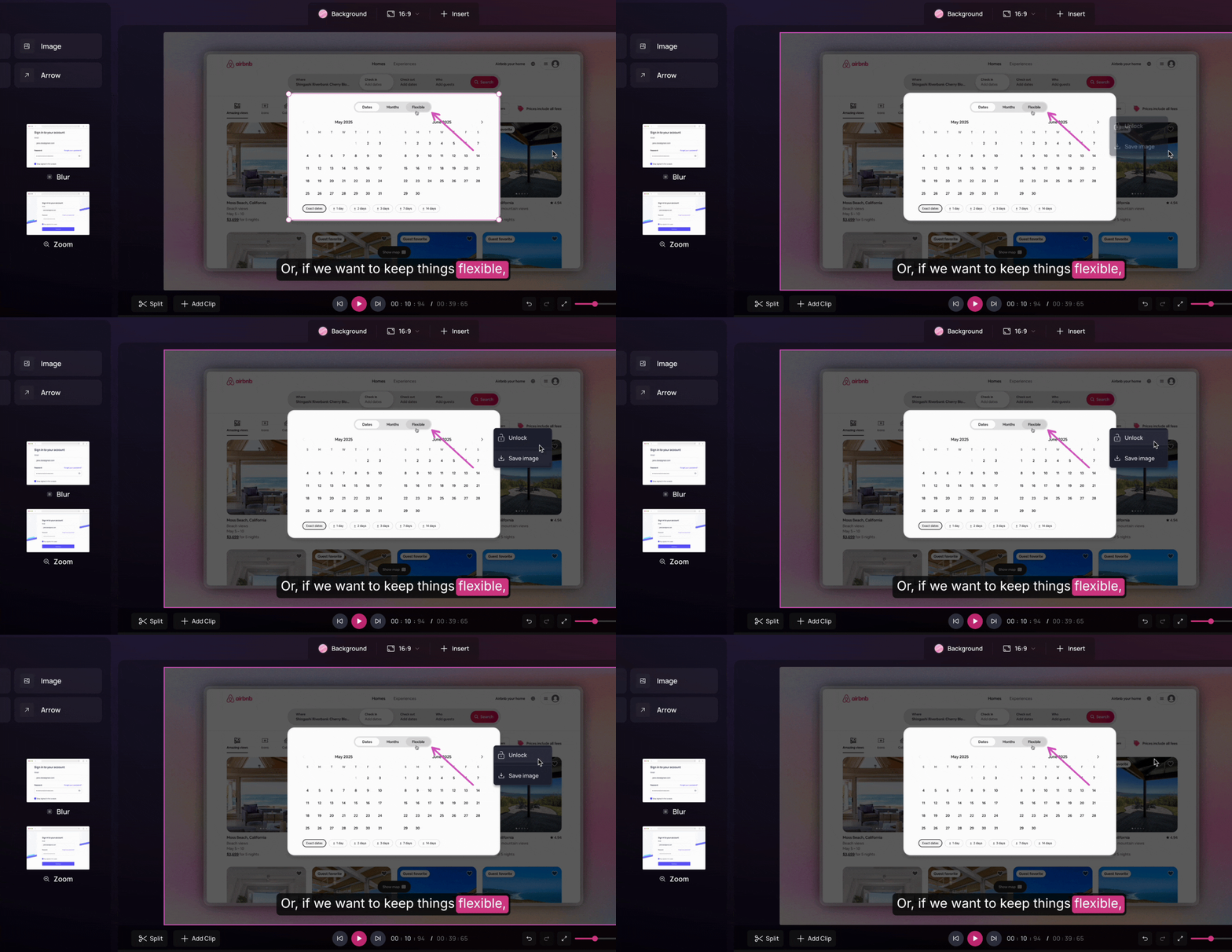
Locking a video clip keeps it fixed in place, preventing accidental movement or resizing while you work on other elements.
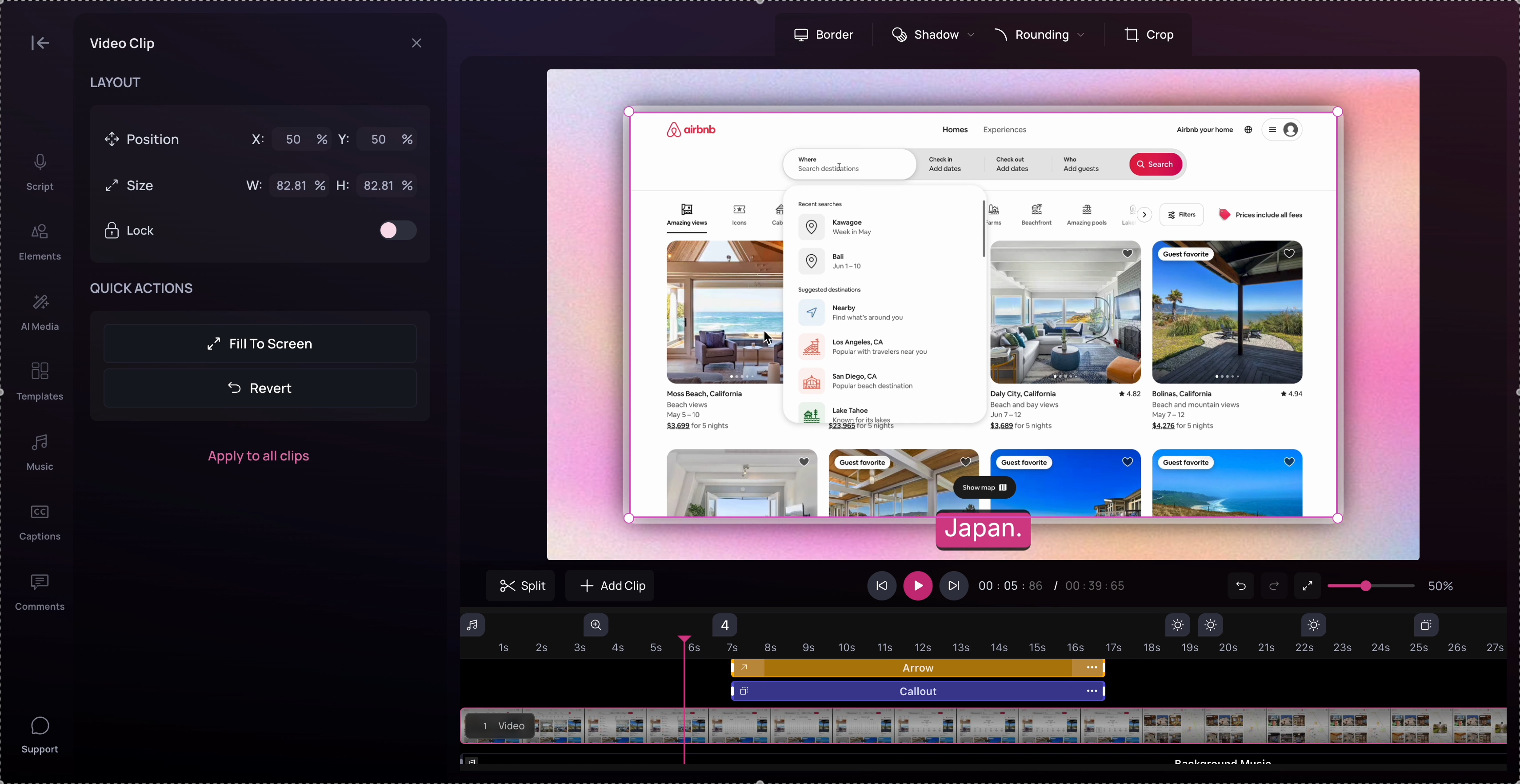
Lock the video clip
You can lock the video clip in two ways:
-
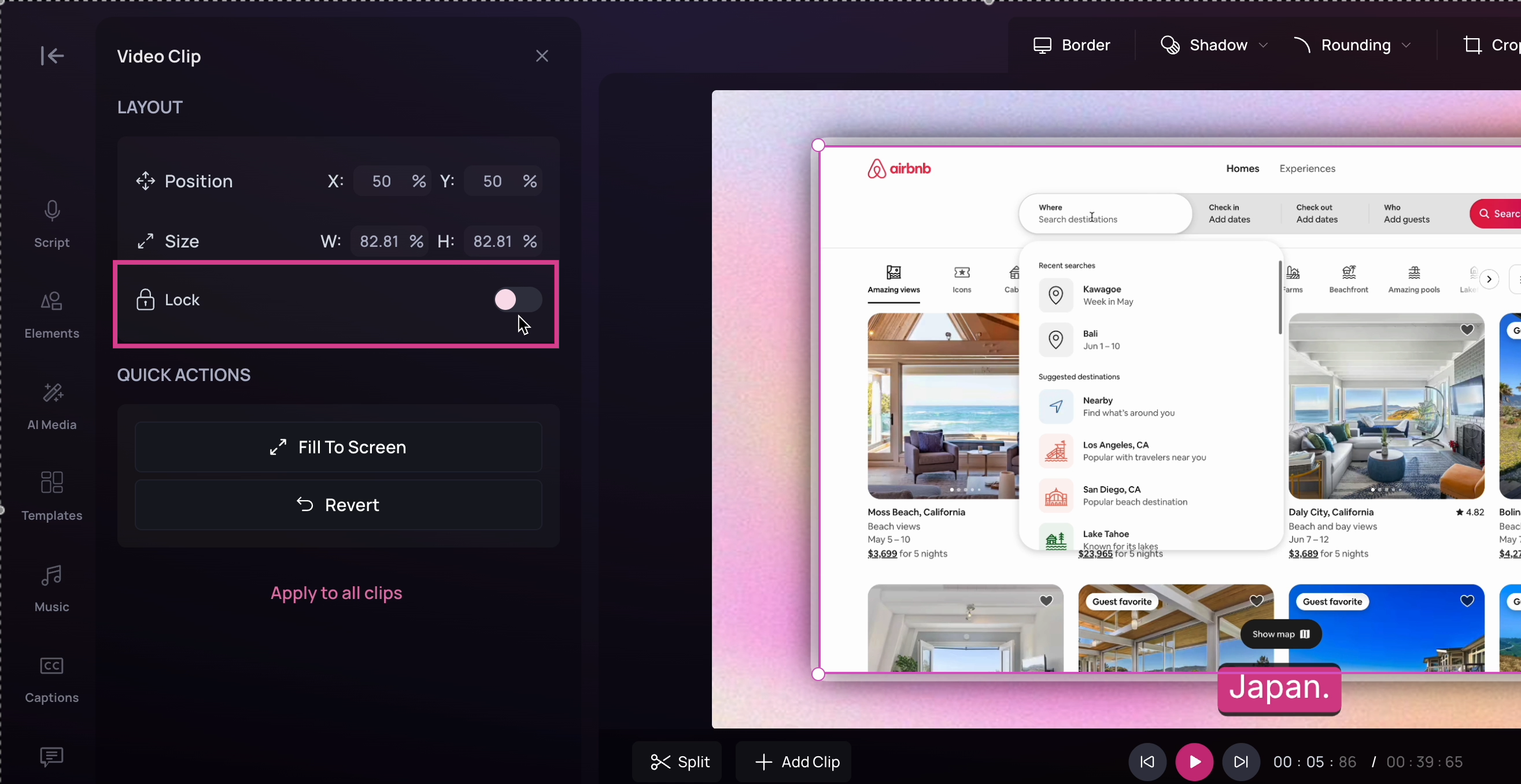
Use the Video Clip Customizer on the left and turn on the Lock toggle.
-
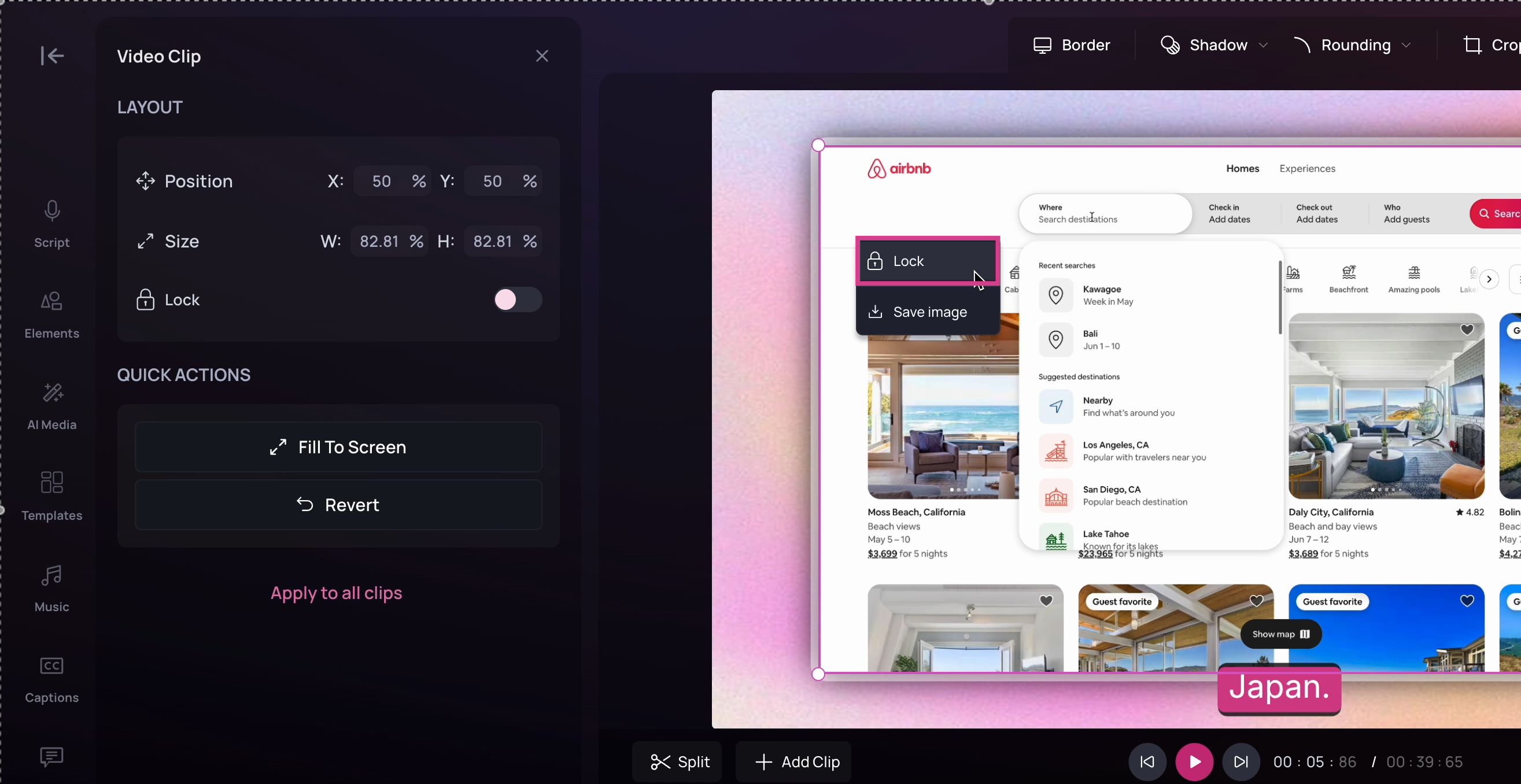
Right-click the video clip and choose Lock.
Edit other elements while the video is locked
Once locked, the video clip will no longer respond to clicks or drags. You can continue making changes to other elements on the canvas, like selecting, moving, or adjusting them, while the video behind stays fixed.