

Changing the pace
1
Click on the voice name
In the script panel, click on the voice name (e.g., “Sarah”) shown in the clip header. A dropdown will appear with your available voices.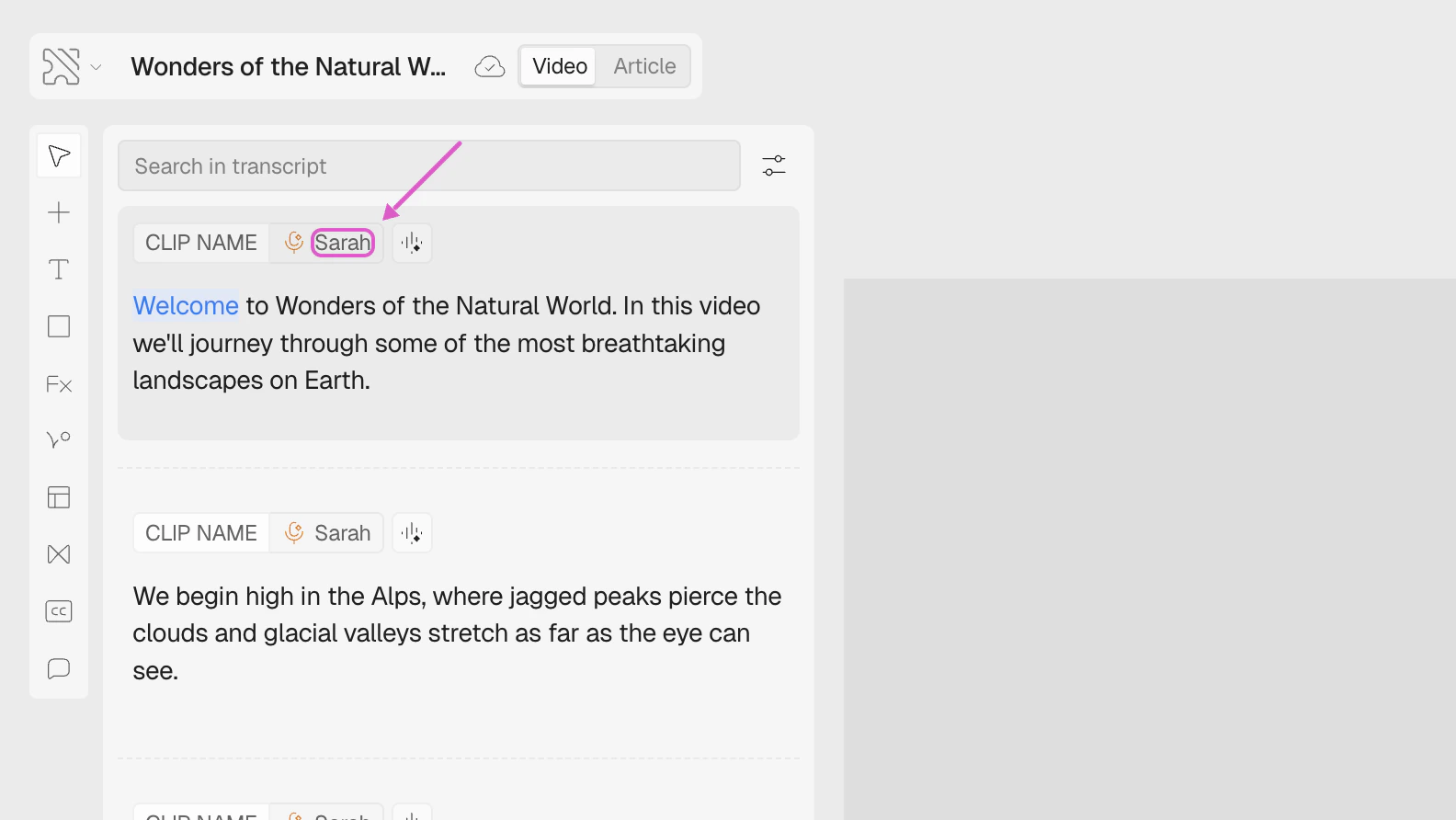
2
Open Browse voices
Click Browse voices at the bottom of the dropdown to open the full voice picker.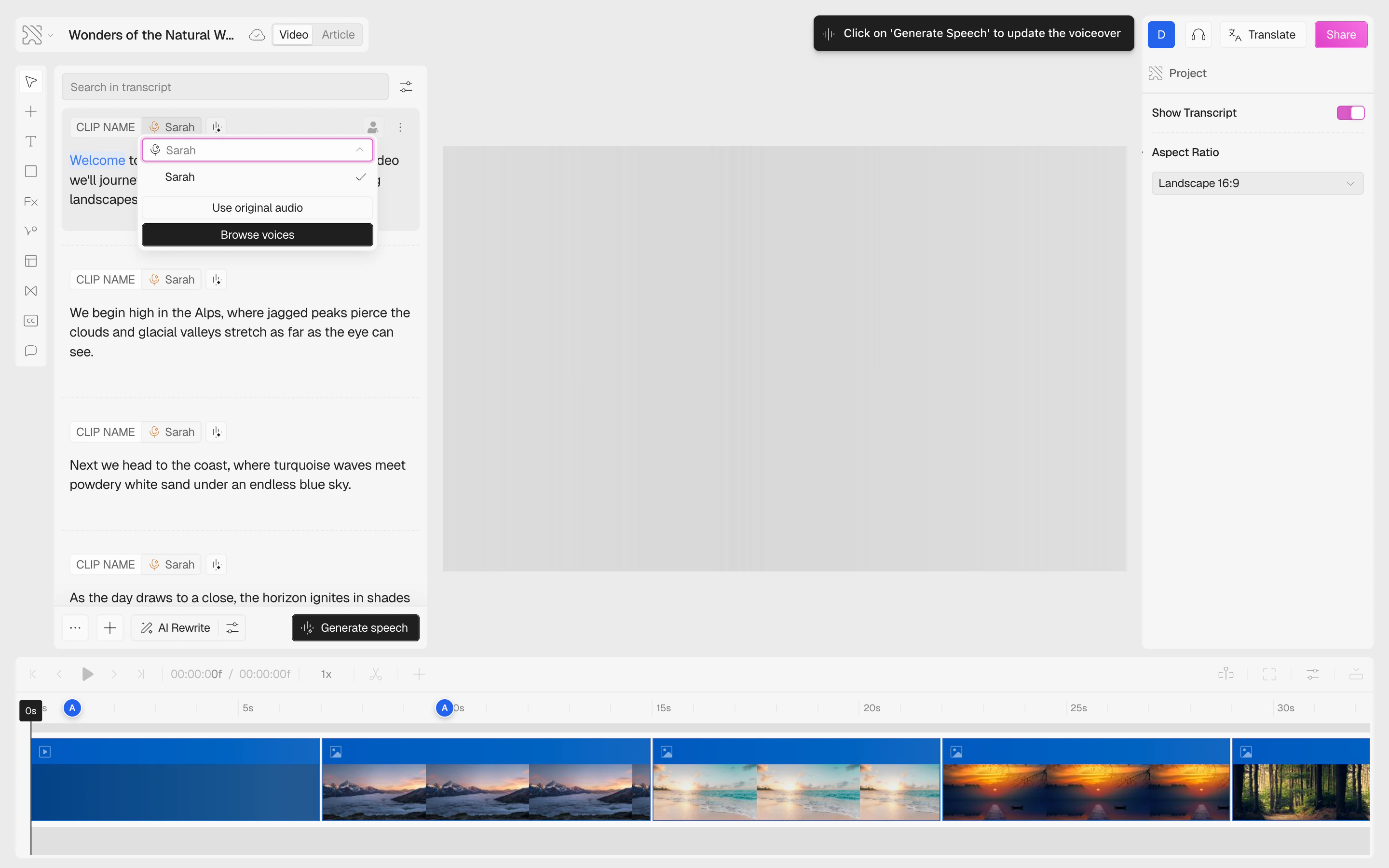
3
Open Advanced Settings
In the voice picker, click the filter icon (top-right of the search bar) to reveal the Advanced Settings panel. Here you’ll find the Pace slider.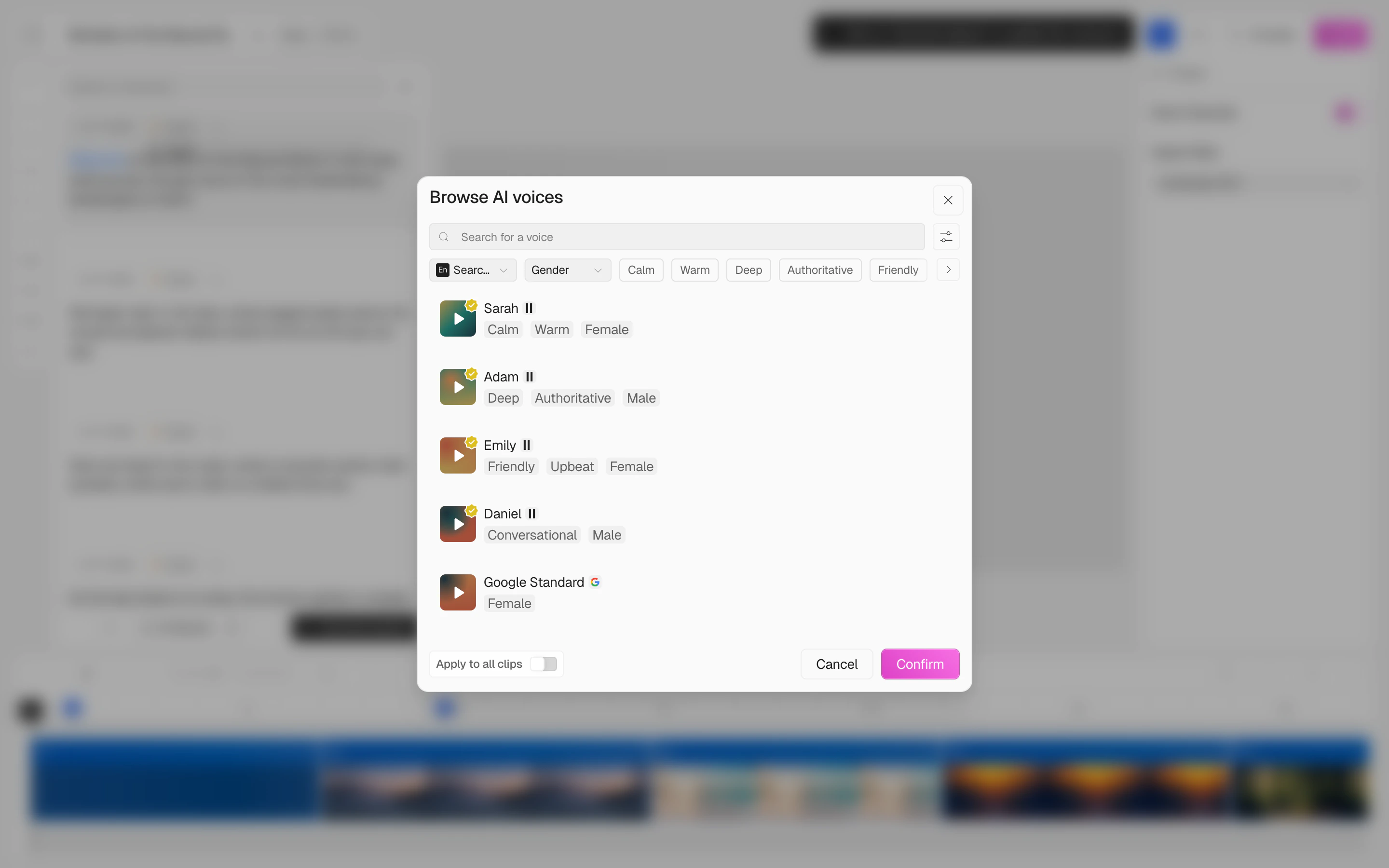
4
Adjust the pace
Drag the Pace slider to set the speaking speed. The available range is: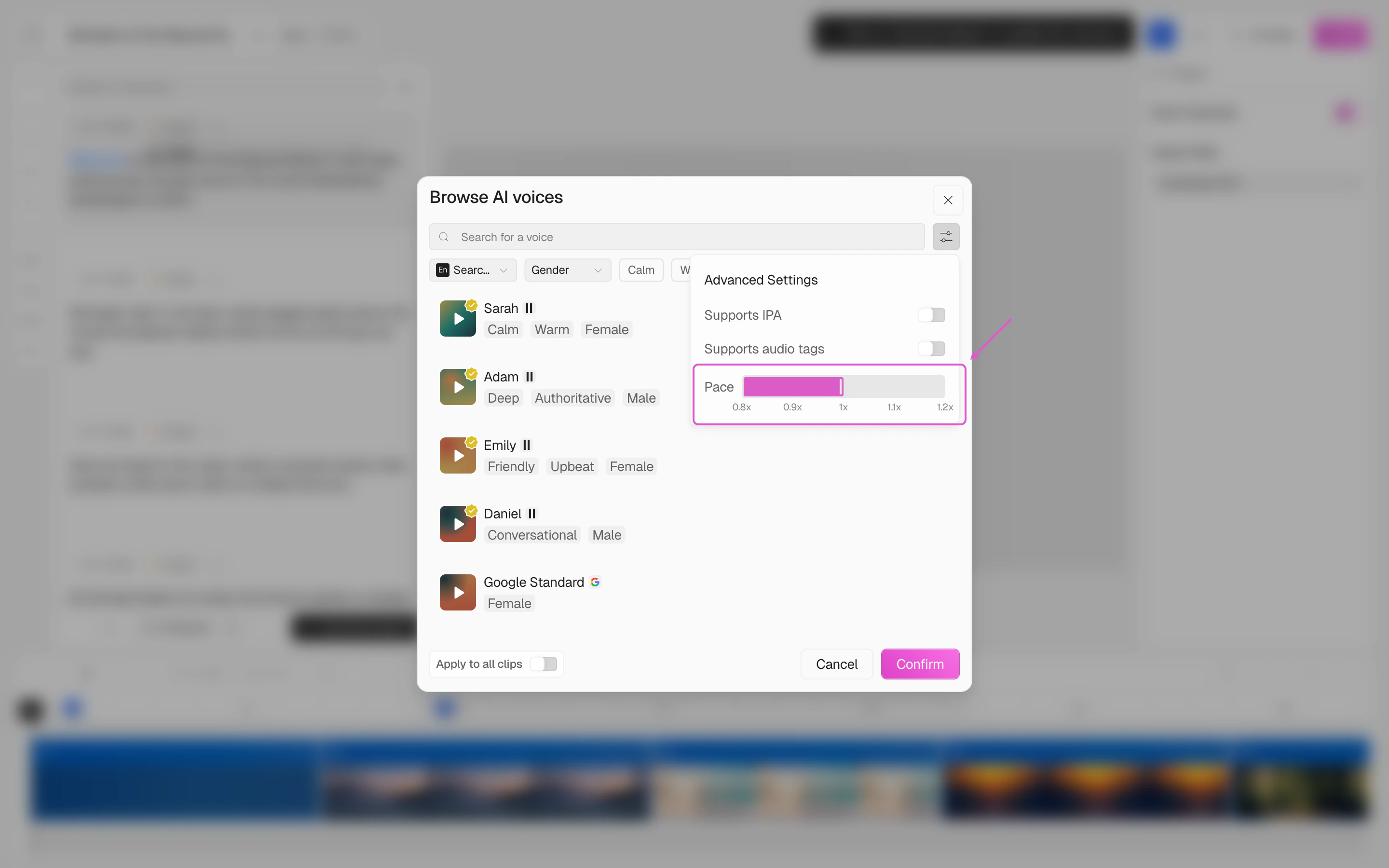
5
Apply to all clips (optional)
If you want the same pace across every clip in your video, toggle on Apply to all clips at the bottom-left of the voice picker.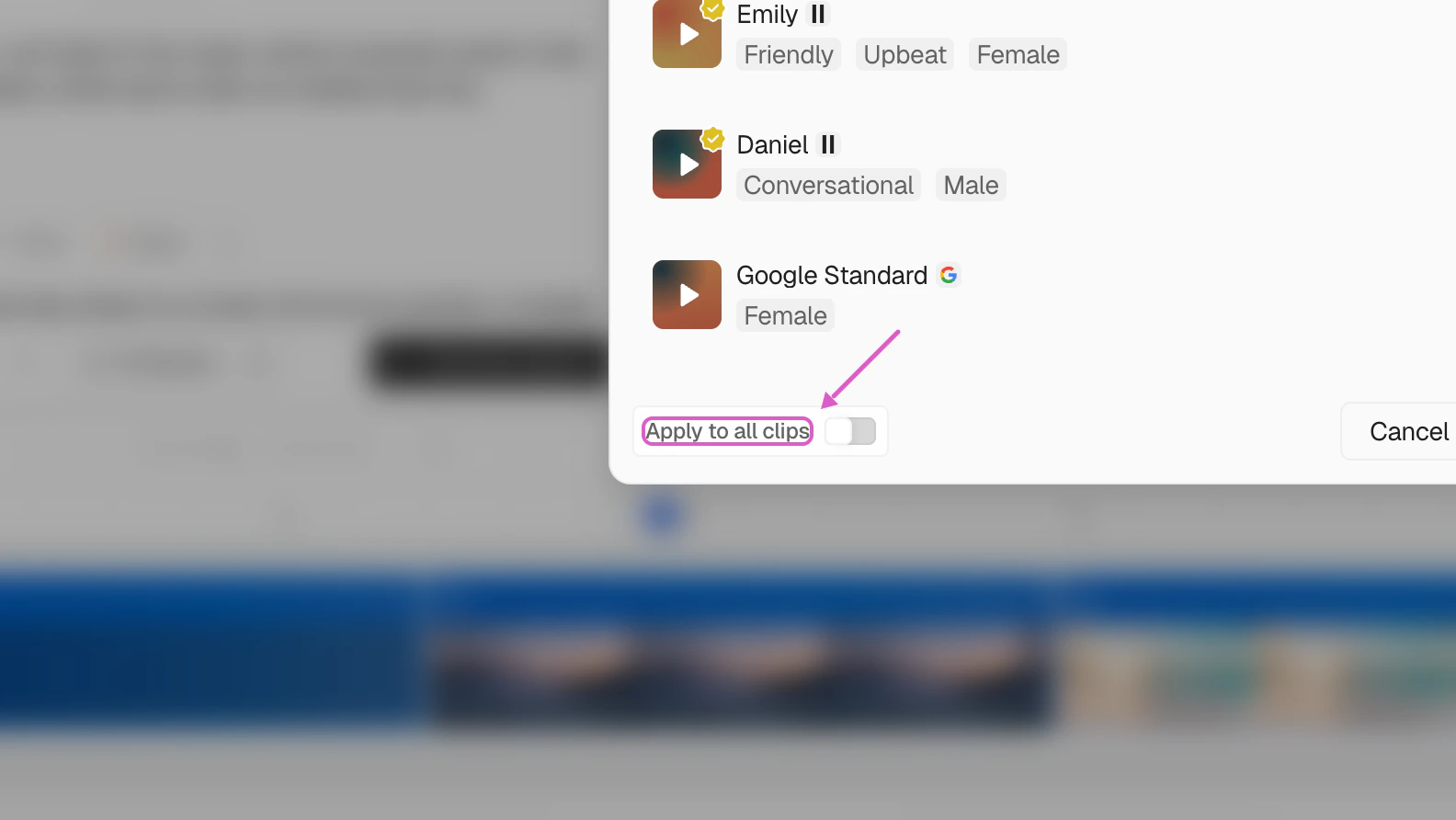
6
Confirm and generate
Click Confirm to save the pace change, then click Generate Speech to create the voiceover at the new pace.
How pace affects your video
When you change the voiceover pace:- Slower pace — the voiceover takes longer, so the video stretches to match. This gives viewers more time to absorb each frame.
- Faster pace — the voiceover is quicker, so the video speeds up. This works well for high-level overviews or energetic content.
Advanced Settings
The Advanced Settings panel also lets you filter voices by:- Supports IPA — voices that can pronounce words using IPA phonetic notation (English only)
- Supports audio tags — voices that support emotional or stylistic audio tags