

Opening Prompt Hub
Click the sliders icon next to the AI Rewrite button at the bottom of the script panel. This opens the Prompt hub: video script modal.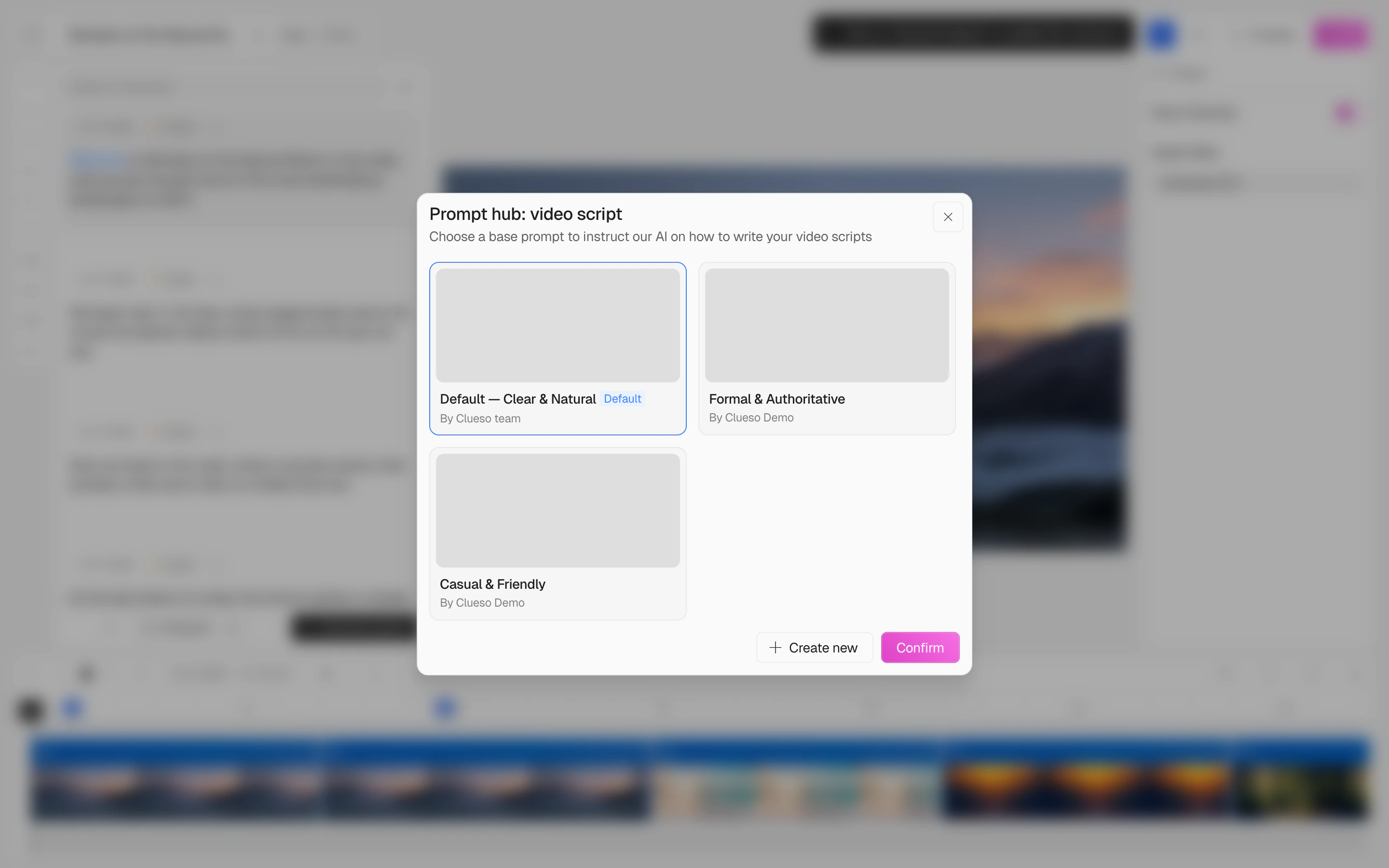
Using Prompt Hub
1
View available prompts
When you open Prompt Hub, you’ll see all available prompts displayed as cards. The currently selected prompt has a blue border. Clueso provides a default prompt (marked with a “Default” badge) that works well for most use cases.
2
Select a prompt
Click on any prompt card to select it, then click Confirm to apply. The AI will now follow that prompt’s instructions when rewriting your video script.
3
Create a new prompt
Click + Create new to open the prompt editor. Fill in: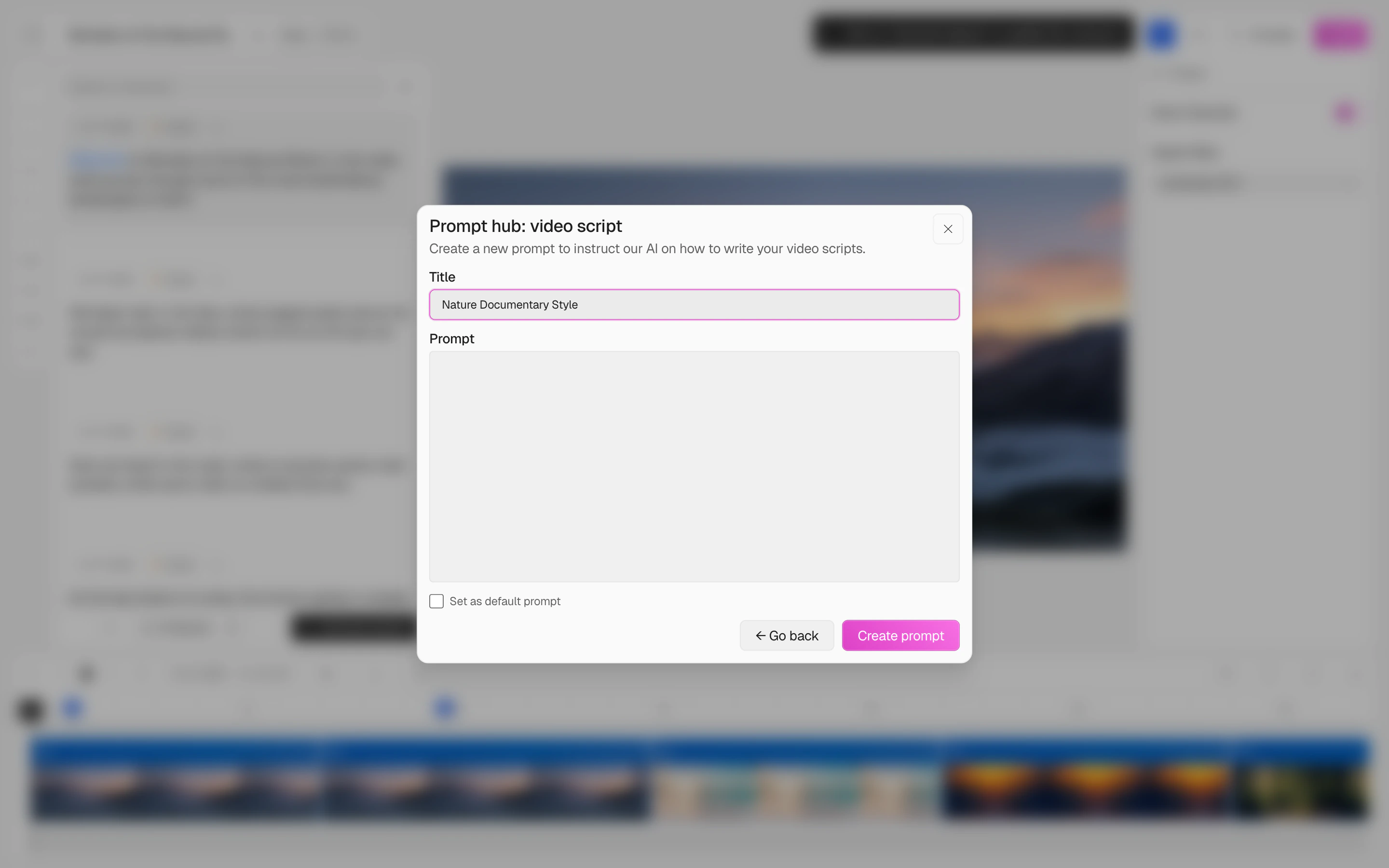
- Title — a name to identify when this prompt should be used
- Prompt — the instructions that guide the AI (tone, structure, formatting rules, etc.)
- Set as default prompt (optional) — makes this the default for all future video rewrites
Managing Prompts
- Edit — click on a custom prompt card to modify its title or instructions. Pre-made prompts from Clueso are read-only.
- Delete — remove a custom prompt you no longer need
- Switch — change the active prompt at any time by opening Prompt Hub and selecting a different card
Pre-made prompts (created by the Clueso team) cannot be edited or deleted, but you can always create your own to override them.
Best Practices for Writing Prompts
- Be specific about what you want the script to sound like — describe the style, tone, and narrative approach clearly
- Write prompts the way you’d explain something to a teammate — simple, natural language works better than overly formal phrasing
- Focus on consistent rules — Prompt Hub works best for instructions you want reused across multiple videos
- Avoid mixing too many goals into one prompt — if you need different behaviors, create separate prompts for each use case