

This guide shows you how to set a default voice for each language. Once selected, that voice will be used automatically whenever you create a new video in that language, saving you the step of choosing it each time.
1
Go to Settings
From the homepage, click Settings in the left menu.
2
Select Video defaults
In the settings sidebar, select Video defaults.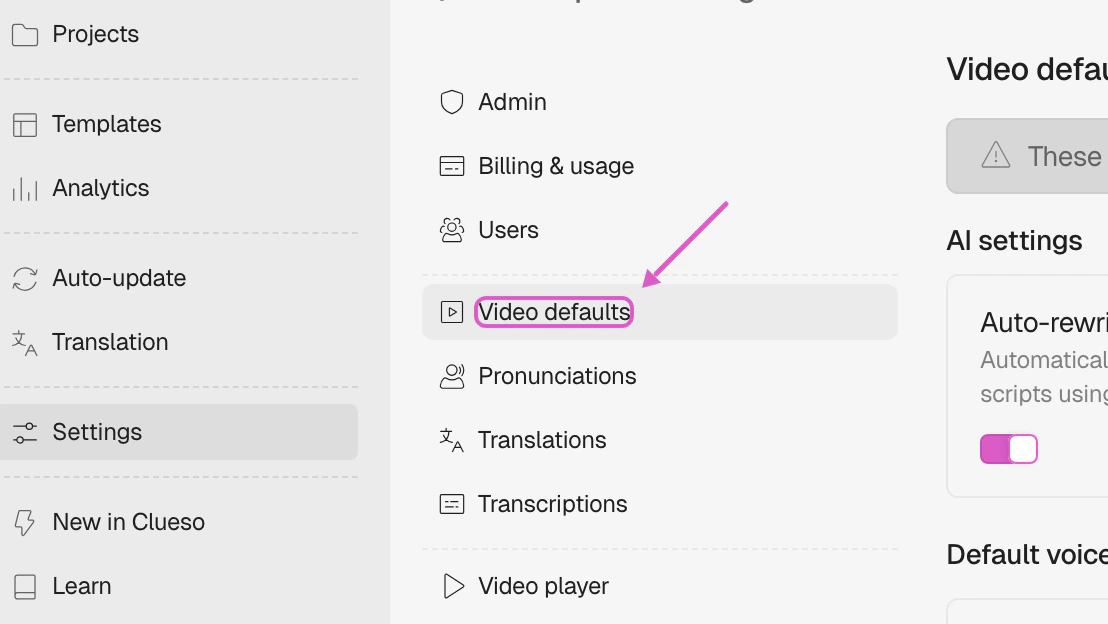
3
Add a default voice
Click Add voice to add a default voice.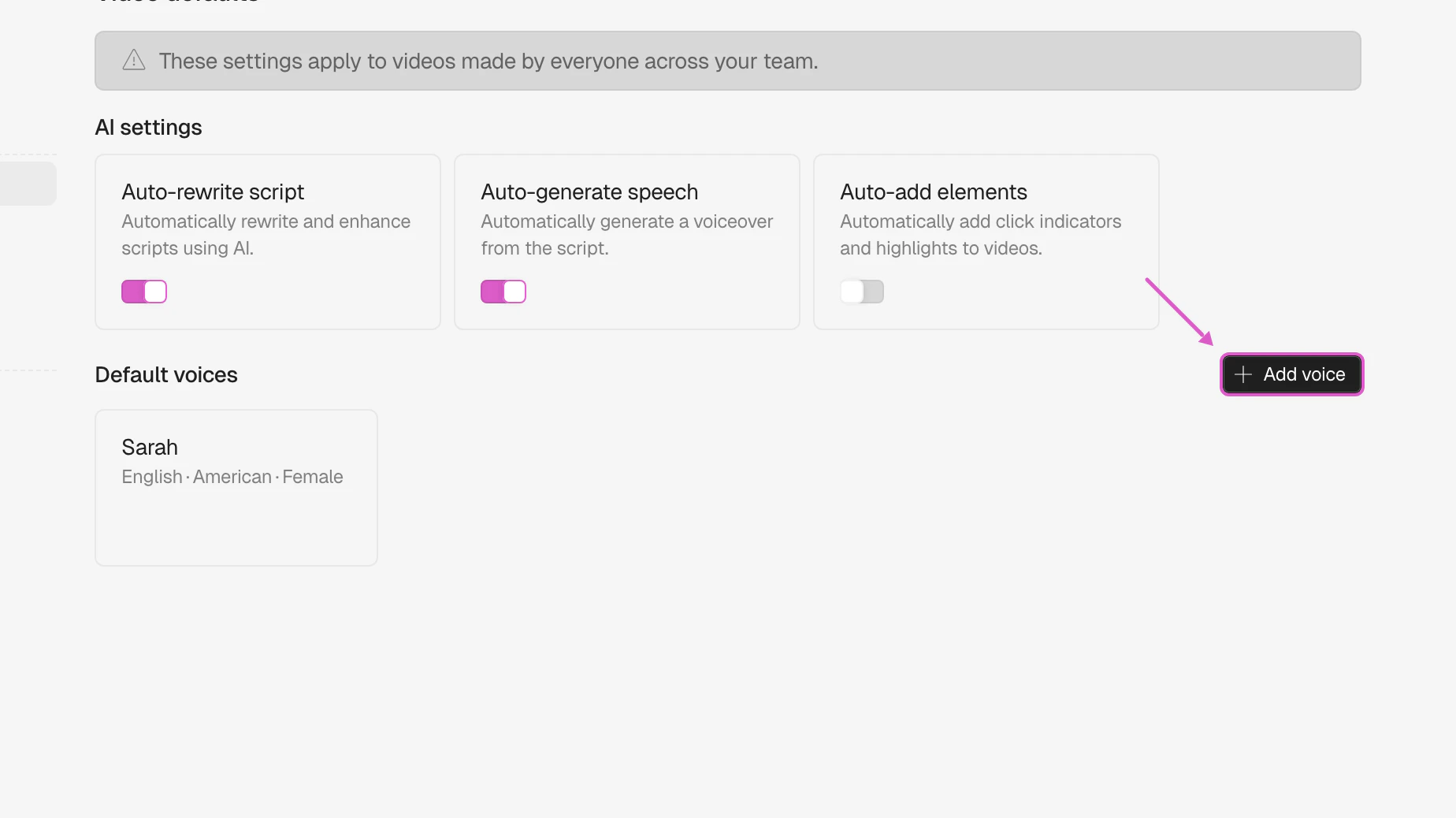
4
Choose a language and voice
Choose a language to see the available voiceovers.
Then browse the list and use filters like Tone, Gender, and Accent to find a voice that fits your brand.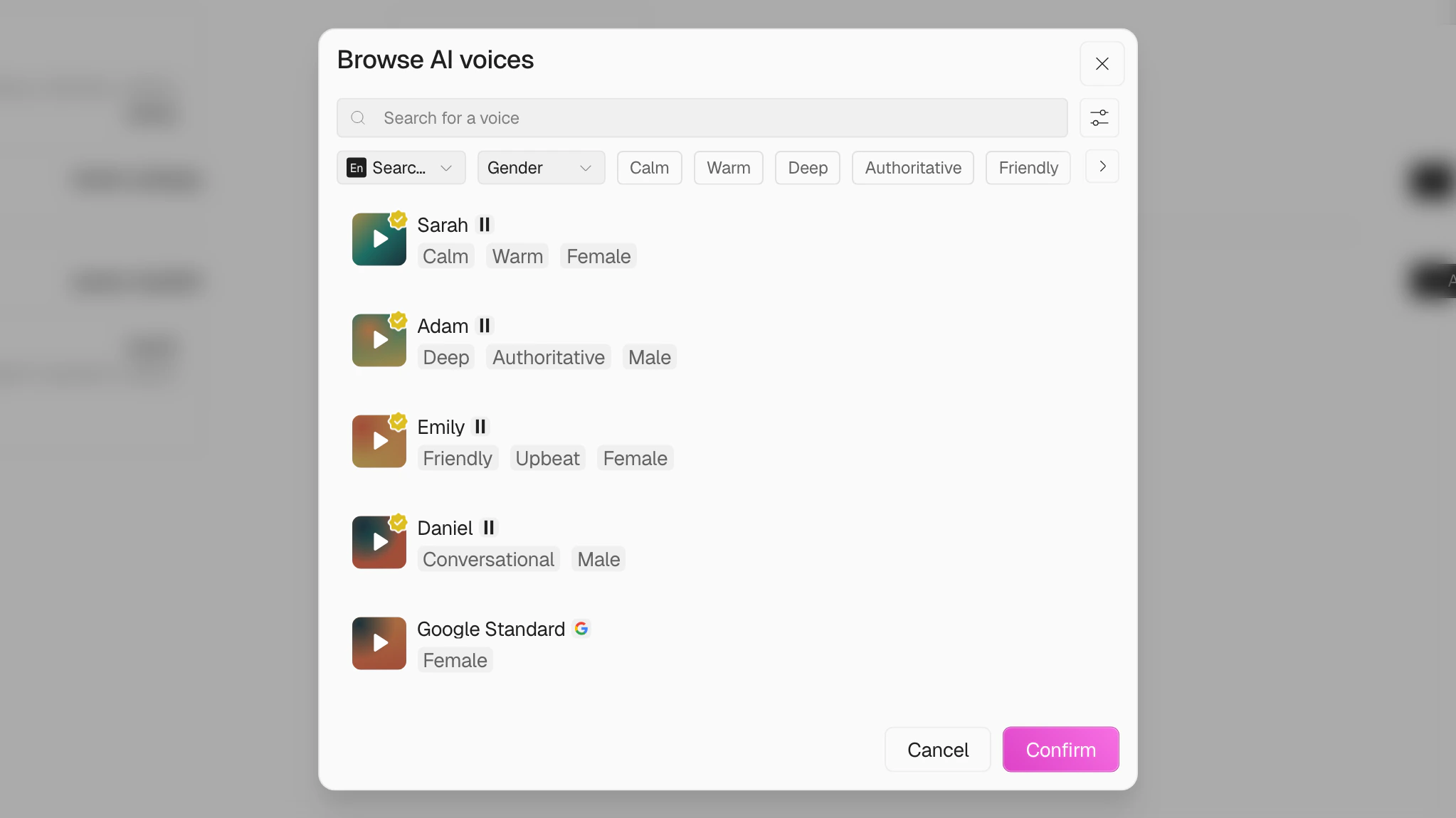
Then browse the list and use filters like Tone, Gender, and Accent to find a voice that fits your brand.
5
Preview and confirm your choice
Click the play icon next to a voice to preview it. Once you’ve decided, select the voice and click Confirm to save.
6
Repeat for other languages [optional]
You can repeat the same steps to assign different default voices for other languages.