

1
Click outside the canvas
Click anywhere outside the canvas area to deselect everything. The right panel updates to show project-level settings.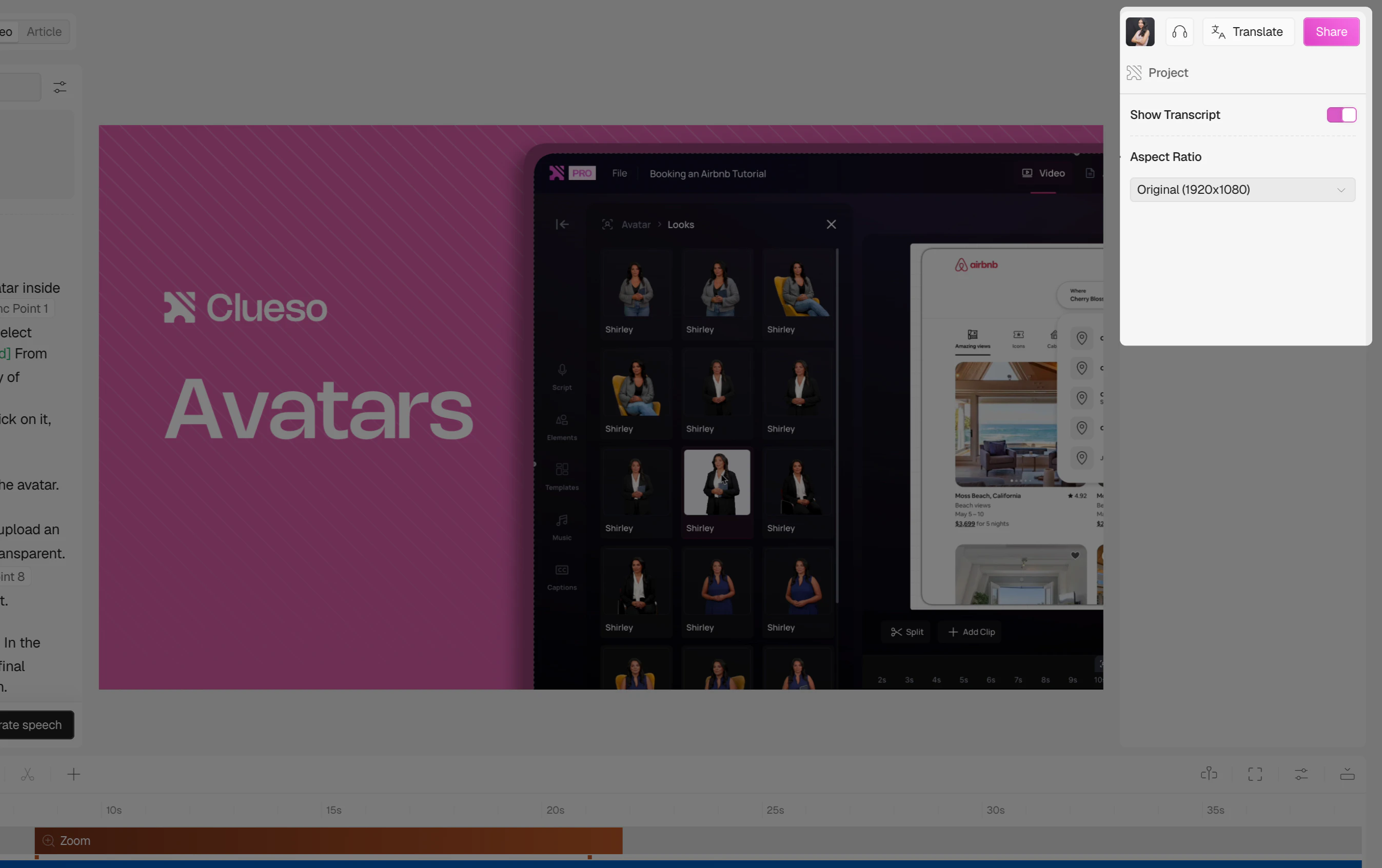
2
Open the Aspect Ratio dropdown
In the right panel, click the Aspect Ratio dropdown.The first option shows your original recording resolution. Select this to keep the video exactly as recorded.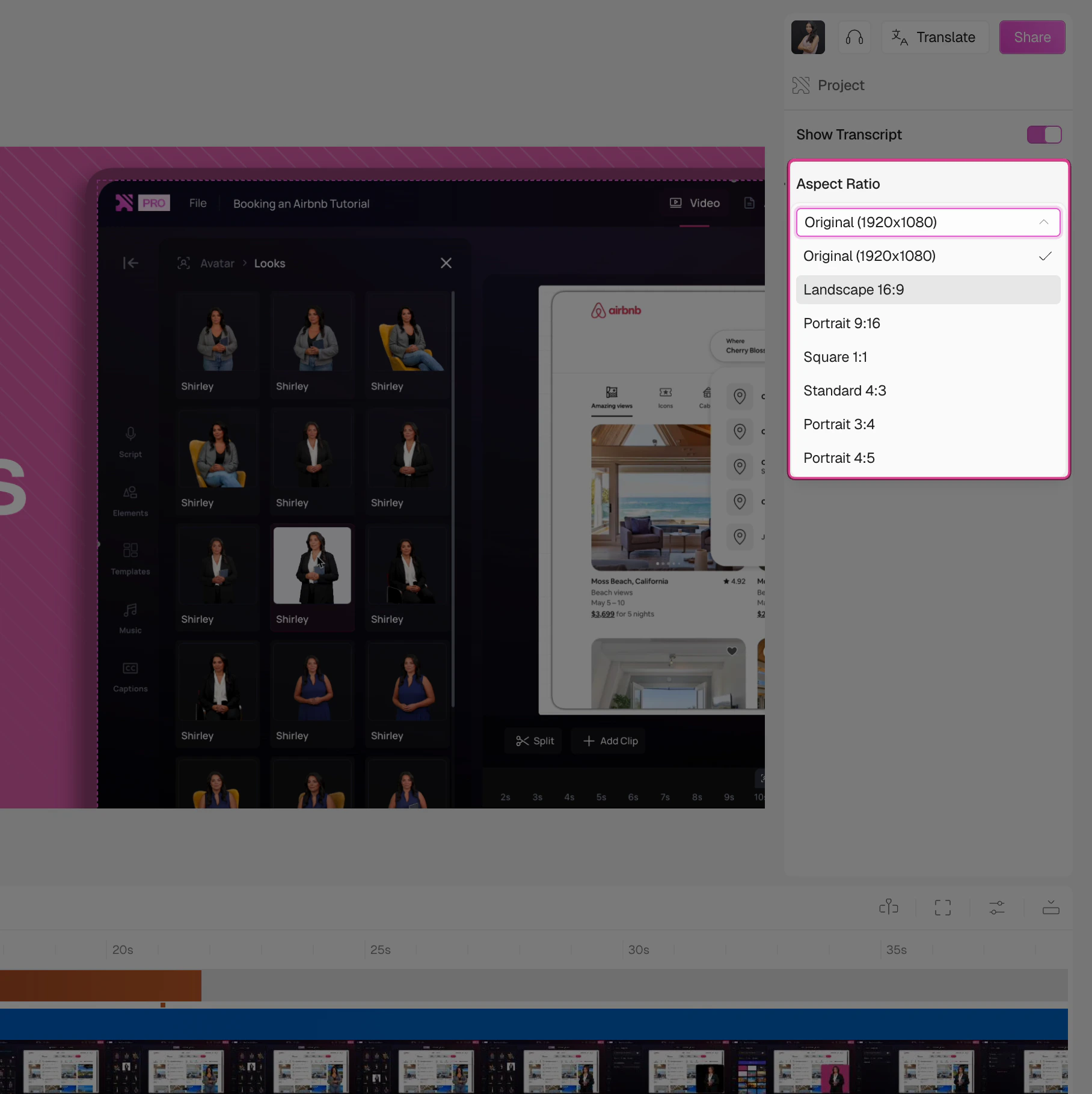
3
Choose your ratio
Select the aspect ratio that best fits your use case.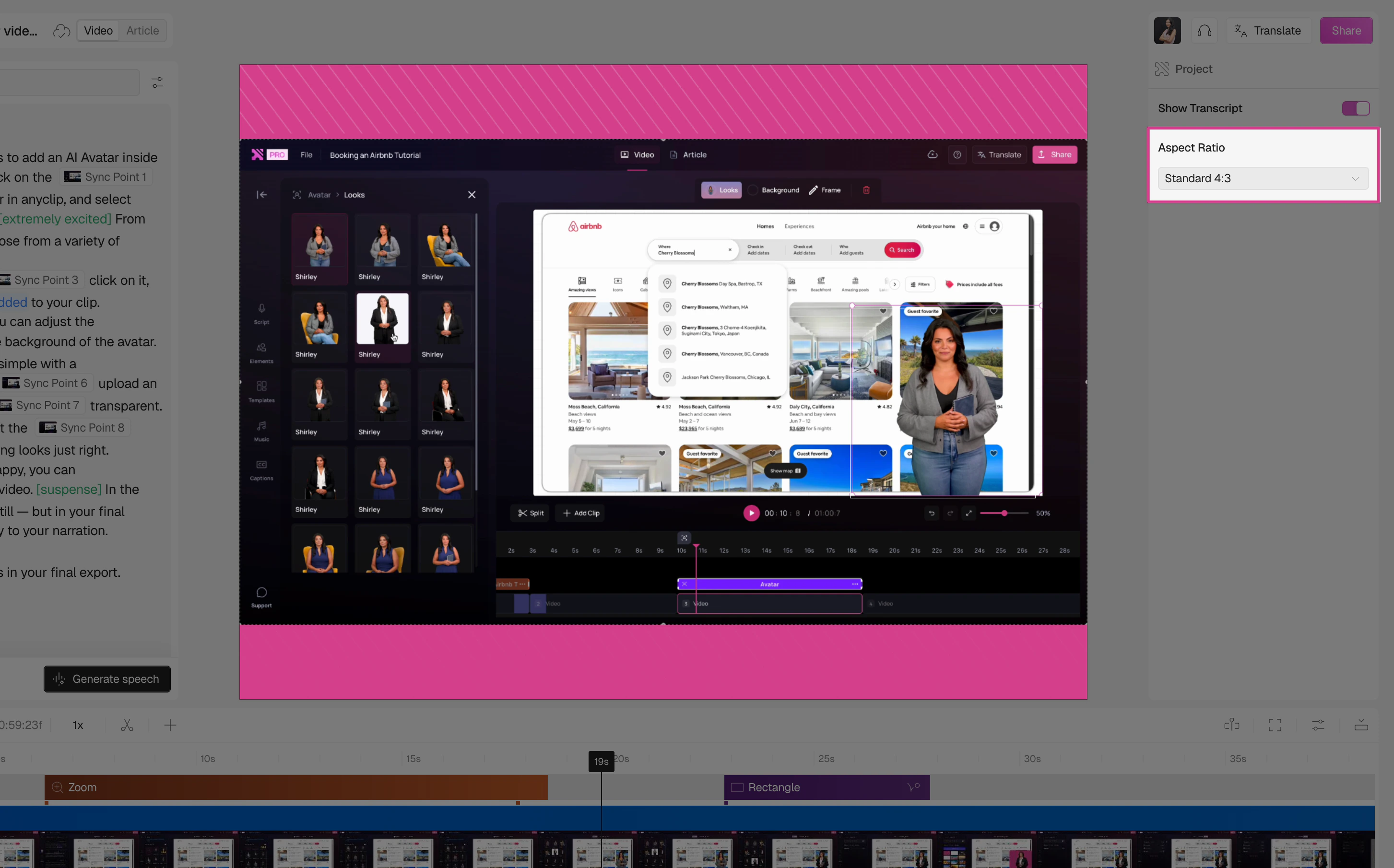
The canvas updates immediately to reflect your selection.
FAQs
Does changing the aspect ratio affect all clips?
Does changing the aspect ratio affect all clips?
Yes, the aspect ratio is a project-level setting, so it applies to the entire video.
Can I change the aspect ratio after recording?
Can I change the aspect ratio after recording?
Yes, you can change it at any point during editing. The canvas will reformat automatically.