1
Upload the video
Open the media panel from the left panel and click Upload, in either the In this project or Workspace tab.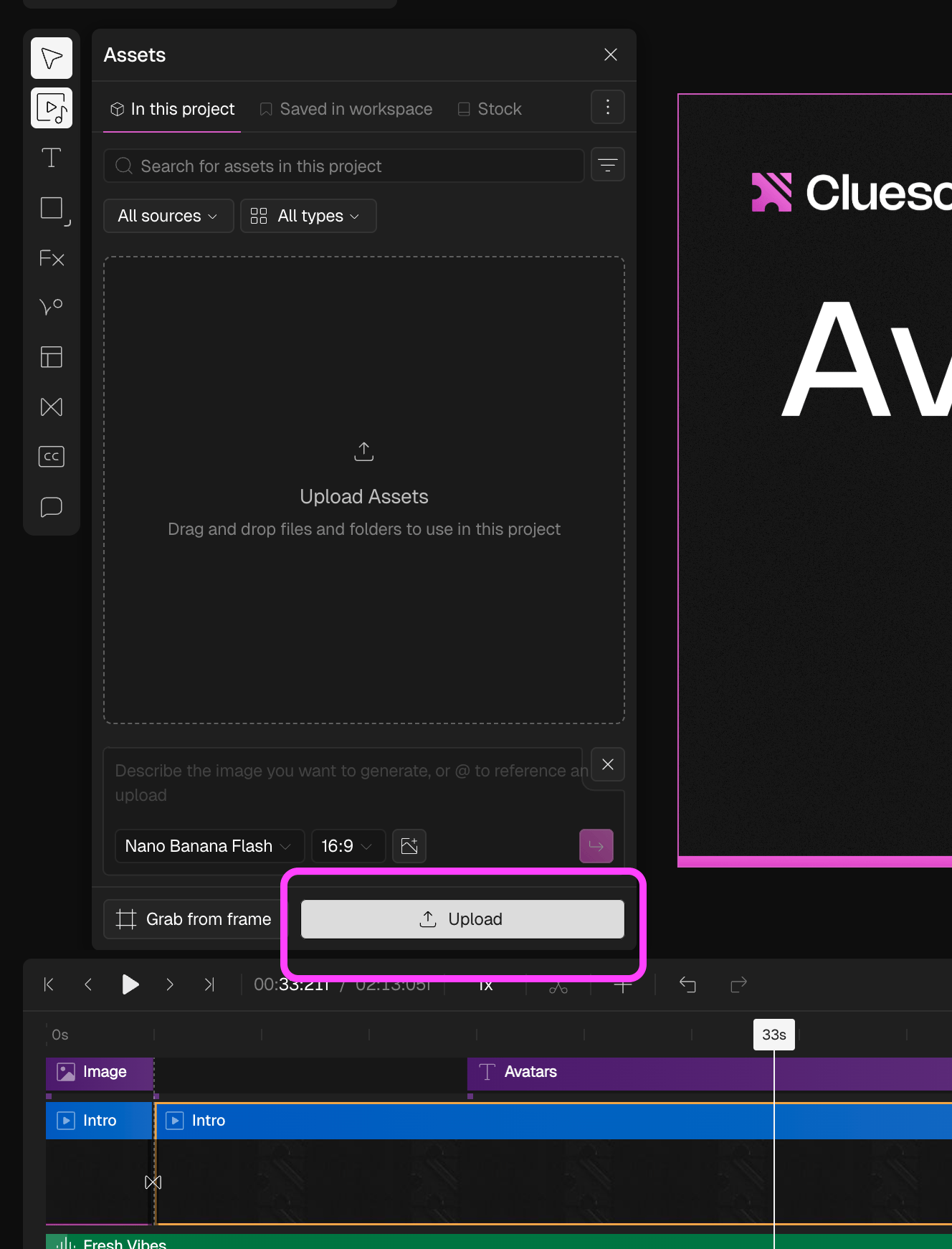
2
Add it as an element
To add it to your canvas, click the video and choose Video as element from the three options. It lands on your canvas as an overlay.\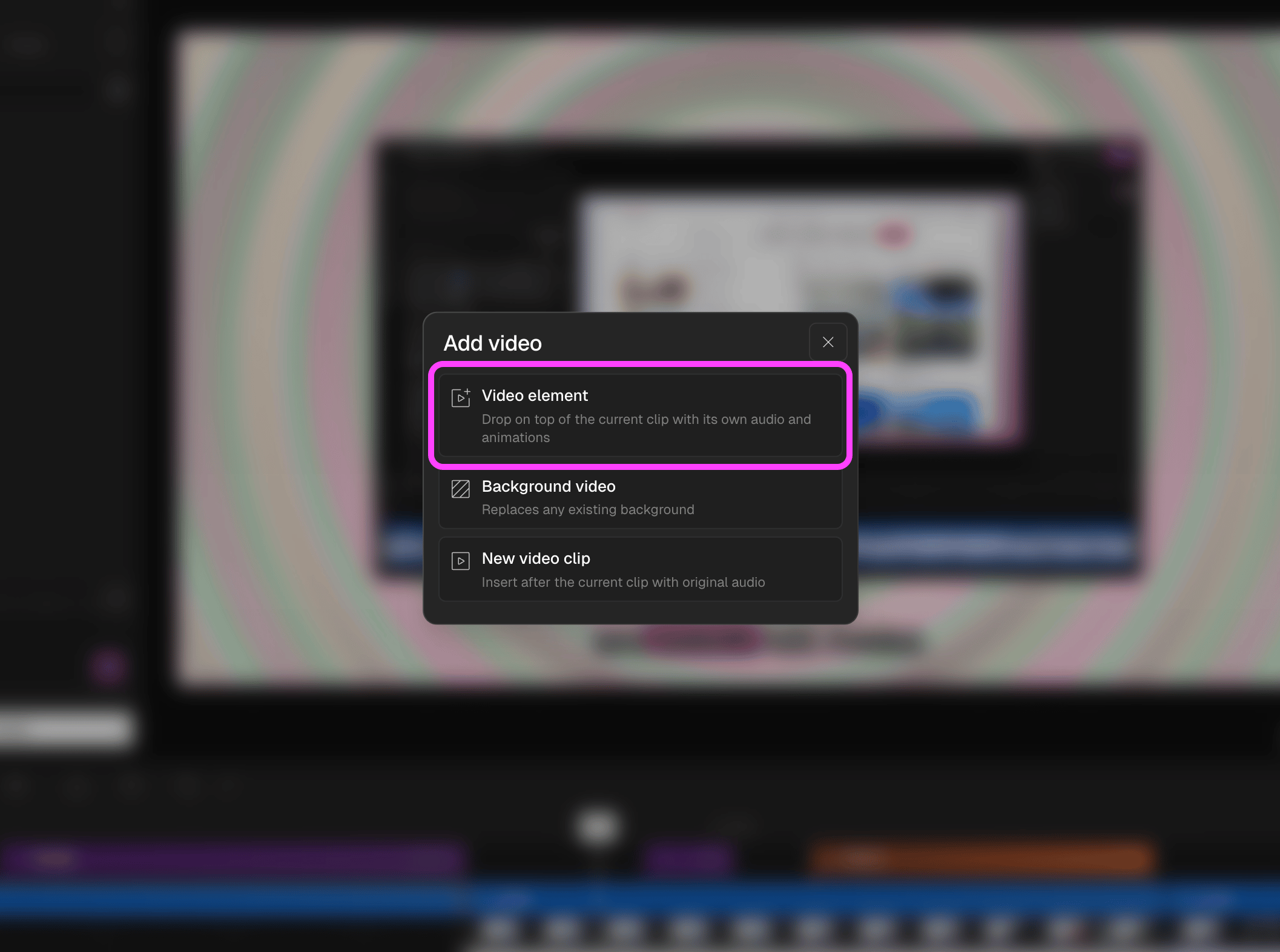
3
Position and resize
Drag the video element to where you want it on the canvas and use the corner handles to resize it.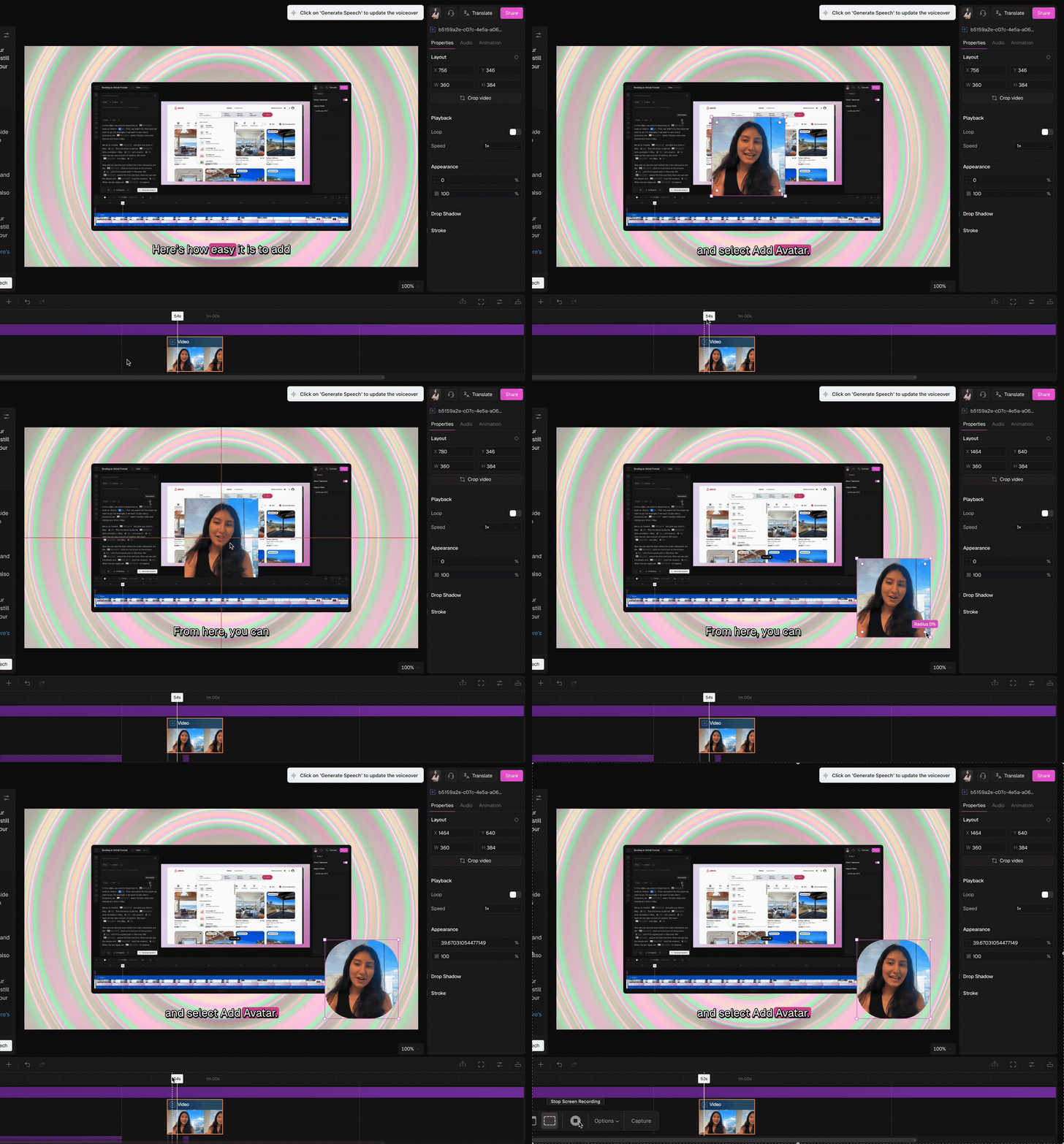
4
Style it from the right panel
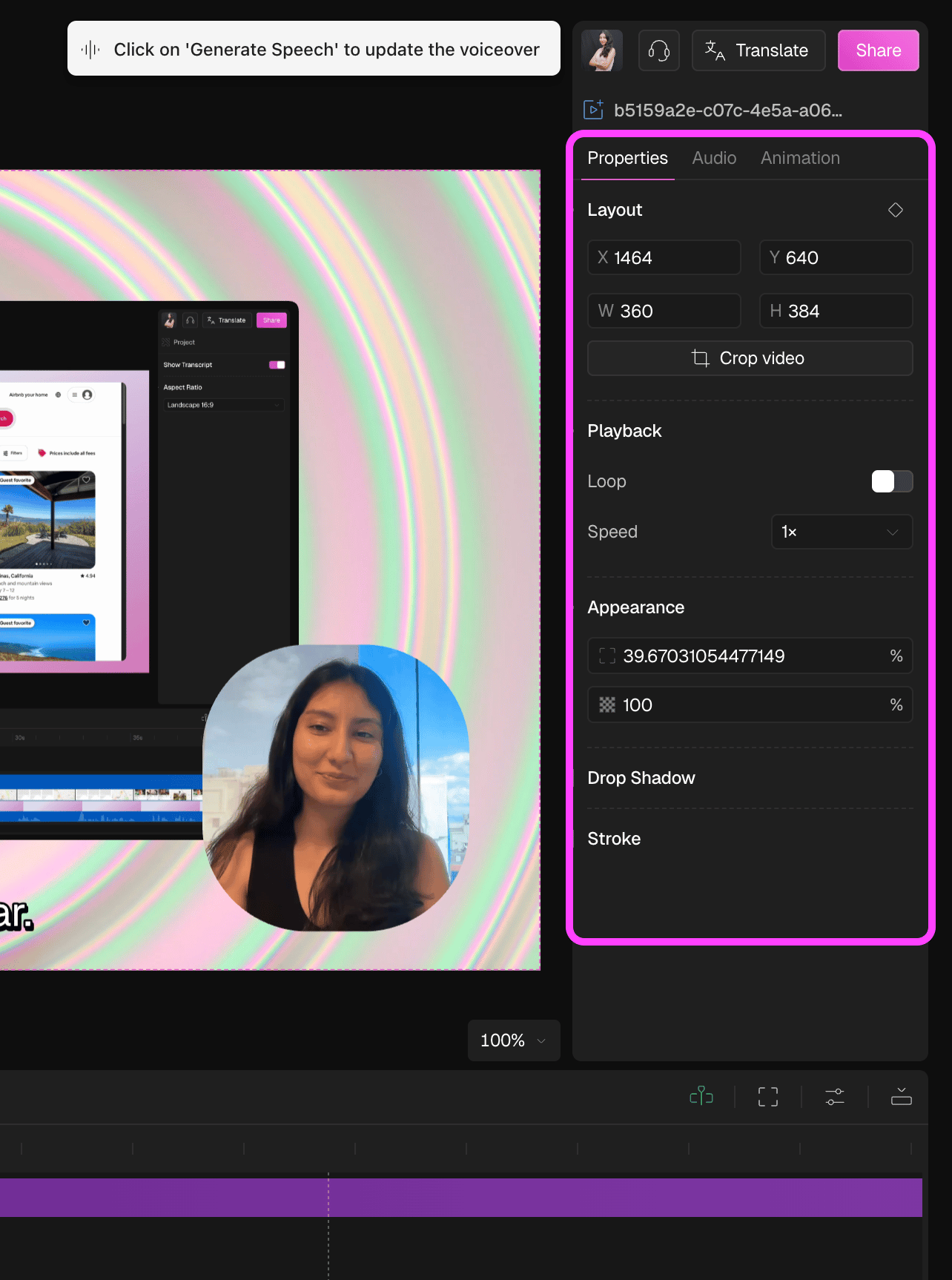
Select the element to open the right panel. It has three tabs: Properties for border, radius, and opacity, Audio for volume and Animation for entry and exit effects.