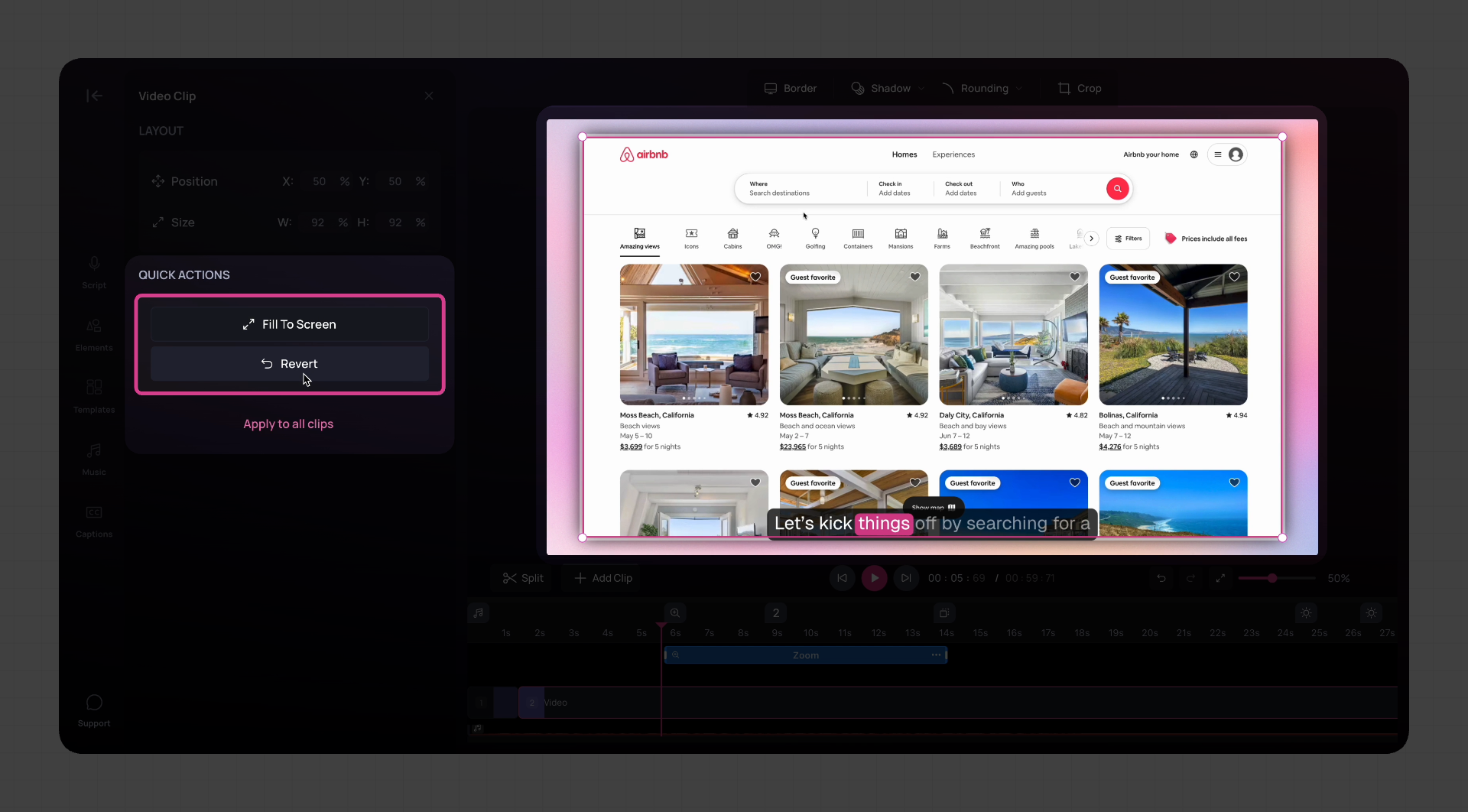
The video clip panel gives you more control over how video clips appear on your canvas. You can freely adjust the size and position of any clip, use exact values for precision, and apply layout changes consistently across clips.
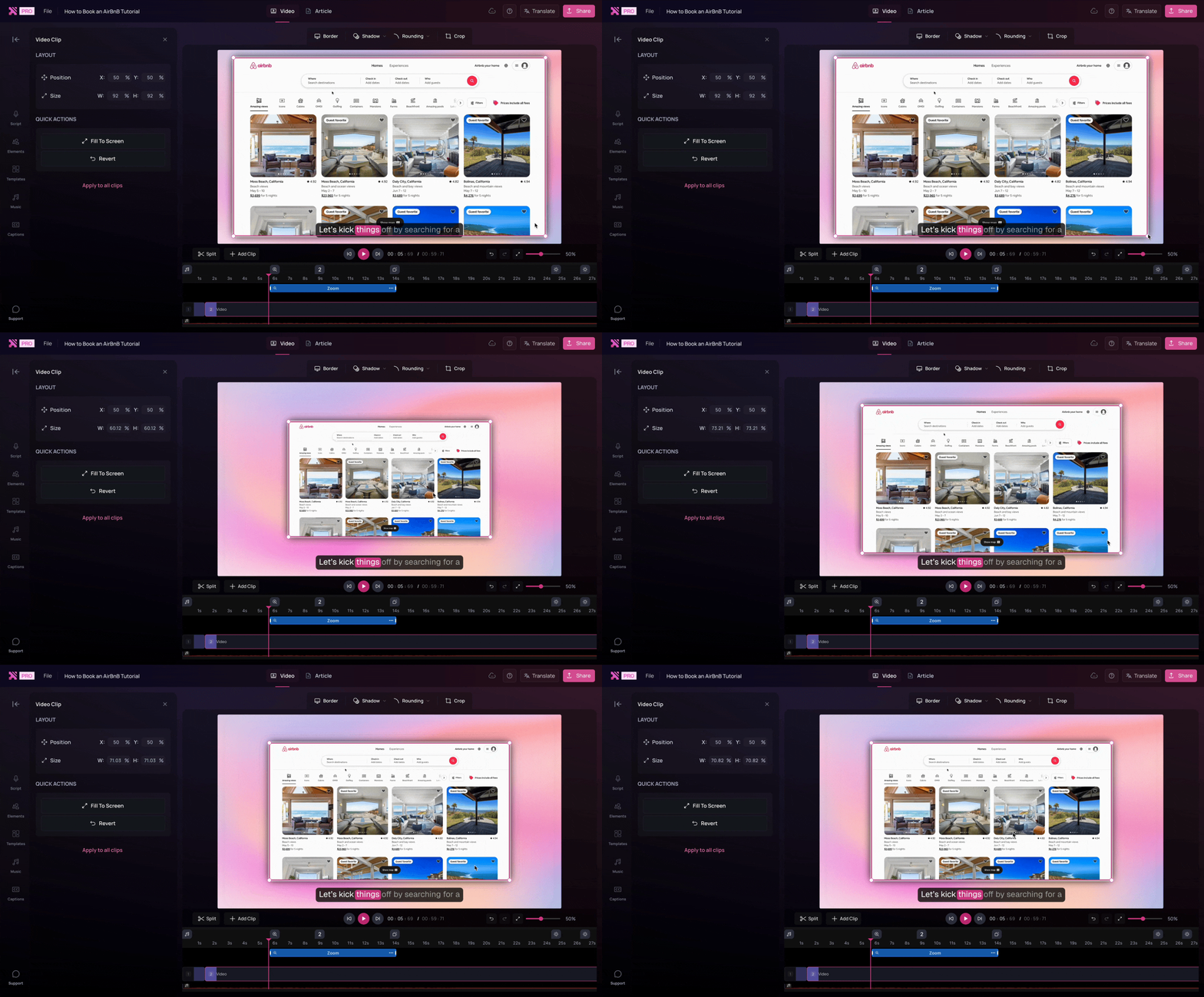
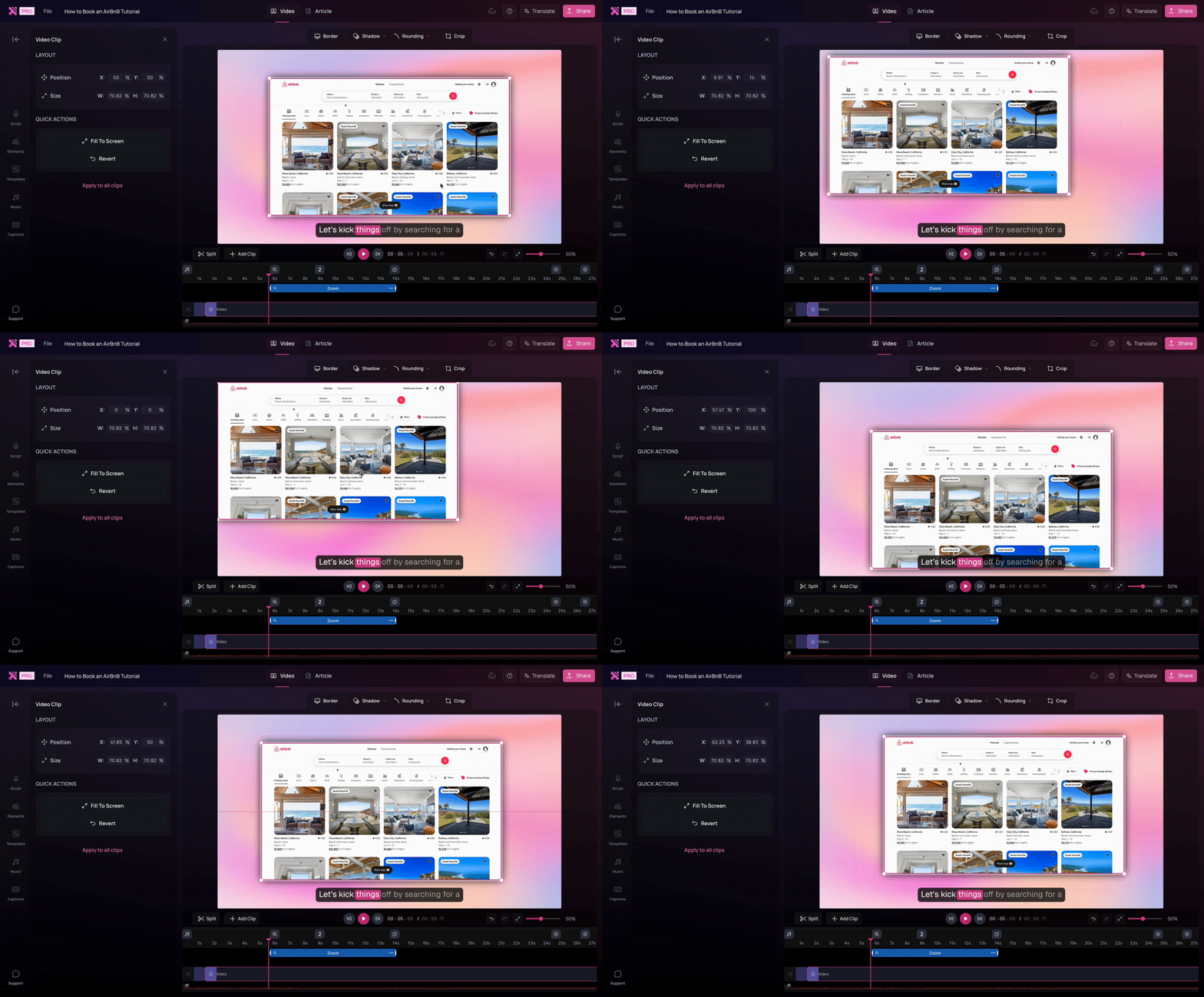
Use the Video Clip Panel
With the video clip selected, look to the left to find the Video Clip Panel.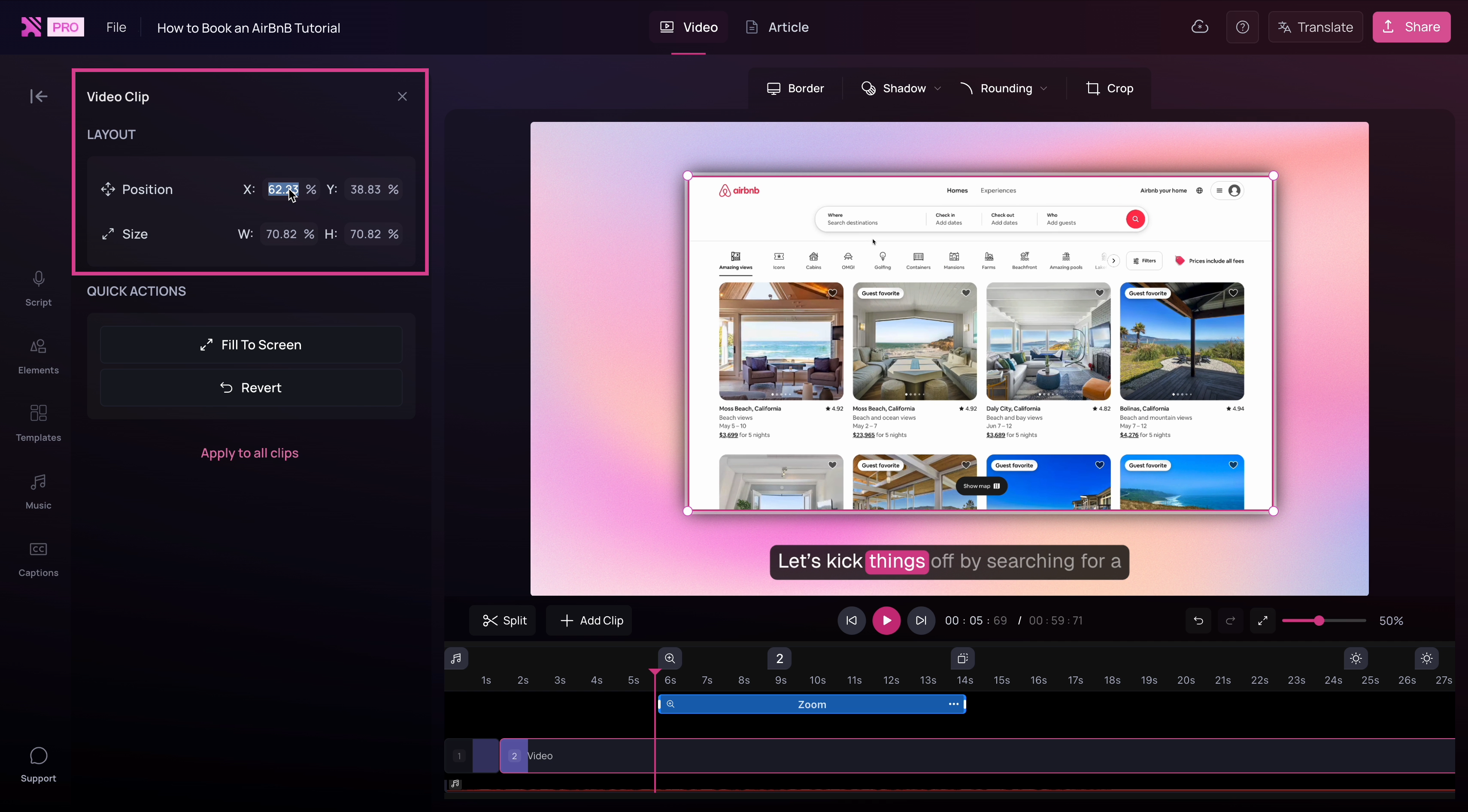
-
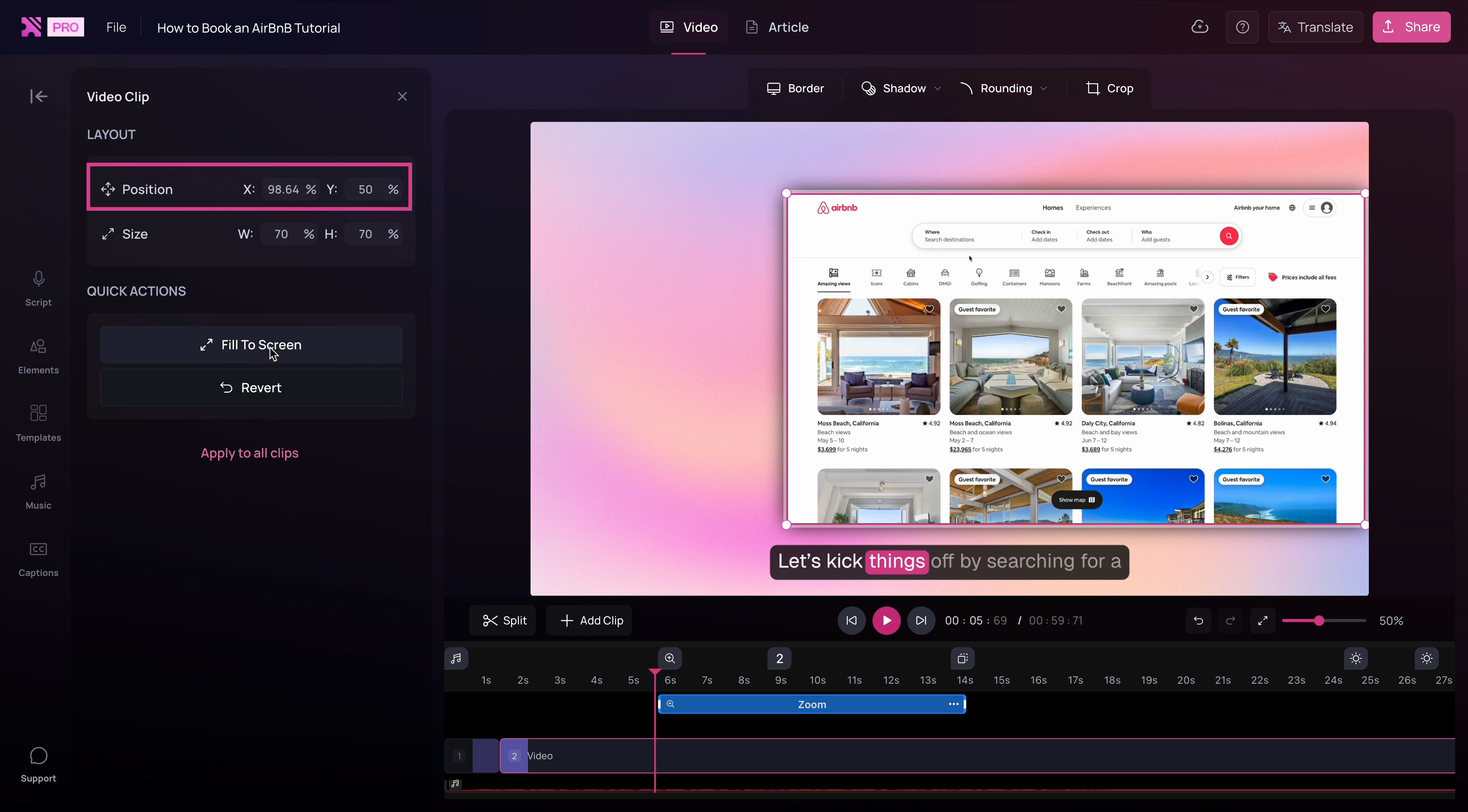
Enter specific values in the Position X and Position Y fields to align the clip precisely.
-
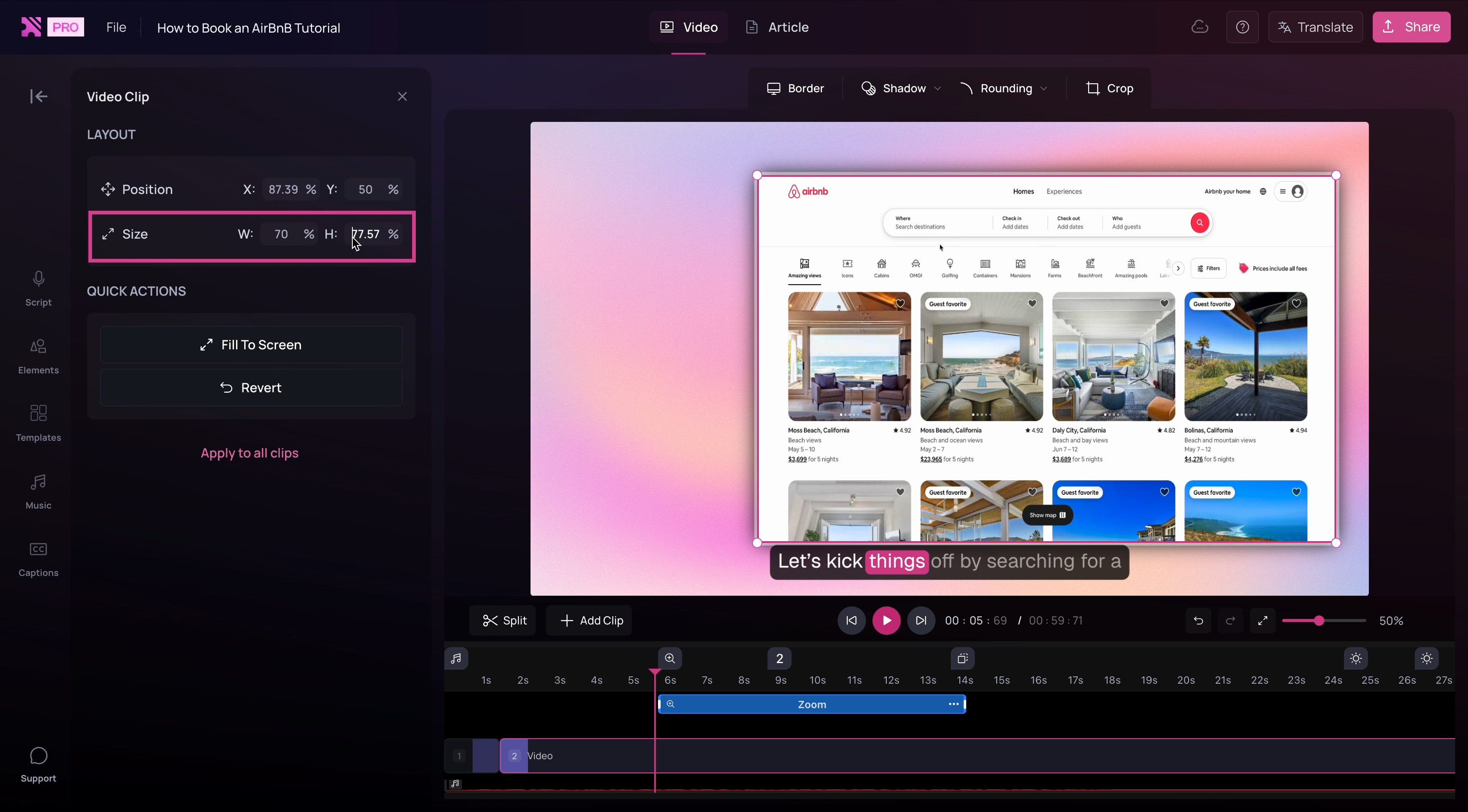
Use the Size (%) fields to control the video’s width and height.
Fill or reset the video layout
-
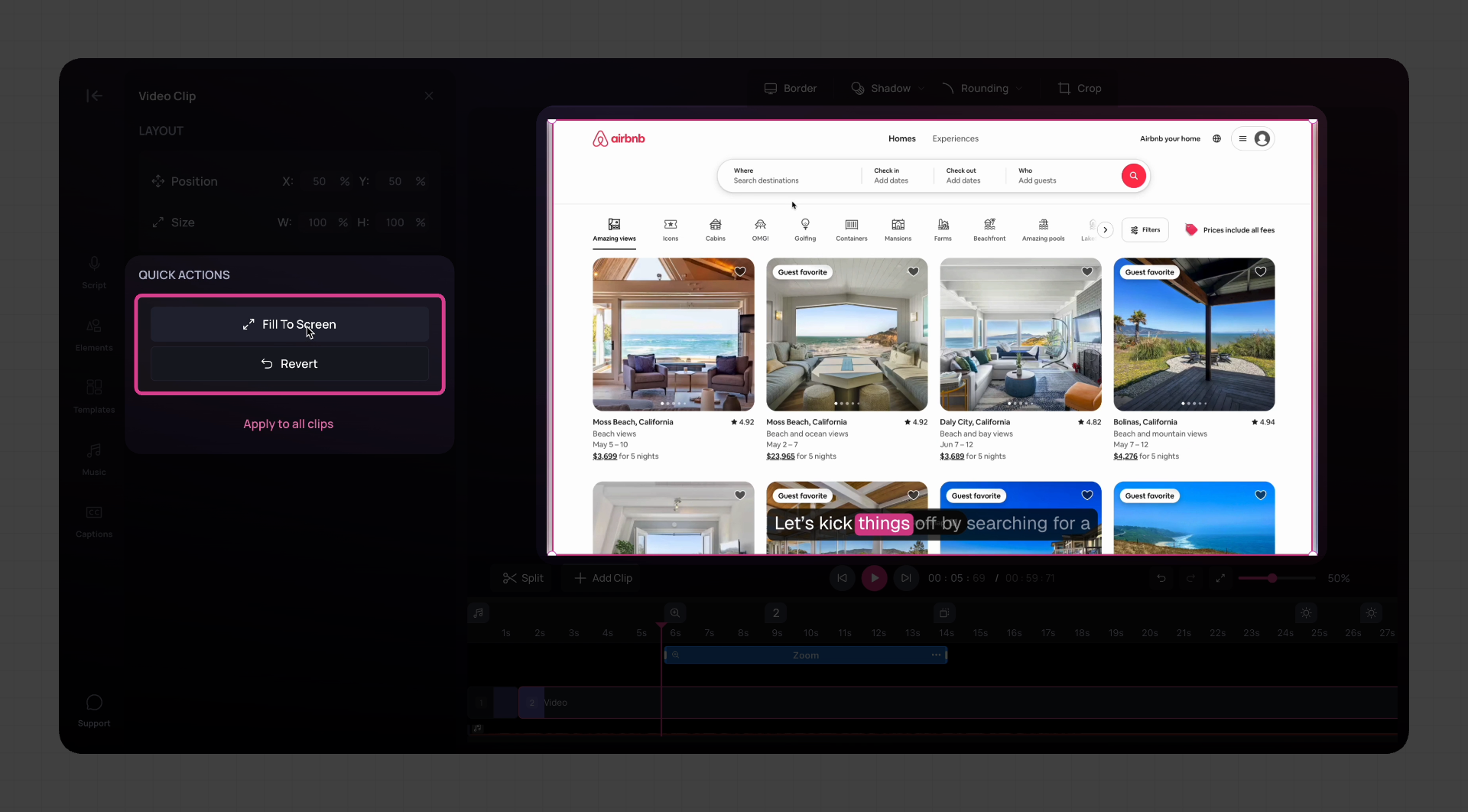
Click ‘Fill to Screen’ to make the video cover the entire background.
-
Click ‘Revert’ to reset the video to its original size and position.