

1
Open the recorder
Start recording by clicking Record video on the Clueso Home screen, selecting Record video from the + button inside the prompt box, or clicking the Clueso Chrome extension in your browser toolbar.
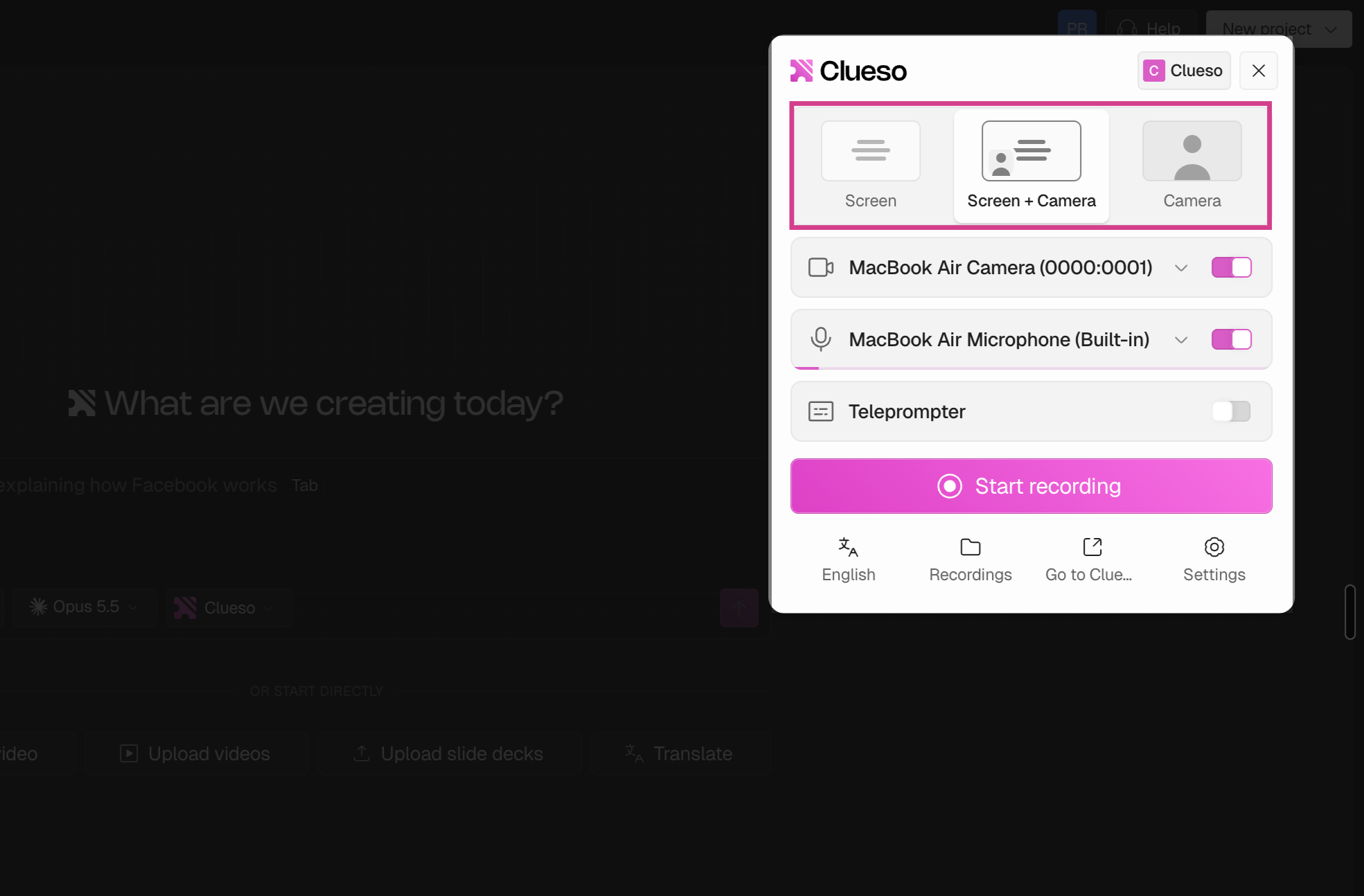
Screen
Capture your screen for product demos, tutorials, and walkthroughs.
Screen + Camera
Record your screen with a camera bubble for a more personal touch.
Camera
Create talking-head videos using your camera.
2
Set up your inputs
Select your camera, microphone, and the language you’ll speak in.To read from a script while you record, turn on Teleprompter and paste your script in.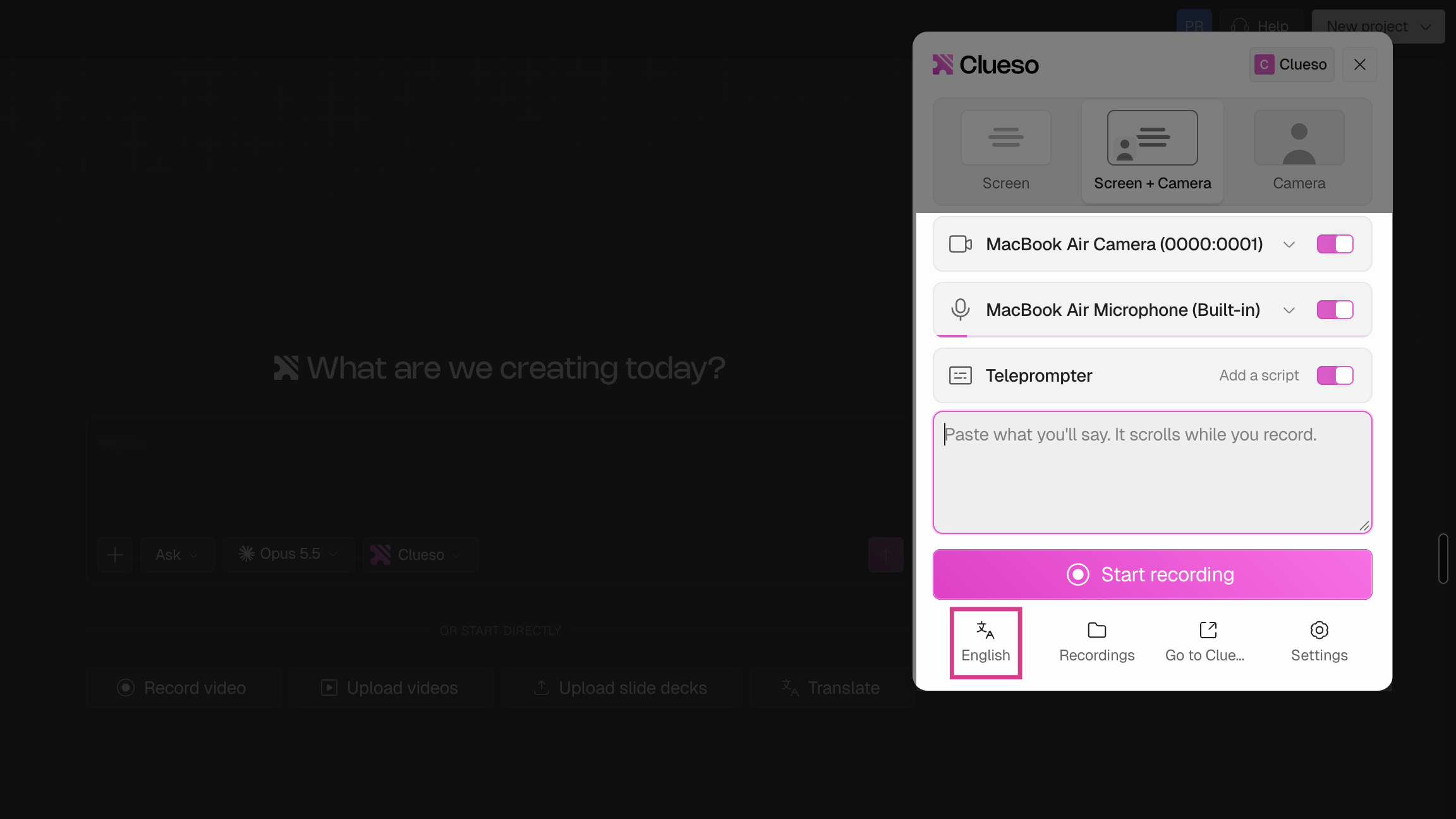
3
Adjust your settings
In Settings, you can turn click highlights on or off for the video and article, adjust the highlight color, blur intensity, zoom level and also choose an aspect ratio using the window resizer. 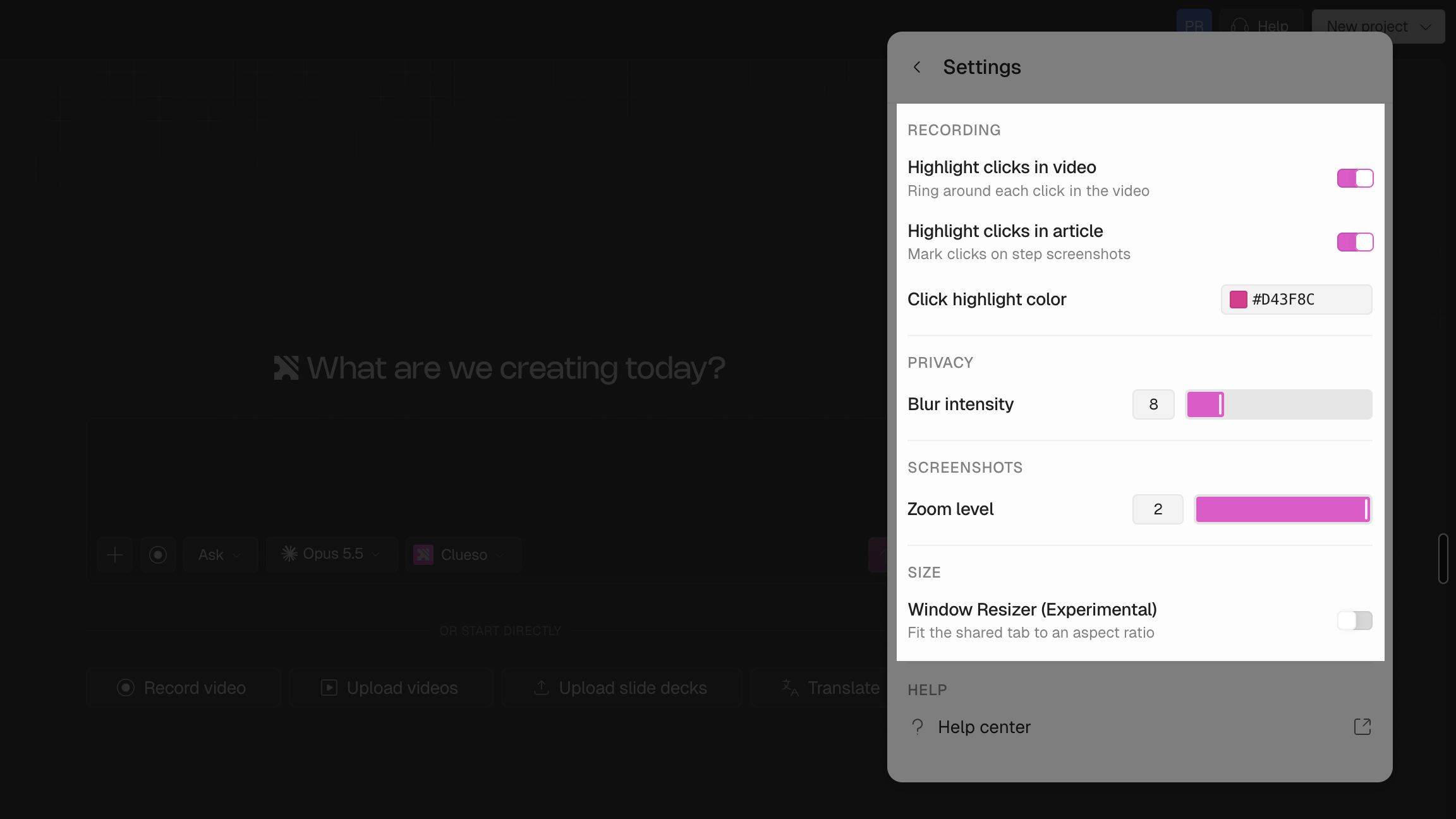
4
Choose what to share
Click Start recording, then choose a Chrome tab, Window, or Entire screen, and click Share.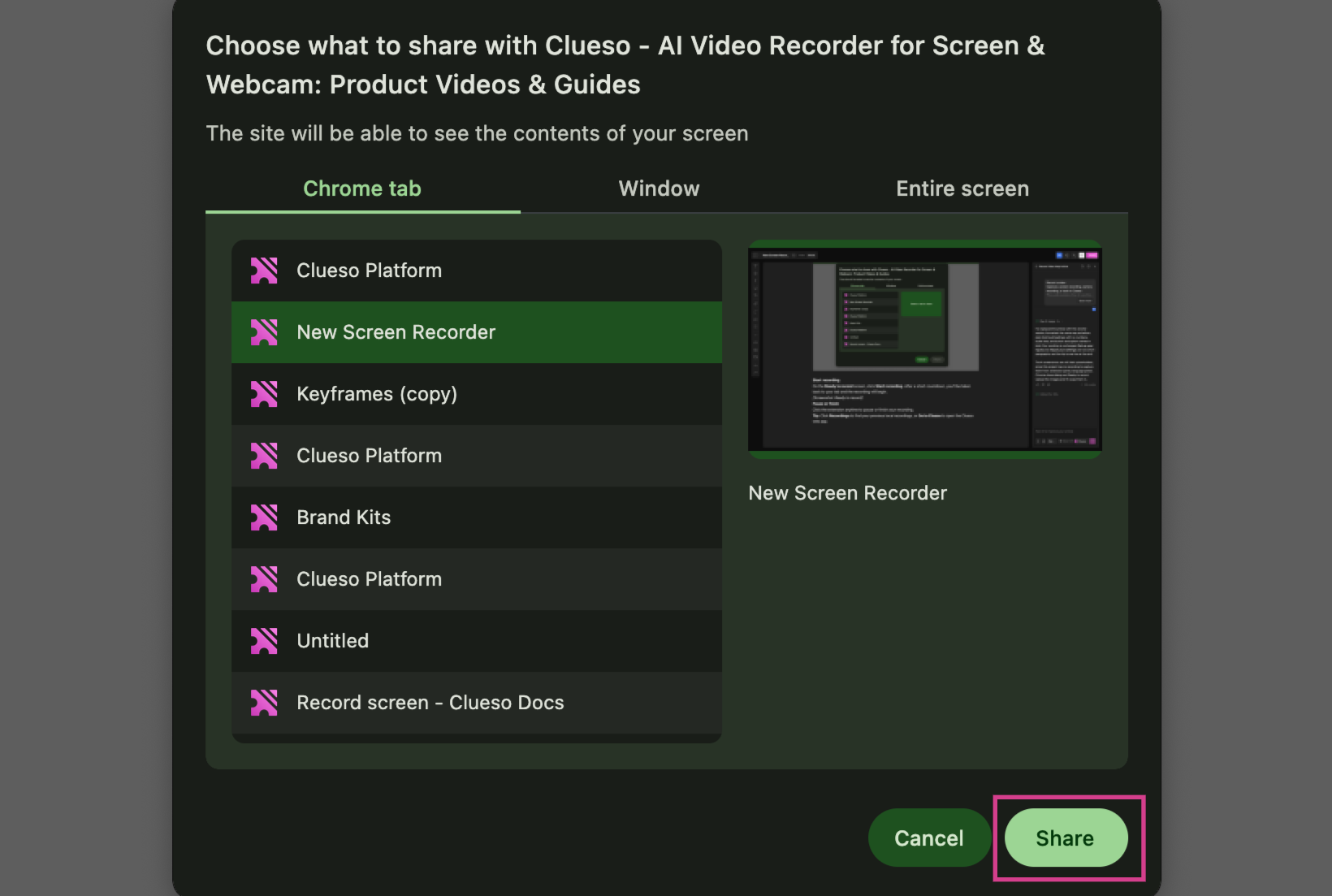
5
Start recording
Click Start recording. After a short countdown, you’ll be taken back to your tab and the recording will begin.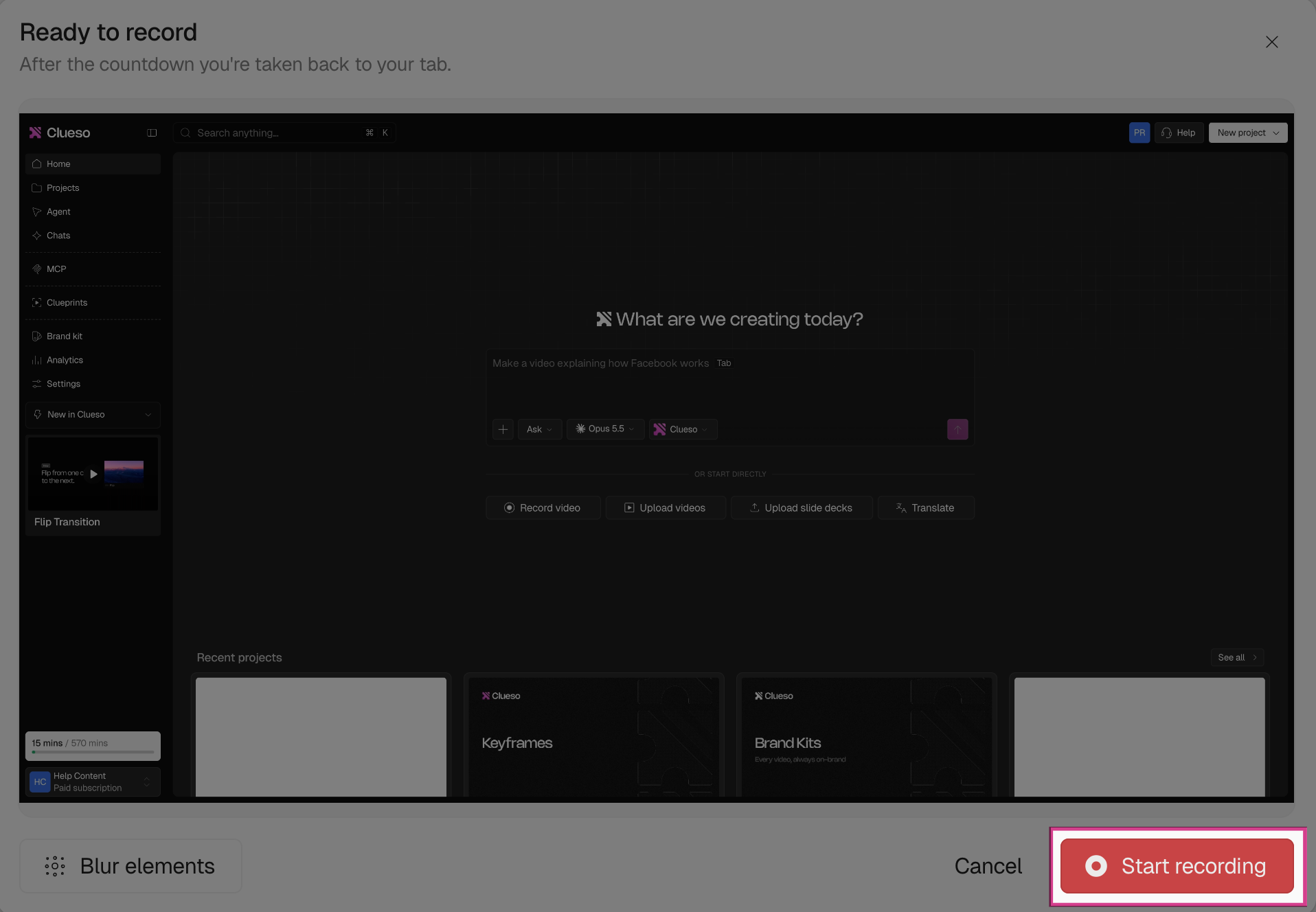
6
Pause or finish
Click the extension anytime to pause the recording, or click Finish recording to complete it.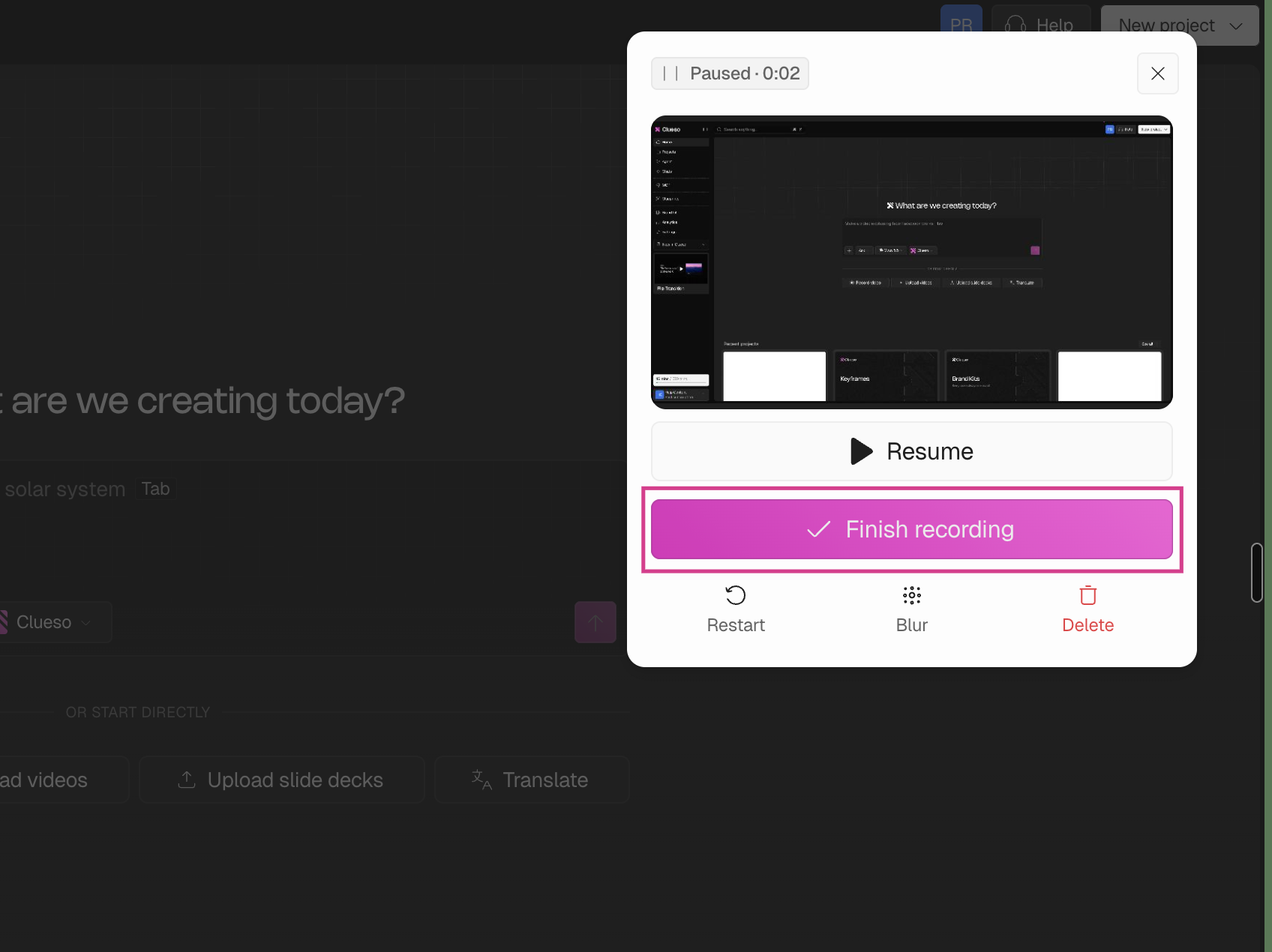
- A refined script generated on the left-hand side
- A step-by-step article with screenshots based on your recording