

Zoom effects let you focus attention on specific parts of your video by magnifying areas of interest — perfect for highlighting a button, guiding users through a complex step, or making sure nothing important gets missed.
1
Position the playhead
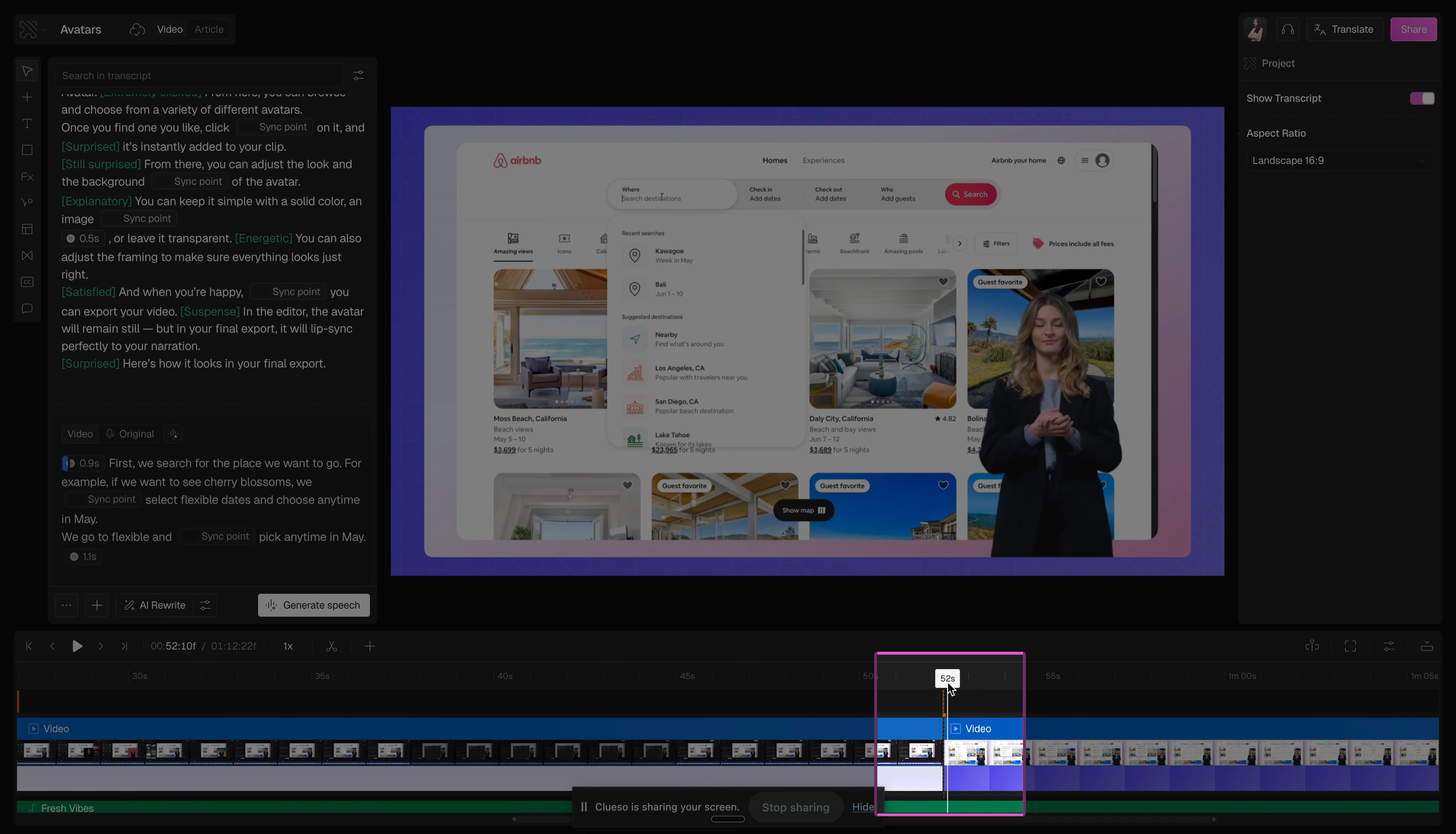
Look at the timeline at the bottom of your screen. Place the playhead to the exact moment where you want the zoom to appear.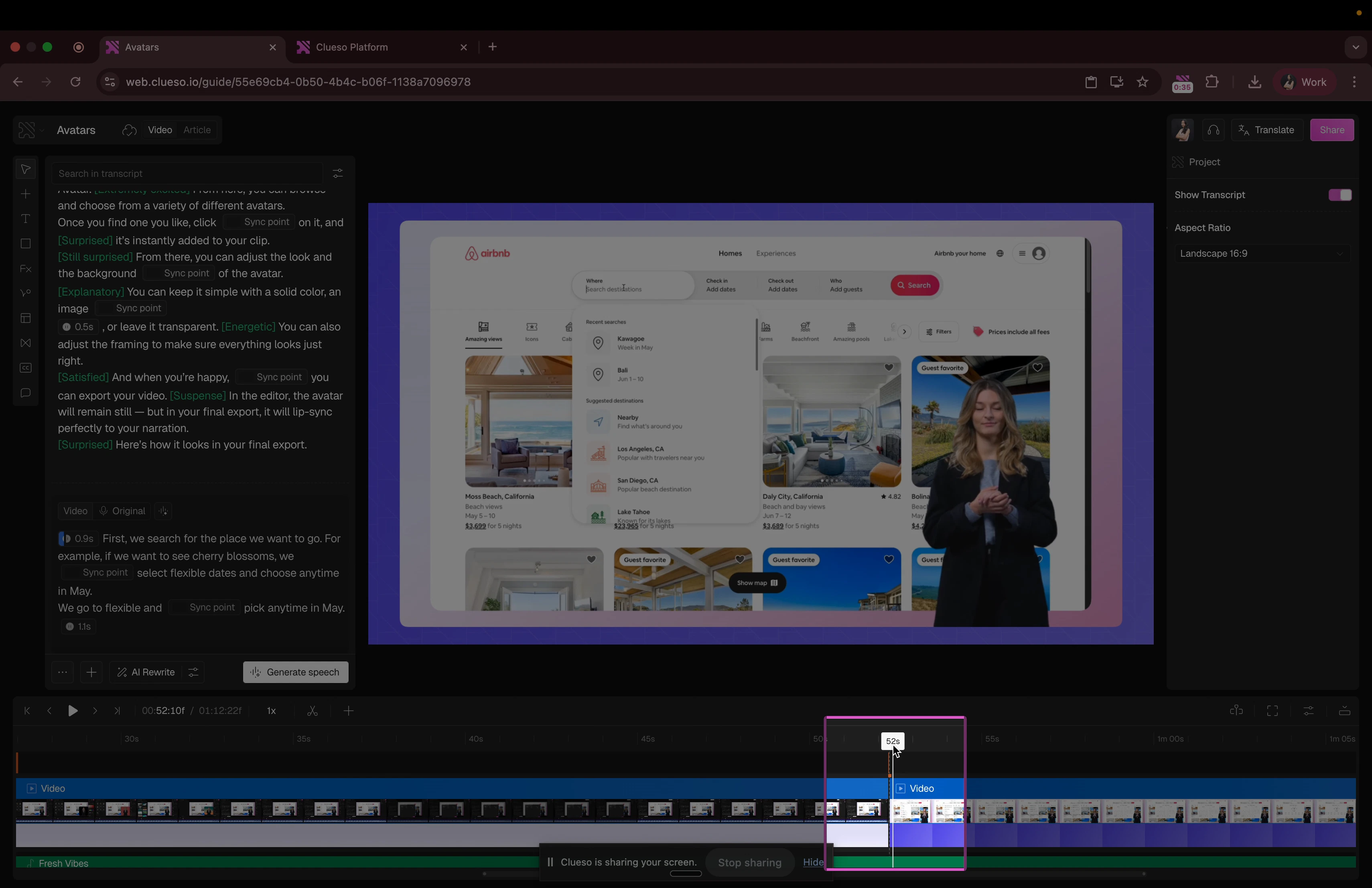
2
Open Effects
Click on Effects on the left panel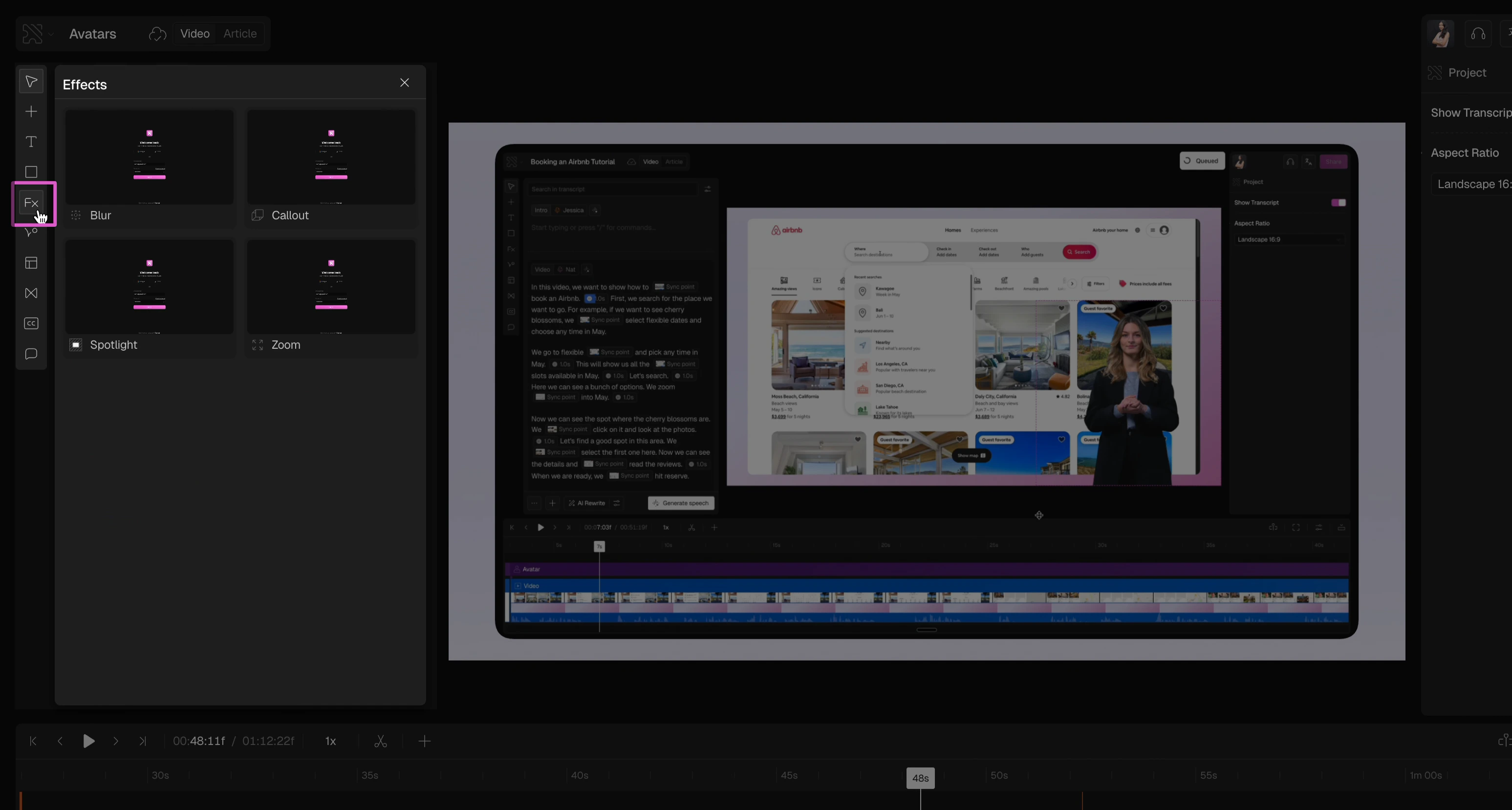
3
Add the zoom
Select Zoom. The effect will appear on your timeline at the position of the playhead.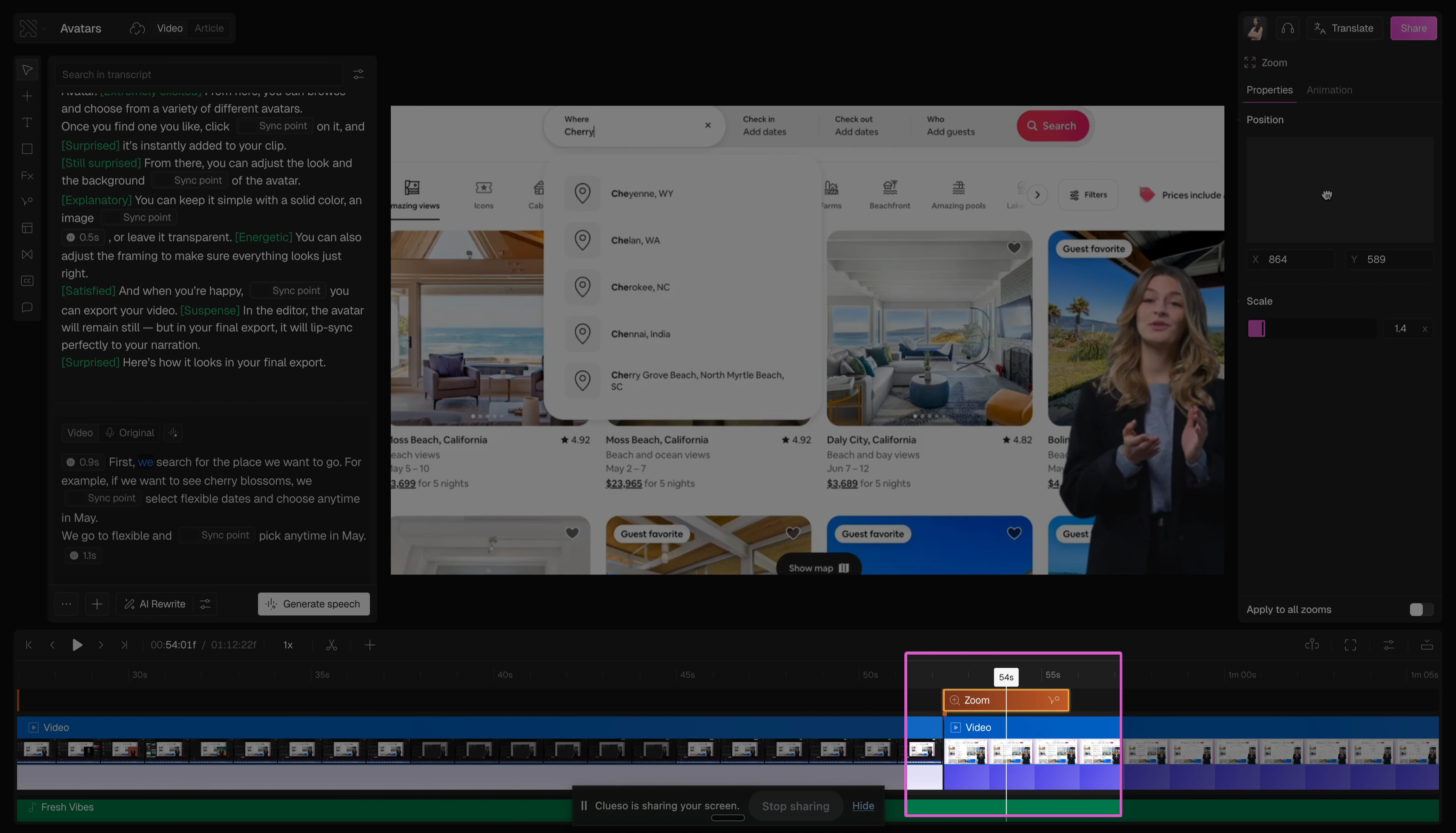
4
Adjust the duration
Drag the edges of the zoom effect on the timeline to control how long it stays on screen.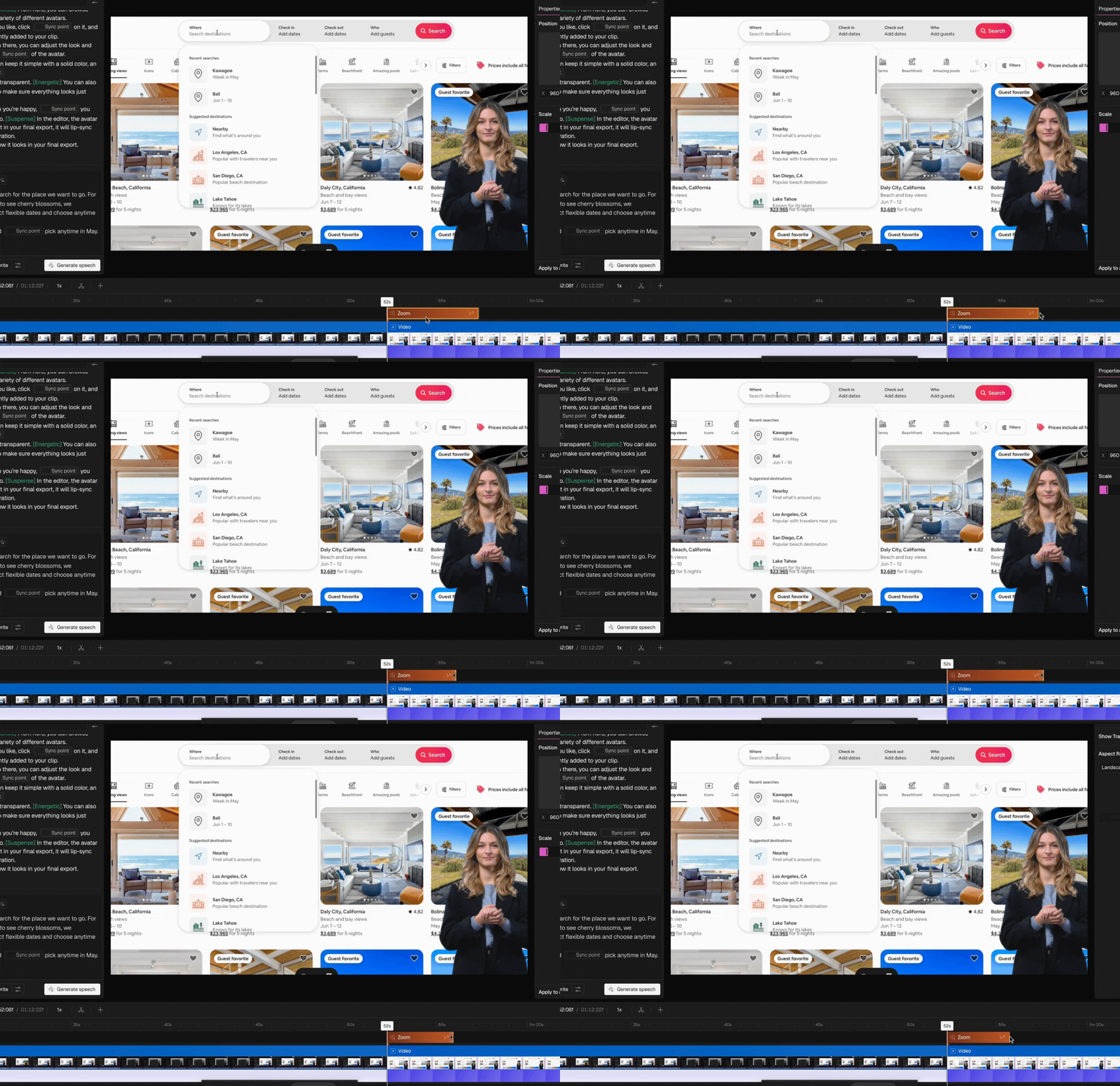
5
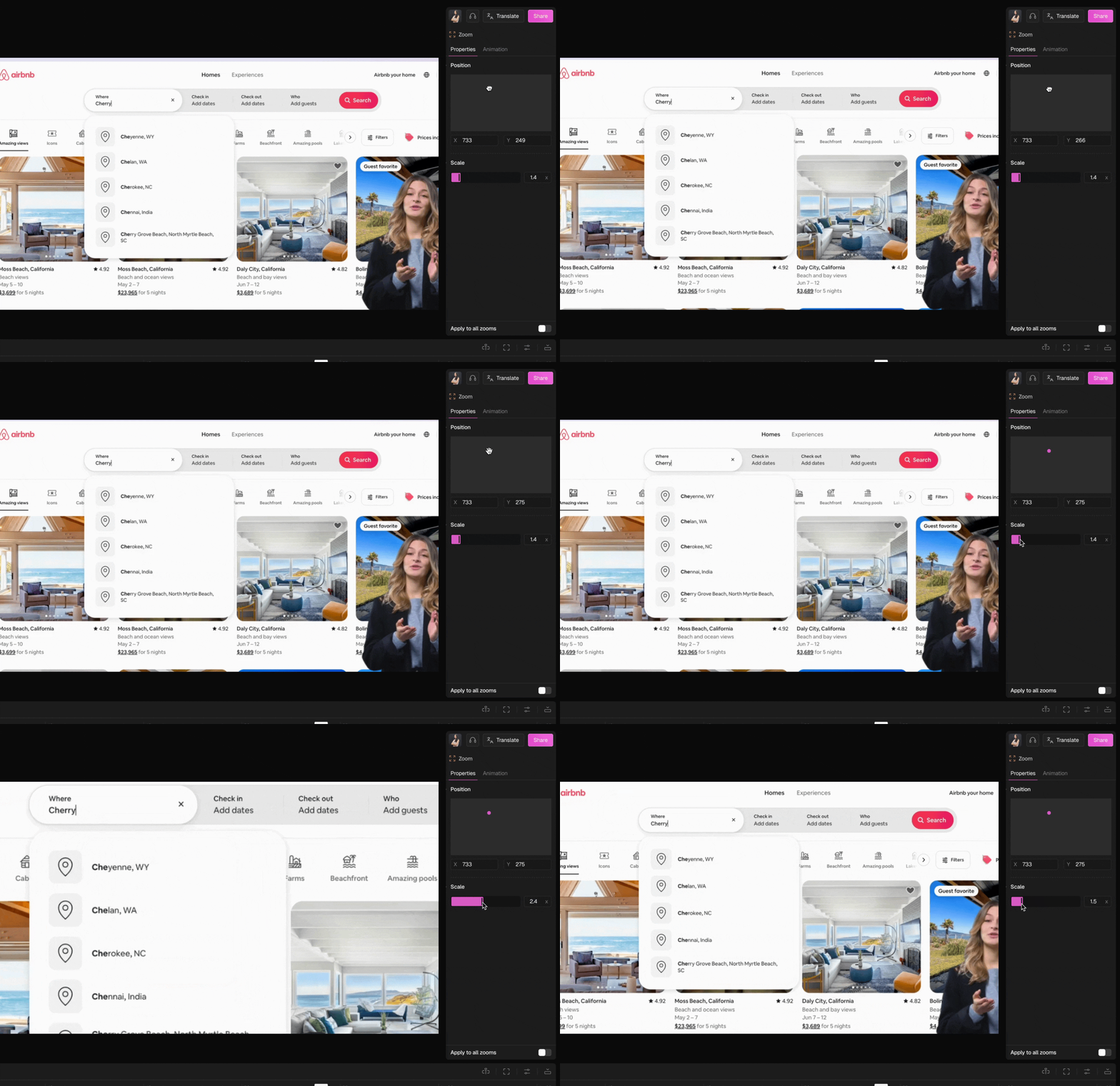
Adjust position and scale
Adjust the zoom center to set the focus and position of your zoom. Use the scale slider to control how strong the zoom feels.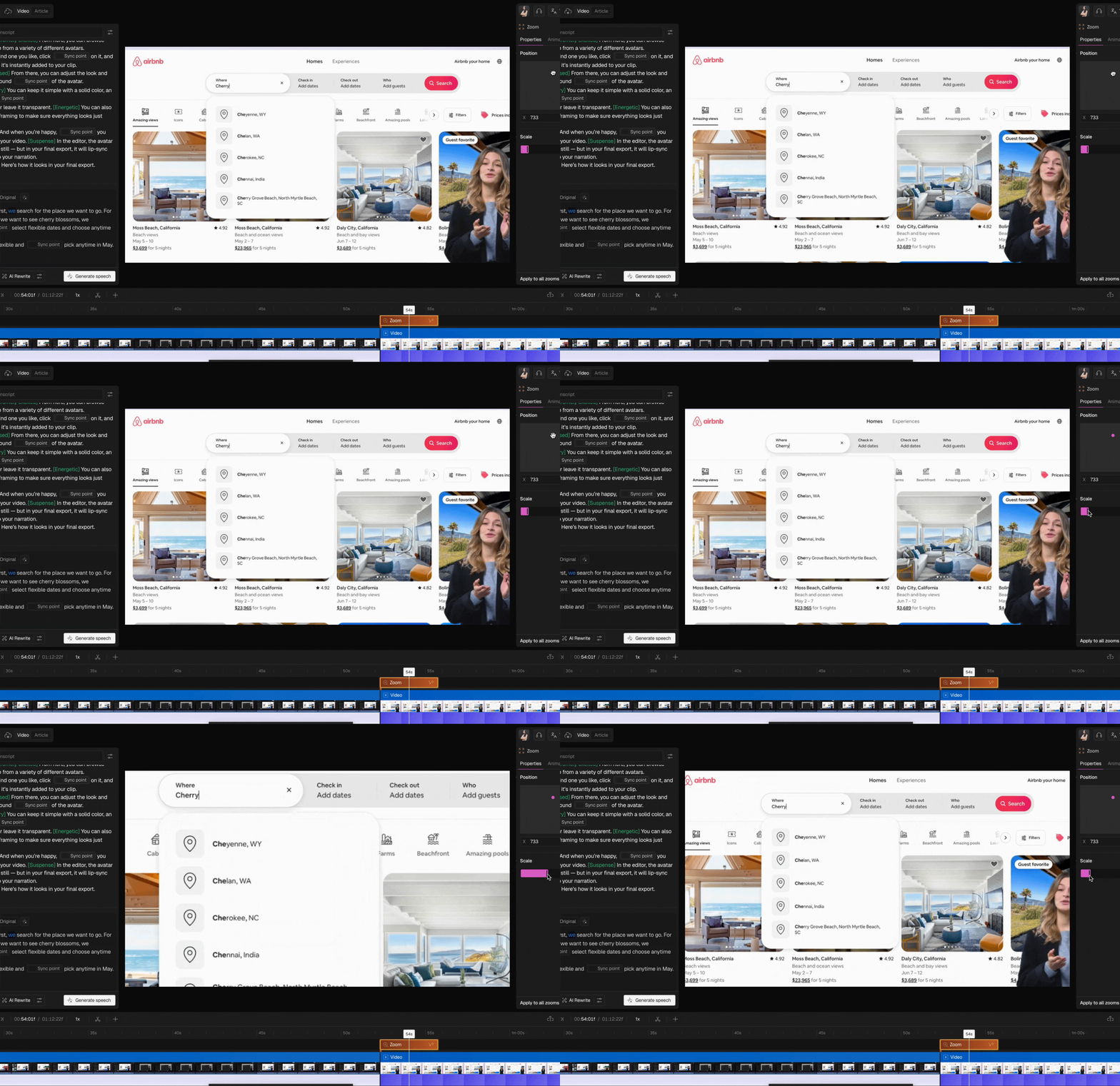
6
Control the animation
Switch to the Animation tab to control how the zoom enters and exits. Click on the time field and use the up and down arrow keys on your keyboard, or type in the duration directly.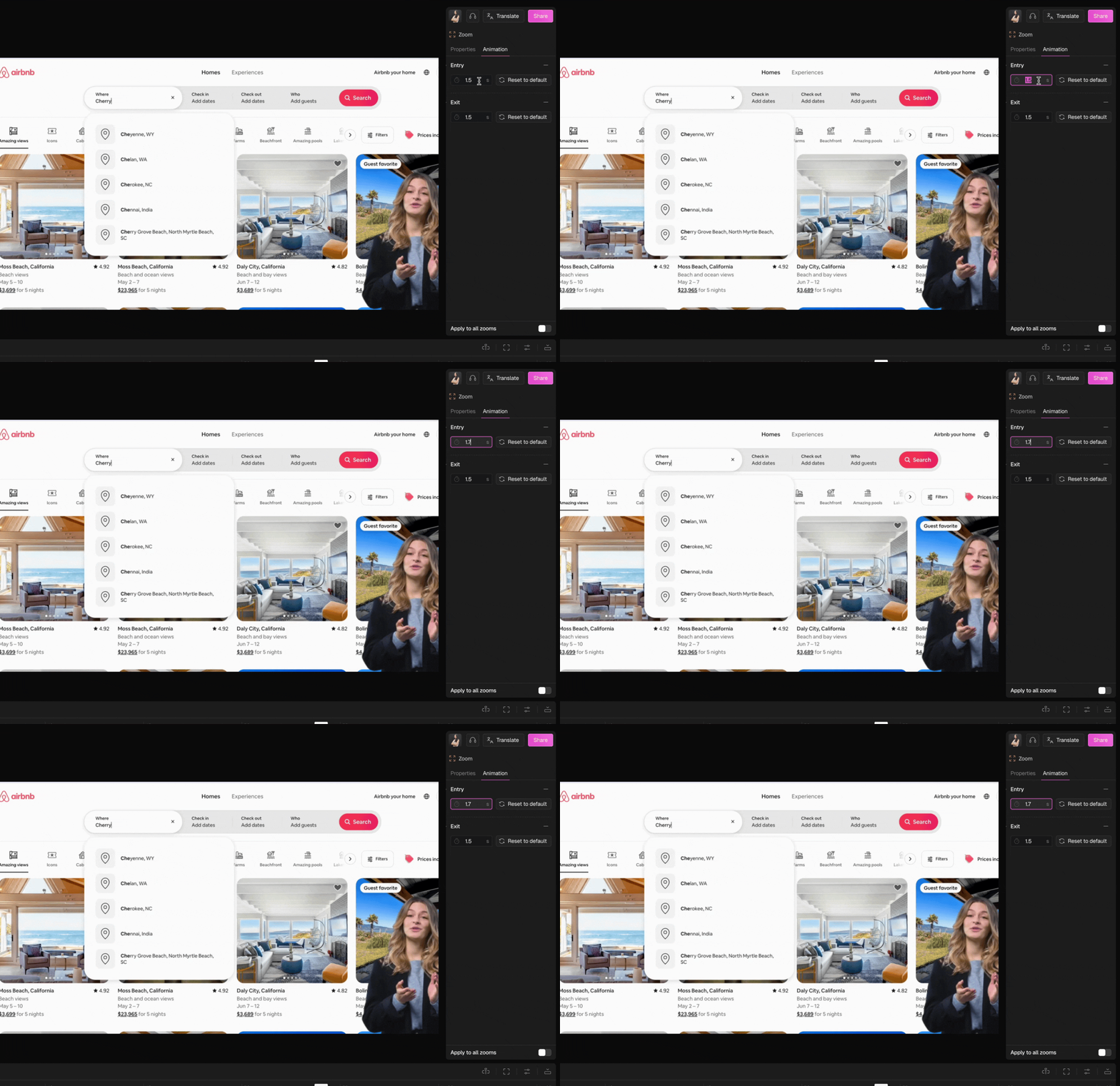
FAQs
When does Clueso automatically add zooms?
When does Clueso automatically add zooms?
Clueso only adds zooms automatically when you record using the Chrome extension.
Can I add multiple zoom effects to the same video?
Can I add multiple zoom effects to the same video?
Yes — add as many zoom effects as you need. Each one can be independently repositioned and resized on the timeline.
Can I change the zoom after adding it?
Can I change the zoom after adding it?
Yes — click the effect on the timeline at any time to adjust the position, scale, and animation duration.