> ## Documentation Index
> Fetch the complete documentation index at: https://help.clueso.io/llms.txt
> Use this file to discover all available pages before exploring further.
# Pronunciations
> Customize how AI voices pronounce your words
This article explains how to use the Pronunciation Dictionary to customize how Clueso's AI voices pronounce specific words.
This feature is especially useful for proper nouns and industry-specific terms, such as company names, product names, or uncommon terms.
## Adding a word
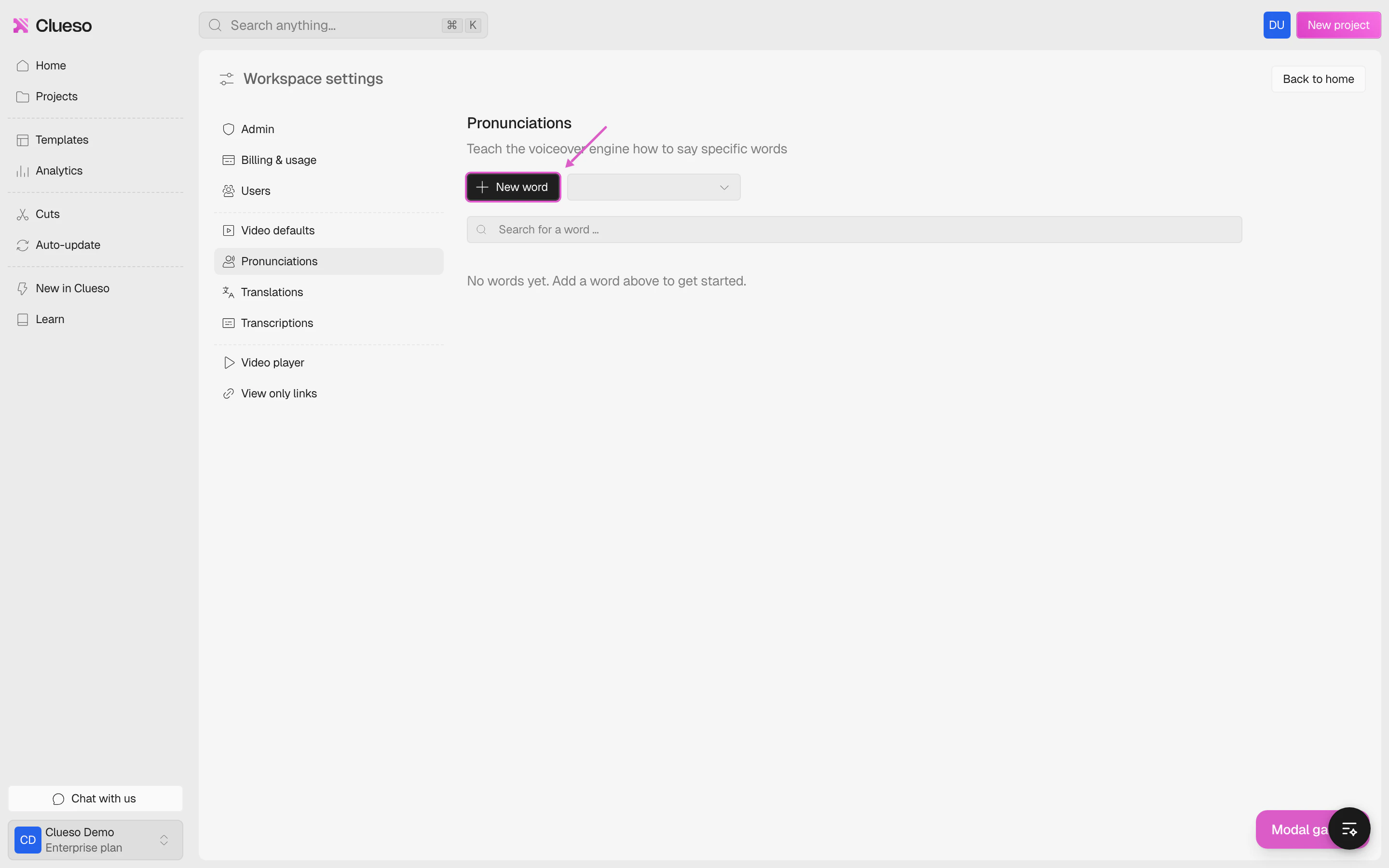
Navigate to [**Settings > Pronunciations**](https://web.clueso.io/home/settings/pronunciation-dictionary)
Click **New word** to enter the original word which is being mis-pronounced by AI.
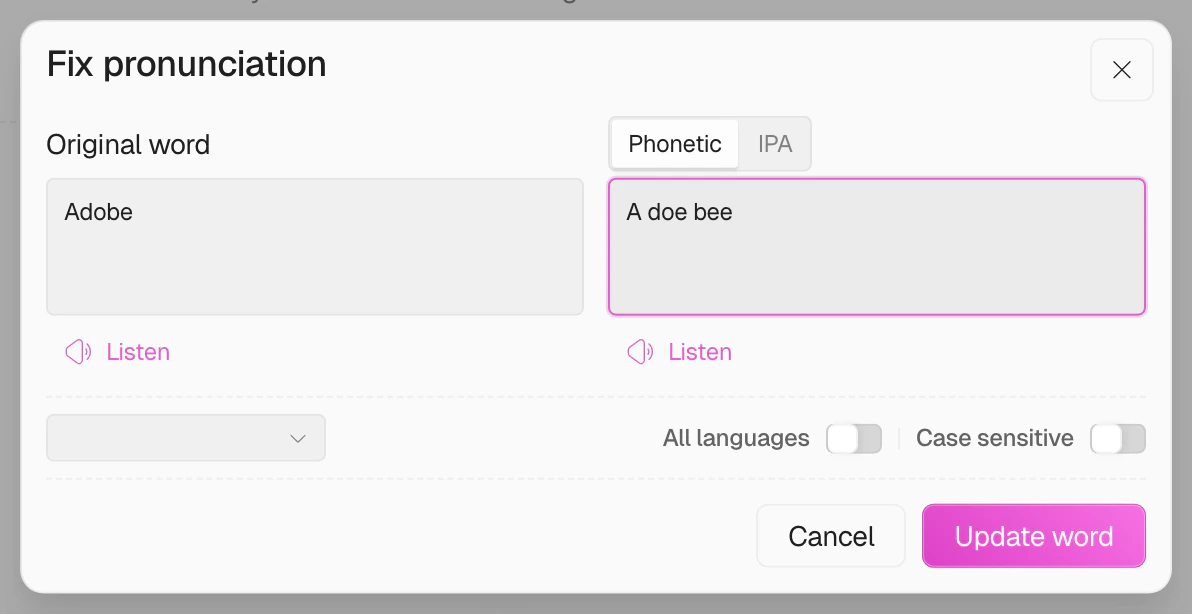
 Provide a phonetic spelling of your original word to make its pronunciation clear to the AI. For example, if your term is "Adobe", spell it out as "A doe bee".
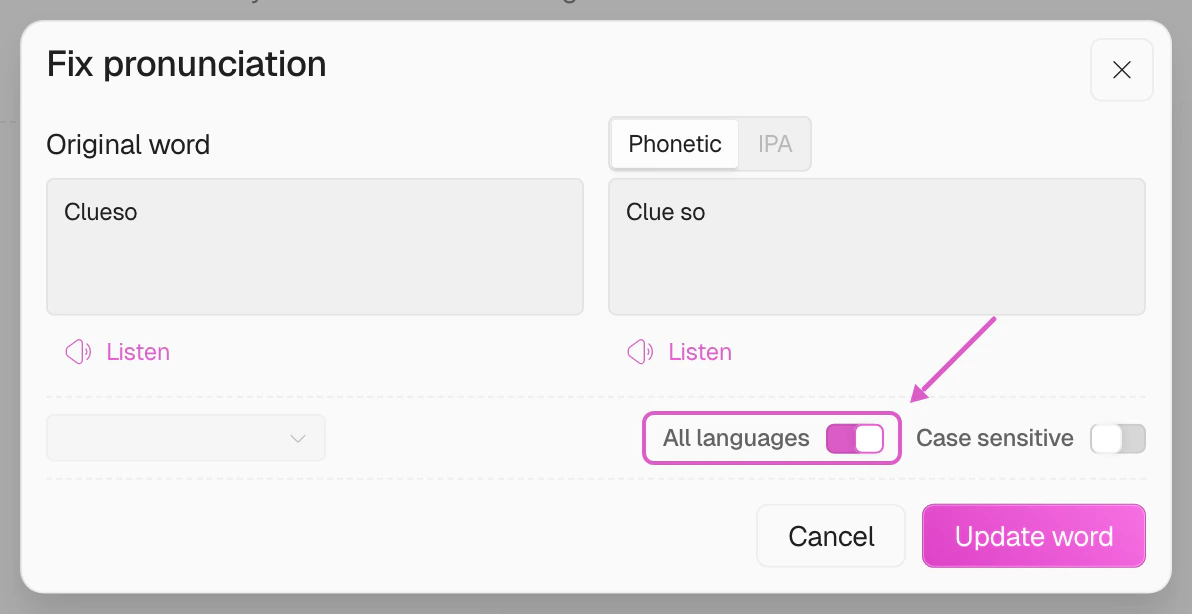
 Select a **language** for the pronunciation rule. You can either:
* Apply the new pronunciation to one specific language, or
* Apply it across **all languages** using the toggle.
Select a **language** for the pronunciation rule. You can either:
* Apply the new pronunciation to one specific language, or
* Apply it across **all languages** using the toggle.
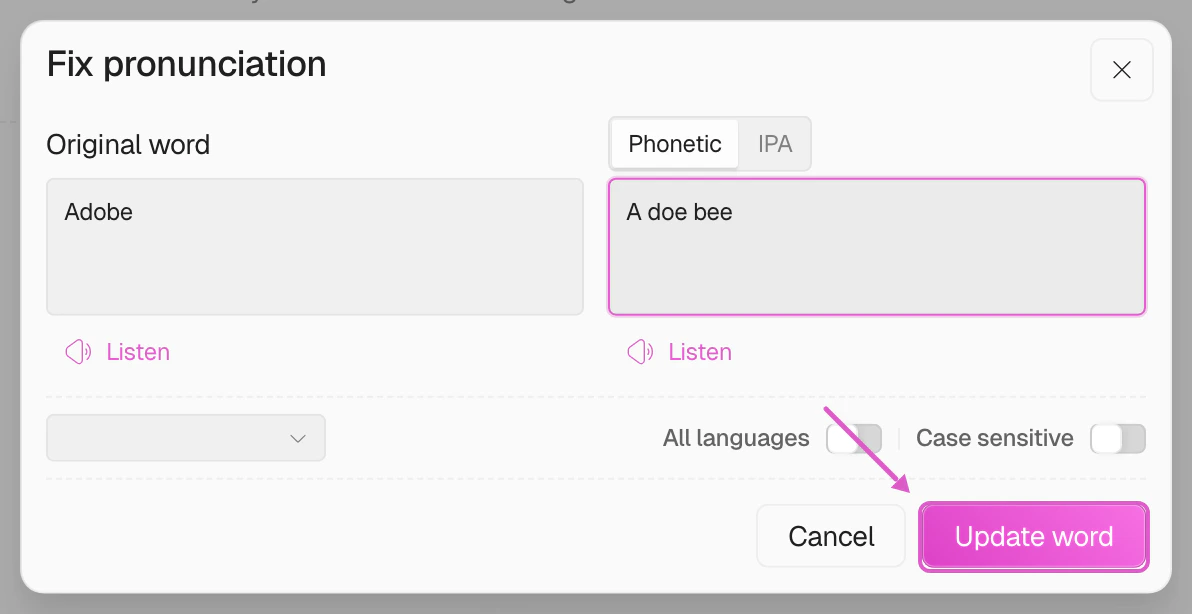
 Before saving, click **Listen** to preview how the AI will pronounce the word.\
Once satisfied, click **Update word** to finalize.
Before saving, click **Listen** to preview how the AI will pronounce the word.\
Once satisfied, click **Update word** to finalize.
 And that's it 🎉 You've successfully customized the pronunciation of a word, ensuring Clueso pronounces it the way you want across your projects.
## Additional features
### IPA mode (English only)
For English words, you can switch between **Phonetic** and **IPA** (International Phonetic Alphabet) modes using the tabs above the pronunciation field. IPA lets you specify precise phonetic symbols like `əˈdoʊbi` for more accurate control over pronunciation.
And that's it 🎉 You've successfully customized the pronunciation of a word, ensuring Clueso pronounces it the way you want across your projects.
## Additional features
### IPA mode (English only)
For English words, you can switch between **Phonetic** and **IPA** (International Phonetic Alphabet) modes using the tabs above the pronunciation field. IPA lets you specify precise phonetic symbols like `əˈdoʊbi` for more accurate control over pronunciation.
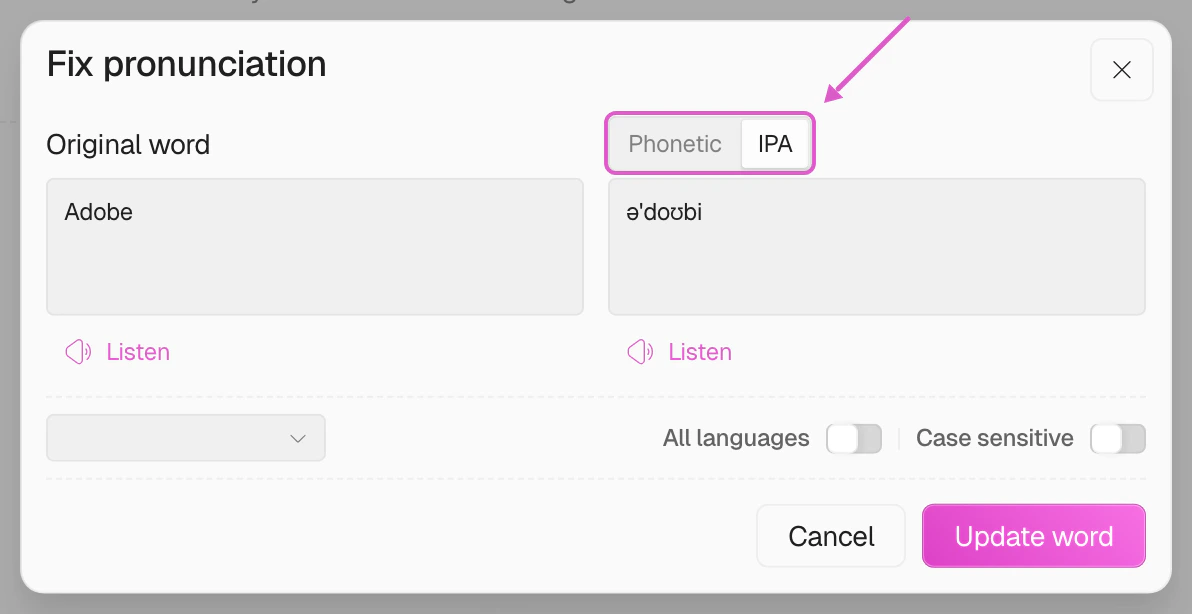 IPA mode is only available for English. When "All languages" is enabled, the IPA tab is disabled.
### Case sensitive matching
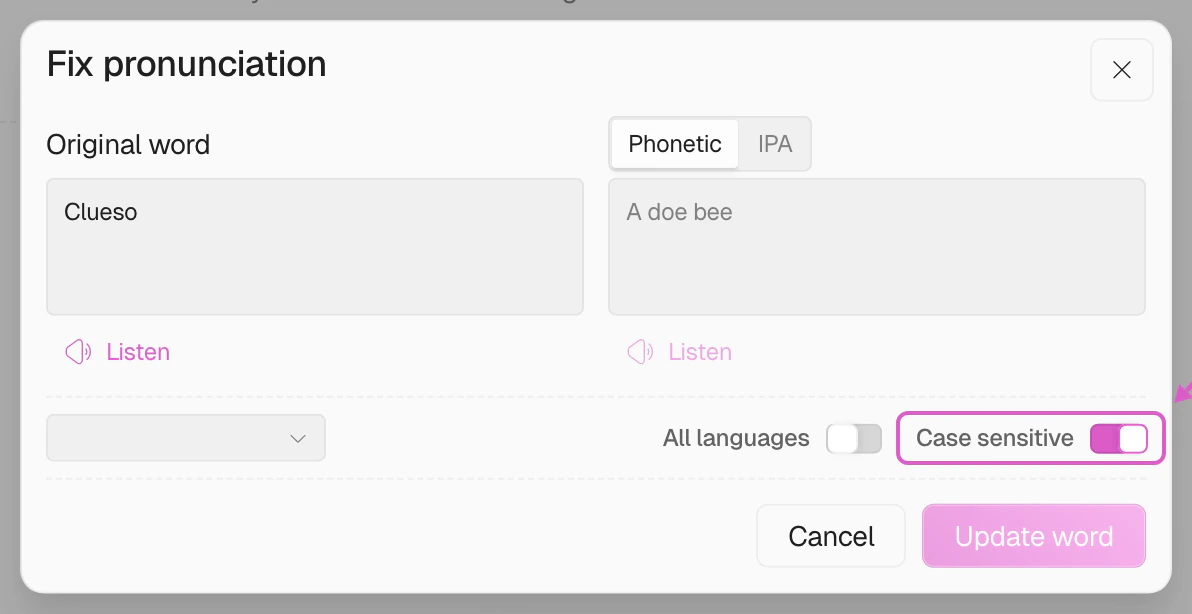
Enable the **Case sensitive** toggle to make your pronunciation rule match the exact casing of the word. When disabled, the rule applies regardless of how the word is capitalized.
IPA mode is only available for English. When "All languages" is enabled, the IPA tab is disabled.
### Case sensitive matching
Enable the **Case sensitive** toggle to make your pronunciation rule match the exact casing of the word. When disabled, the rule applies regardless of how the word is capitalized.
 ### Managing your dictionary
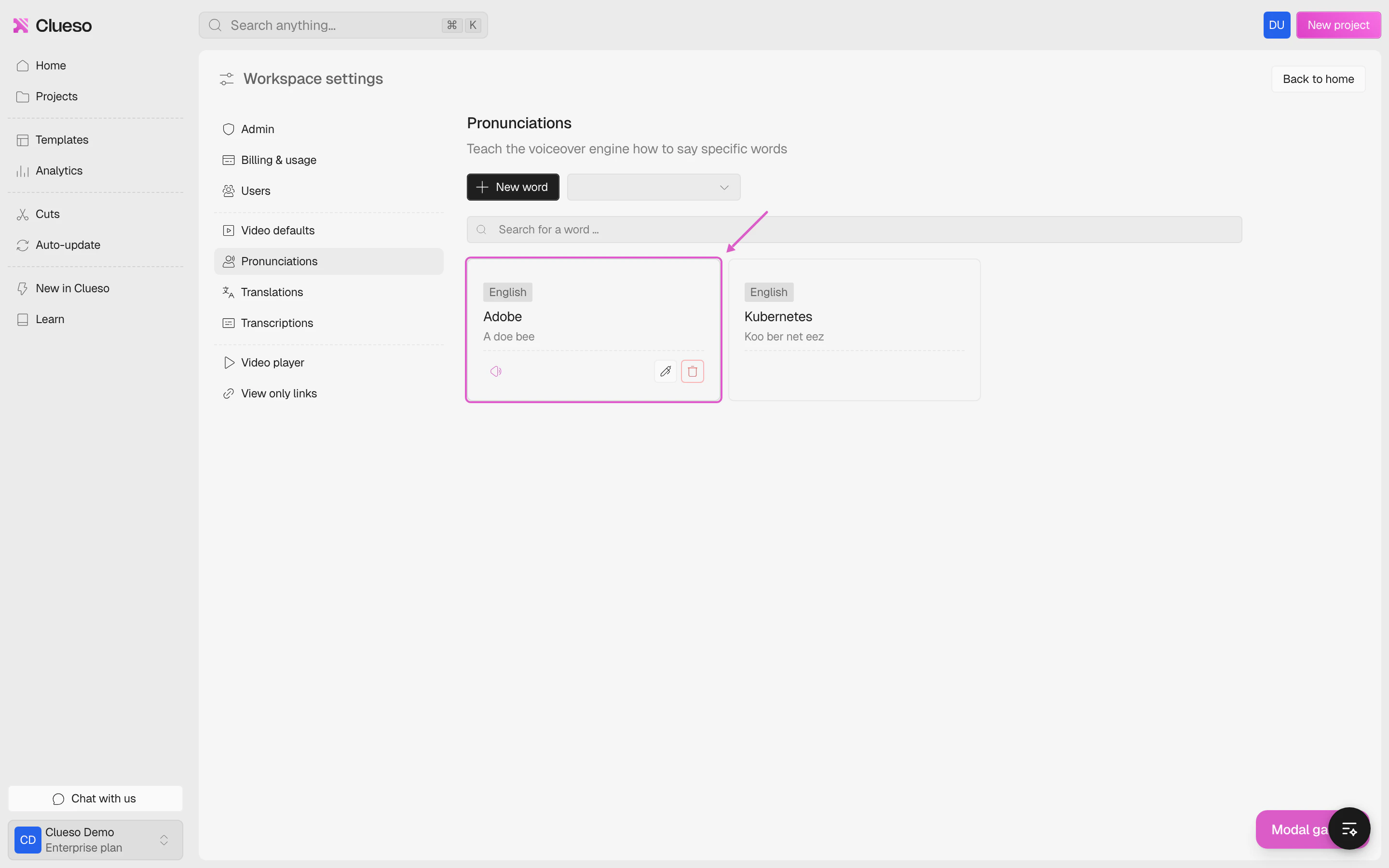
Once you've added words, they appear as cards in a grid view. Hover over a card to reveal action buttons:
* **Play** — listen to the current pronunciation
* **Edit** — modify the phonetic spelling or settings
* **Delete** — remove the word from your dictionary
### Managing your dictionary
Once you've added words, they appear as cards in a grid view. Hover over a card to reveal action buttons:
* **Play** — listen to the current pronunciation
* **Edit** — modify the phonetic spelling or settings
* **Delete** — remove the word from your dictionary
 ### Searching and filtering
Use the **search bar** to quickly find a word in your dictionary.
### Searching and filtering
Use the **search bar** to quickly find a word in your dictionary.
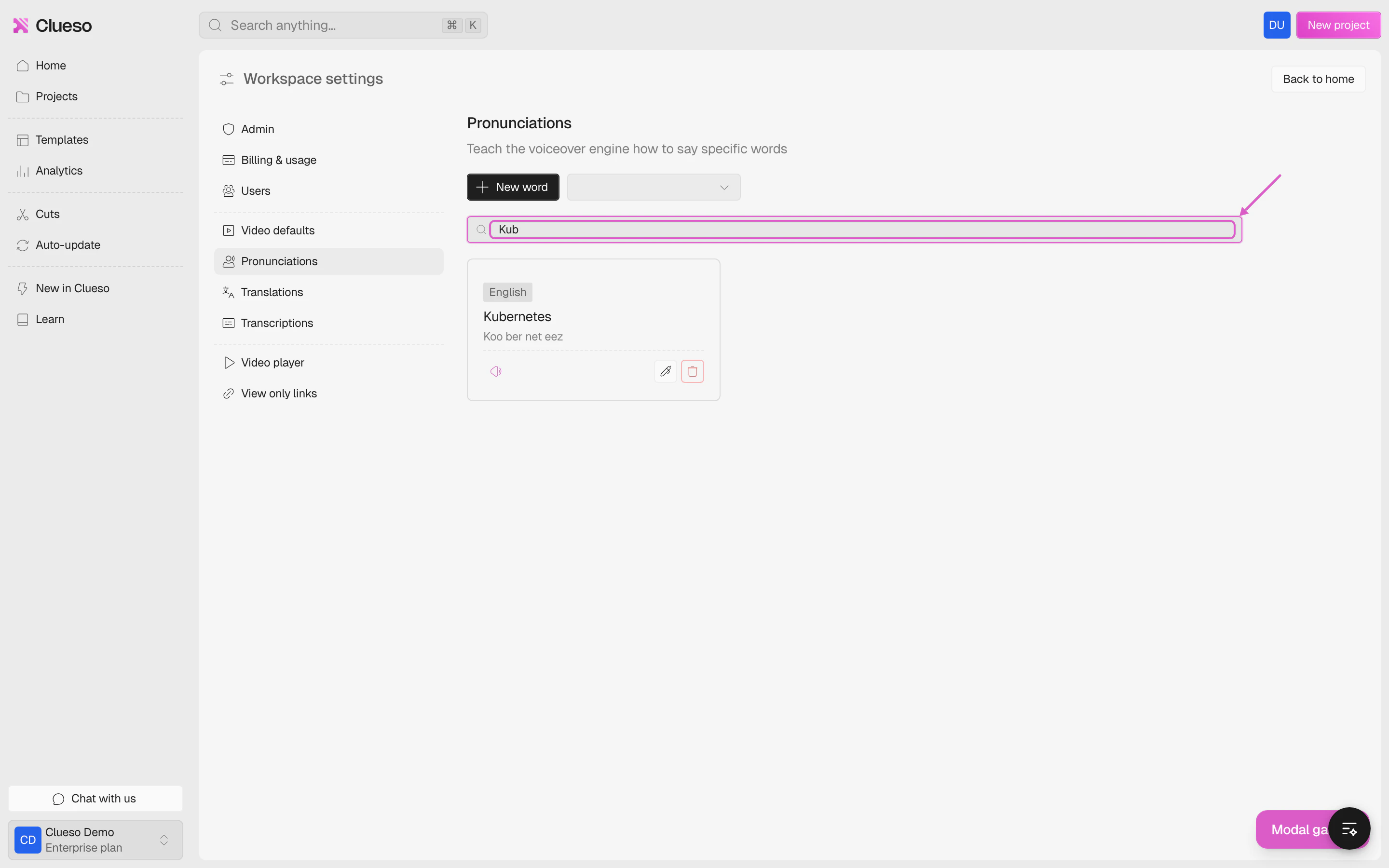 You can also filter the dictionary by **language** using the dropdown next to the "New word" button to view only the pronunciation rules for a specific language.