> ## Documentation Index
> Fetch the complete documentation index at: https://help.clueso.io/llms.txt
> Use this file to discover all available pages before exploring further.
# Changing voice
> Change the voice actor for a clip
In this guide, you’ll learn how to change the AI voiceover for one of your clips. You'll also see how to apply a single voice to all your clips in one go.
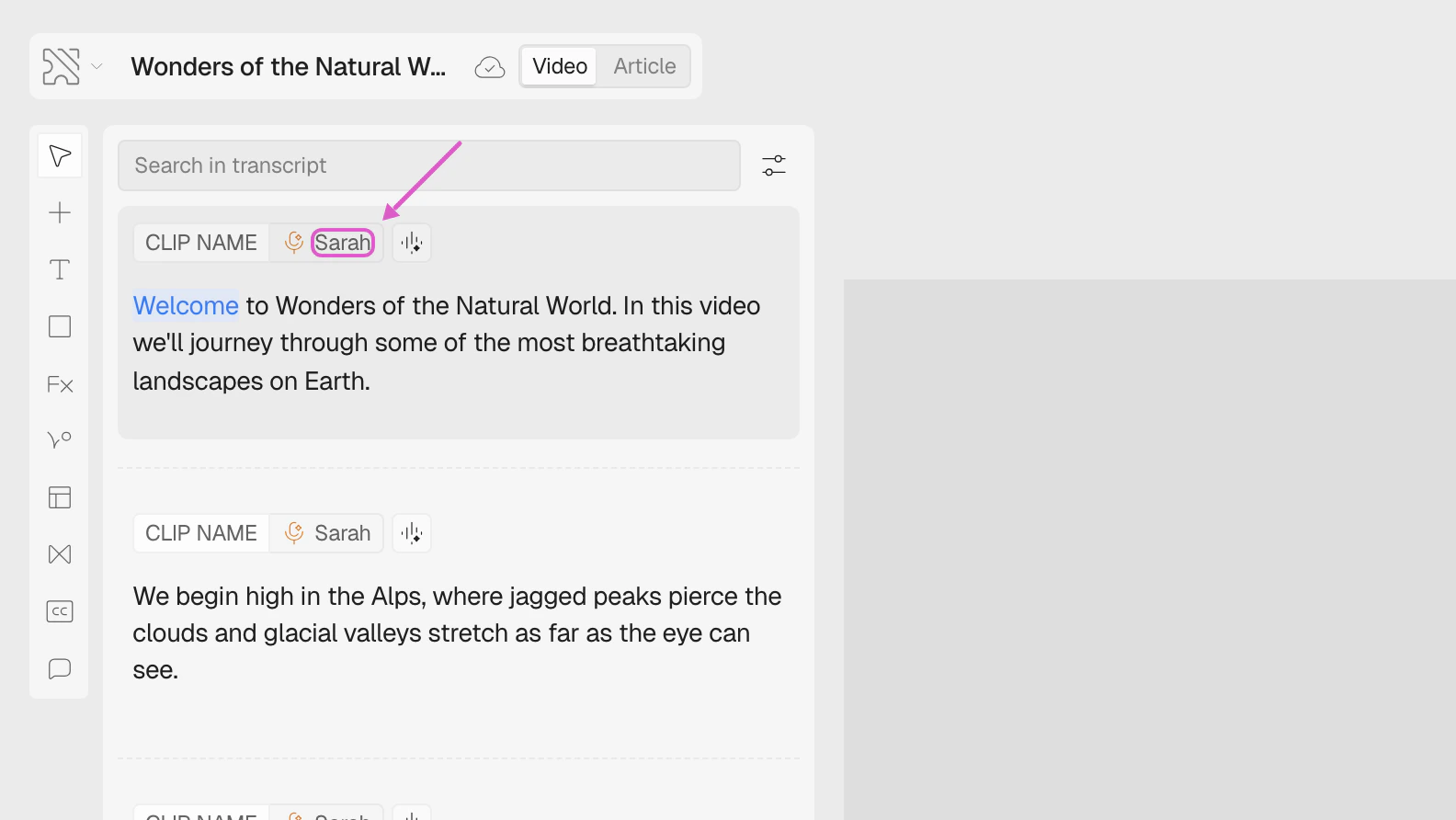
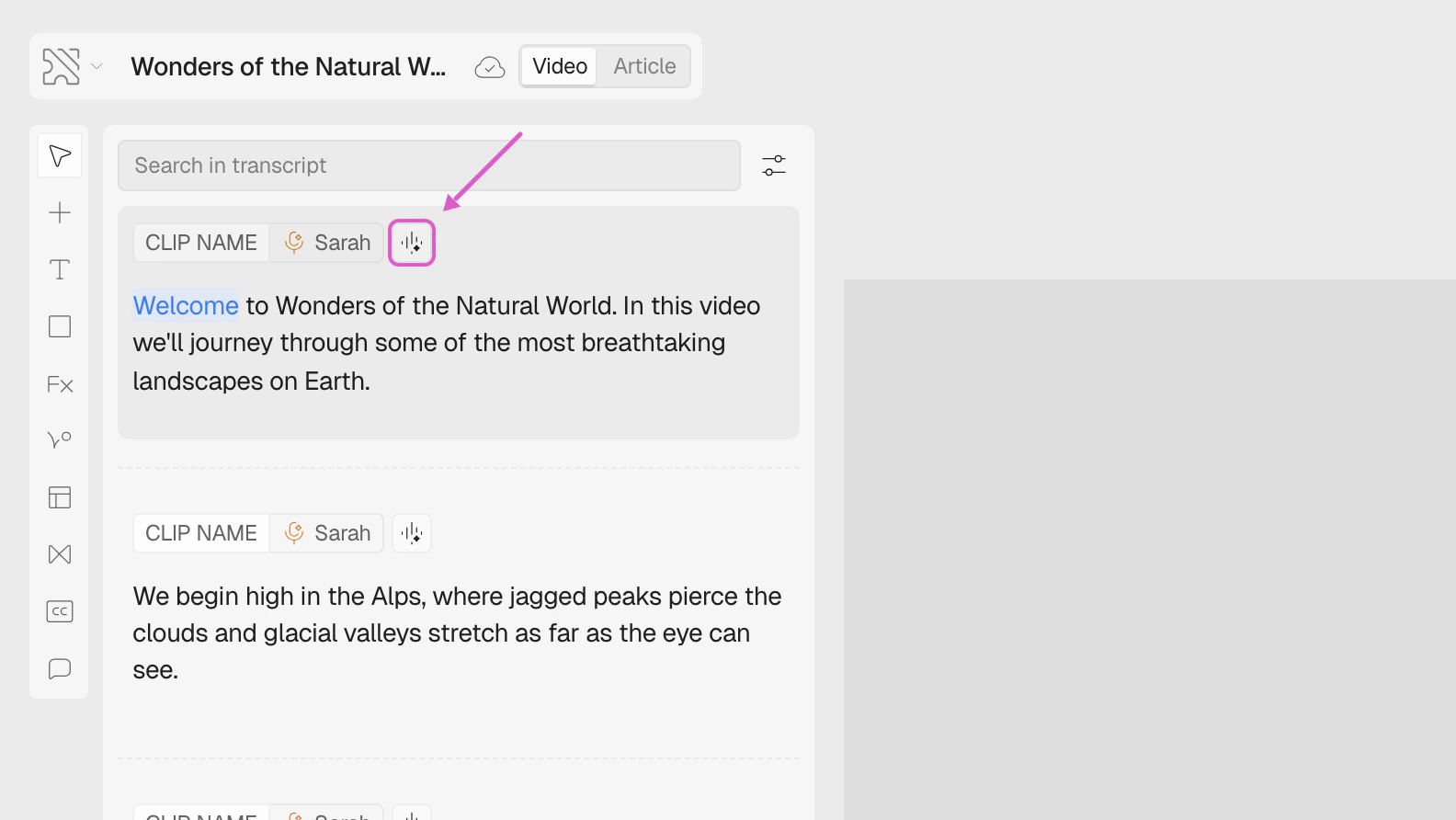
Go to the clip where you want to change the voice and click the **Voiceover button**. Go to the clip where you want to change the voice and click on the **voice name** in the clip header.
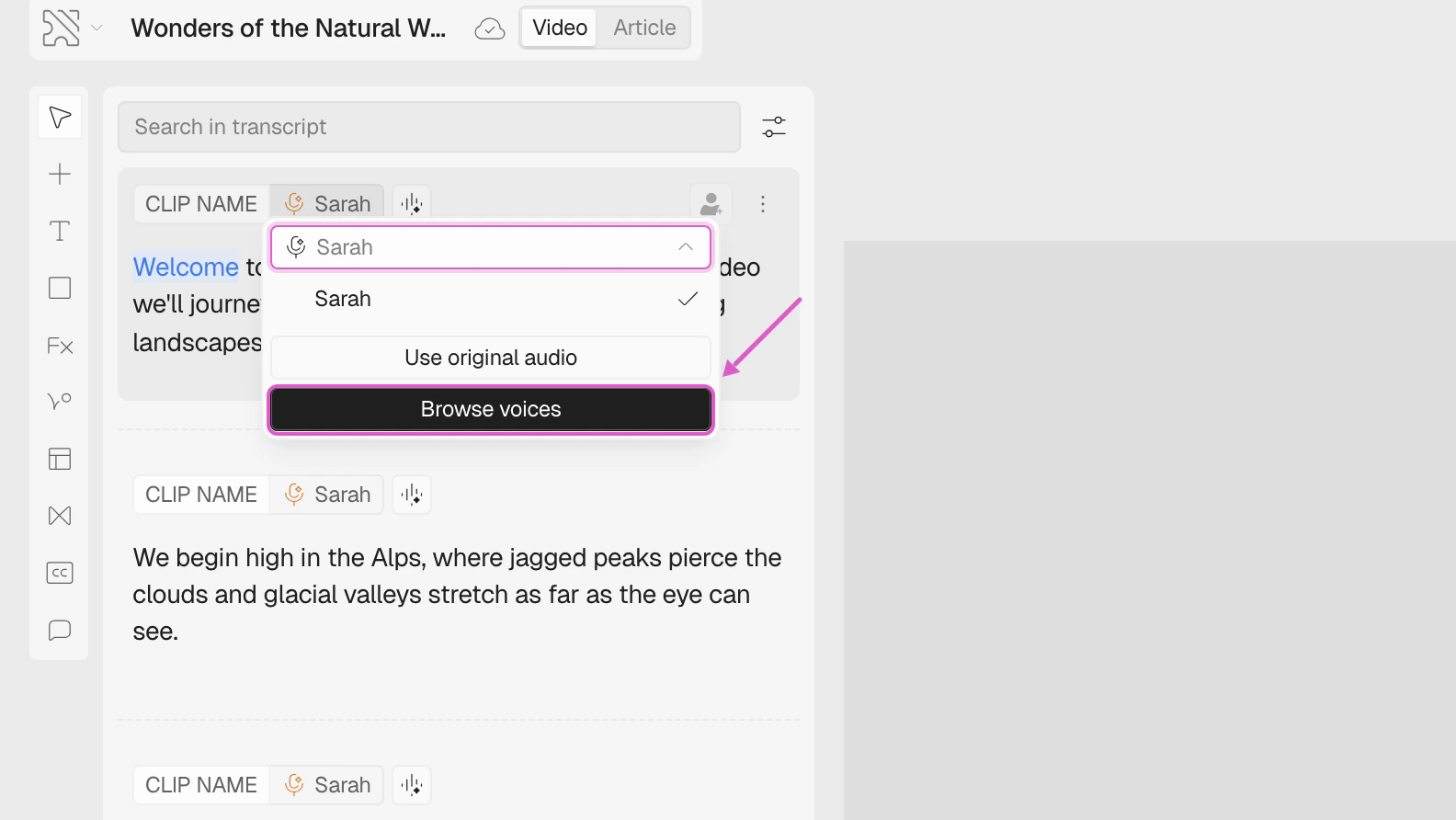
 Click on **Browse Voice** from the options.
A dropdown will appear showing your current voice. Click **Browse voices** to see the full list of available voices.
Click on **Browse Voice** from the options.
A dropdown will appear showing your current voice. Click **Browse voices** to see the full list of available voices.
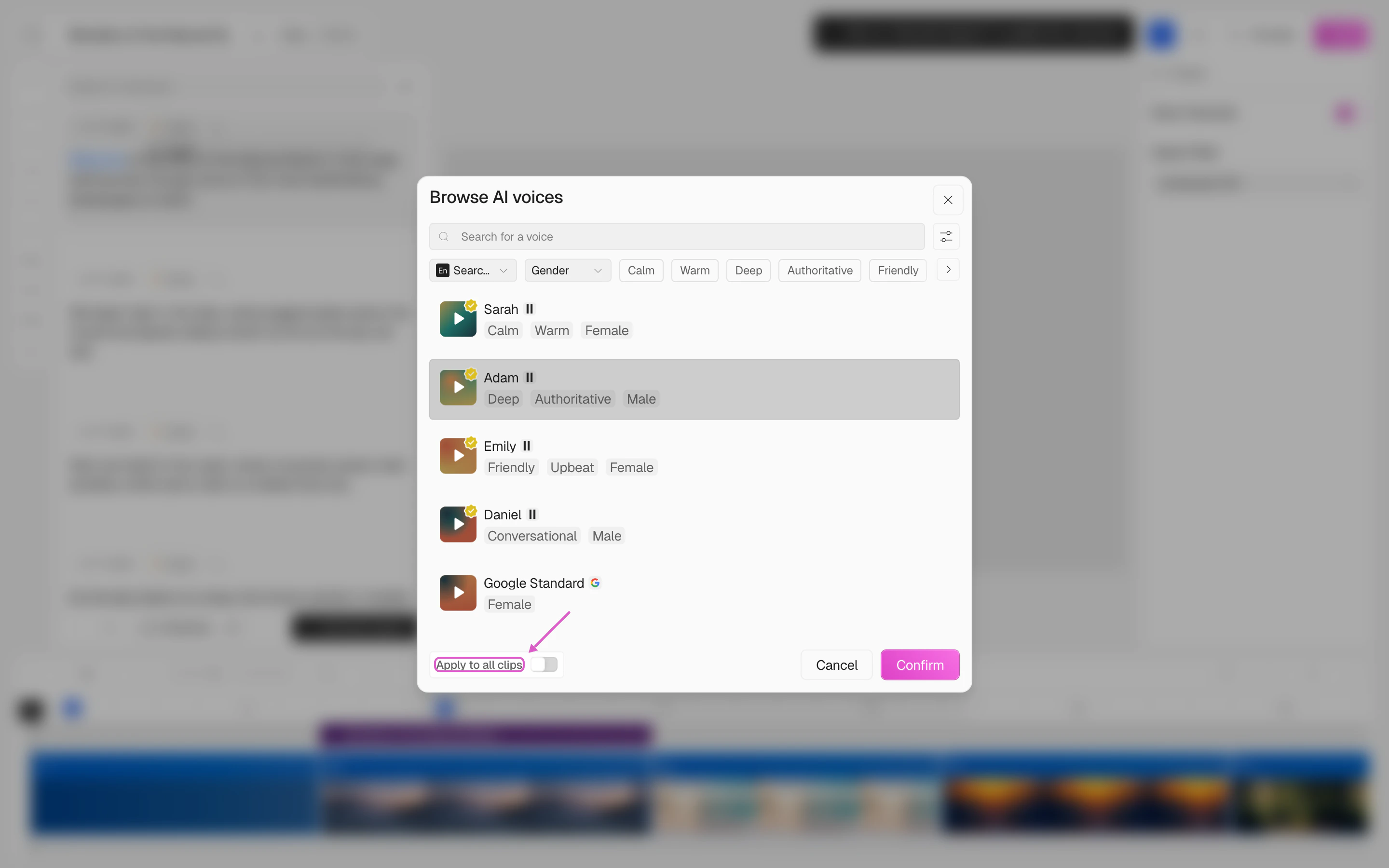
 Browse the list of available voices and select the one you like. You can filter by language, gender, and tone. To apply this voice to the entire video, enable the toggle **Apply to all clips**.
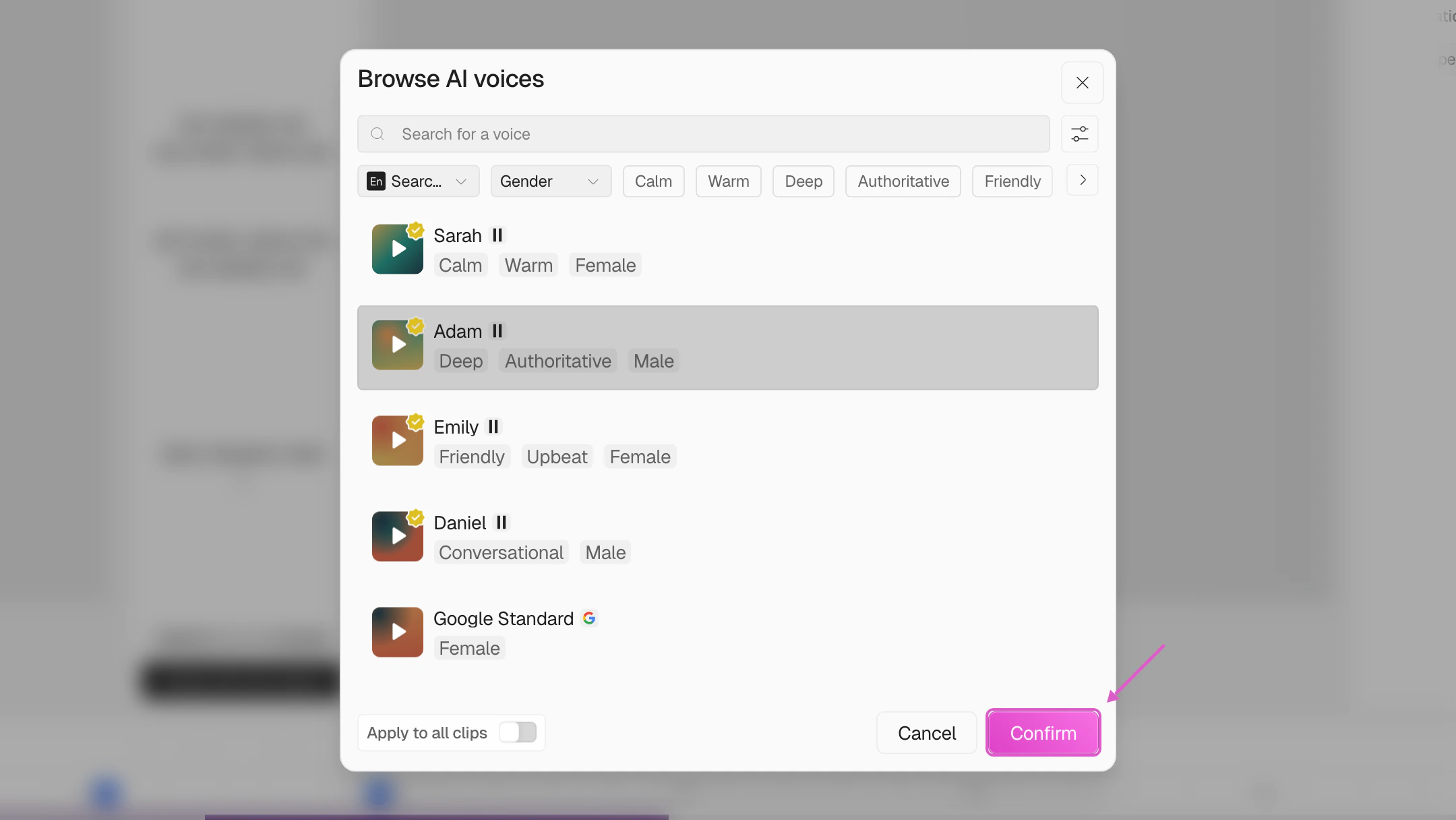
 Click **Confirm** to apply your choice.
 Finally, click the **Generate speech** button to create your video with the updated AI voice across all clips.
 ## FAQs
After selecting a new voice, be sure to click **Generate Speech** to create the voiceover in your new voice.
## FAQs
After selecting a new voice, be sure to click **Generate Speech** to create the voiceover in your new voice.