> ## Documentation Index
> Fetch the complete documentation index at: https://help.clueso.io/llms.txt
> Use this file to discover all available pages before exploring further.
# Click highlights
> Customize the highlight color for clicks in your video and screenshots
This guide shows you how to customize the pink highlight circle that Clueso automatically adds over UI elements in your videos and screenshots.
Open the **Clueso extension** and click on the three dots menu. From here, go to to **Settings**.
In Settings, you’ll see an option to toggle the click highlight effect on or off for your video and for the article screenshots.
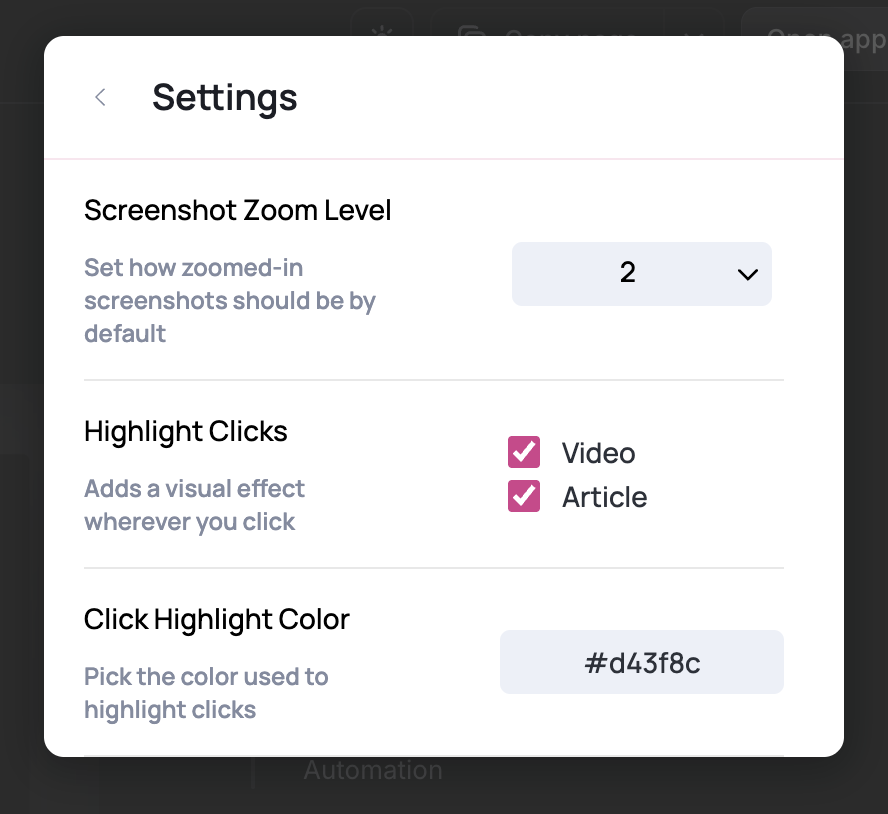 Scroll to the option labeled **Highlight color**. You can replace the default hex code with any color you like.
To make the highlight completely transparent (so no click highlight appears), set the color to `#00000000` (# followed by eight 0s).
Once updated, your chosen highlight color will apply automatically the next time you record.
## FAQs
No. Click highlights are baked into the recording and can’t be removed afterwards.
No. Each team member needs to configure their own highlight settings. Once you set yours, they’ll be saved for your account.
Scroll to the option labeled **Highlight color**. You can replace the default hex code with any color you like.
To make the highlight completely transparent (so no click highlight appears), set the color to `#00000000` (# followed by eight 0s).
Once updated, your chosen highlight color will apply automatically the next time you record.
## FAQs
No. Click highlights are baked into the recording and can’t be removed afterwards.
No. Each team member needs to configure their own highlight settings. Once you set yours, they’ll be saved for your account.