> ## Documentation Index
> Fetch the complete documentation index at: https://help.clueso.io/llms.txt
> Use this file to discover all available pages before exploring further.
# Mobile screen recordings
> Create projects from your mobile screen recordings
You can create engaging articles and high-quality video tutorials from mobile screen recordings using Clueso. Record your screen with your device's built-in screen recorder, then upload the file into Clueso the same way you would any other video.
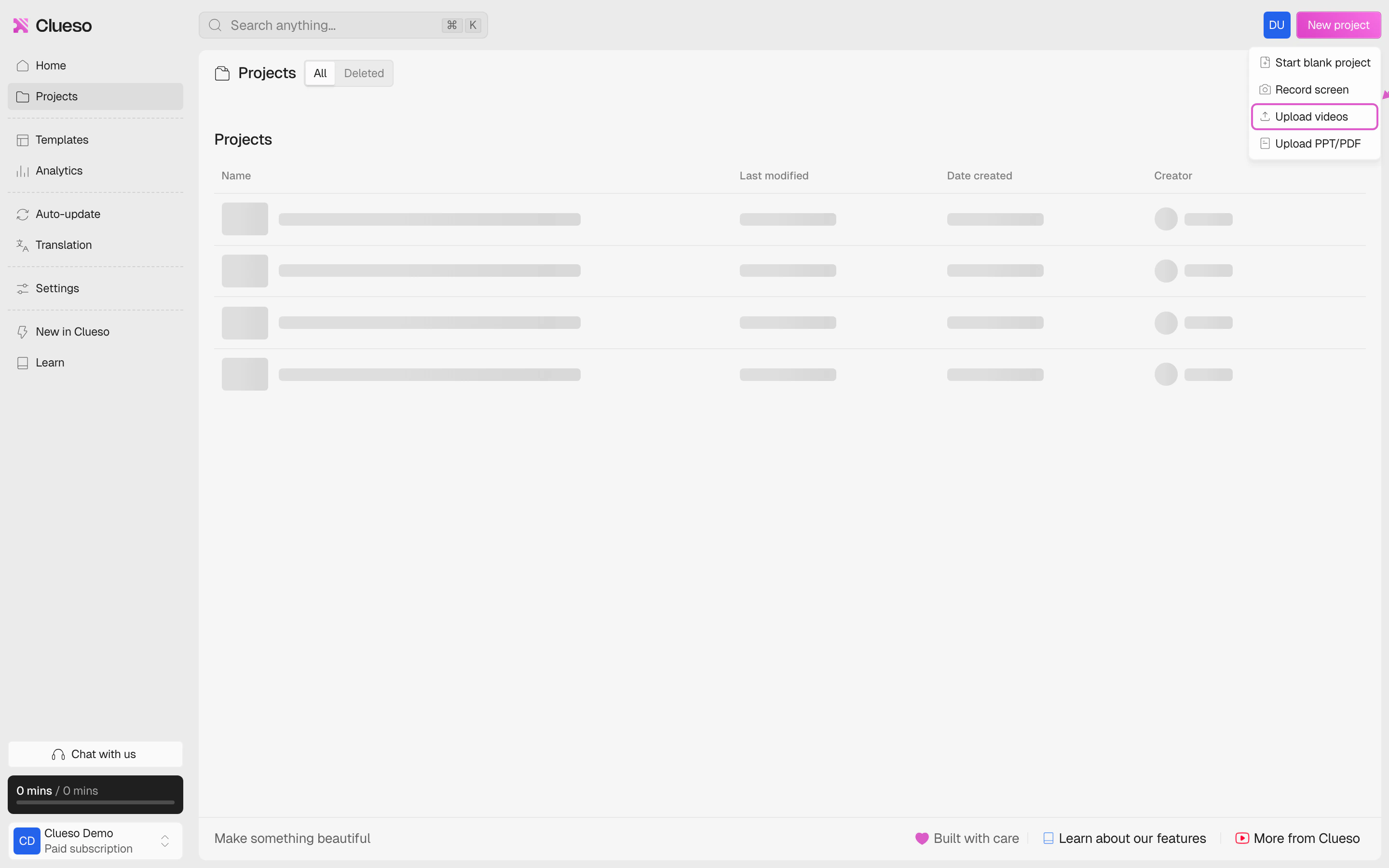
On the home page, click **+ New project** in the top-right corner and choose **Upload videos**.
 Drag your mobile screen recording into the upload area, or click to pick the file. Common formats like **mp4**, **mov**, **wav**, and **webm** are supported.
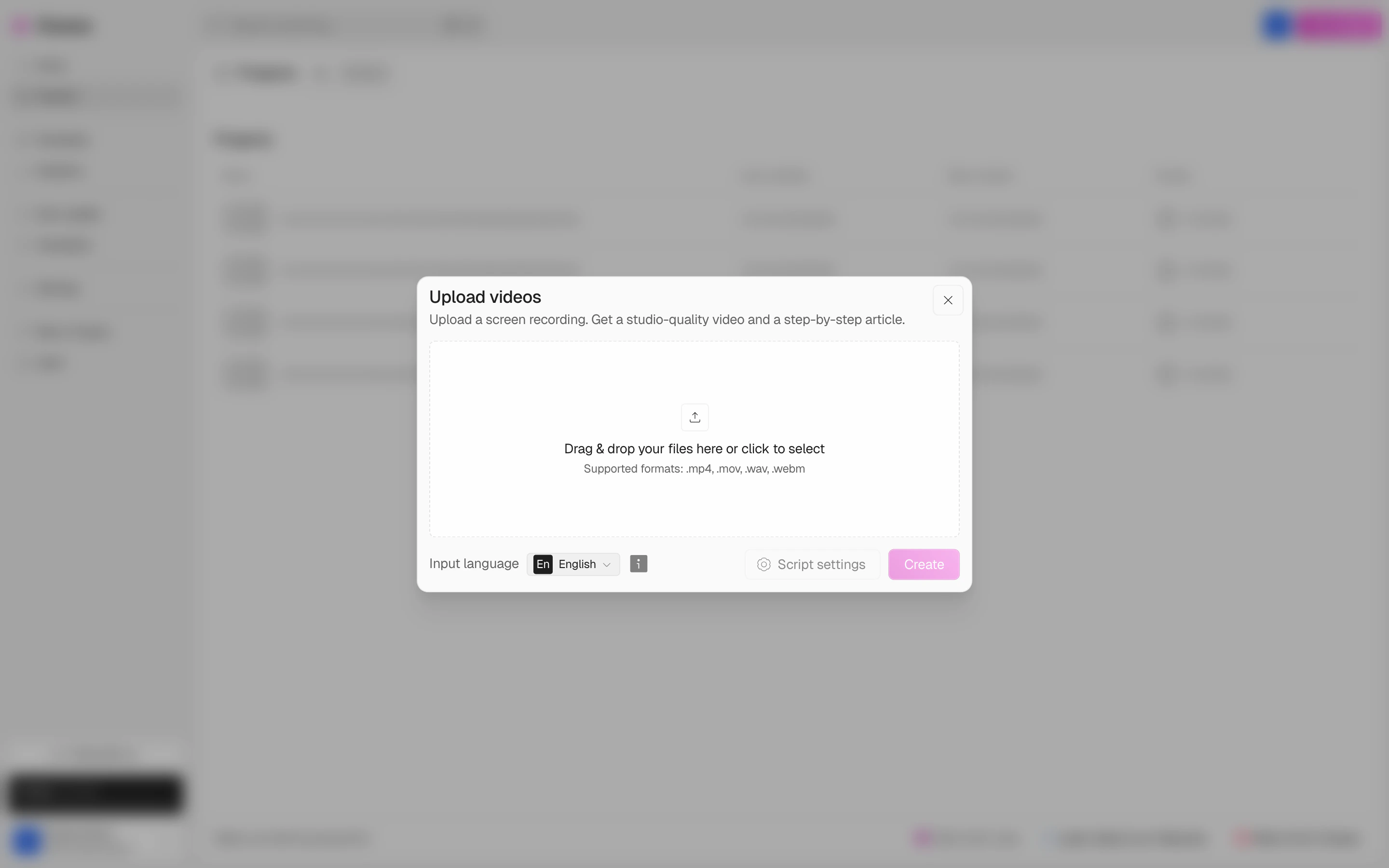 Choose the **input language** of the recording so Clueso transcribes and processes it correctly.
Click **Create** to begin processing. Clueso handles the rest — generating the first draft of your video and article.
You can continue to edit both the video and the article just like any other Clueso project.
You can't run the Clueso screen recorder on a phone. Use your device's built-in screen recording feature instead, then upload the file using the steps above.
Choose the **input language** of the recording so Clueso transcribes and processes it correctly.
Click **Create** to begin processing. Clueso handles the rest — generating the first draft of your video and article.
You can continue to edit both the video and the article just like any other Clueso project.
You can't run the Clueso screen recorder on a phone. Use your device's built-in screen recording feature instead, then upload the file using the steps above.