> ## Documentation Index
> Fetch the complete documentation index at: https://help.clueso.io/llms.txt
> Use this file to discover all available pages before exploring further.
# Quickstart
> Create your first video and article in just minutes
This quickstart guide shows you how to create your first video and article in Clueso in minutes. By the end, you’ll have both a polished video and a documentation article ready to share with your team or customers.
**Prerequisite**: Before you begin, [create an account](https://web.clueso.io) and complete onboarding.
After you complete the onboarding process, you'll find yourself on the [Clueso home page](https://web.clueso.io).
At the home page, you'll see four options to create a new video:
1. Create with Prompt
2. Record screen
3. Upload a video
4. Upload slide decks
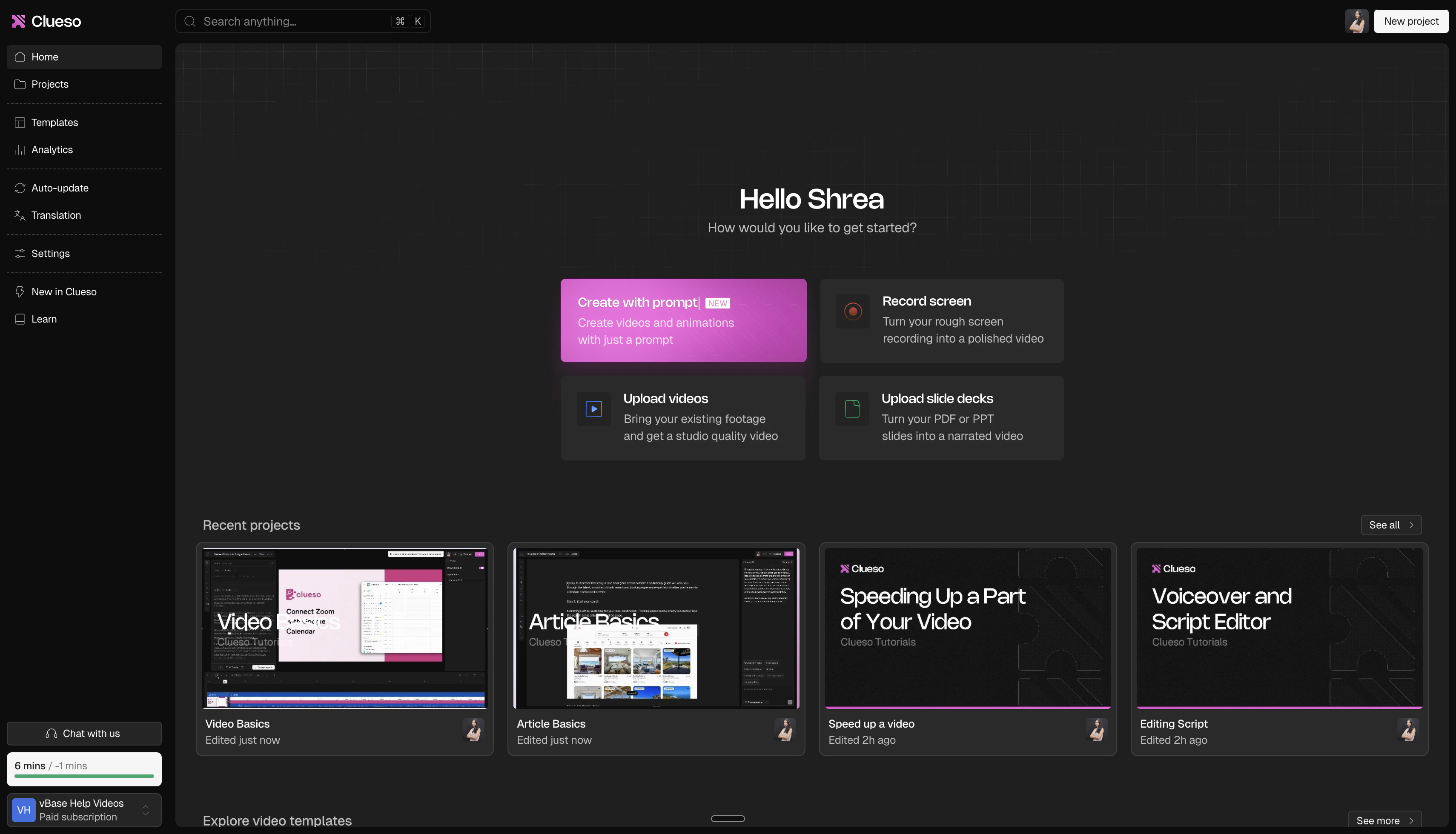 In this guide, we'll record our screen to capture a rough screen recording, and turn that rough recording into a polished video.
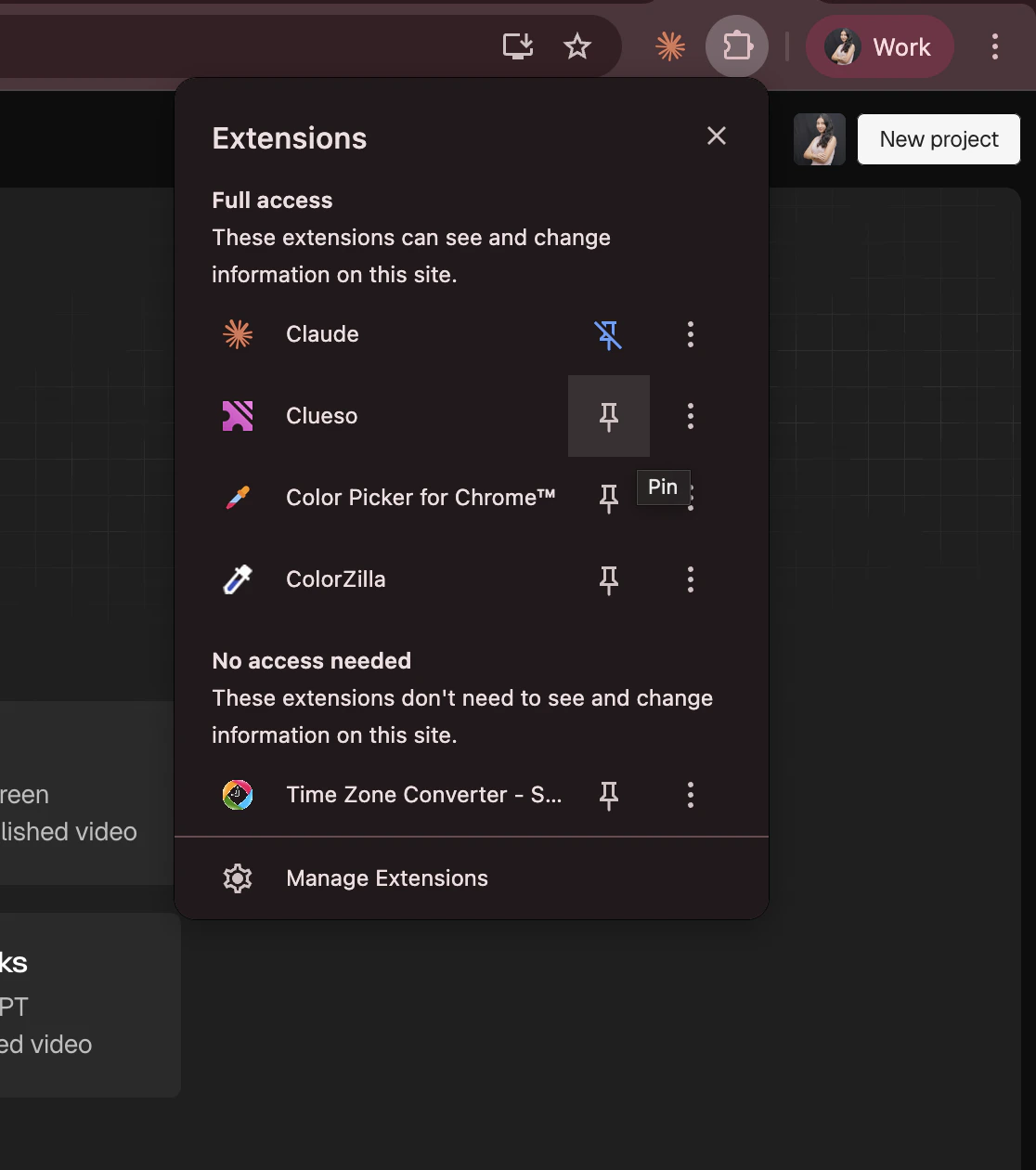
To capture recordings, you'll need to install the Clueso chrome extension.
1. Head to the Clueso extension on the [chrome web store](https://chrome.google.com/webstore/detail/clueso-extension/hnfgakkbiefcdbkonflgfkadncclmpme?hl=en-GB\&authuser=0) then click **Add to Chrome** > **Add extension**.
2. Pin the extension by clicking on the **puzzle icon** in your browser, then click on the **pin icon**.
In this guide, we'll record our screen to capture a rough screen recording, and turn that rough recording into a polished video.
To capture recordings, you'll need to install the Clueso chrome extension.
1. Head to the Clueso extension on the [chrome web store](https://chrome.google.com/webstore/detail/clueso-extension/hnfgakkbiefcdbkonflgfkadncclmpme?hl=en-GB\&authuser=0) then click **Add to Chrome** > **Add extension**.
2. Pin the extension by clicking on the **puzzle icon** in your browser, then click on the **pin icon**.
 With the Clueso extension now installed, let's start a recording.
There are two ways to initiate a recording on Clueso. Either click on the Clueso extension icon, or click on the *Record Screen* from the home screen.
Follow the on-screen instructions to capture a recording on any product of your choice. Explain the process you're following with your voice. There's no need to be perfect here. Just go through the flow roughly.
Once you finish your recording, you'll be taken into the video editor.
Check out [this guide](/getting-started/video-basics) for a more in-depth tutorial on how to edit your first video.
With the Clueso extension now installed, let's start a recording.
There are two ways to initiate a recording on Clueso. Either click on the Clueso extension icon, or click on the *Record Screen* from the home screen.
Follow the on-screen instructions to capture a recording on any product of your choice. Explain the process you're following with your voice. There's no need to be perfect here. Just go through the flow roughly.
Once you finish your recording, you'll be taken into the video editor.
Check out [this guide](/getting-started/video-basics) for a more in-depth tutorial on how to edit your first video.
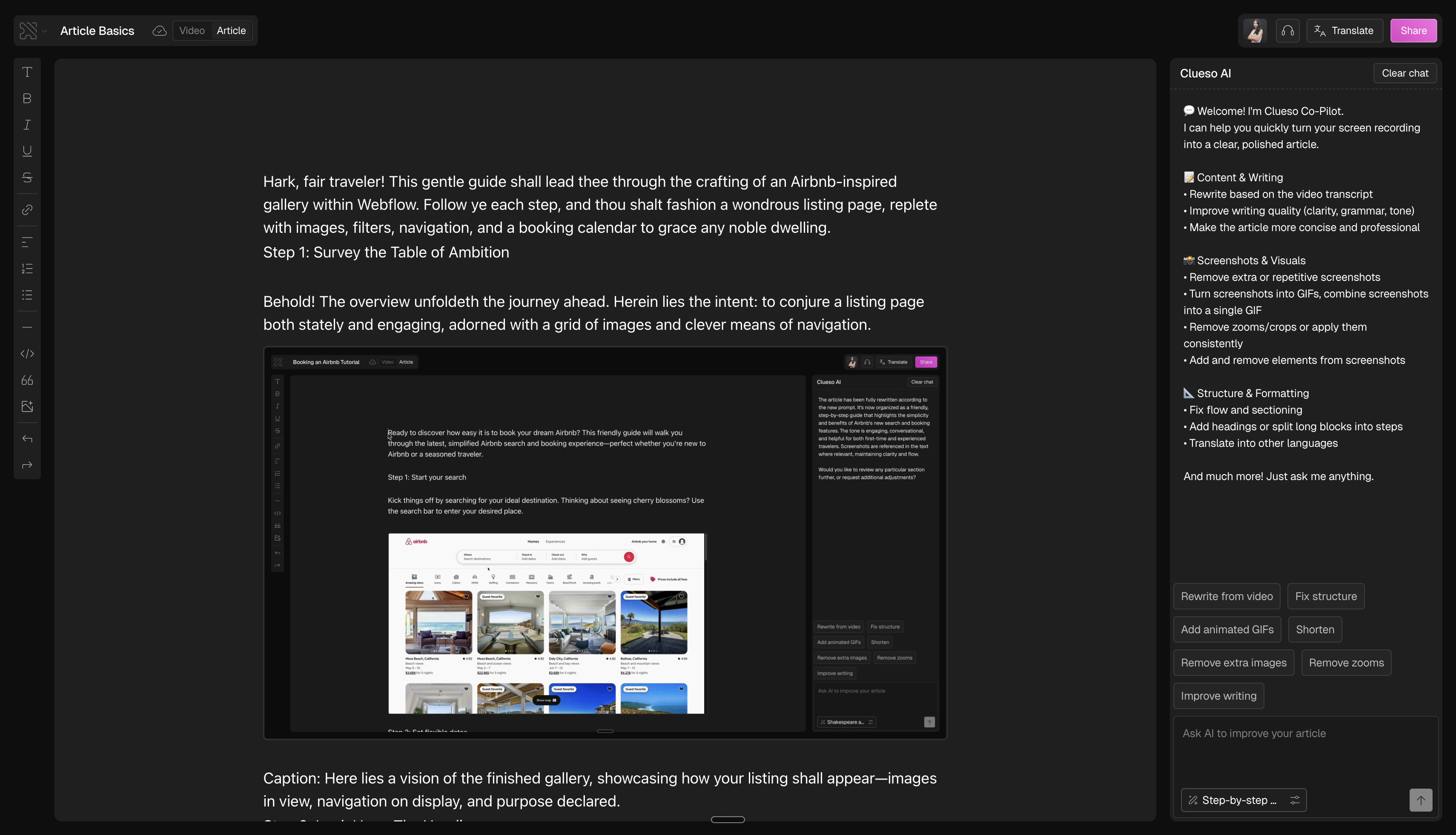
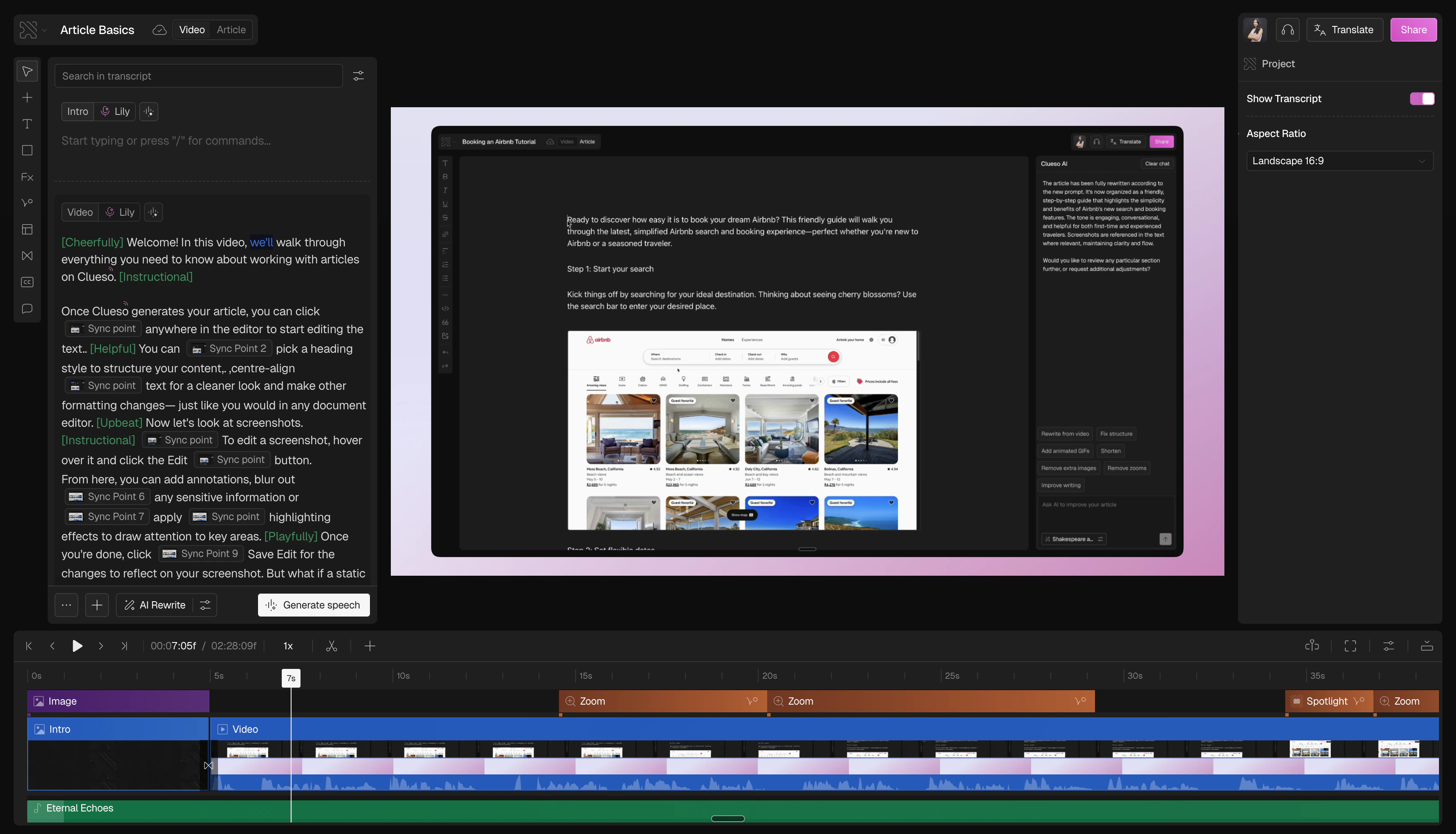 Now, head over to the article tab. Here, you can edit your article.
Check out [this guide](/getting-started/article-basics) for a more in-depth tutorial on editing your first article.
Now, head over to the article tab. Here, you can edit your article.
Check out [this guide](/getting-started/article-basics) for a more in-depth tutorial on editing your first article.
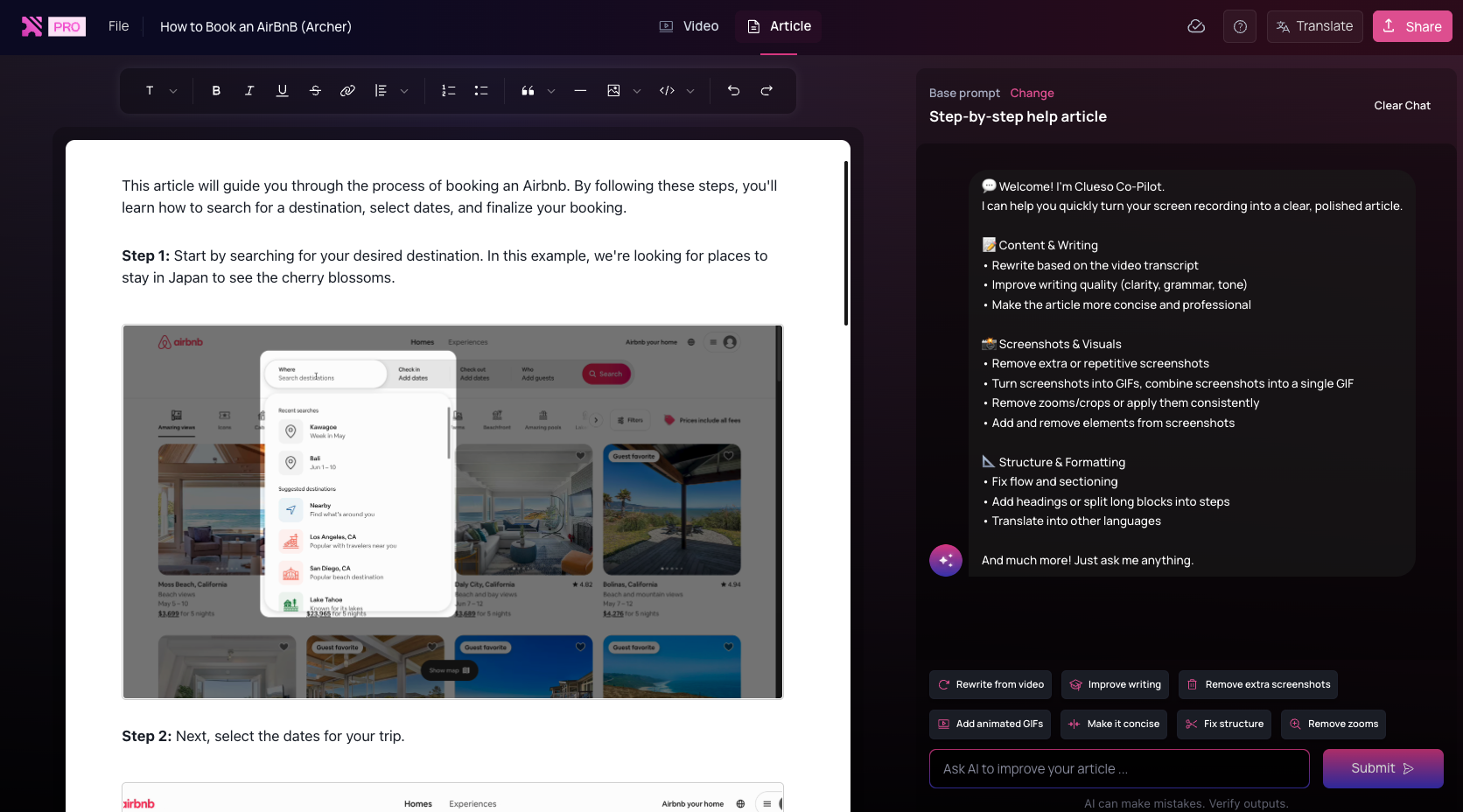
 1. From the top-right click on **Share**
2. From here, you can export your content or create a view-only link.
3. Send it over to your teammates and enjoy!
## Next steps
Congratulations! You've successfully created your first video and article on Clueso. Here are some suggested steps to enhance your creation further.
Refine and polish the video you just recorded.
Craft clear, professional documentation.
Synchronize your voiceover perfectly with your video.
Explore core editing tools like clips, timelines, and more.
1. From the top-right click on **Share**
2. From here, you can export your content or create a view-only link.
3. Send it over to your teammates and enjoy!
## Next steps
Congratulations! You've successfully created your first video and article on Clueso. Here are some suggested steps to enhance your creation further.
Refine and polish the video you just recorded.
Craft clear, professional documentation.
Synchronize your voiceover perfectly with your video.
Explore core editing tools like clips, timelines, and more.