> ## Documentation Index
> Fetch the complete documentation index at: https://help.clueso.io/llms.txt
> Use this file to discover all available pages before exploring further.
# Article basics
> Create your first article on Clueso
This guide walks you through creating a polished, step-by-step article from your recording.
## Overview
After you finish your recording, Clueso automatically generates a step-by-step article with text and screenshots. Each step in the article includes text based on your voiceover and a screenshot that highlights and zooms in on the button you clicked.
## Editing Screenshots
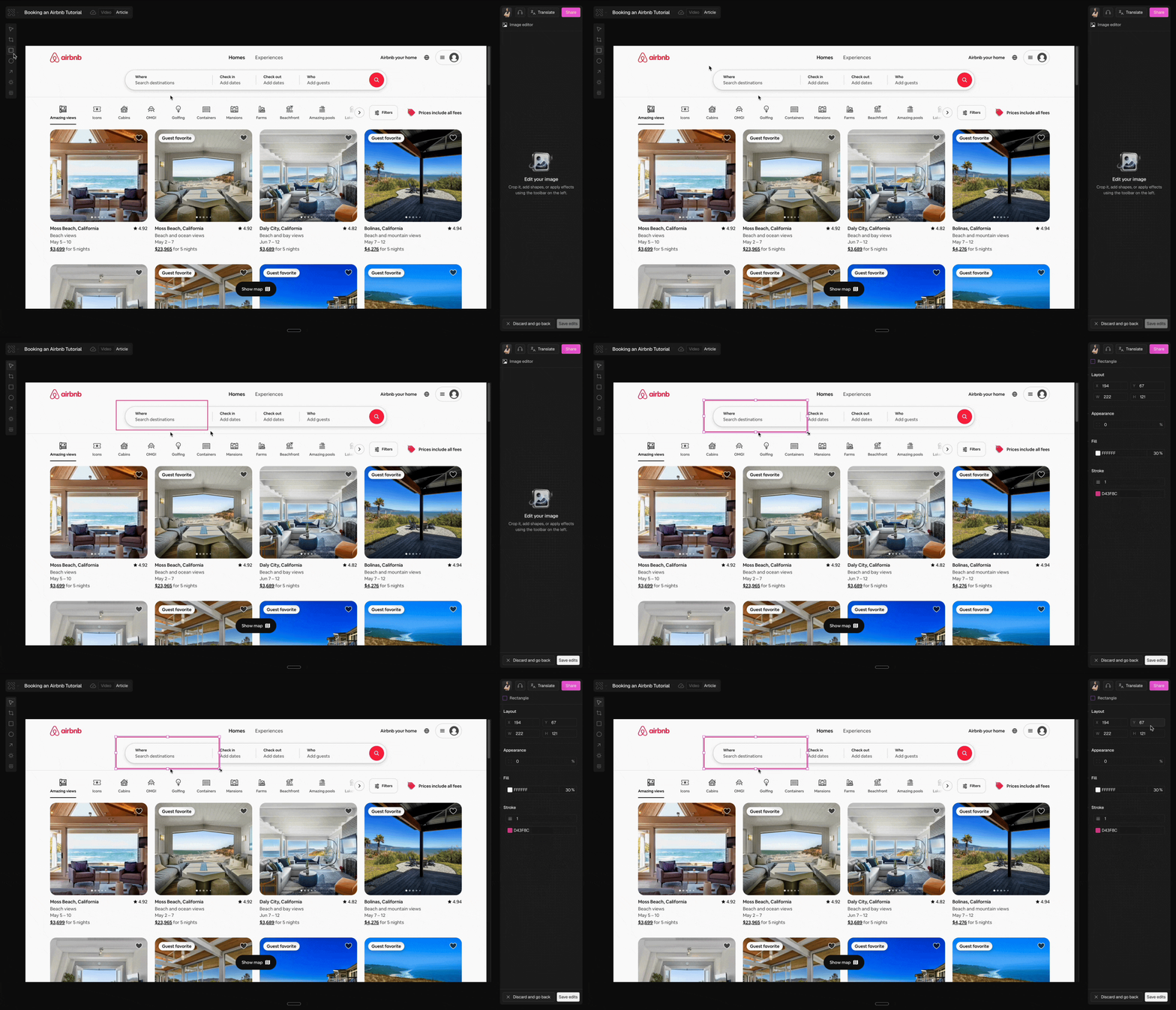
To edit a screenshot, hover over it and click the Edit button. You can then:
* Adjust the zoom level
* Add annotations
* Blur sensitive information
* Apply highlighting effects
 ## Generating GIFs
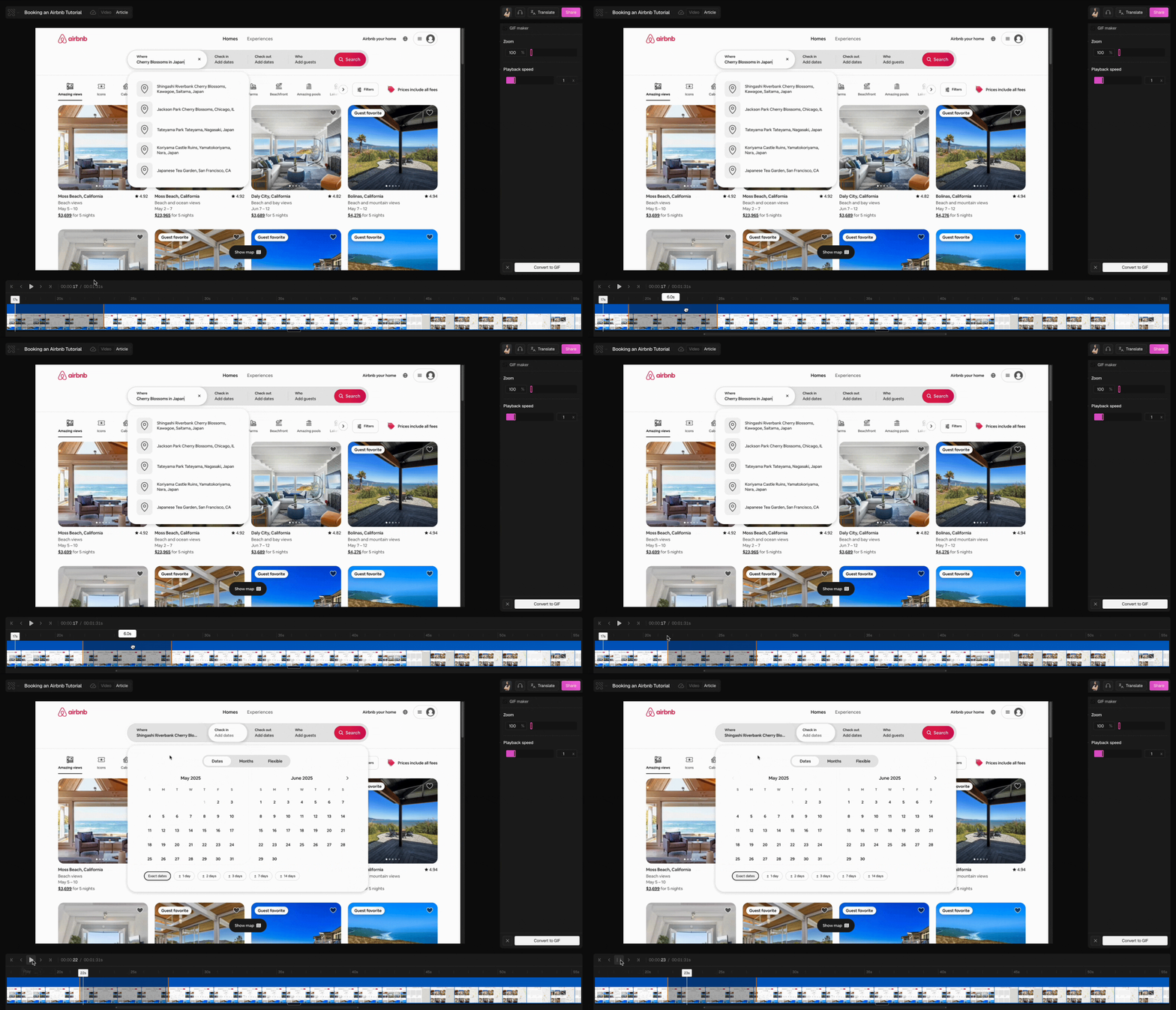
Want to show motion instead of a static image? Convert a screenshot into a GIF:
* Click the GIF button at the bottom-right corner of the screenshot
* Adjust the zoom and playback speed
* Preview your GIF before saving
## Generating GIFs
Want to show motion instead of a static image? Convert a screenshot into a GIF:
* Click the GIF button at the bottom-right corner of the screenshot
* Adjust the zoom and playback speed
* Preview your GIF before saving