> ## Documentation Index
> Fetch the complete documentation index at: https://help.clueso.io/llms.txt
> Use this file to discover all available pages before exploring further.
# Add zoom
> Add zoom effects to your videos
Zoom effects let you focus attention on specific parts of your video by magnifying areas of interest — perfect for highlighting a button, guiding users through a complex step, or making sure nothing important gets missed.
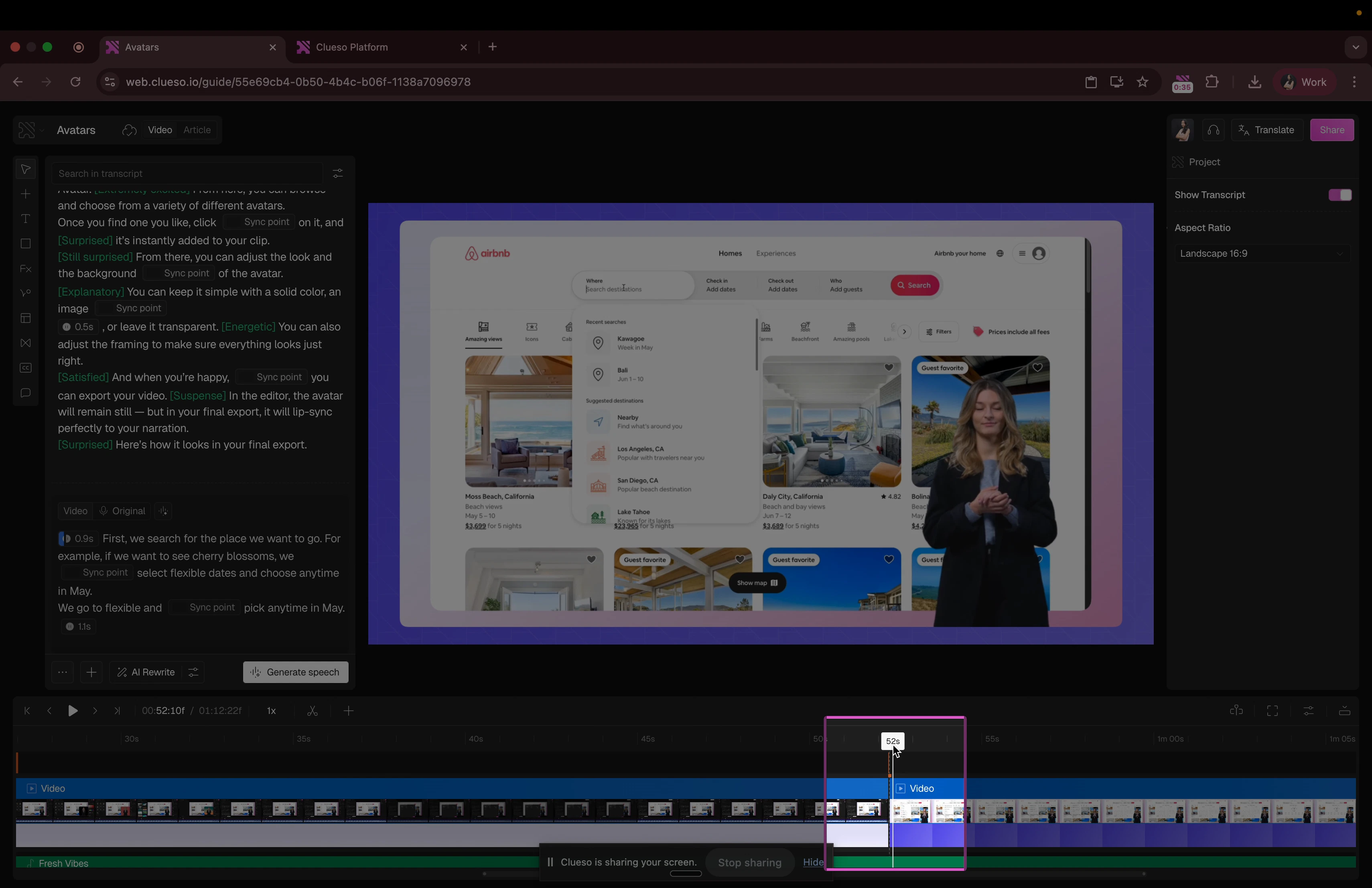
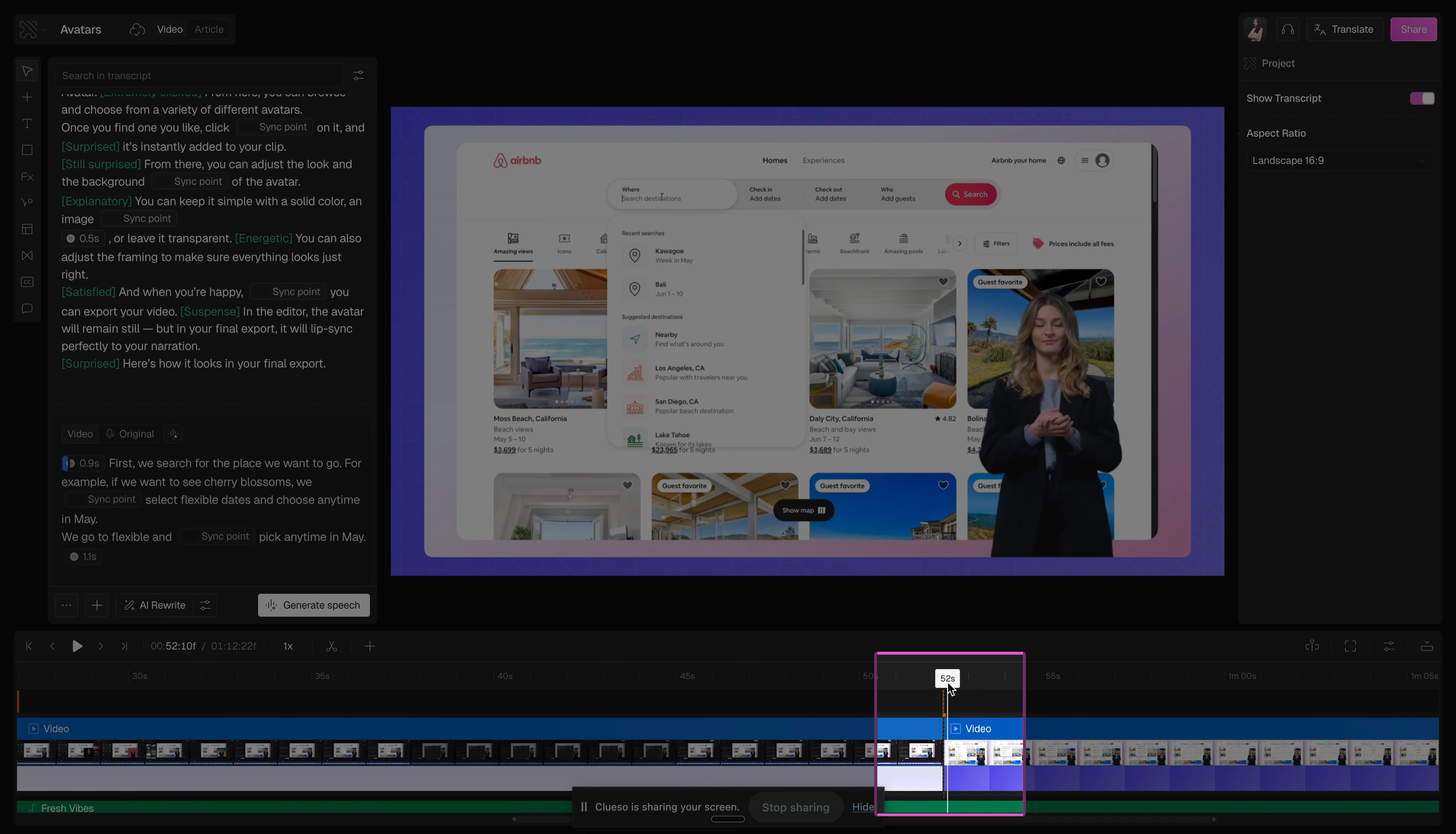
Look at the timeline at the bottom of your screen. Place the playhead to the exact moment where you want the zoom to appear.
 Click on **Effects** on the left panel
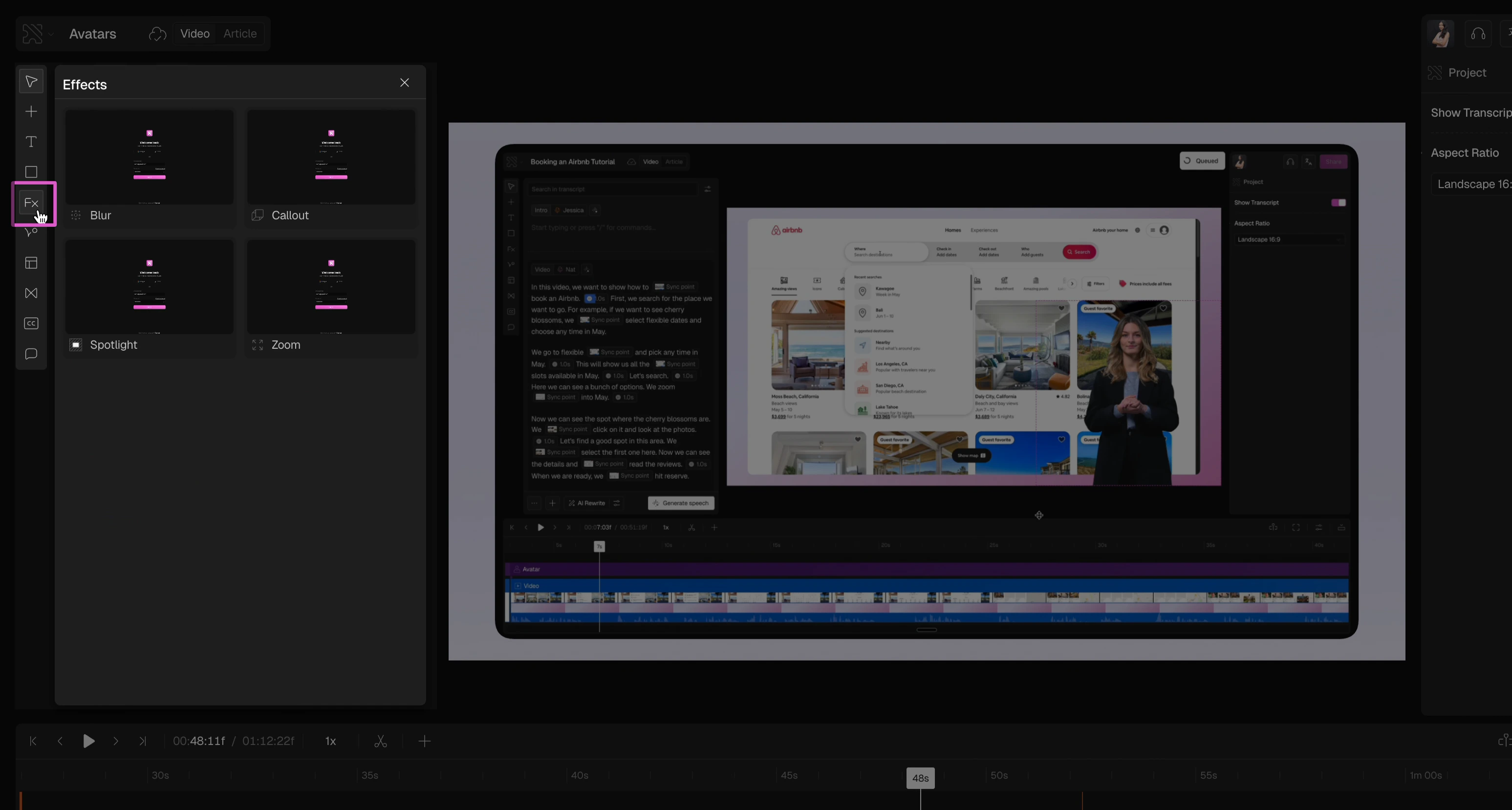 Select Zoom. The effect will appear on your timeline at the position of the playhead.
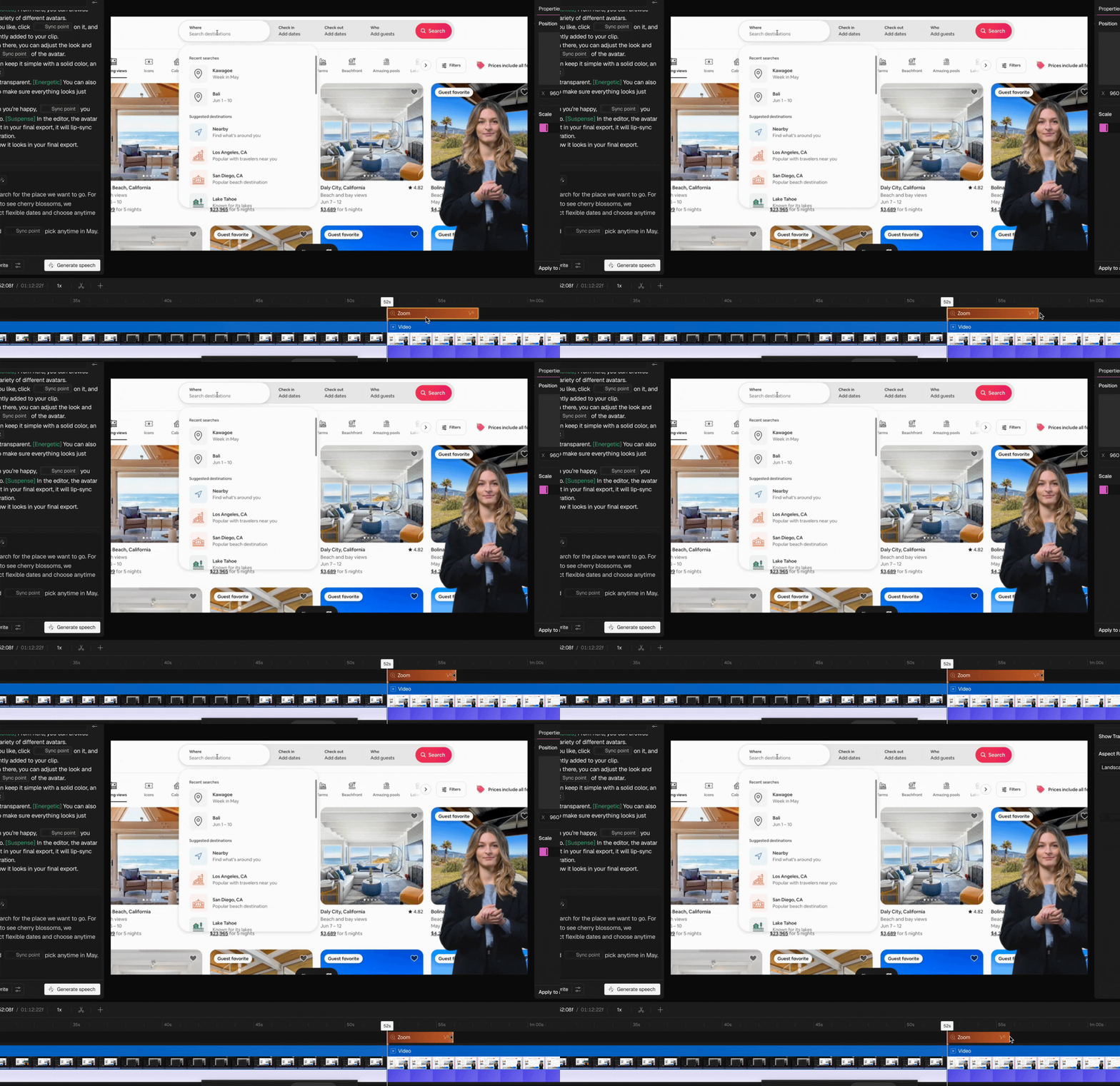
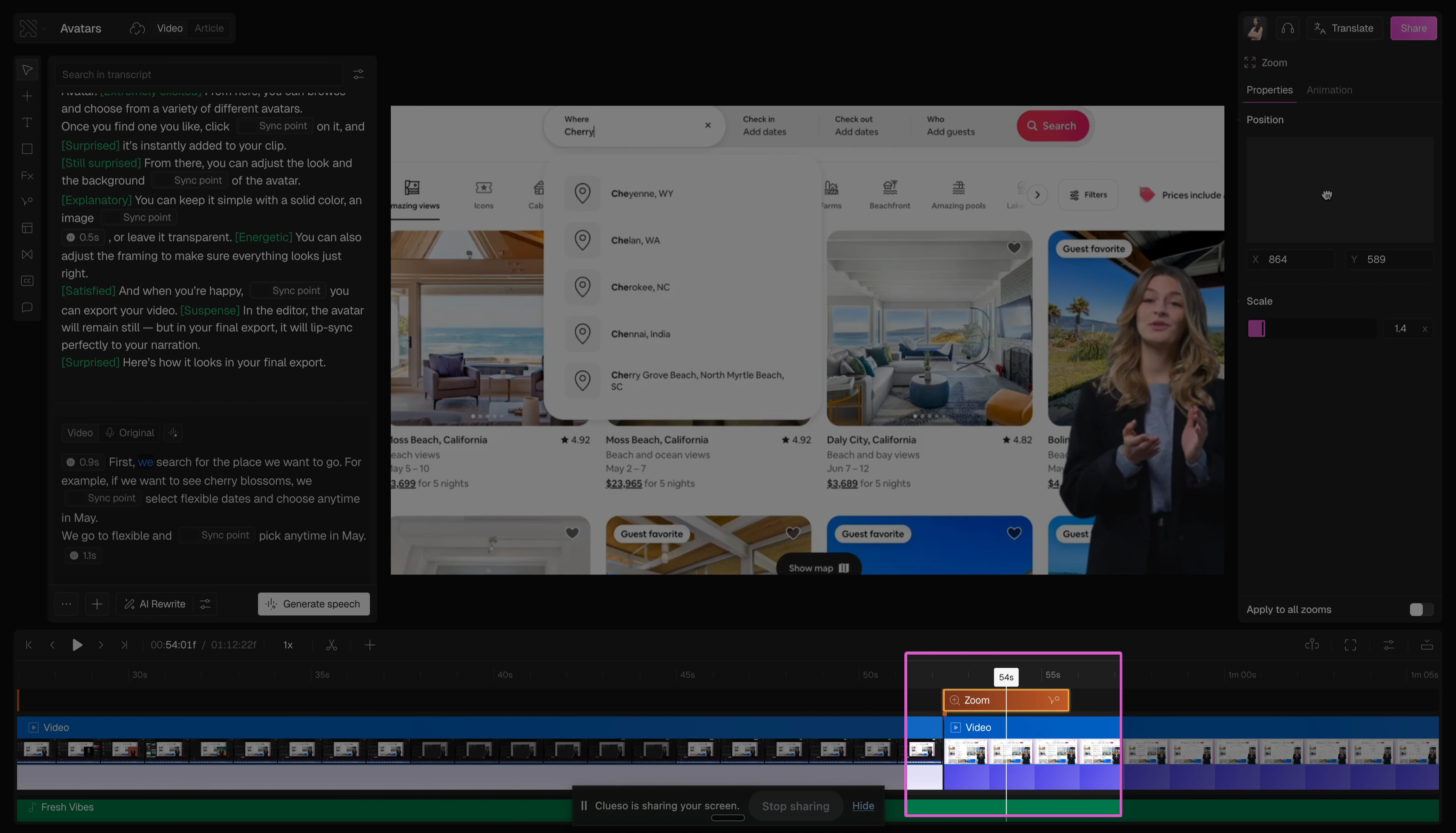 Drag the edges of the zoom effect on the timeline to control how long it stays on screen.
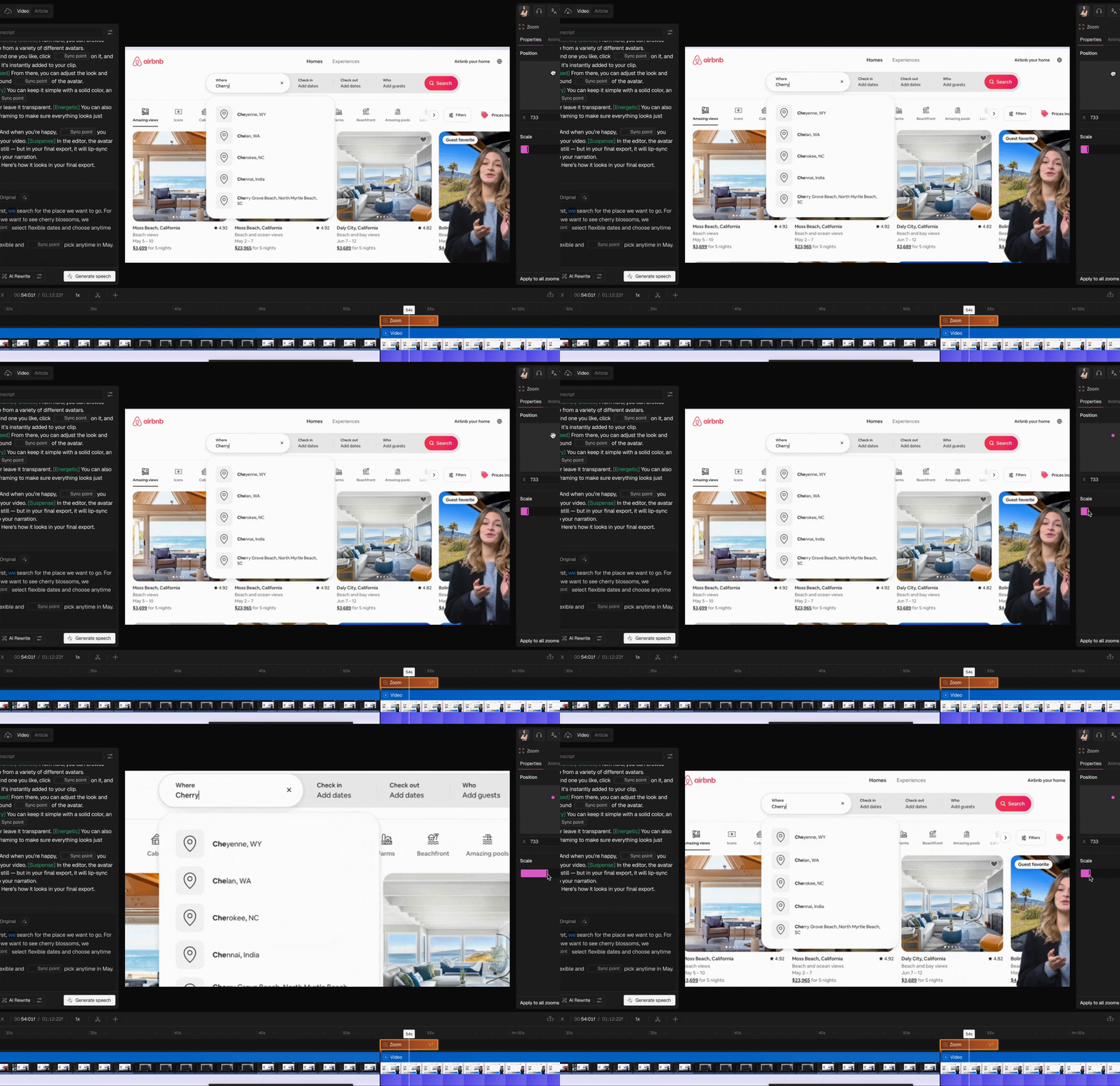
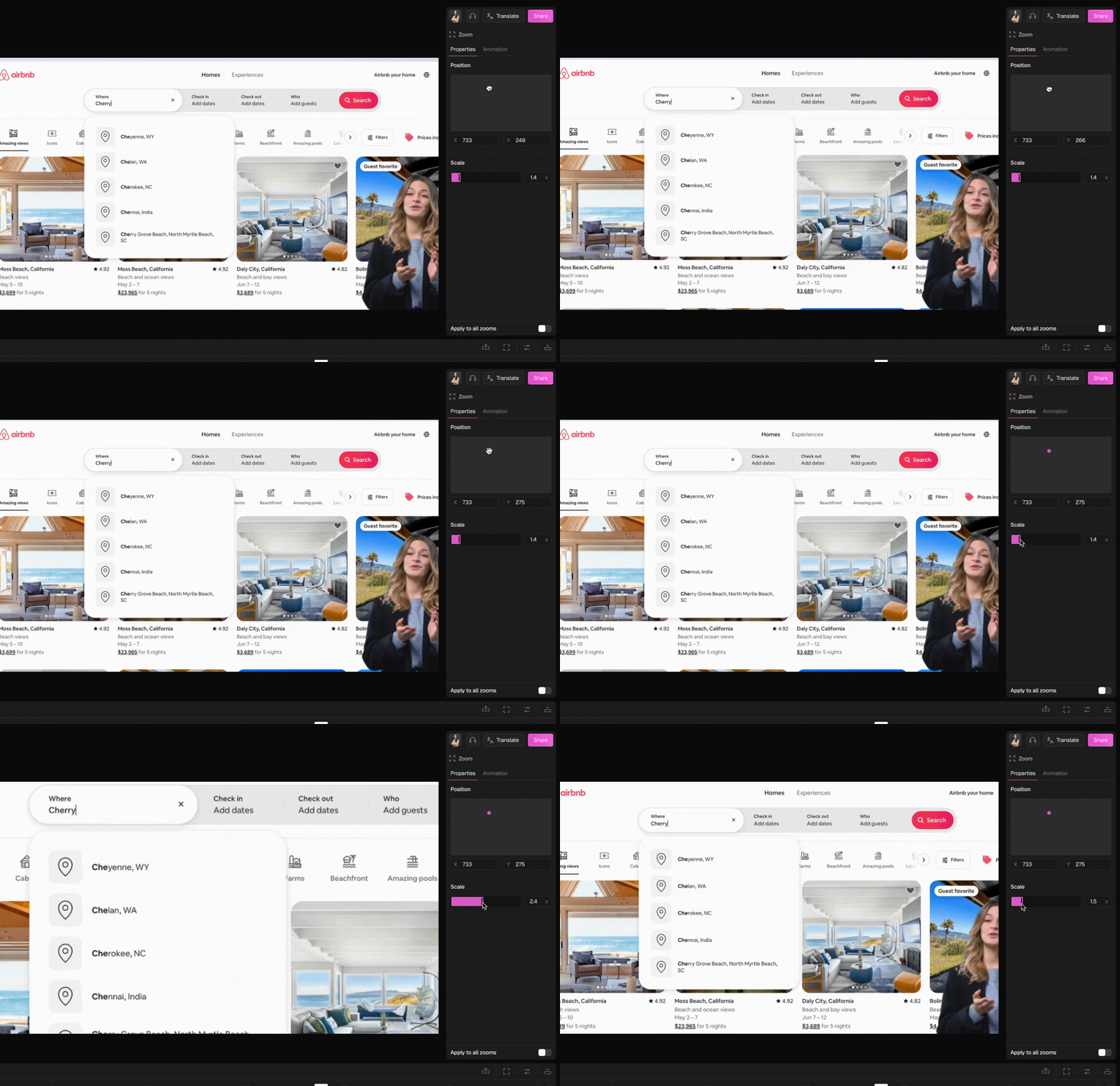
 Adjust the zoom center to set the focus and position of your zoom. Use the scale slider to control how strong the zoom feels.
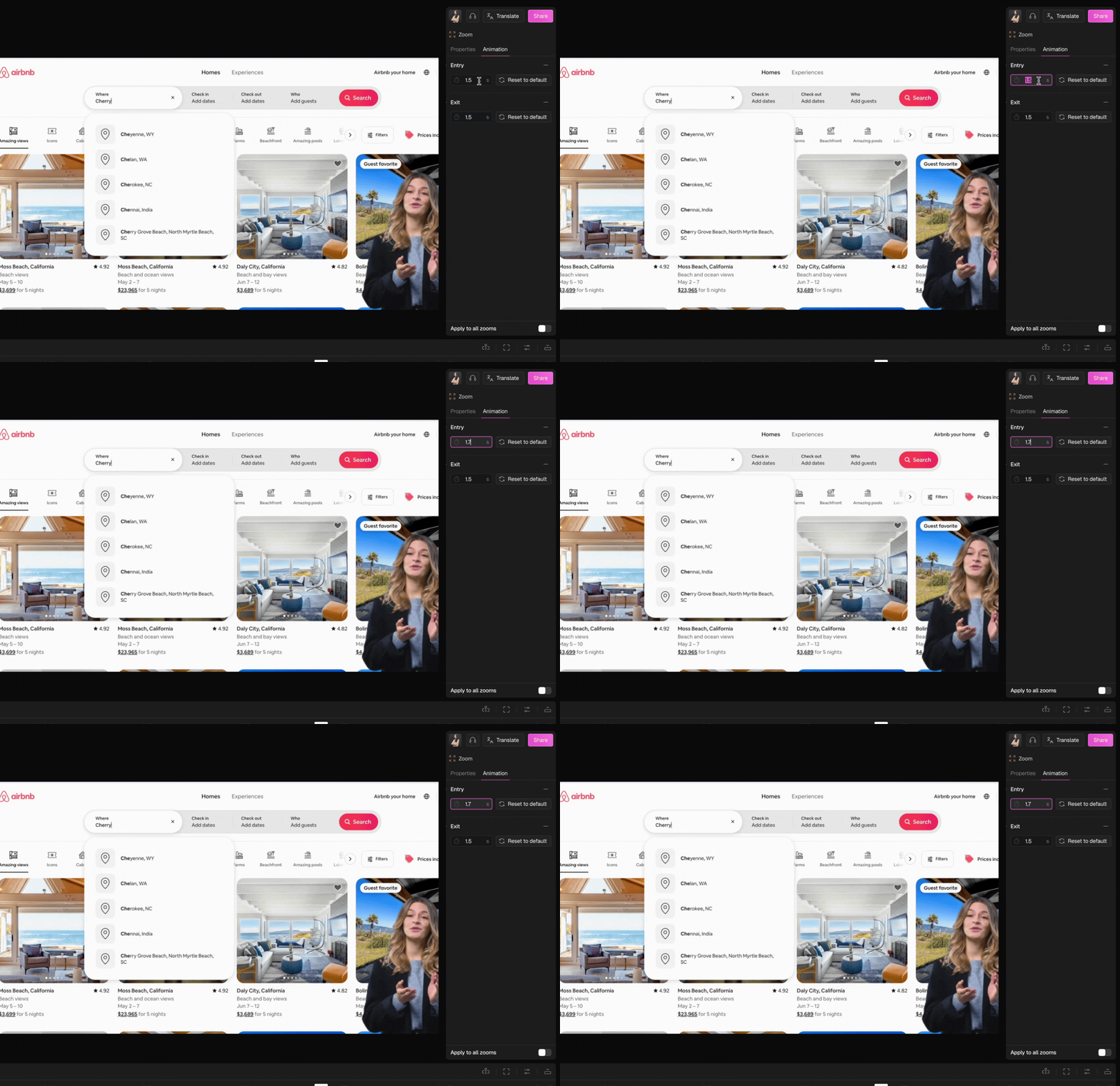
 Switch to the **Animation** tab to control how the zoom enters and exits. Click on the time field and use the up and down arrow keys on your keyboard, or type in the duration directly.
 Not happy with the placement? You can drag the zoom effect along the timeline to reposition it at any time.
## FAQs
Clueso only adds zooms automatically when you record using the Chrome extension.
Yes — add as many zoom effects as you need. Each one can be independently repositioned and resized on the timeline.
Yes — click the effect on the timeline at any time to adjust the position, scale, and animation duration.
Not happy with the placement? You can drag the zoom effect along the timeline to reposition it at any time.
## FAQs
Clueso only adds zooms automatically when you record using the Chrome extension.
Yes — add as many zoom effects as you need. Each one can be independently repositioned and resized on the timeline.
Yes — click the effect on the timeline at any time to adjust the position, scale, and animation duration.