> ## Documentation Index
> Fetch the complete documentation index at: https://help.clueso.io/llms.txt
> Use this file to discover all available pages before exploring further.
# Custom fonts
> Learn how to add and use custom fonts in your Clueso videos.
You can add custom fonts to Clueso to make your text elements on-brand. Upload your own font files and they'll be available across all your projects and shared with your entire team.
## Adding Custom Fonts
Follow these steps to upload and use custom fonts:
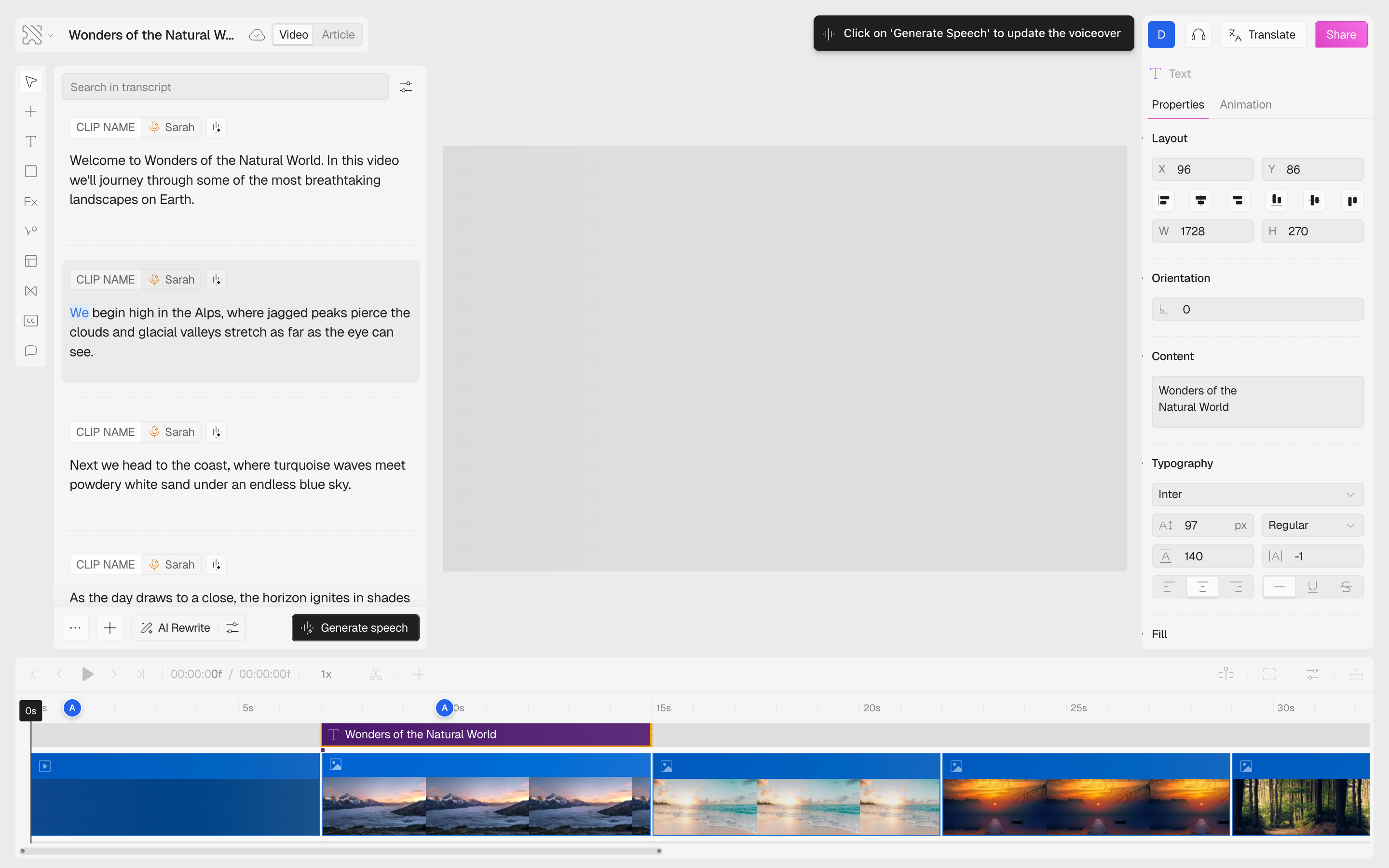
Click on any text element in your video to select it. The right panel will switch to show text properties including the **Typography** section.
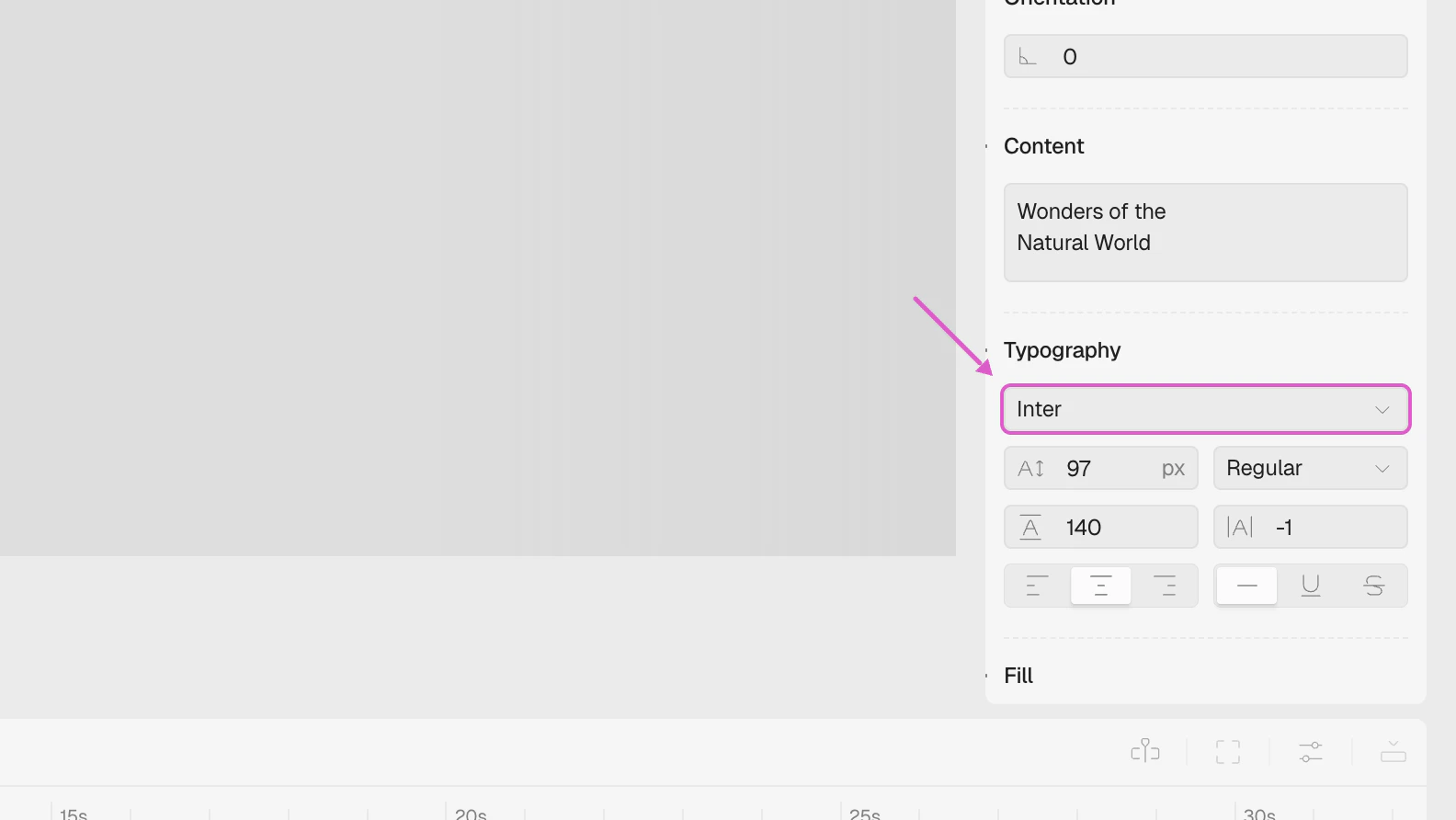
 In the Typography section, click on the **font name** dropdown (it shows the current font, e.g., "Inter"). This opens the font picker with three tabs:
* **All** — shows both your custom fonts and Google Fonts
* **Saved** — shows only fonts you've uploaded, with a "Custom" badge
* **Library** — shows the full Google Fonts library
In the Typography section, click on the **font name** dropdown (it shows the current font, e.g., "Inter"). This opens the font picker with three tabs:
* **All** — shows both your custom fonts and Google Fonts
* **Saved** — shows only fonts you've uploaded, with a "Custom" badge
* **Library** — shows the full Google Fonts library
 The font picker shows all available fonts. Your custom fonts appear at the top with a **Custom** badge. Use the **search bar** to quickly find any font by name.
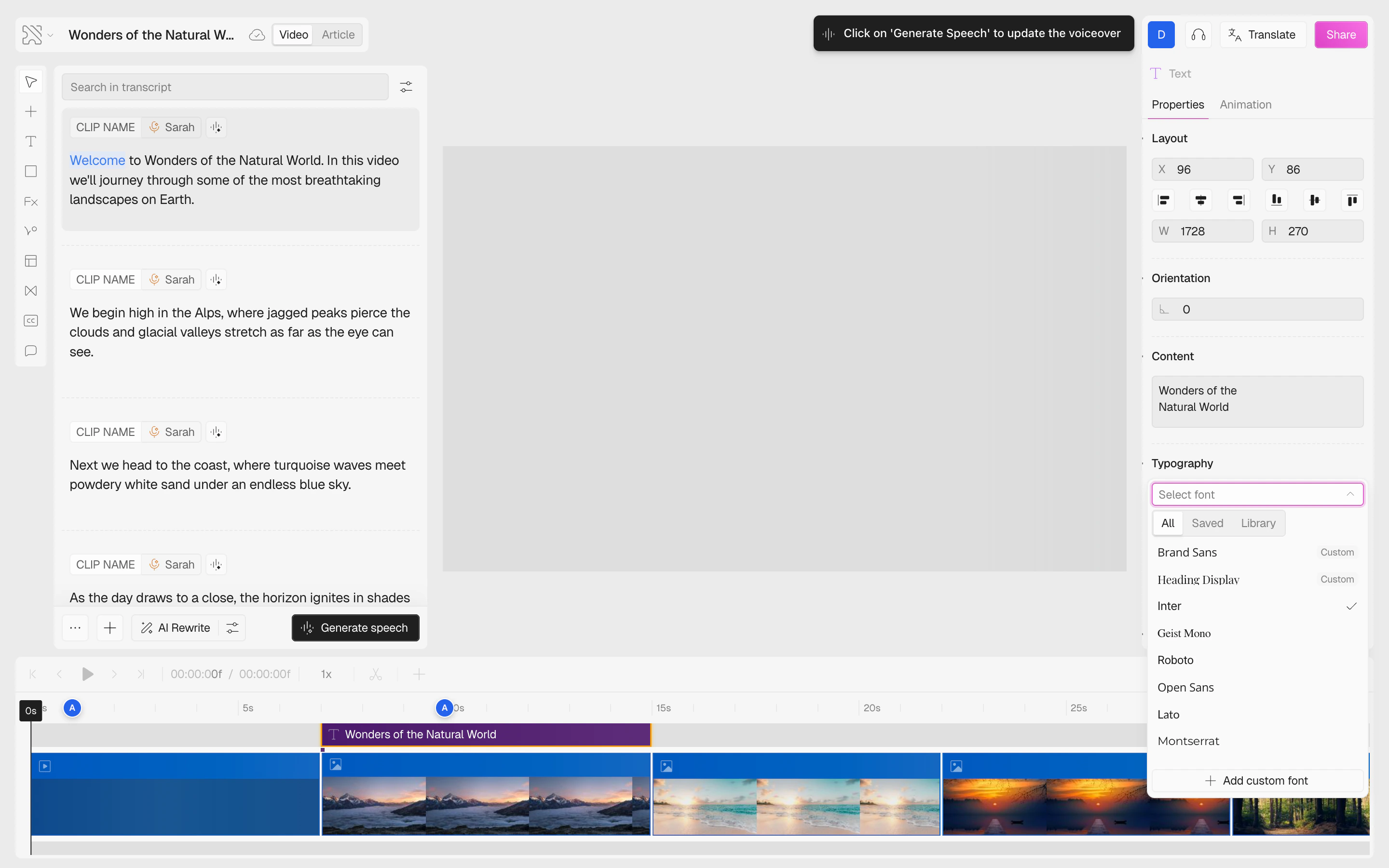 Scroll to the bottom of the font list and click **Add custom font** to open the upload modal:
* **Drag and drop** your font file into the upload area, or click to browse
* The font **name** is auto-populated from the filename — you can change it if desired
* Click **Submit** to complete the upload
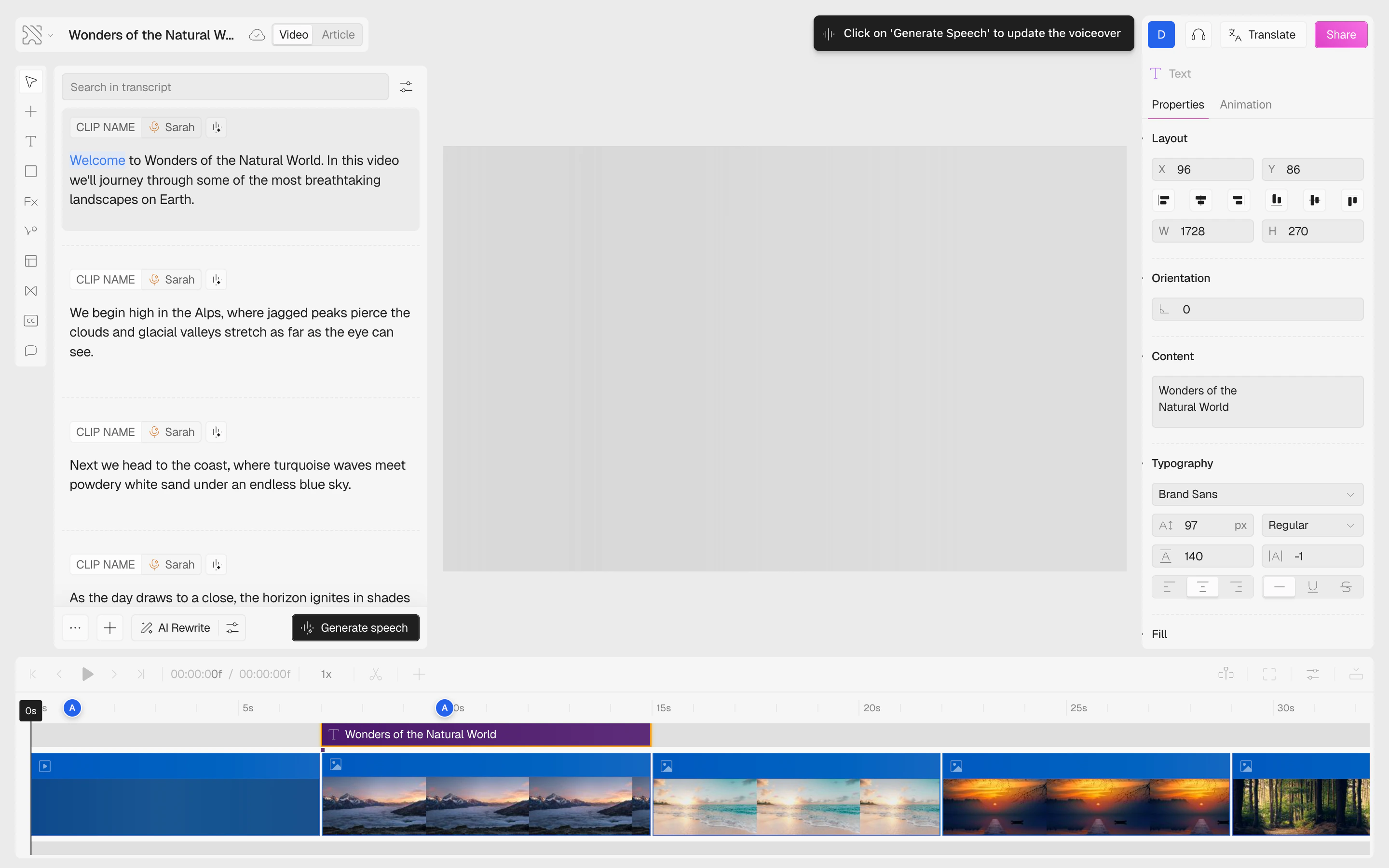
After uploading, your custom font is automatically selected. It appears under the **Saved** tab and is available across all your projects.
Scroll to the bottom of the font list and click **Add custom font** to open the upload modal:
* **Drag and drop** your font file into the upload area, or click to browse
* The font **name** is auto-populated from the filename — you can change it if desired
* Click **Submit** to complete the upload
After uploading, your custom font is automatically selected. It appears under the **Saved** tab and is available across all your projects.
 ## Supported Font Formats
Clueso supports the following font file formats:
| Format | Extension | Description |
| ---------------------------- | --------- | --------------------------------------------------------------- |
| **TrueType** | `.ttf` | Most common font format, widely supported |
| **OpenType** | `.otf` | Advanced typography features, supports ligatures and alternates |
| **Web Open Font Format** | `.woff` | Compressed format optimized for web use |
| **Web Open Font Format 2.0** | `.woff2` | Better compression than WOFF, recommended for web |
## Font Weights and Variants
When you upload a font, Clueso automatically detects the available font weights (e.g., Regular, Bold, Light). If the font file contains multiple weights, they'll all be available in the **weight dropdown** when styling your text.
For fonts with a single weight, only that weight will be available. To use multiple weights of the same font family, upload each weight as a separate file with a descriptive name (e.g., "Brand Sans Light", "Brand Sans Bold").
## Typography Controls
When a text element is selected, the Typography section in the right panel provides full control over:
* **Font family** — click the font name to open the picker
* **Font size** — set in pixels
* **Font weight** — Regular, Bold, Light, etc. (depends on available weights)
* **Line height** — spacing between lines
* **Letter spacing** — spacing between characters
* **Text alignment** — left, center, right, justify
* **Text decoration** — underline, strikethrough
## Using Your Custom Fonts
Once uploaded, your custom fonts are available everywhere fonts appear:
* **Text elements** on the video canvas — select any text and change its font
* **Visual style picker** — when creating a new video from a prompt, you can override the template's default font
* **All projects** — custom fonts are shared across your entire workspace
## Managing Custom Fonts
* **Delete a font** — hover over a custom font in the font picker and click the delete icon
* **Search fonts** — use the search bar at the top of the font picker to quickly find any font
Upload your brand's primary font so it appears at the top of the **Saved** tab. This makes it easy for your team to stay on-brand without scrolling through the full library.
Use `.woff2` format when possible — it offers the best compression and fastest loading times.
## FAQs
Yes. Custom fonts are shared across your entire workspace. Anyone on your team can use them in their projects.
No. Videos that already use a deleted font will keep their current appearance. The font is only removed from the picker for future use.
There's no limit on the number of custom fonts you can upload.
Yes. The **Library** tab in the font picker gives you access to the entire Google Fonts library — no upload needed.
## Supported Font Formats
Clueso supports the following font file formats:
| Format | Extension | Description |
| ---------------------------- | --------- | --------------------------------------------------------------- |
| **TrueType** | `.ttf` | Most common font format, widely supported |
| **OpenType** | `.otf` | Advanced typography features, supports ligatures and alternates |
| **Web Open Font Format** | `.woff` | Compressed format optimized for web use |
| **Web Open Font Format 2.0** | `.woff2` | Better compression than WOFF, recommended for web |
## Font Weights and Variants
When you upload a font, Clueso automatically detects the available font weights (e.g., Regular, Bold, Light). If the font file contains multiple weights, they'll all be available in the **weight dropdown** when styling your text.
For fonts with a single weight, only that weight will be available. To use multiple weights of the same font family, upload each weight as a separate file with a descriptive name (e.g., "Brand Sans Light", "Brand Sans Bold").
## Typography Controls
When a text element is selected, the Typography section in the right panel provides full control over:
* **Font family** — click the font name to open the picker
* **Font size** — set in pixels
* **Font weight** — Regular, Bold, Light, etc. (depends on available weights)
* **Line height** — spacing between lines
* **Letter spacing** — spacing between characters
* **Text alignment** — left, center, right, justify
* **Text decoration** — underline, strikethrough
## Using Your Custom Fonts
Once uploaded, your custom fonts are available everywhere fonts appear:
* **Text elements** on the video canvas — select any text and change its font
* **Visual style picker** — when creating a new video from a prompt, you can override the template's default font
* **All projects** — custom fonts are shared across your entire workspace
## Managing Custom Fonts
* **Delete a font** — hover over a custom font in the font picker and click the delete icon
* **Search fonts** — use the search bar at the top of the font picker to quickly find any font
Upload your brand's primary font so it appears at the top of the **Saved** tab. This makes it easy for your team to stay on-brand without scrolling through the full library.
Use `.woff2` format when possible — it offers the best compression and fastest loading times.
## FAQs
Yes. Custom fonts are shared across your entire workspace. Anyone on your team can use them in their projects.
No. Videos that already use a deleted font will keep their current appearance. The font is only removed from the picker for future use.
There's no limit on the number of custom fonts you can upload.
Yes. The **Library** tab in the font picker gives you access to the entire Google Fonts library — no upload needed.