> ## Documentation Index
> Fetch the complete documentation index at: https://help.clueso.io/llms.txt
> Use this file to discover all available pages before exploring further.
# Animate logos
Learn how to animate your logo in Clueso using AI, prompts, or pre-built templates. This guide walks you through different ways to create logo animations, from quick generation to customized edits in the editor.
## Create an animation from the homepage
This is the fastest way to get started.
Steps
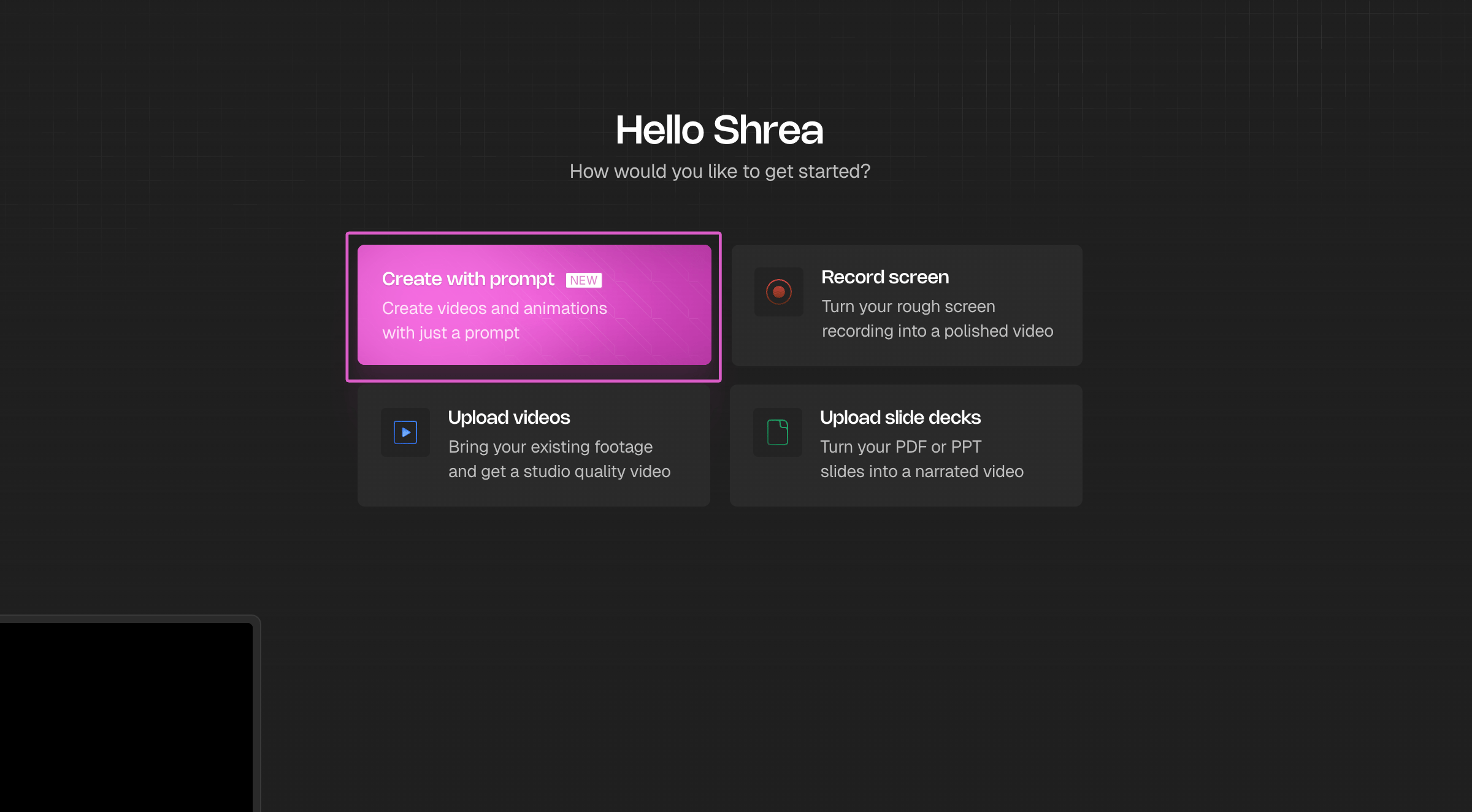
1. From the homepage, click **Create with prompt**.
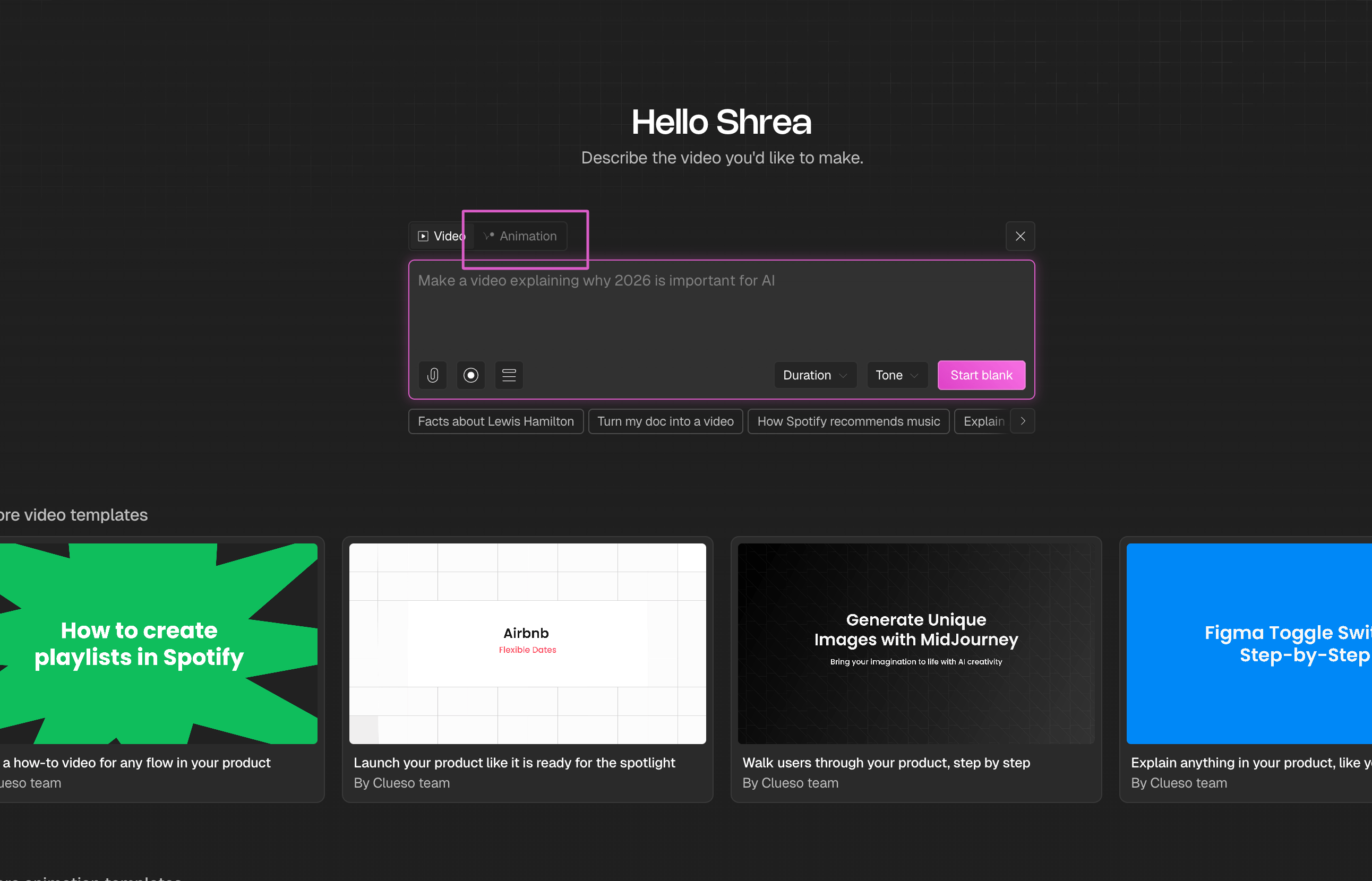
 2. Switch to the **Animation** tab at the top of the prompt box.
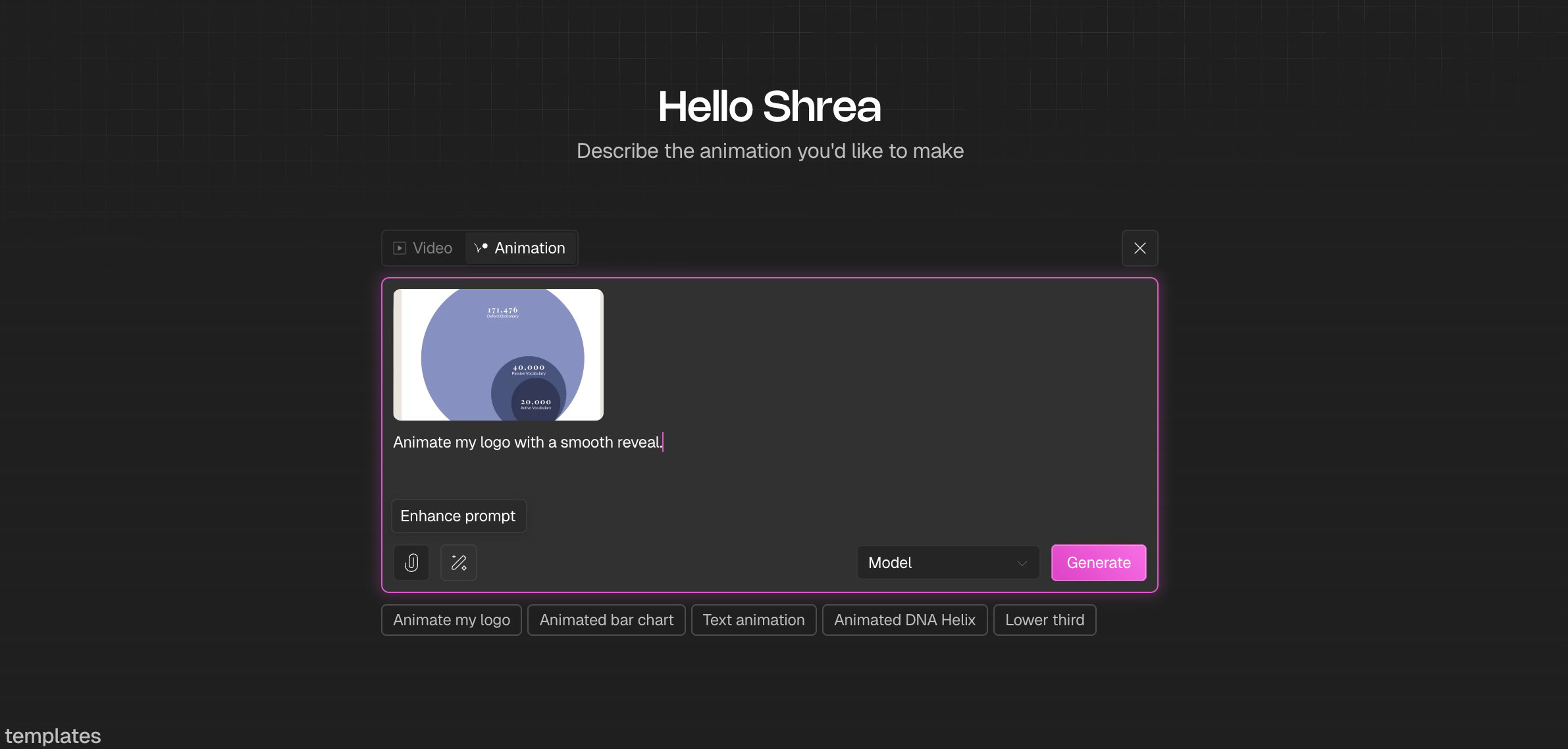
 3. Click the attachment icon to upload your logo (SVG recommended) and enter a prompt. You can also click **Enhance Prompt** to let AI refine your description.
 4. Select a model from the dropdown and click **Start Blank**.
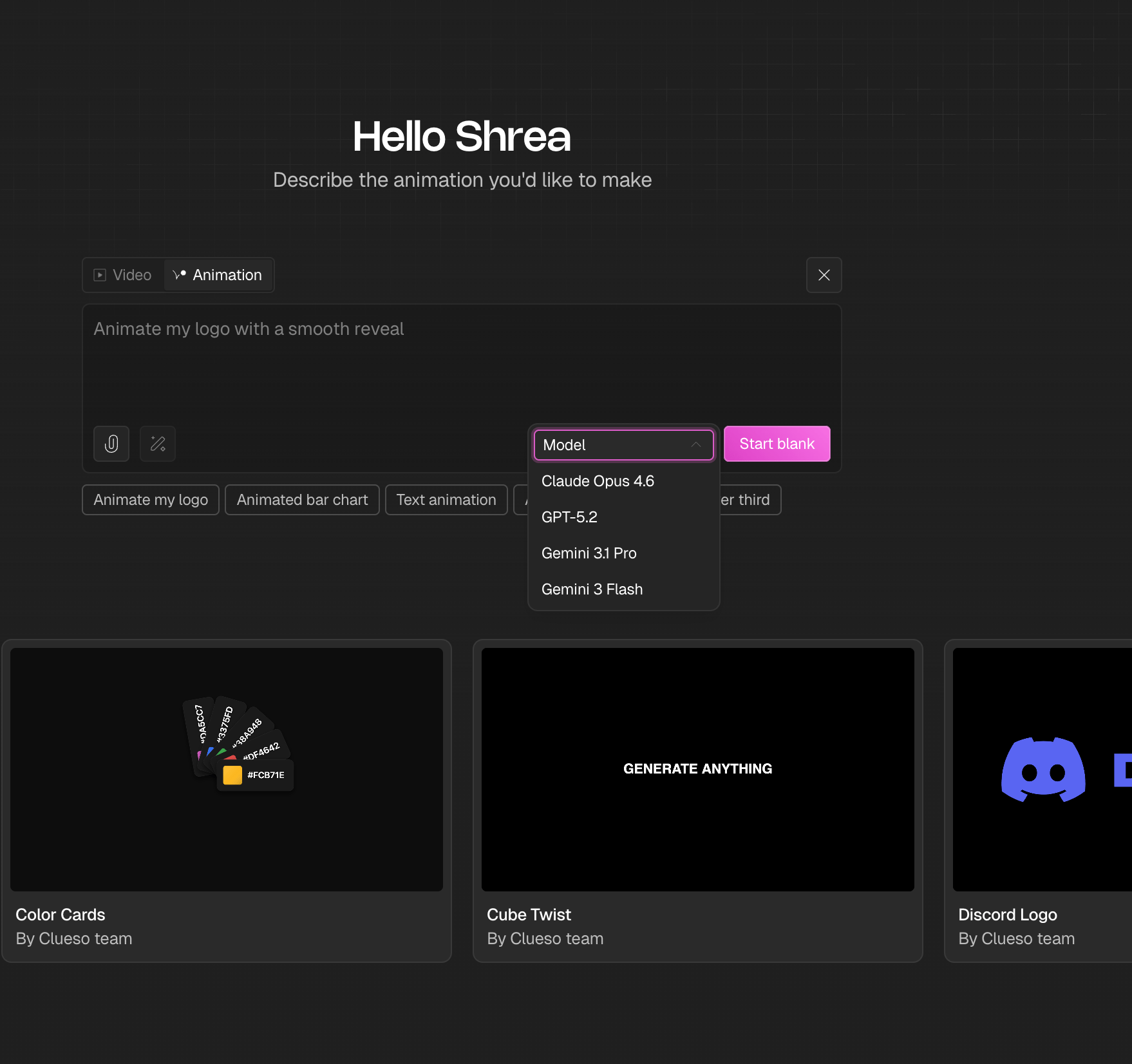 Clueso will automatically create a clean, smooth logo animation that's ready to use.
***
## Start from a template
If you'd rather begin with a pre-built style and adapt it to your logo.
Steps
1. Browse the animation templates on the create page.
2. Click a template to preview it.
Clueso will automatically create a clean, smooth logo animation that's ready to use.
***
## Start from a template
If you'd rather begin with a pre-built style and adapt it to your logo.
Steps
1. Browse the animation templates on the create page.
2. Click a template to preview it.
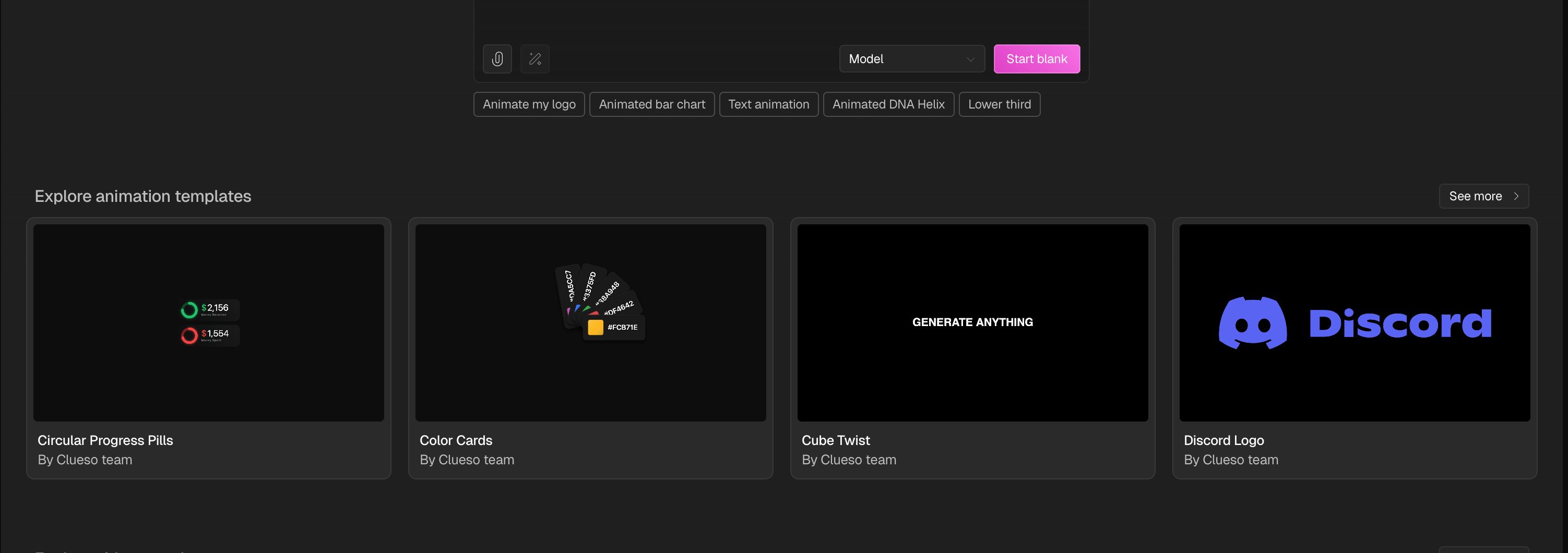 3. Click **Edit this animation** to open it in the editor.
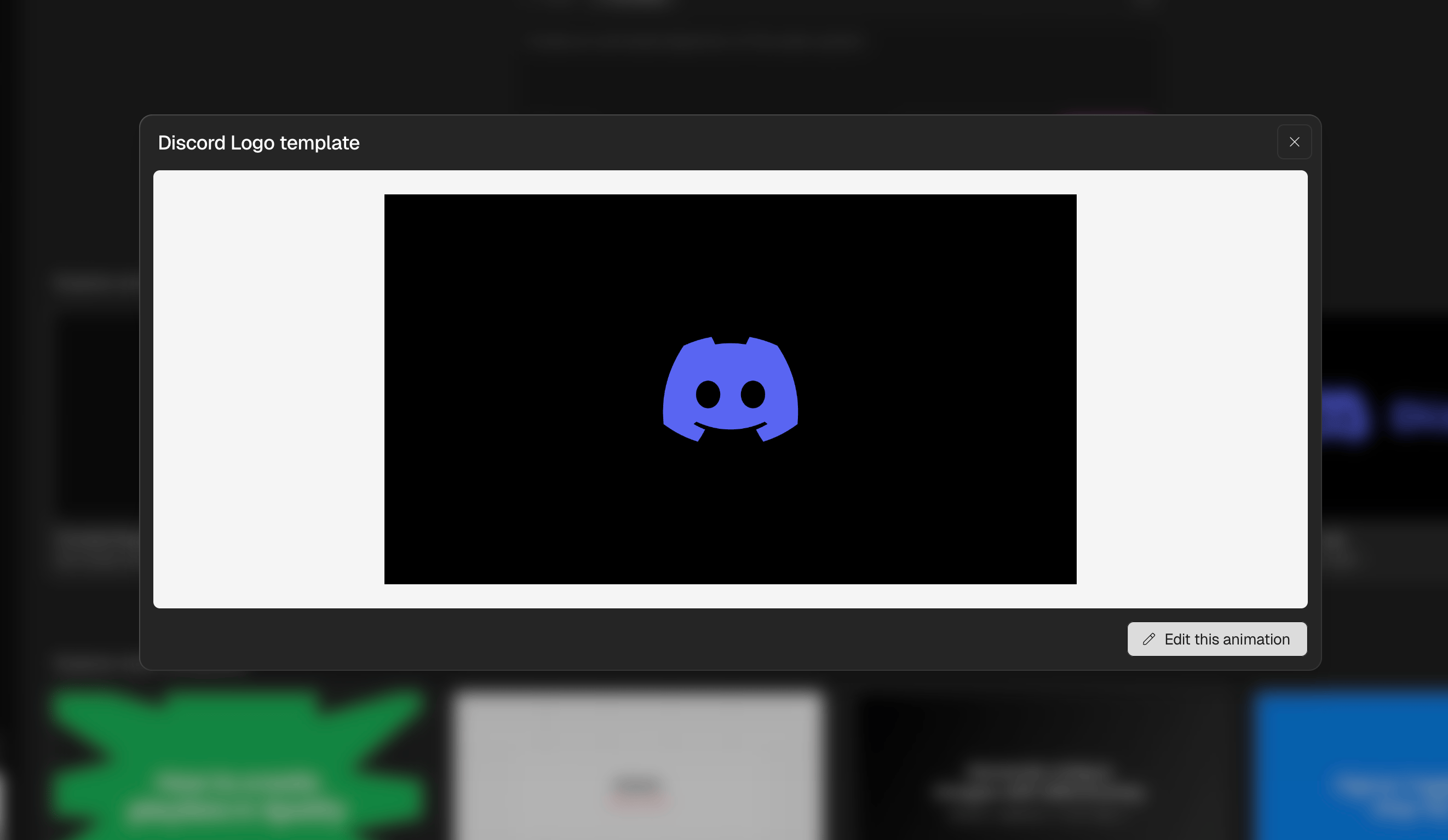 The template will open in the editor where you can swap in your logo and customize it further.
***
## Create or refine animations in the editor
The editor is a full creation surface. You can build a new animation from scratch or fine-tune an existing one.
### Create from the editor
1. In the left panel, click the **Animation** icon.
2. Describe the animation you want, optionally add a **Reference** image and select a model.
The template will open in the editor where you can swap in your logo and customize it further.
***
## Create or refine animations in the editor
The editor is a full creation surface. You can build a new animation from scratch or fine-tune an existing one.
### Create from the editor
1. In the left panel, click the **Animation** icon.
2. Describe the animation you want, optionally add a **Reference** image and select a model.
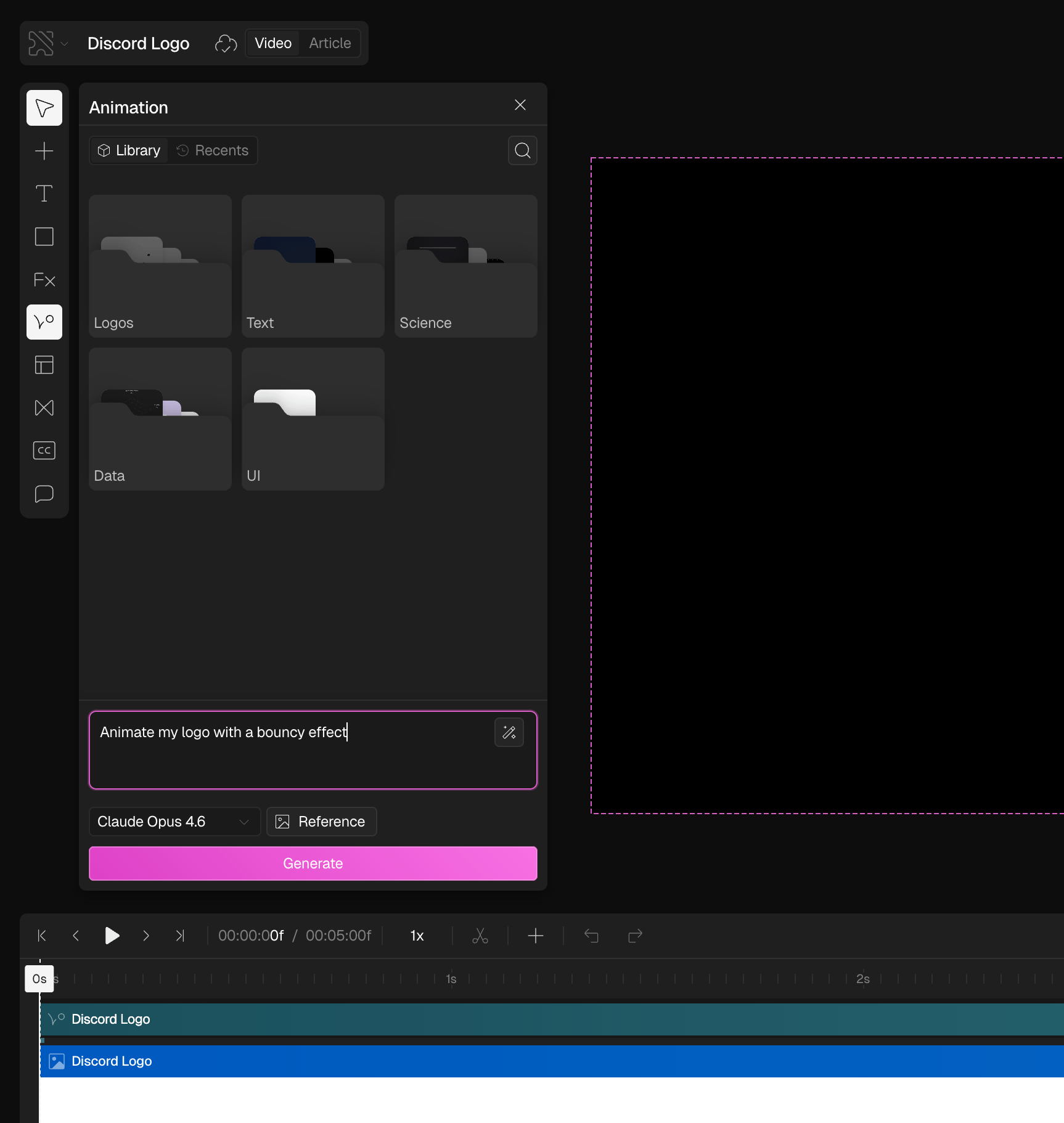 3. Click **Generate**.
### Adjust parameters
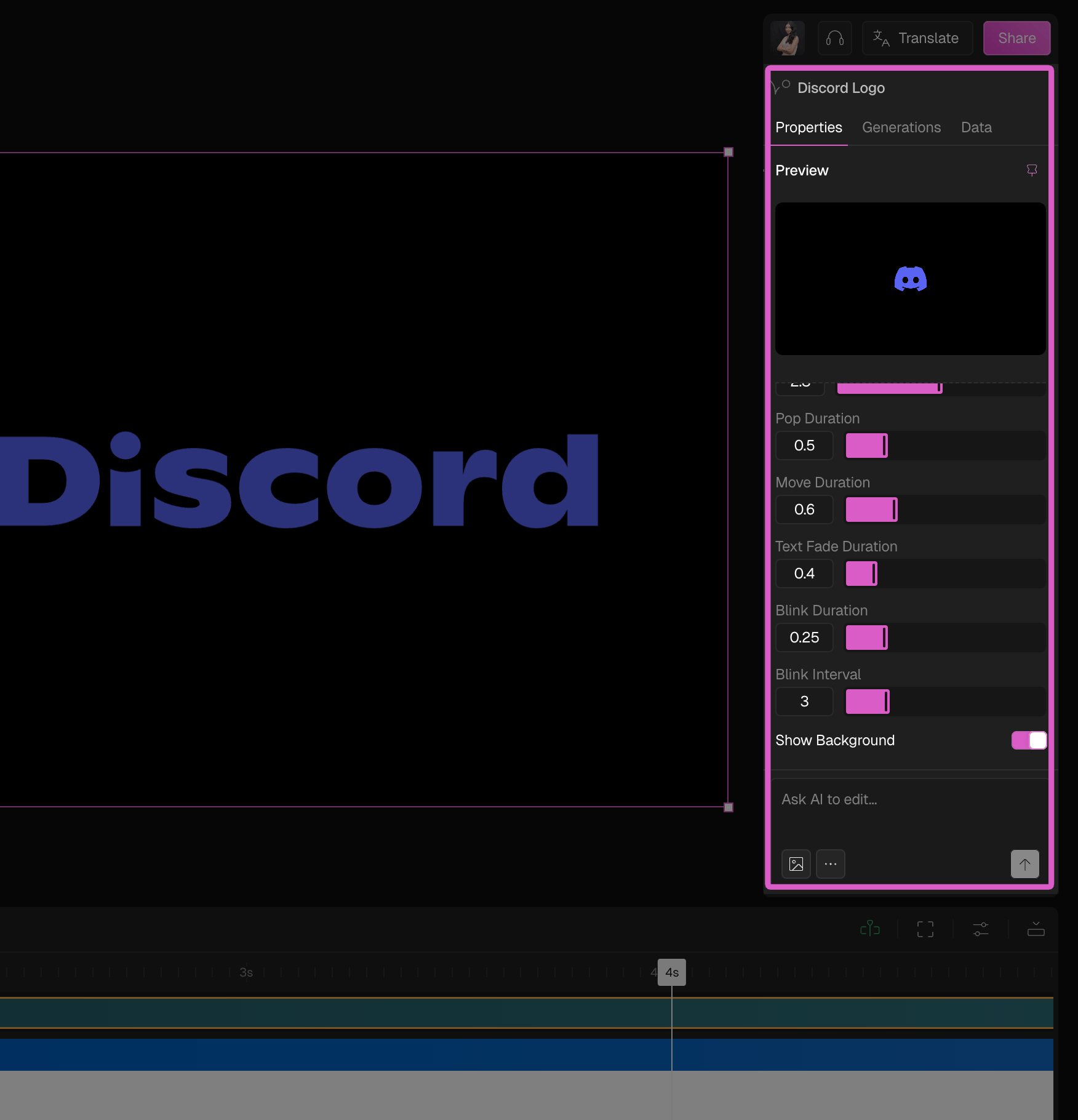
Use the **Properties** panel on the right to adjust animation parameters like duration, timing, and background. You can also ask AI to create custom parameters, these appear as sliders in the panel that you can manually control.
3. Click **Generate**.
### Adjust parameters
Use the **Properties** panel on the right to adjust animation parameters like duration, timing, and background. You can also ask AI to create custom parameters, these appear as sliders in the panel that you can manually control.
 ### Edit with AI
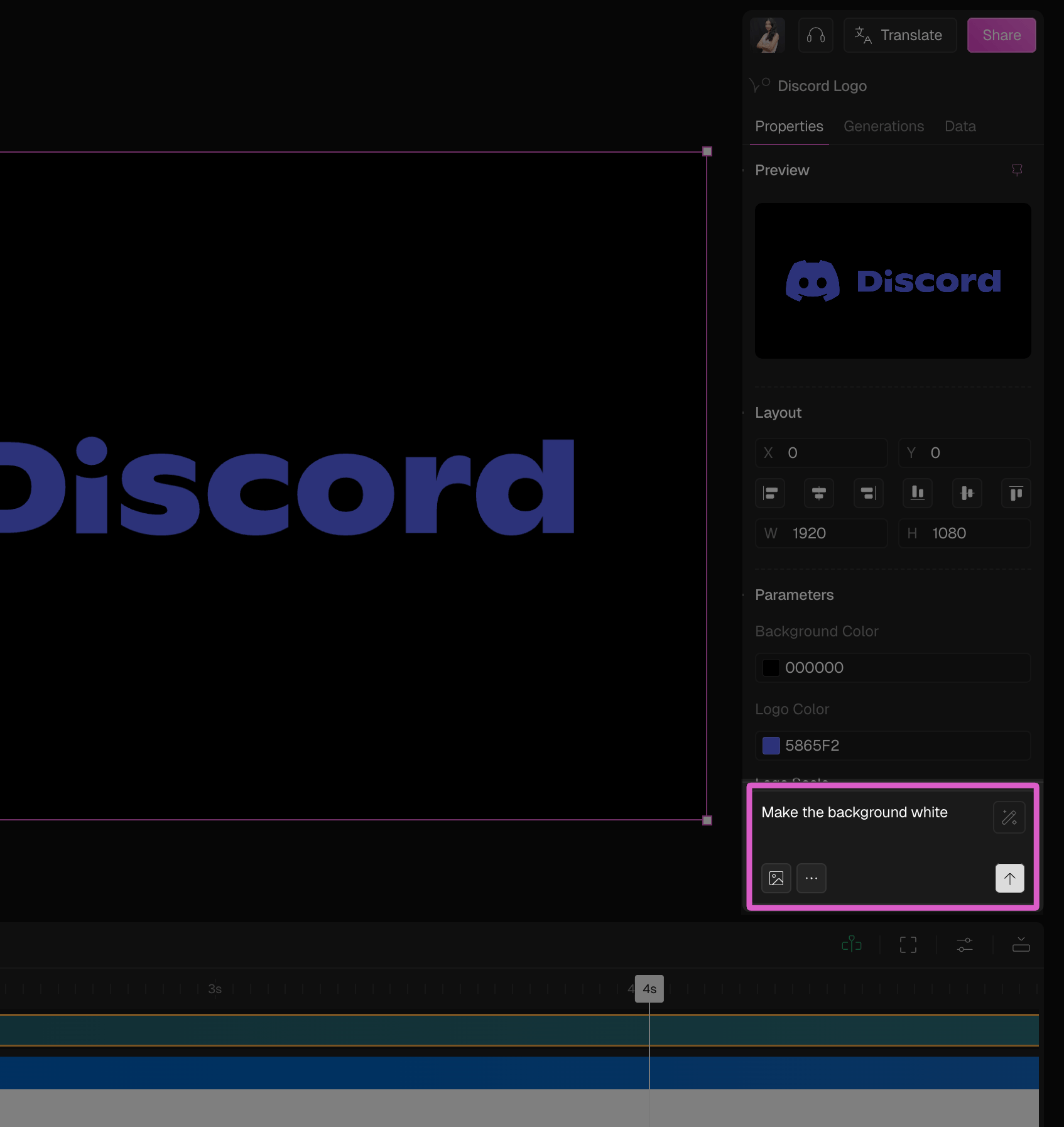
Use the **Ask AI to edit** box at the bottom of the Properties panel to make changes in plain language. You can also attach reference images for style guidance.
### Edit with AI
Use the **Ask AI to edit** box at the bottom of the Properties panel to make changes in plain language. You can also attach reference images for style guidance.
 ### View version history
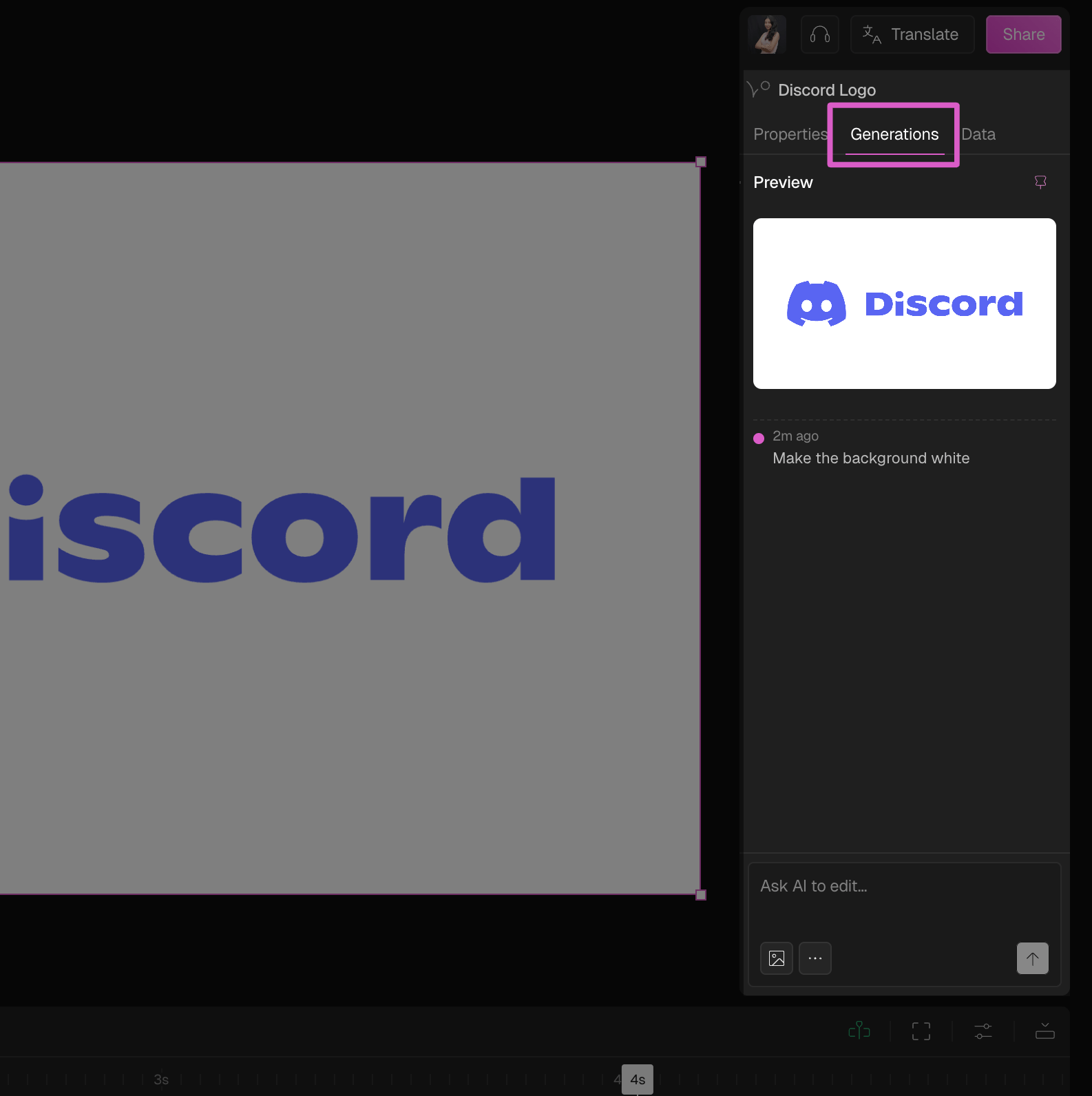
Click the **Generations** tab in the Properties panel to see all previously created versions of your animation. Select any generation to restore or compare it.
### View version history
Click the **Generations** tab in the Properties panel to see all previously created versions of your animation. Select any generation to restore or compare it.
 ***
***