> ## Documentation Index
> Fetch the complete documentation index at: https://help.clueso.io/llms.txt
> Use this file to discover all available pages before exploring further.
# Blurs with keyframes
> Learn how to move blurs in your video
Blurs are a simple way to hide sensitive information in your video.
However, if the information you're blurring moves (for example, during a scroll), a fixed blur will not stay in place and the sensitive information becomes visible.
In Clueso, you can solve for this by using keyframes to make your blurs move.
**Definition**: A keyframe is a marker in the video timeline that defines the position and size of an element at that specific point in time.
Follow these steps to move blurs using keyframes:
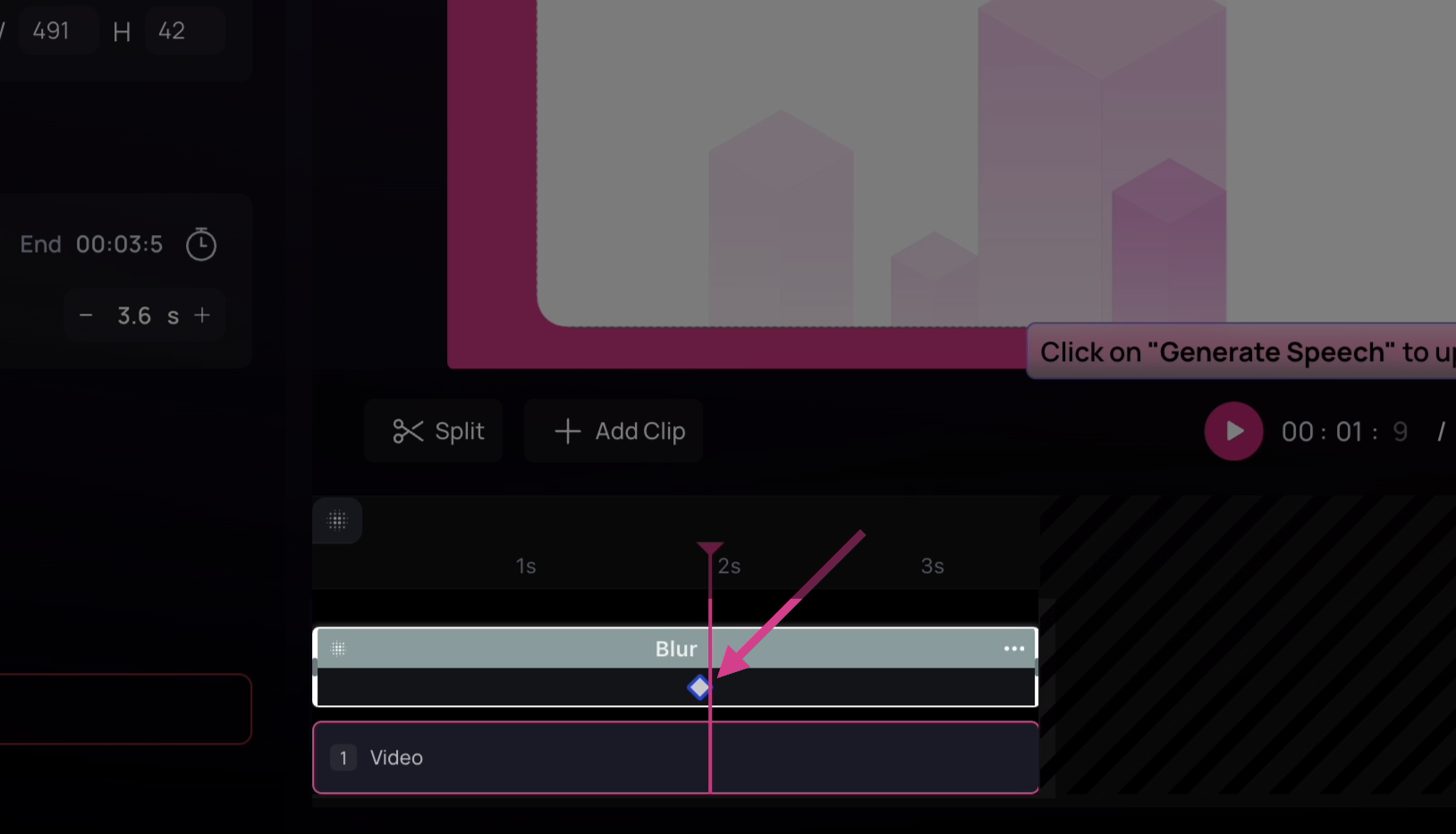
Once you add a blur to your video, click on the **Add Keyframe** button.
 \
You'll notice that a marker indicating the keyframe automatically appears in the timeline.\
This keyframe defines the position and size of the blur at this specific point in the timeline.
\
You'll notice that a marker indicating the keyframe automatically appears in the timeline.\
This keyframe defines the position and size of the blur at this specific point in the timeline.
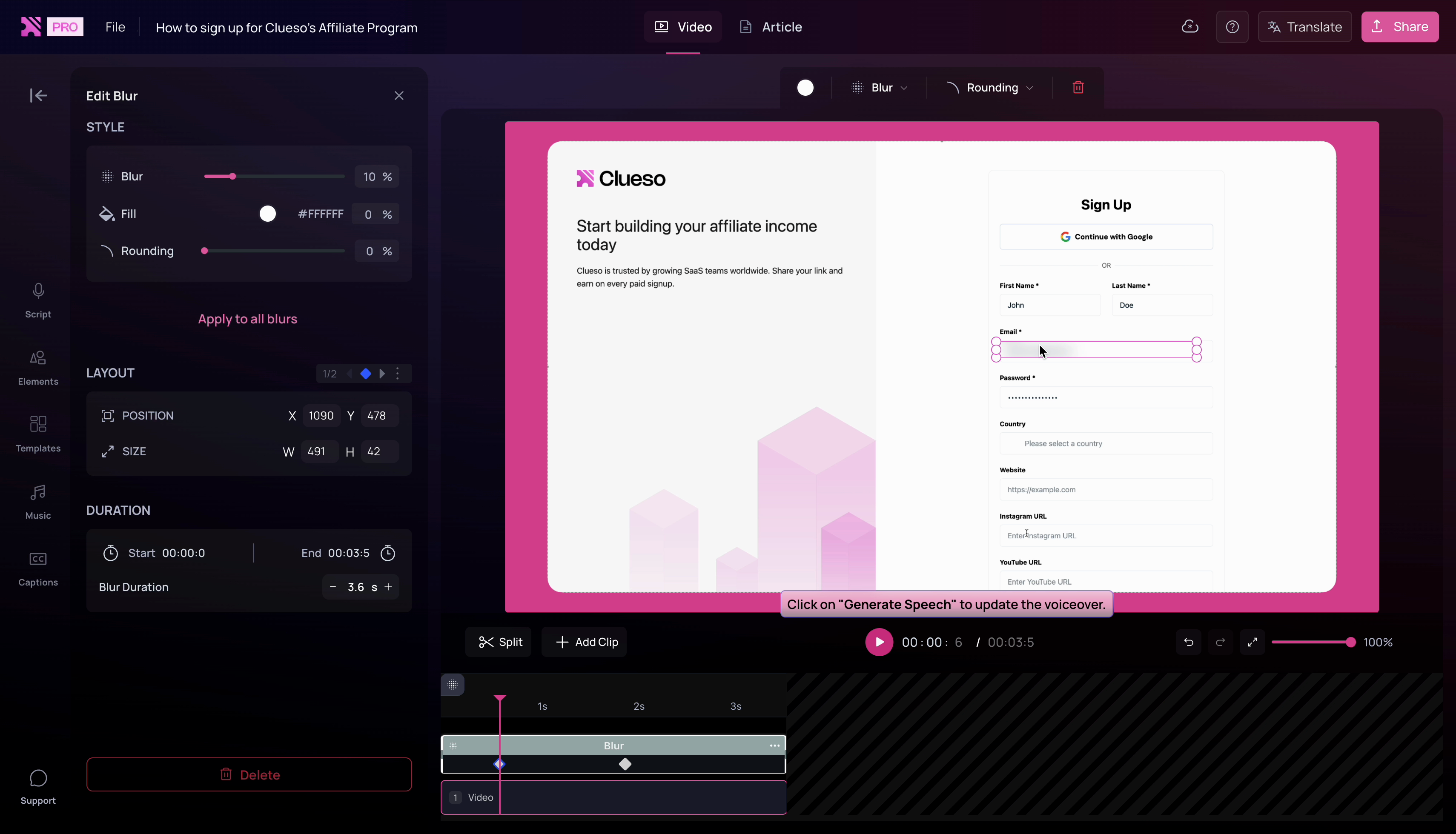
 Add multiple keyframes across your video to blur out the sensitive information as it moves.\
To do this, move to different timestamps in the timeline and adjust the size and position of the blur to cover the sensitive information at that specific timestamp.\
Clueso will automatically add new keyframe markers in the timeline at these timestamps.
Add multiple keyframes across your video to blur out the sensitive information as it moves.\
To do this, move to different timestamps in the timeline and adjust the size and position of the blur to cover the sensitive information at that specific timestamp.\
Clueso will automatically add new keyframe markers in the timeline at these timestamps.
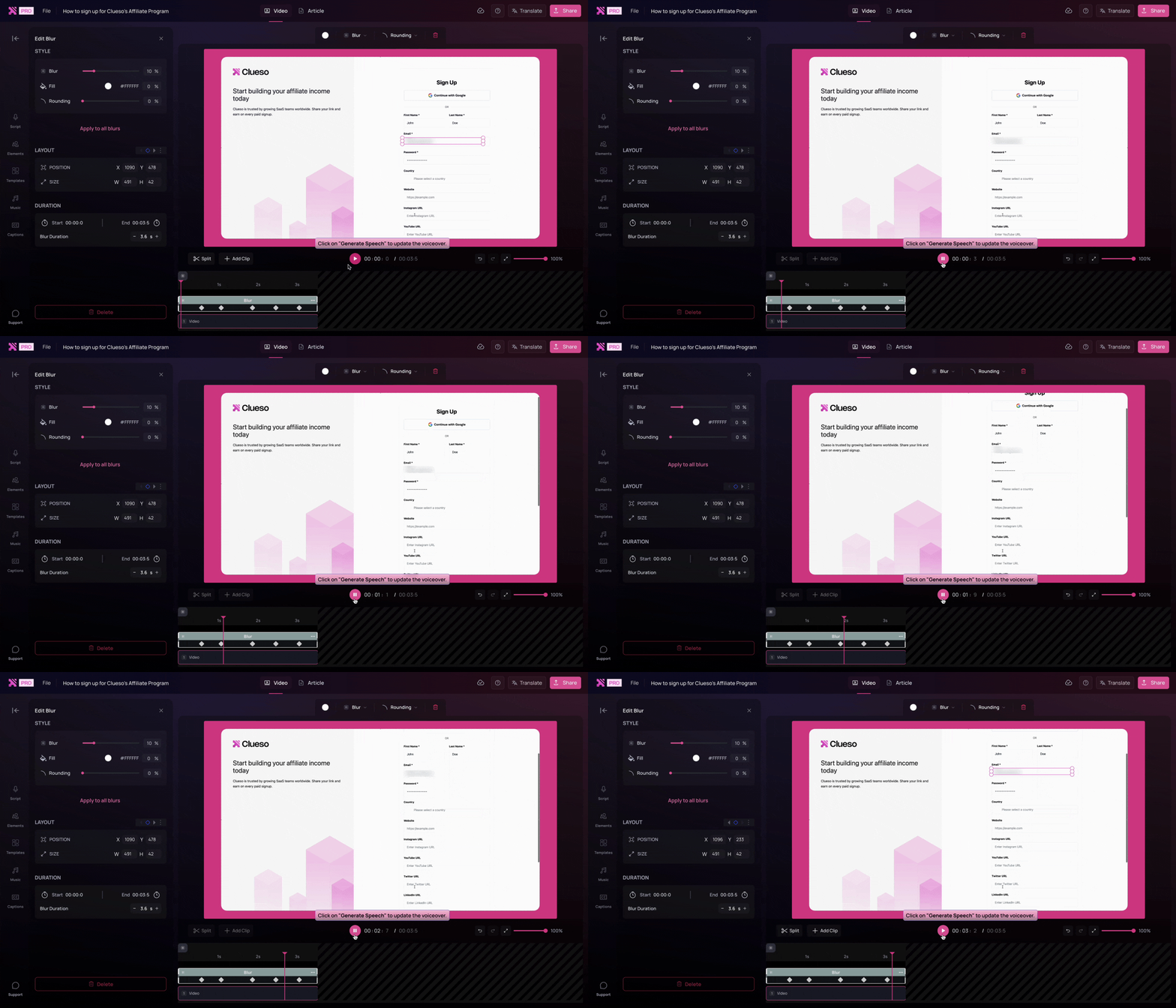
 Once you're satisfied with the placement of your keyframes, play the entire video.\
You'll see that the blur moves to effectively hide your sensitive information.
Once you're satisfied with the placement of your keyframes, play the entire video.\
You'll see that the blur moves to effectively hide your sensitive information.
 If you still see any point where the sensitive information is visible, go to that point in the video and move the blur to add a keyframe.\
In this manner, add as many keyframes as you need at different timestamps to effectively hide your sensitive information.
**Tip for pros**: The position and size of the blur at any point in between two keyframes will be a linear interpolation of the position and size at the preceding and succeeding keyframes.
If you still see any point where the sensitive information is visible, go to that point in the video and move the blur to add a keyframe.\
In this manner, add as many keyframes as you need at different timestamps to effectively hide your sensitive information.
**Tip for pros**: The position and size of the blur at any point in between two keyframes will be a linear interpolation of the position and size at the preceding and succeeding keyframes.