> ## Documentation Index
> Fetch the complete documentation index at: https://help.clueso.io/llms.txt
> Use this file to discover all available pages before exploring further.
# Captions
> Learn how to create and customize captions and subtitles in Clueso
Captions and subtitles make your videos more accessible and engaging. Learn how to add, customize, and save caption styles for your projects.
Follow these steps to add captions to your video:
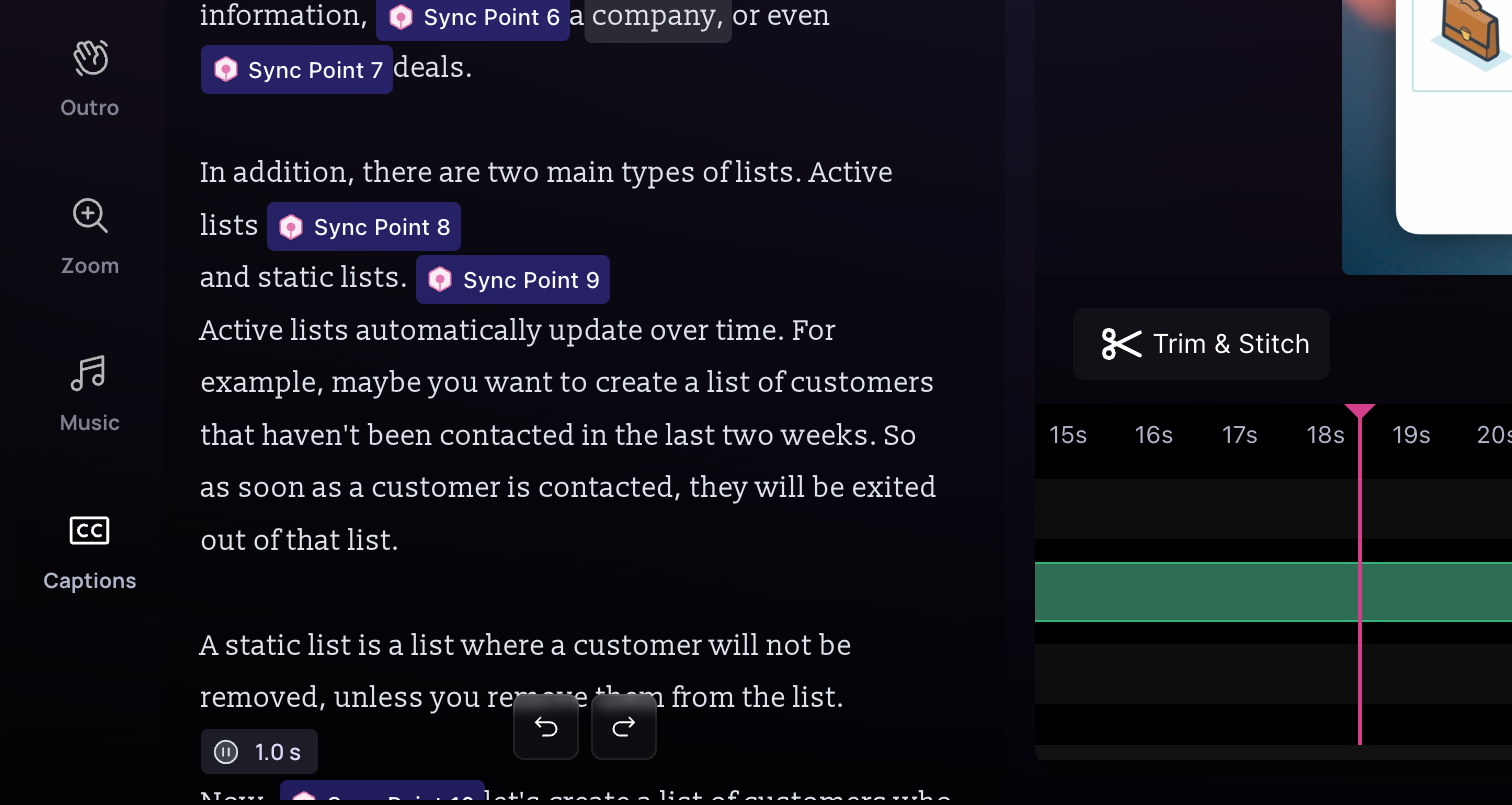
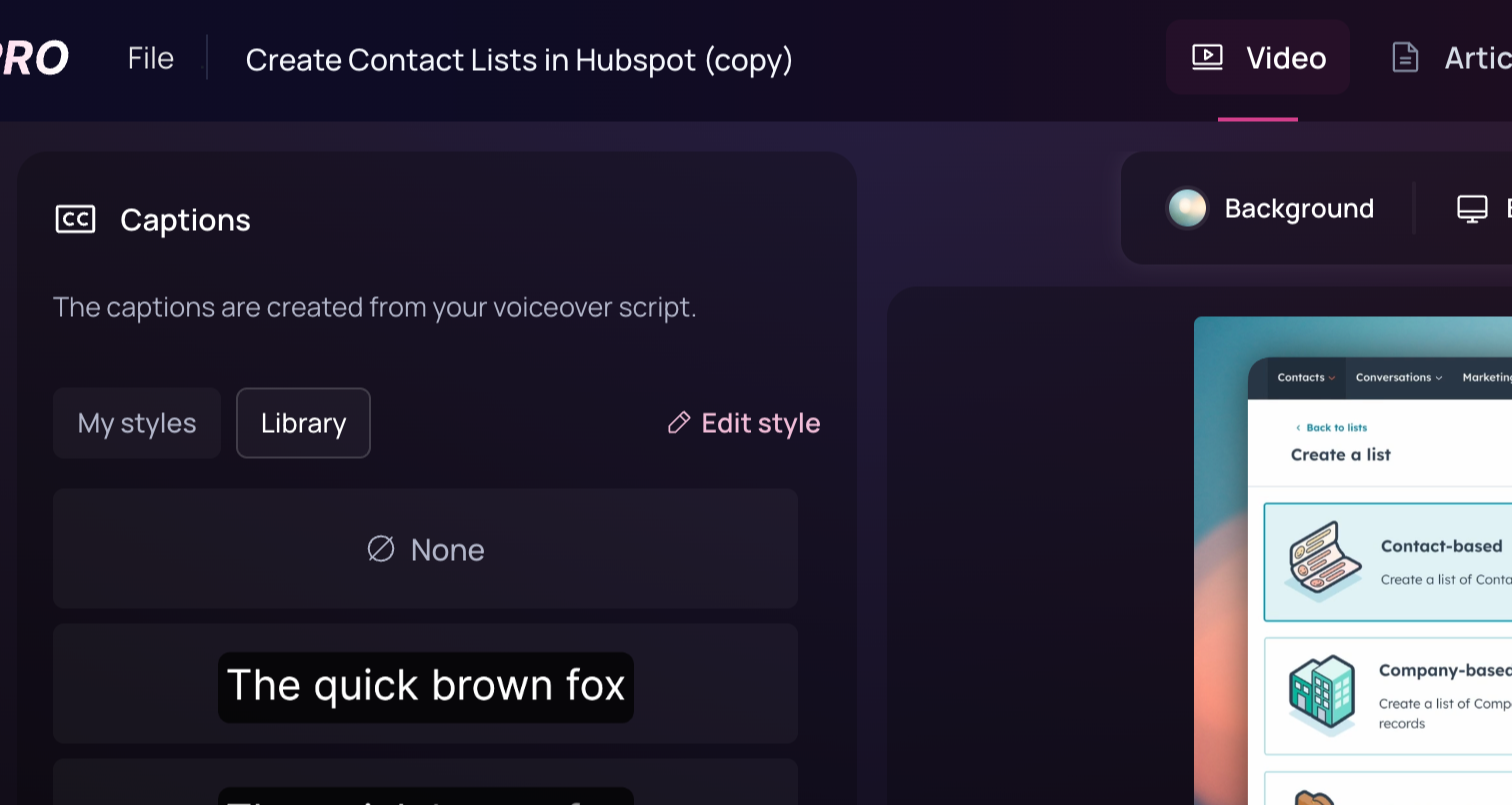
Click on the **Captions** menu located on the left side of the screen.
 Explore the variety of caption styles available. Hover over any subtitle
style to preview its animation, then click on the style to apply it to your
video.
Explore the variety of caption styles available. Hover over any subtitle
style to preview its animation, then click on the style to apply it to your
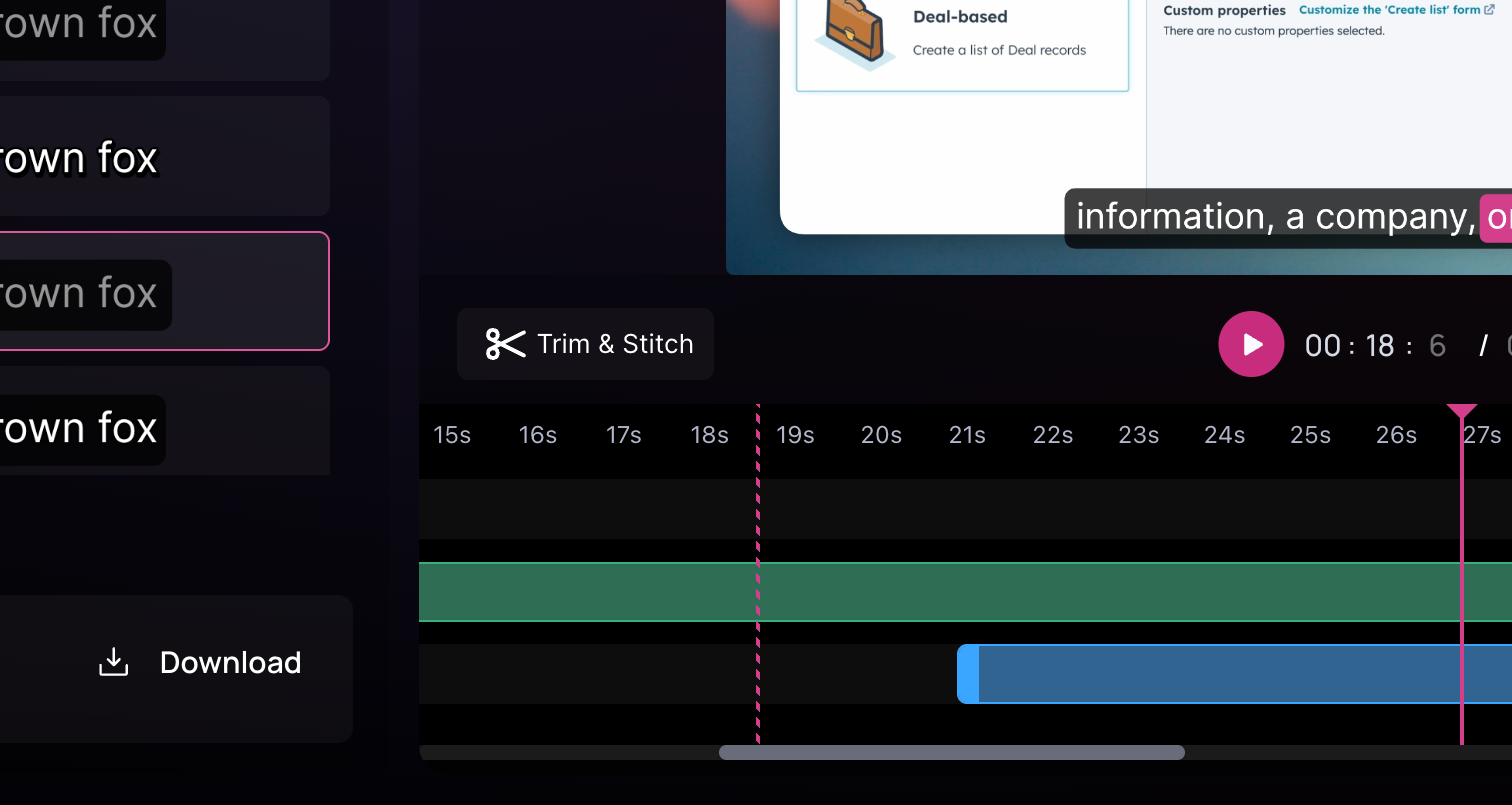
video. 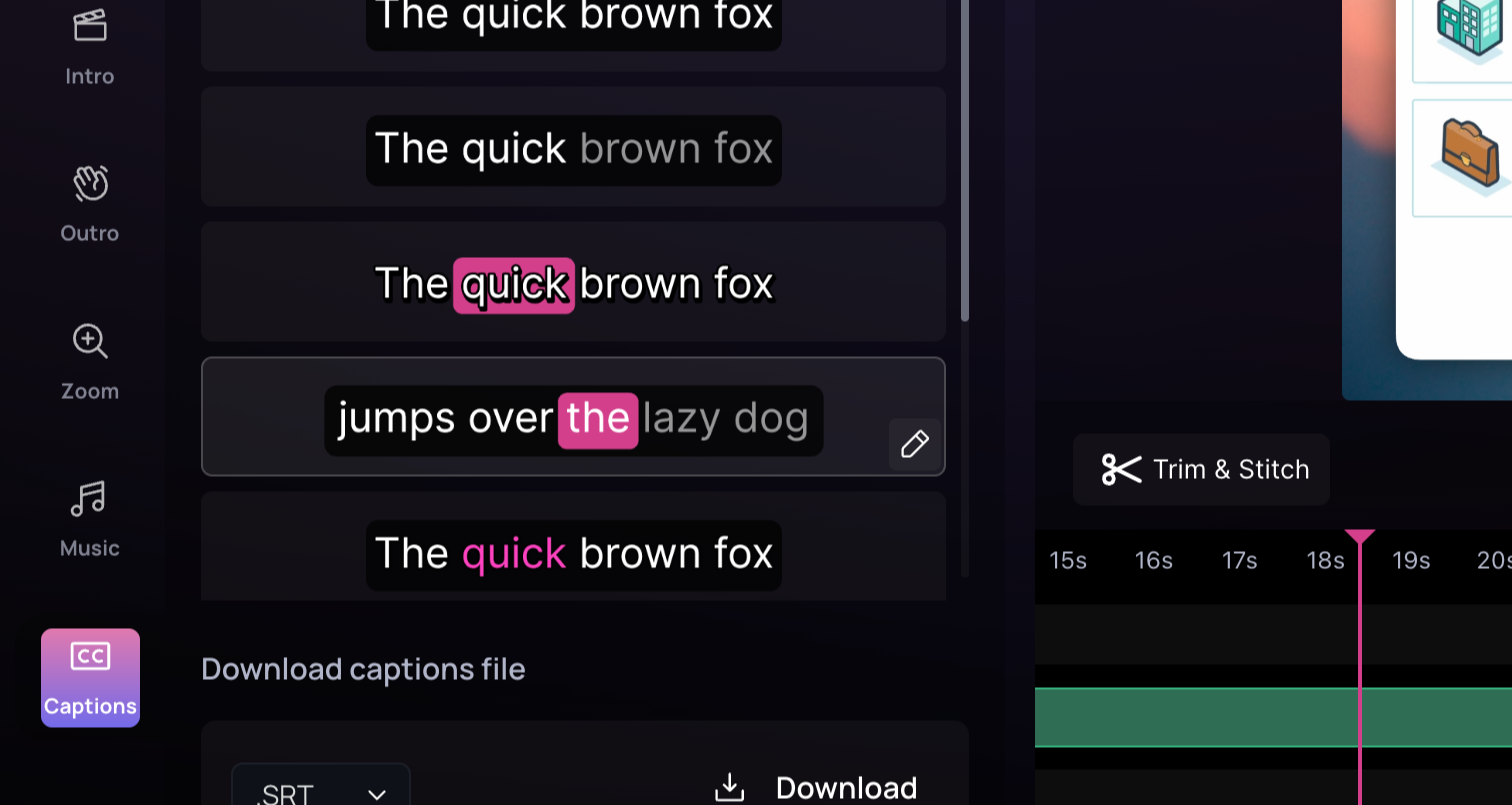 Apply the chosen style and play your video to see it in action.
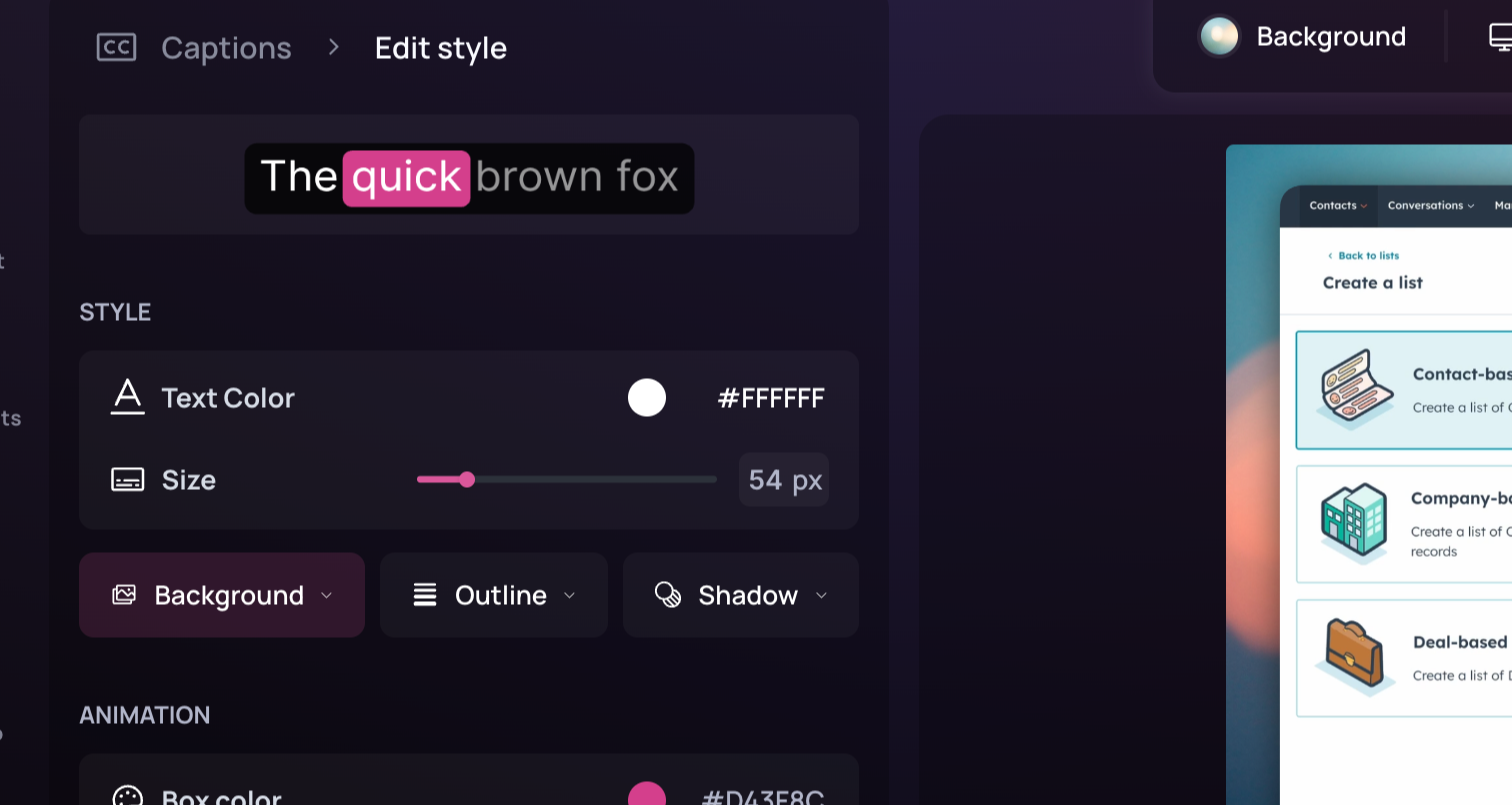
 To customize the subtitle, click on **Edit style**.
 Access a variety of customization options:
  -
Adjust the text color, text size, caption background, text outline and even
add a shadow effect to the text.
Explore additional properties specific to your caption style. For example,
with karaoke style, you can edit the background box color.
-
Adjust the text color, text size, caption background, text outline and even
add a shadow effect to the text.
Explore additional properties specific to your caption style. For example,
with karaoke style, you can edit the background box color.
 Preview your subtitles by hovering over the preview area or playing the
video. If you're satisfied with the style and want to reuse it, click **Save
Style**.
Preview your subtitles by hovering over the preview area or playing the
video. If you're satisfied with the style and want to reuse it, click **Save
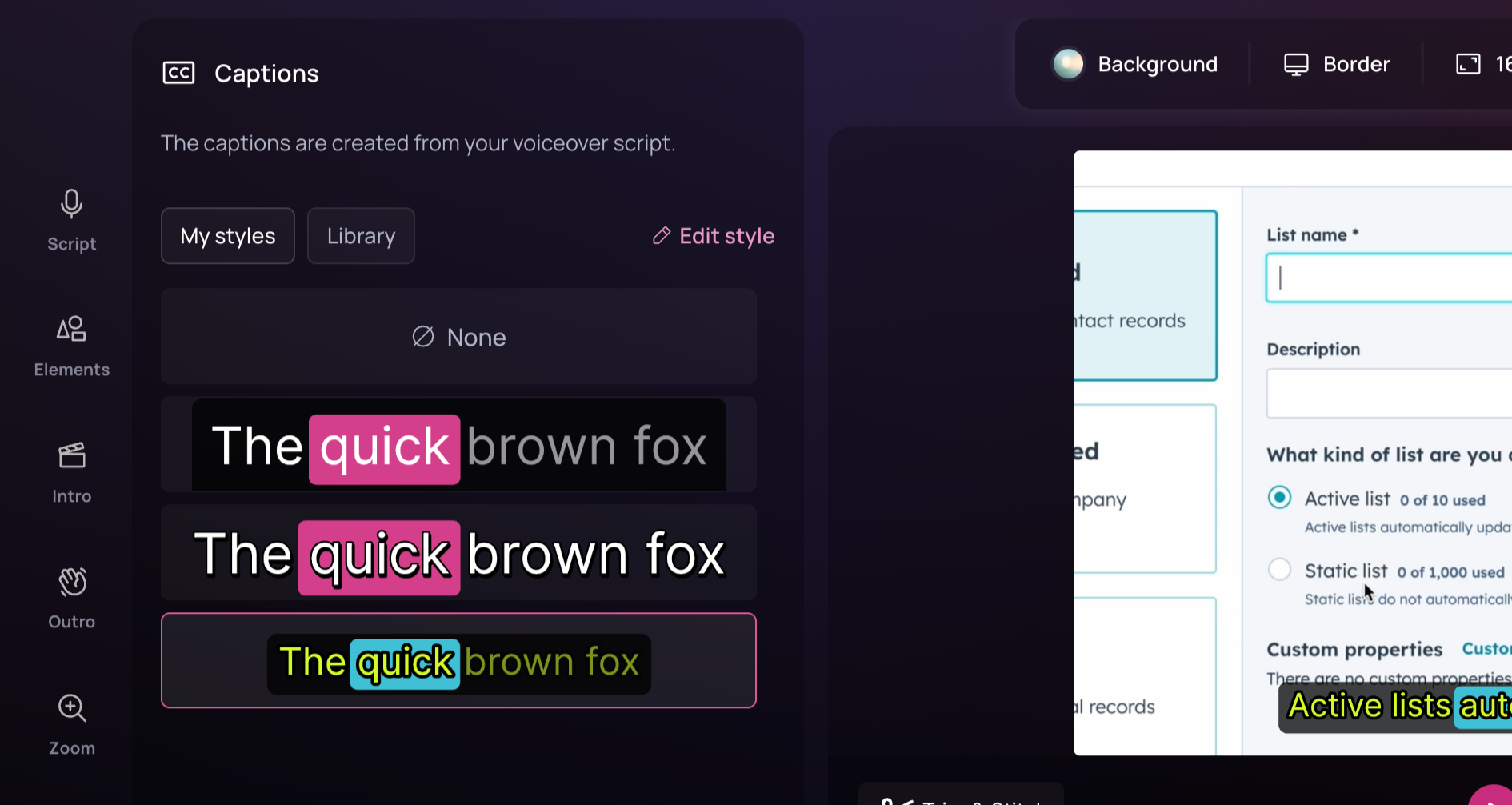
Style**. 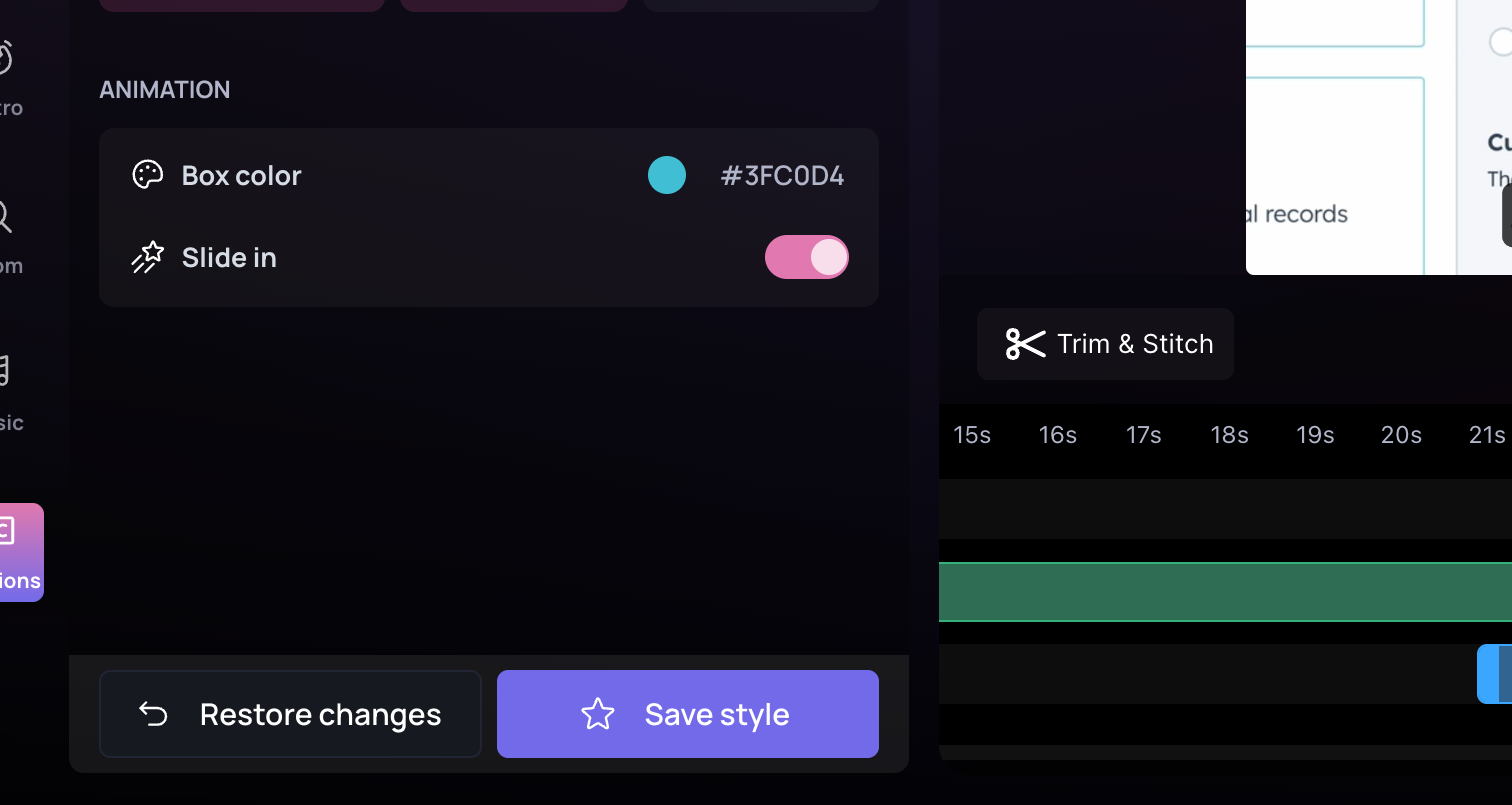 After saving, your new style appears under **My Styles**. You can now
directly apply any of your saved styles to any of your videos.
After saving, your new style appears under **My Styles**. You can now
directly apply any of your saved styles to any of your videos.
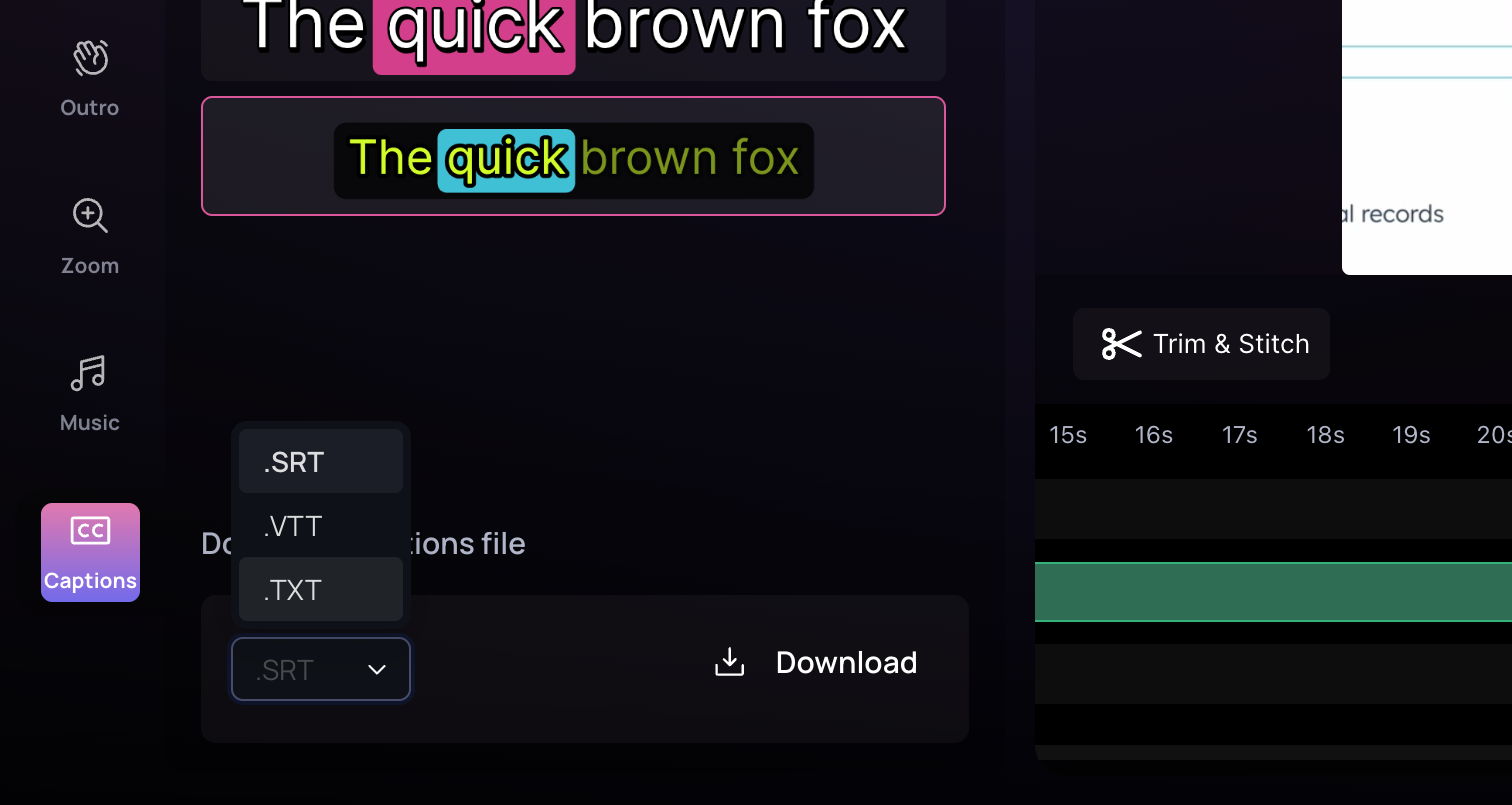
 ## Downloading Captions
To download your captions file, go to the download section and choose from the available formats.
## Downloading Captions
To download your captions file, go to the download section and choose from the available formats.