> ## Documentation Index
> Fetch the complete documentation index at: https://help.clueso.io/llms.txt
> Use this file to discover all available pages before exploring further.

# Border

> Add borders around your videos

Add and customize borders to make your content stand out.

<iframe className="w-full aspect-video rounded-xl" src="https://randomakash.clueso.io/embed/cb83fb8a-0ef1-4d5c-926e-c83a6bcbaedd" title="YouTube video player" frameBorder="0" allow="accelerometer; autoplay; clipboard-write; encrypted-media; gyroscope; picture-in-picture" allowFullScreen />

Follow these steps to add borders to your videos:

<Steps>
  <Step>
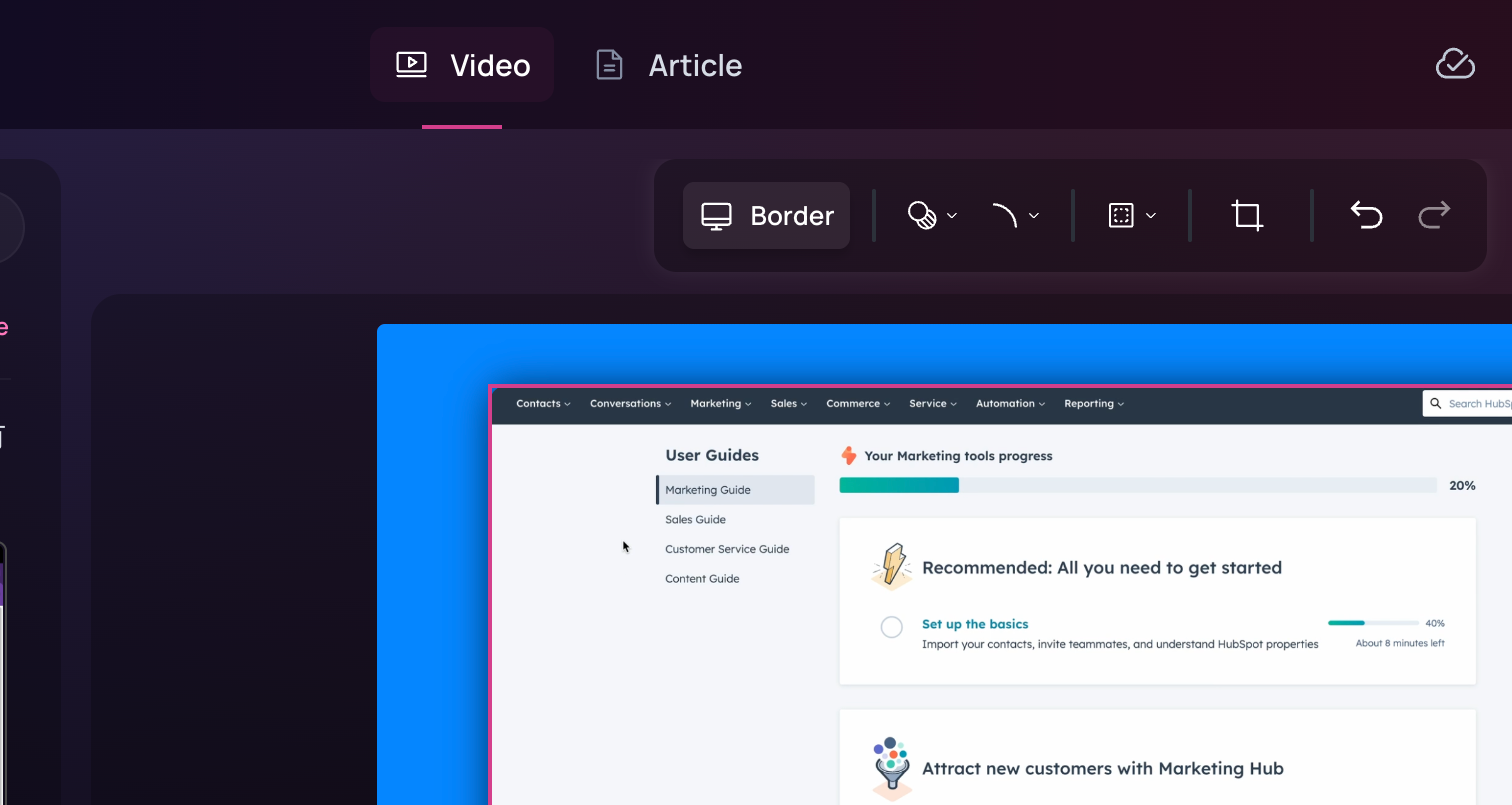
    Click on your video, then select the **Border** option.
    <img src="https://mintcdn.com/clueso/o6li2hw2GV31E35J/images/border1.png?fit=max&auto=format&n=o6li2hw2GV31E35J&q=85&s=b9fc15f97c48379cc2a4f2c763b60547" alt="step" width="1512" height="805" data-path="images/border1.png" />
  </Step>

  <Step>
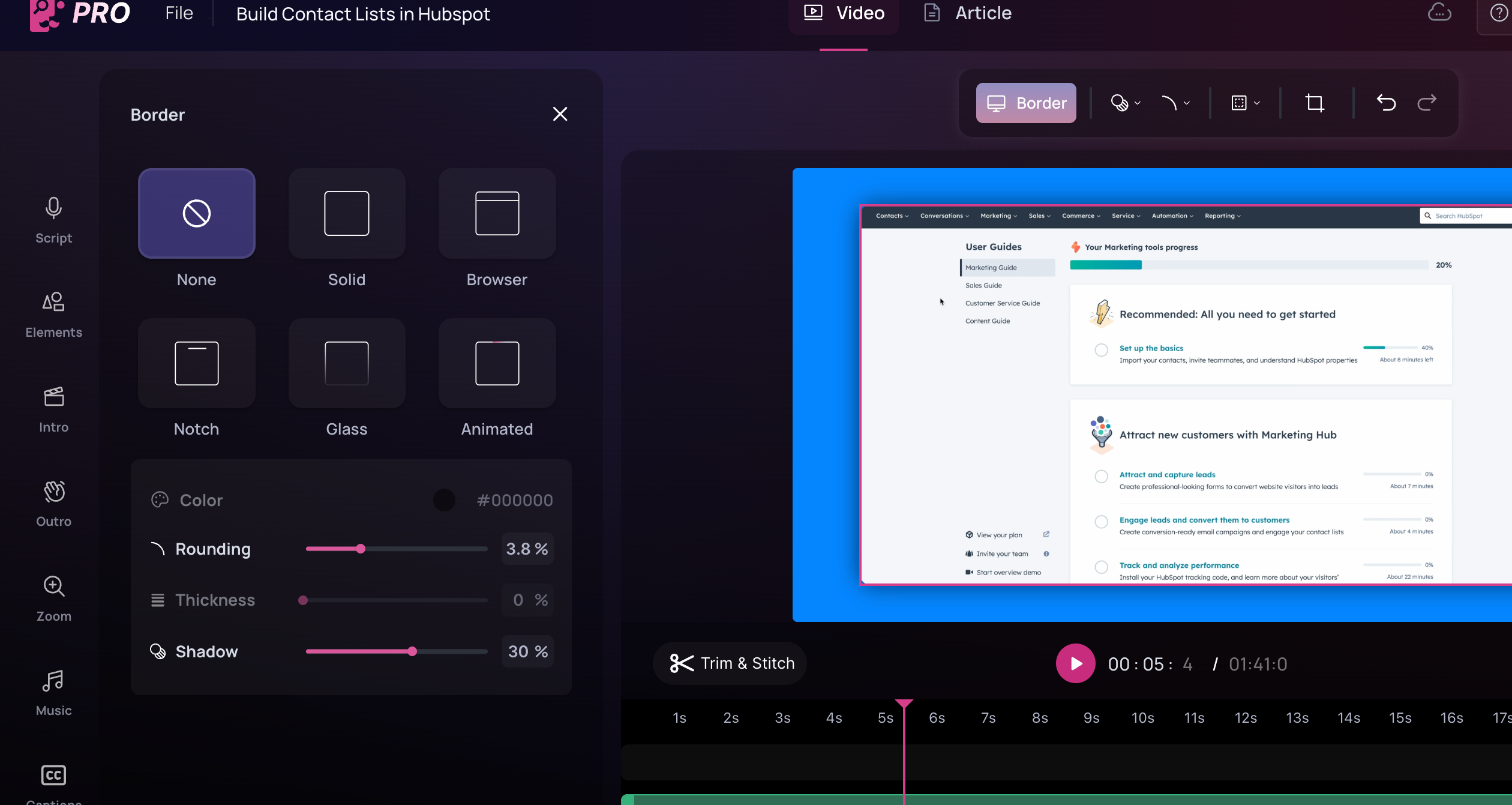
    Choose from a variety of border styles to apply to your video.
    <img src="https://mintcdn.com/clueso/o6li2hw2GV31E35J/images/border2.png?fit=max&auto=format&n=o6li2hw2GV31E35J&q=85&s=d4626c2bfc333d36361ce582e85902af" alt="step" width="2520" height="1341" data-path="images/border2.png" />
  </Step>

  <Step>
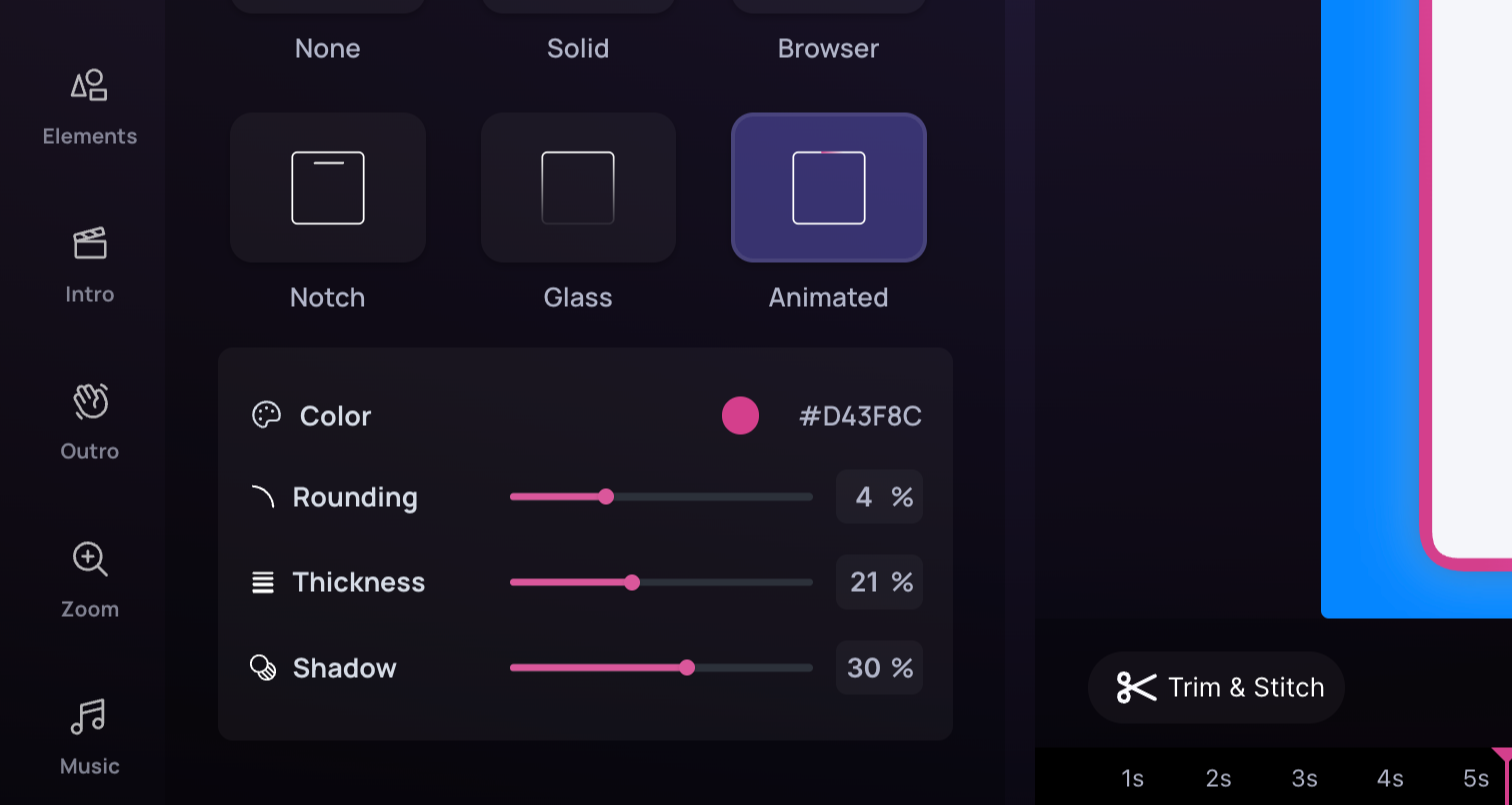
    Customize your border settings to match your design preferences.
    <img src="https://mintcdn.com/clueso/o6li2hw2GV31E35J/images/border3.png?fit=max&auto=format&n=o6li2hw2GV31E35J&q=85&s=7f9328d12b5166c48845cb4d0b153430" alt="step" width="1512" height="805" data-path="images/border3.png" />
  </Step>
</Steps>
