> ## Documentation Index
> Fetch the complete documentation index at: https://help.clueso.io/llms.txt
> Use this file to discover all available pages before exploring further.
# Blur
> Learn how to add and customize blur effects to obscure or soften areas in your videos
Blur effects let you obscure specific areas of your video — perfect for hiding sensitive information like personal details, passwords, or anything you don't want viewers to see.
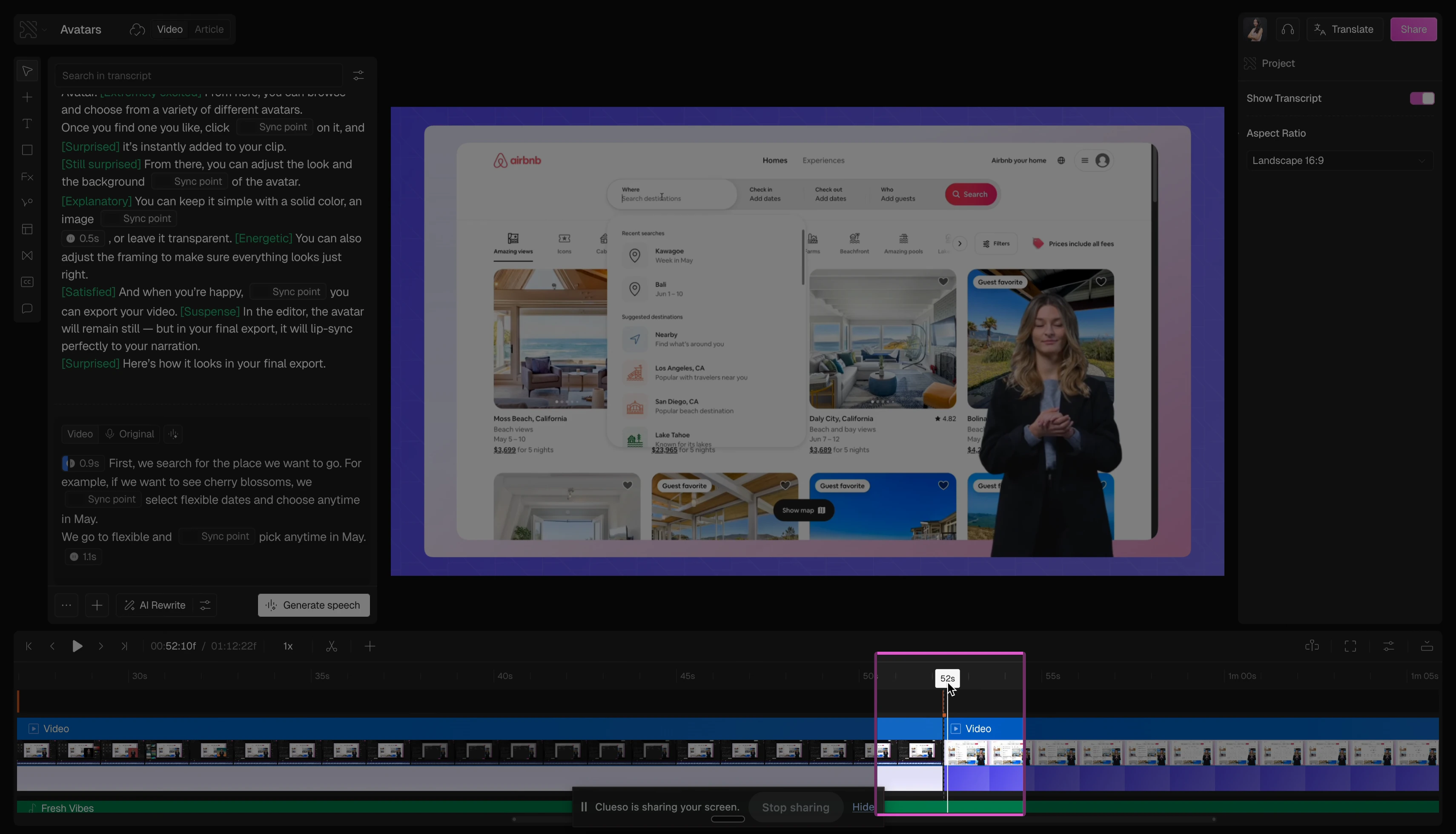
Look at the timeline at the bottom of your screen. Drag the playhead to the exact moment in your video where you want the blur to appear.
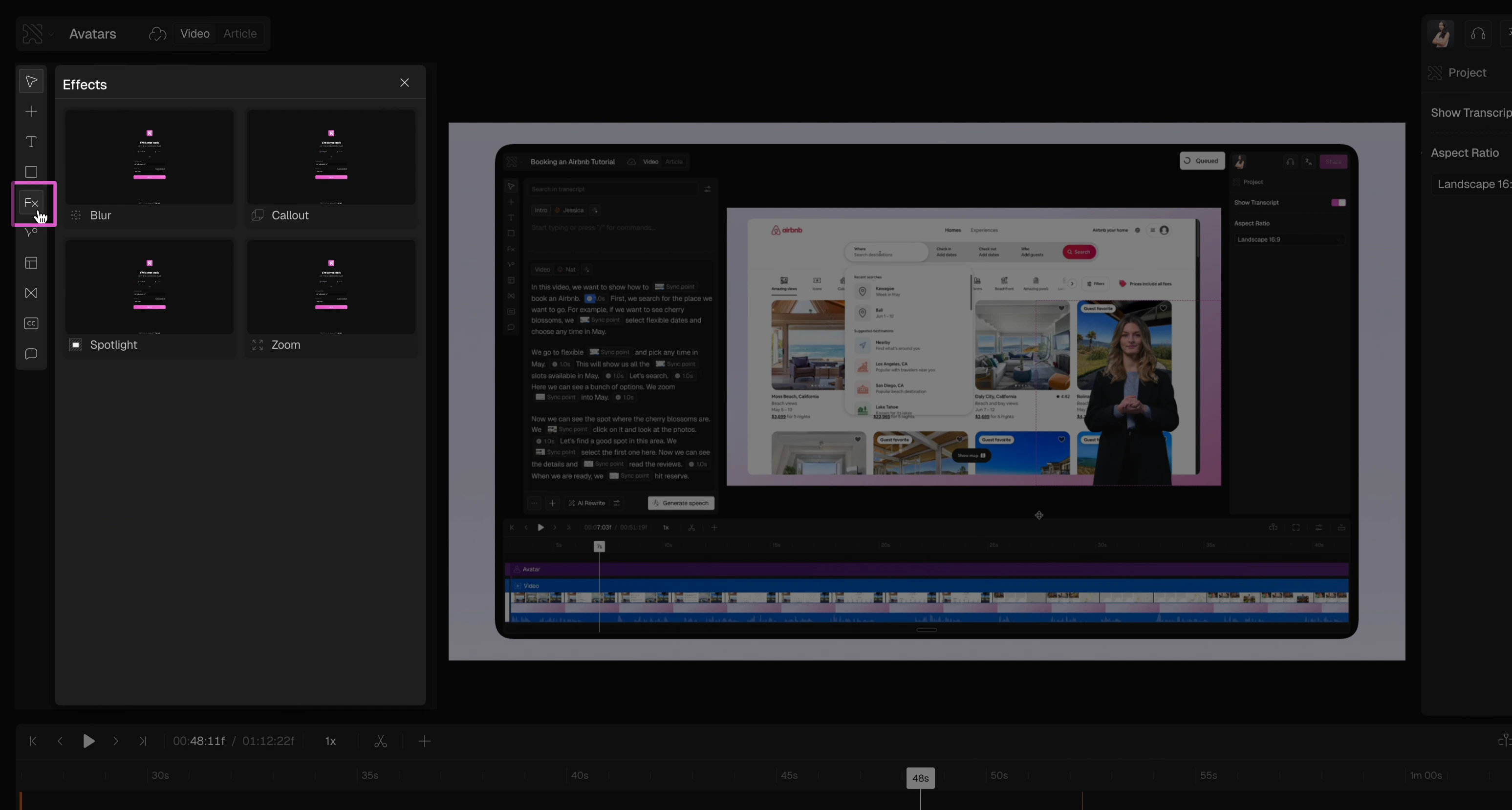
 Click on **Effects** on the left panel and select **Blur**.
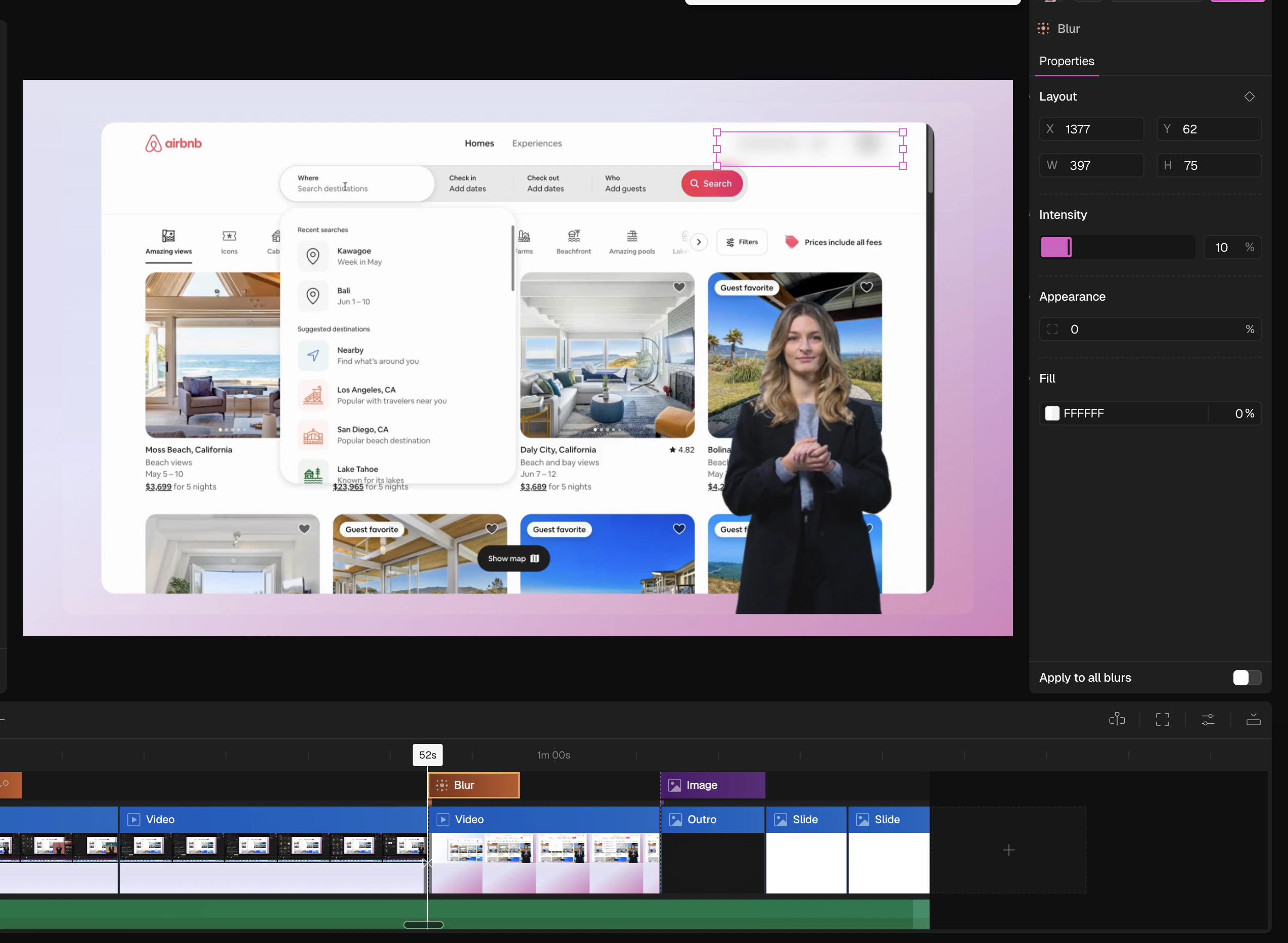
 Unlike other effects, the blur won't be added automatically. Click and drag directly on the canvas to draw over the specific area you want to blur.
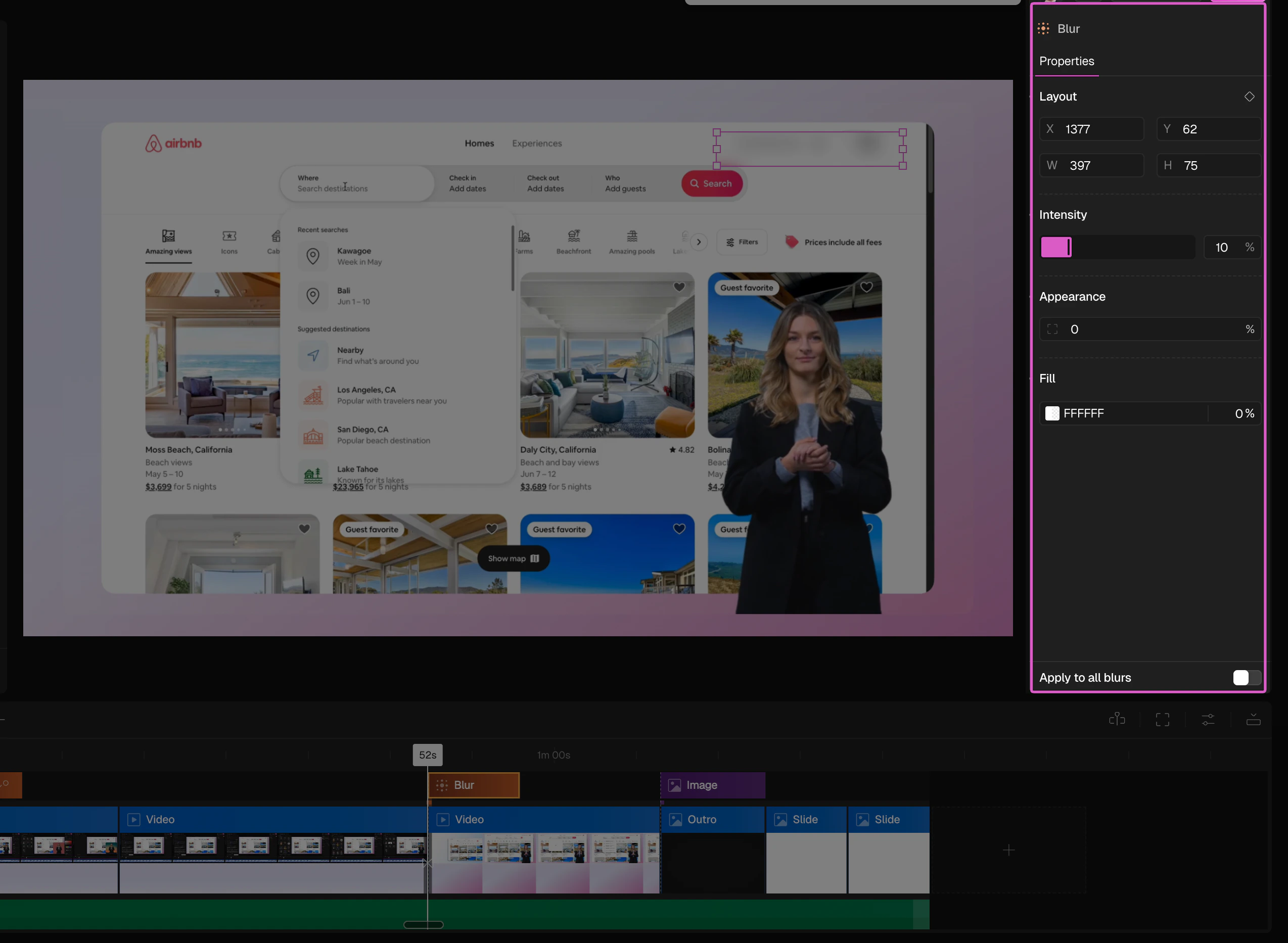
 Click the blur element to open its settings in the right panel. From here you can adjust:
* **Layout** — set the exact X, Y position and W, H dimensions
* **Intensity** — drag the slider to control how strong the blur is
* **Appearance** — adjust the corner radius to round the edges of the blur area
* **Fill** — add a fill color and opacity on top of the blur if needed
Toggle **Apply to all blurs** at the bottom to apply the same settings across all blur elements in your project.
Click the blur element to open its settings in the right panel. From here you can adjust:
* **Layout** — set the exact X, Y position and W, H dimensions
* **Intensity** — drag the slider to control how strong the blur is
* **Appearance** — adjust the corner radius to round the edges of the blur area
* **Fill** — add a fill color and opacity on top of the blur if needed
Toggle **Apply to all blurs** at the bottom to apply the same settings across all blur elements in your project.
 Drag the edges of the blur element on the timeline to control how long it stays on screen.
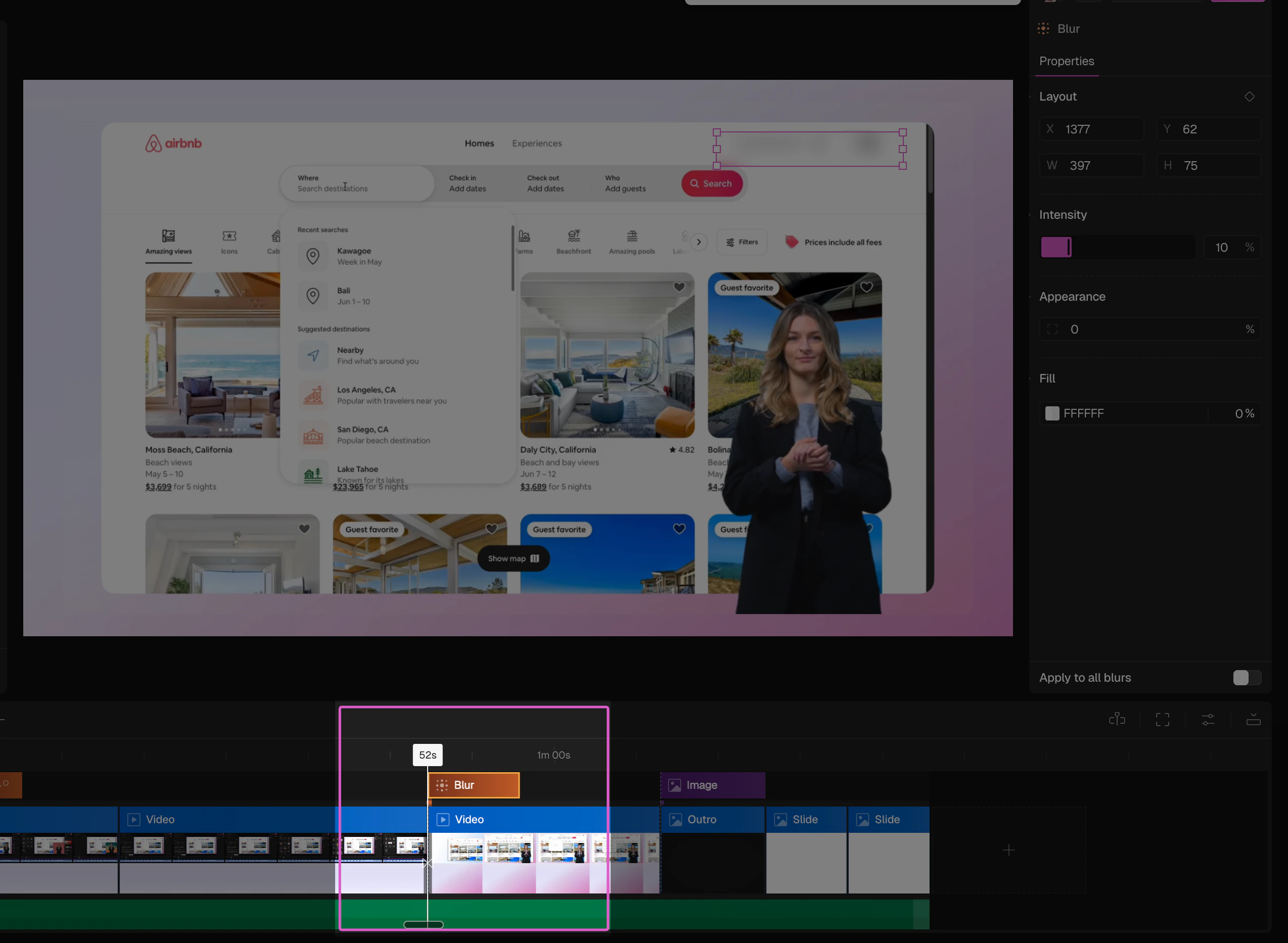 Need to blur something that moves across the screen? Add multiple blur elements at different points on the timeline to track the movement.
## FAQs
Yes — add as many blur elements as you need. Each one can be independently repositioned and resized on the timeline.
Yes — click the blur element on the canvas or timeline at any time to adjust its position, size, intensity, and duration.
Need to blur something that moves across the screen? Add multiple blur elements at different points on the timeline to track the movement.
## FAQs
Yes — add as many blur elements as you need. Each one can be independently repositioned and resized on the timeline.
Yes — click the blur element on the canvas or timeline at any time to adjust its position, size, intensity, and duration.