> ## Documentation Index
> Fetch the complete documentation index at: https://help.clueso.io/llms.txt
> Use this file to discover all available pages before exploring further.

# AI Media: Styles & Subjects

> Learn how to generate images using a prompt, custom styles, and a subject image in AI Media.

This article explains how to generate images using a prompt, a custom style, and a subject image. Using styles and subjects helps you control how your images look while keeping the main subject consistent.

<iframe className="w-full aspect-video rounded-xl" src="https://watchclueso.com/embed/pdhajib6od23uqx4" title="Video tutorial" frameBorder="0" allow="fullscreen; autoplay; picture-in-picture" allowFullScreen />

<Steps>
  <Step title="Open AI Media">
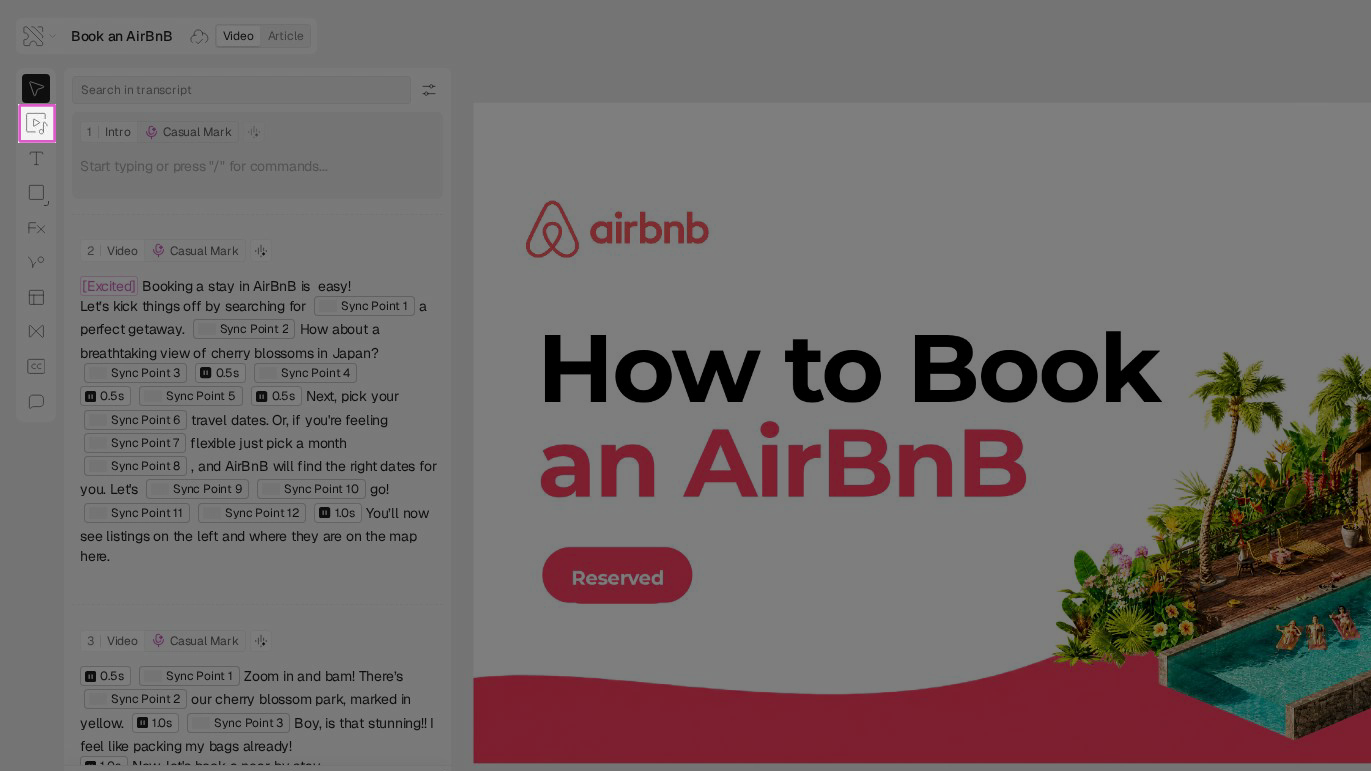
    Click the **AI Media** button in your editor's toolbar to launch the image generation tool.
    ![](https://usercontent.us.prod.clueso.io/a9100d23-fce7-4c96-bbe4-5d5e13112270/92598689-c411-428e-bf63-6ec92cb53b9a/ba83b6b3-d4e0-4f5a-87e2-04742dee01f6/images/e011f46b-9792-4c6d-8d0c-1b90ae1744cd.png)
  </Step>

  <Step title="Enter a prompt">
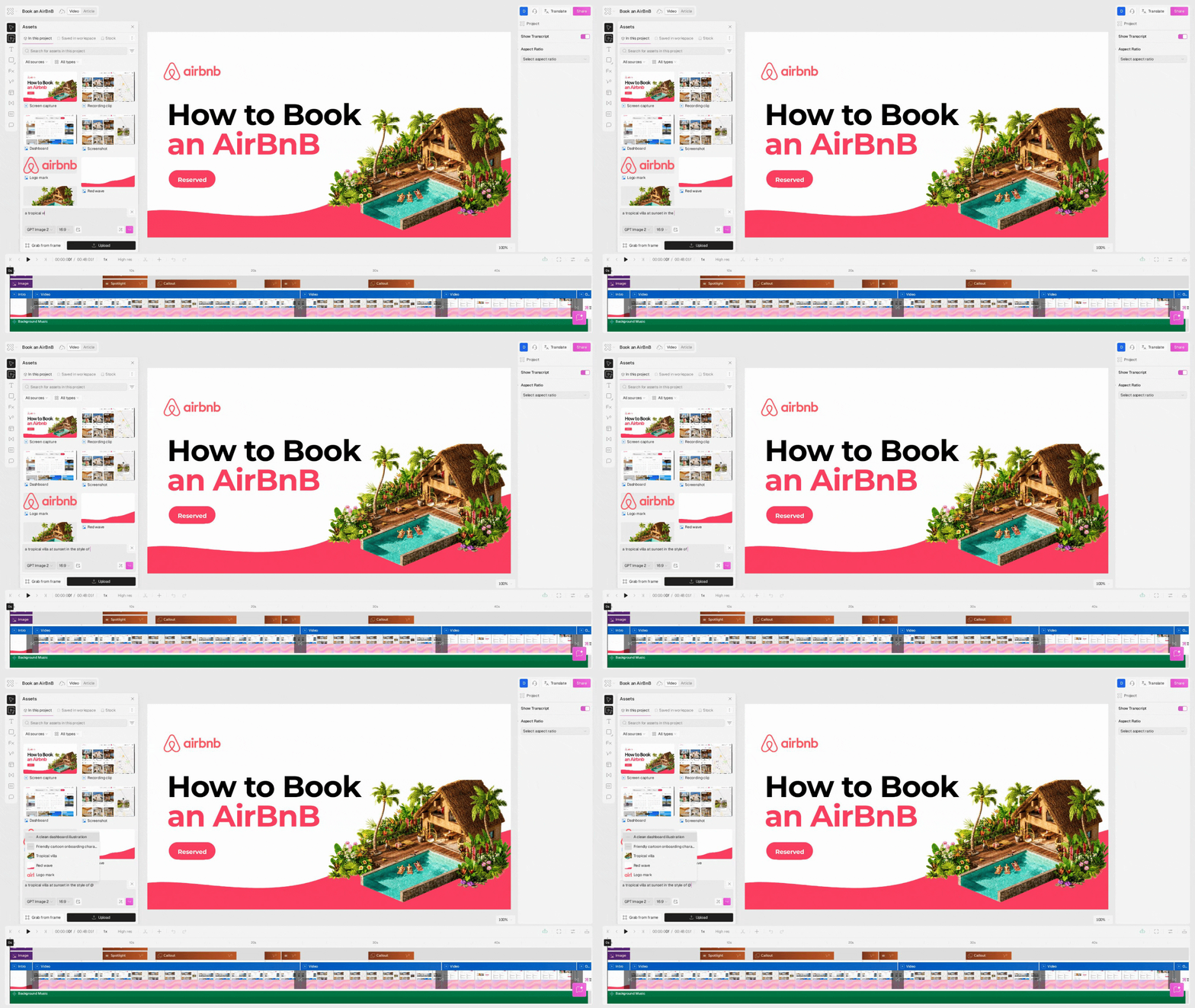
    Write a clear description of the image you want to generate in the prompt input field.
    ![](https://usercontent.us.prod.clueso.io/a9100d23-fce7-4c96-bbe4-5d5e13112270/92598689-c411-428e-bf63-6ec92cb53b9a/ba83b6b3-d4e0-4f5a-87e2-04742dee01f6/images/4e2158d8-170e-4cb9-85fb-e2f2577b7be8.gif)
  </Step>

  <Step title="Open the Style menu">
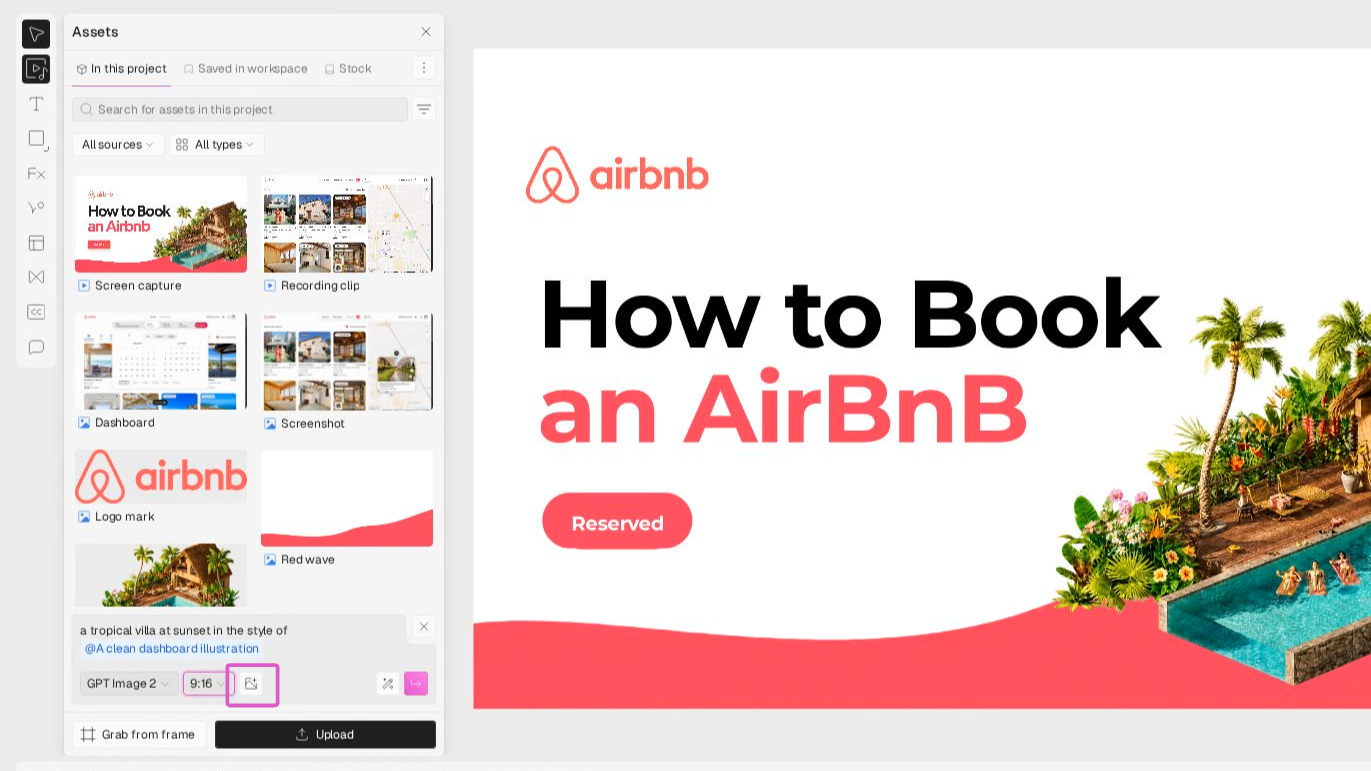
    Click the **Style** button to open the style selection menu and view the available styles.
    ![](https://usercontent.us.prod.clueso.io/a9100d23-fce7-4c96-bbe4-5d5e13112270/92598689-c411-428e-bf63-6ec92cb53b9a/ba83b6b3-d4e0-4f5a-87e2-04742dee01f6/images/a9365726-93f8-41fd-9fef-7df78925394d.png)
  </Step>

  <Step title="Create a new style">
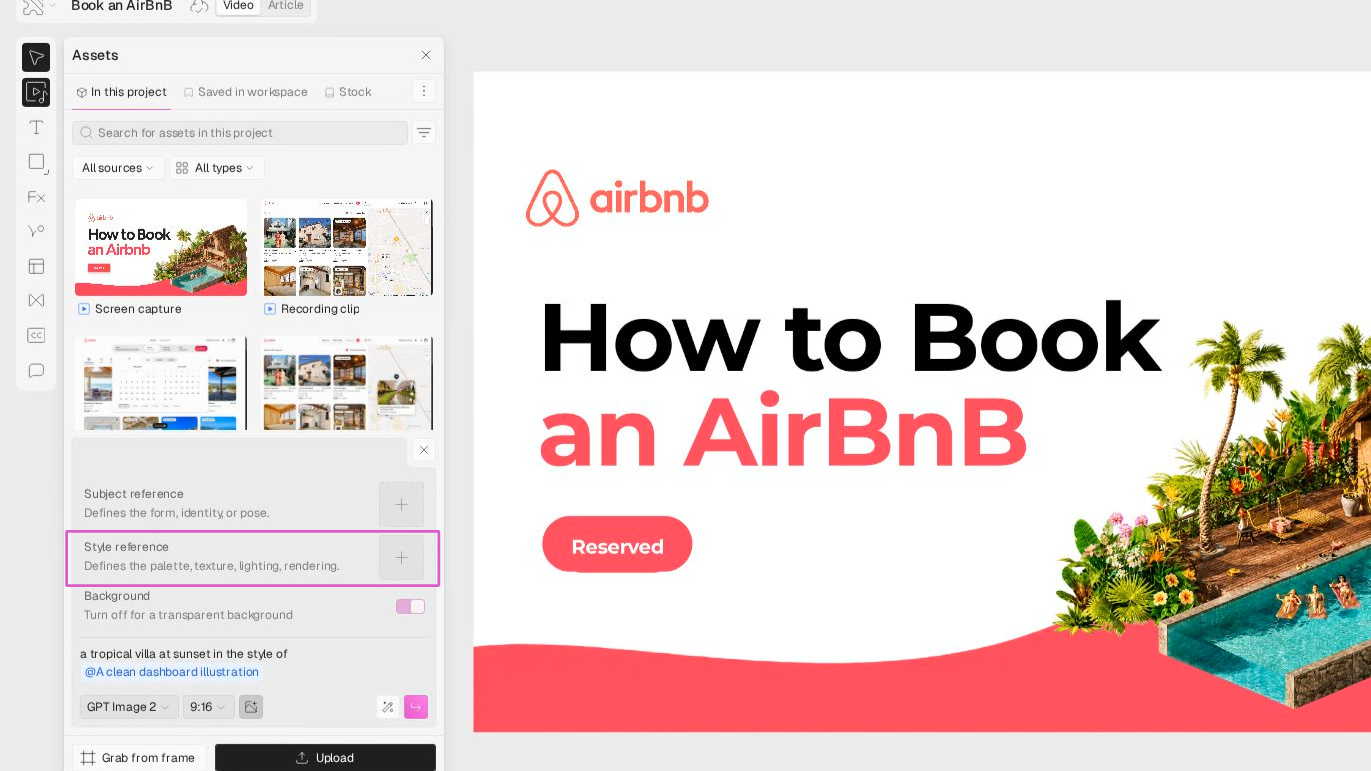
    Click **Create new style**, give your style a name, and upload at least five images with a similar visual look to define the image's overall mood and aesthetics.
    ![](https://usercontent.us.prod.clueso.io/a9100d23-fce7-4c96-bbe4-5d5e13112270/92598689-c411-428e-bf63-6ec92cb53b9a/ba83b6b3-d4e0-4f5a-87e2-04742dee01f6/images/a836095b-1e4f-49ea-9795-f9daa7cf705c.png)
  </Step>

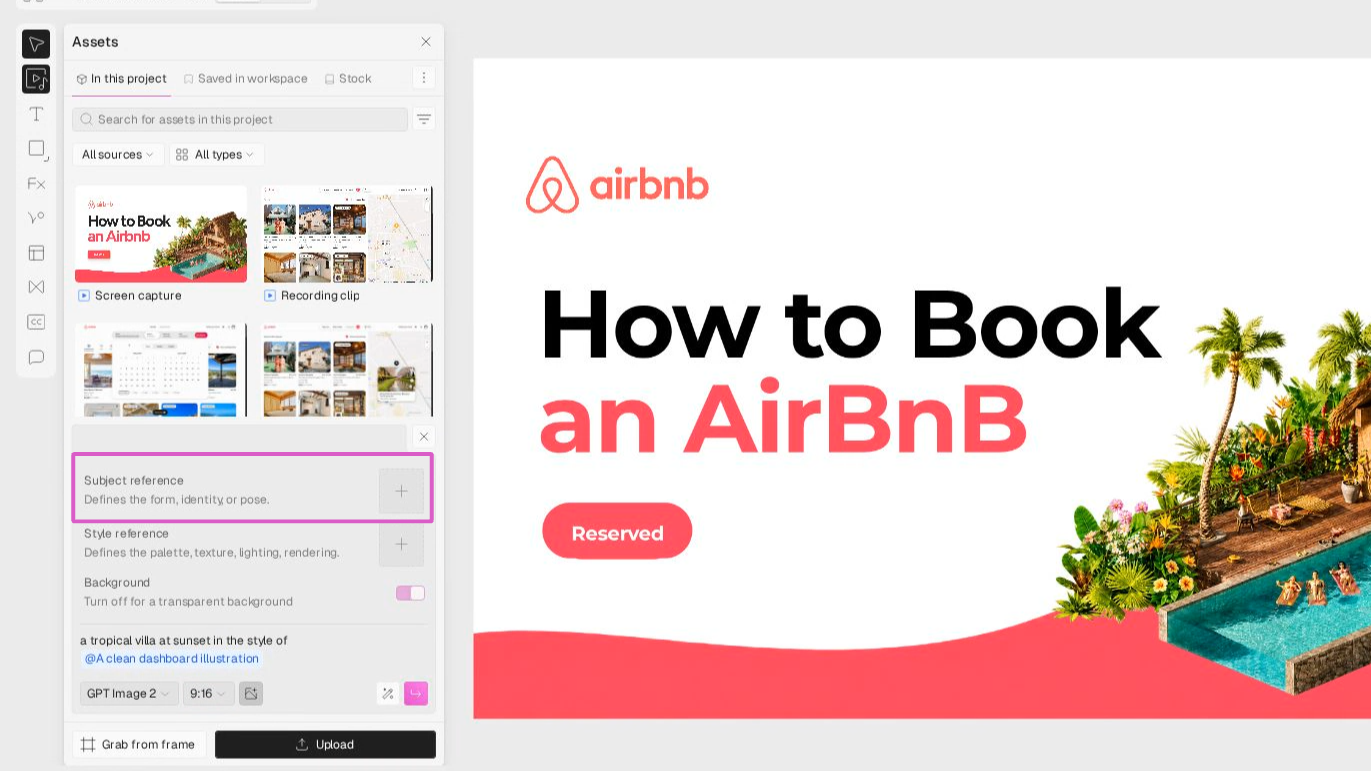
  <Step title="Select a subject image">
    Pick a subject image to keep the main person or object consistent across generated images.
    ![](https://usercontent.us.prod.clueso.io/a9100d23-fce7-4c96-bbe4-5d5e13112270/92598689-c411-428e-bf63-6ec92cb53b9a/ba83b6b3-d4e0-4f5a-87e2-04742dee01f6/images/5bc04539-2236-401c-903f-7071f39777ce.png)
  </Step>

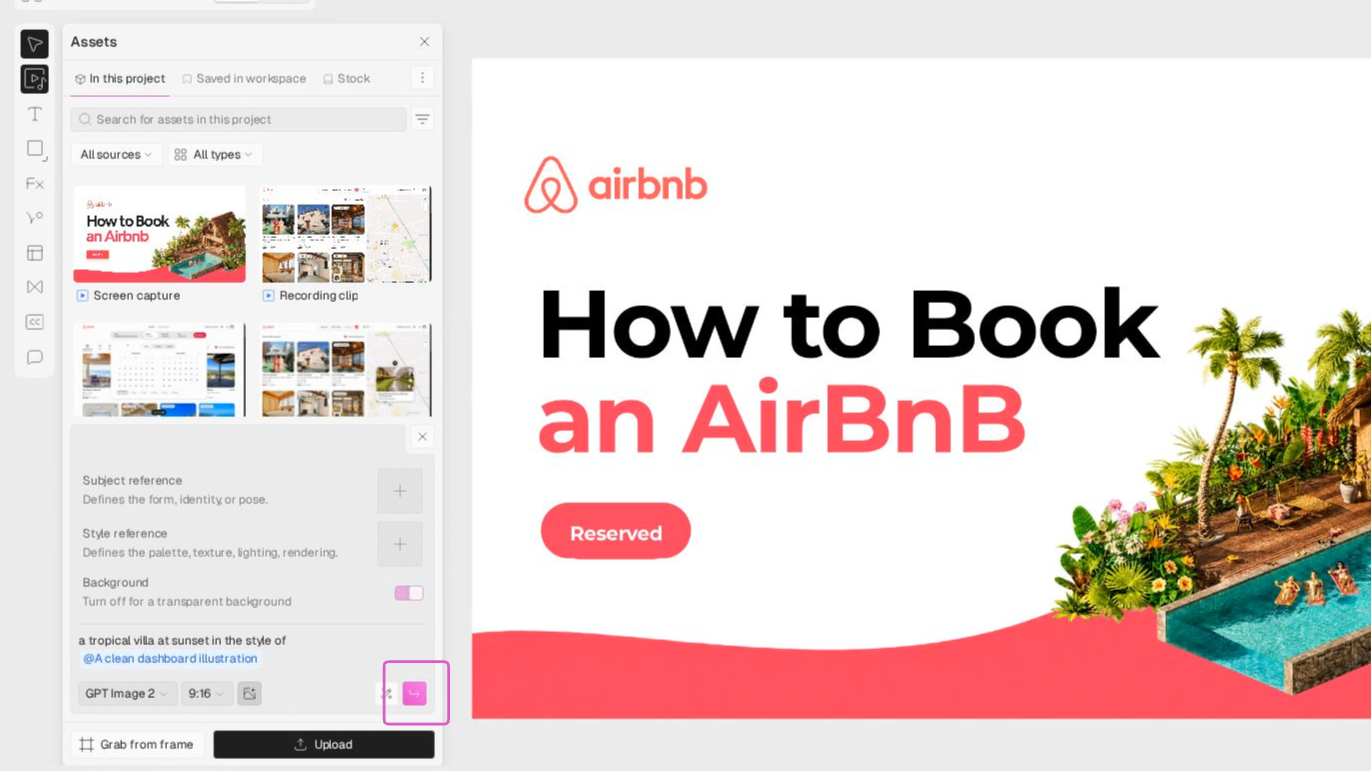
  <Step title="Generate the image">
    Click **Generate Image** to create your visual.

    Your new image will appear, ready for review or further editing.
    ![](https://usercontent.us.prod.clueso.io/a9100d23-fce7-4c96-bbe4-5d5e13112270/92598689-c411-428e-bf63-6ec92cb53b9a/ba83b6b3-d4e0-4f5a-87e2-04742dee01f6/images/f20e63ce-528d-42c4-95d8-3efd49d2e4f5.png)
  </Step>
</Steps>

And that's it! You've created an image using AI Media's style and subject features—all from within the editor.
