> ## Documentation Index
> Fetch the complete documentation index at: https://help.clueso.io/llms.txt
> Use this file to discover all available pages before exploring further.
# Version history
> Learn how to check and restore previous versions of your Clueso project
In this article, you'll learn how to check 'Version history' of your Clueso project. This is helpful when you need to check and restore any previous version of the Clueso project.
Follow these steps to access and restore previous versions:
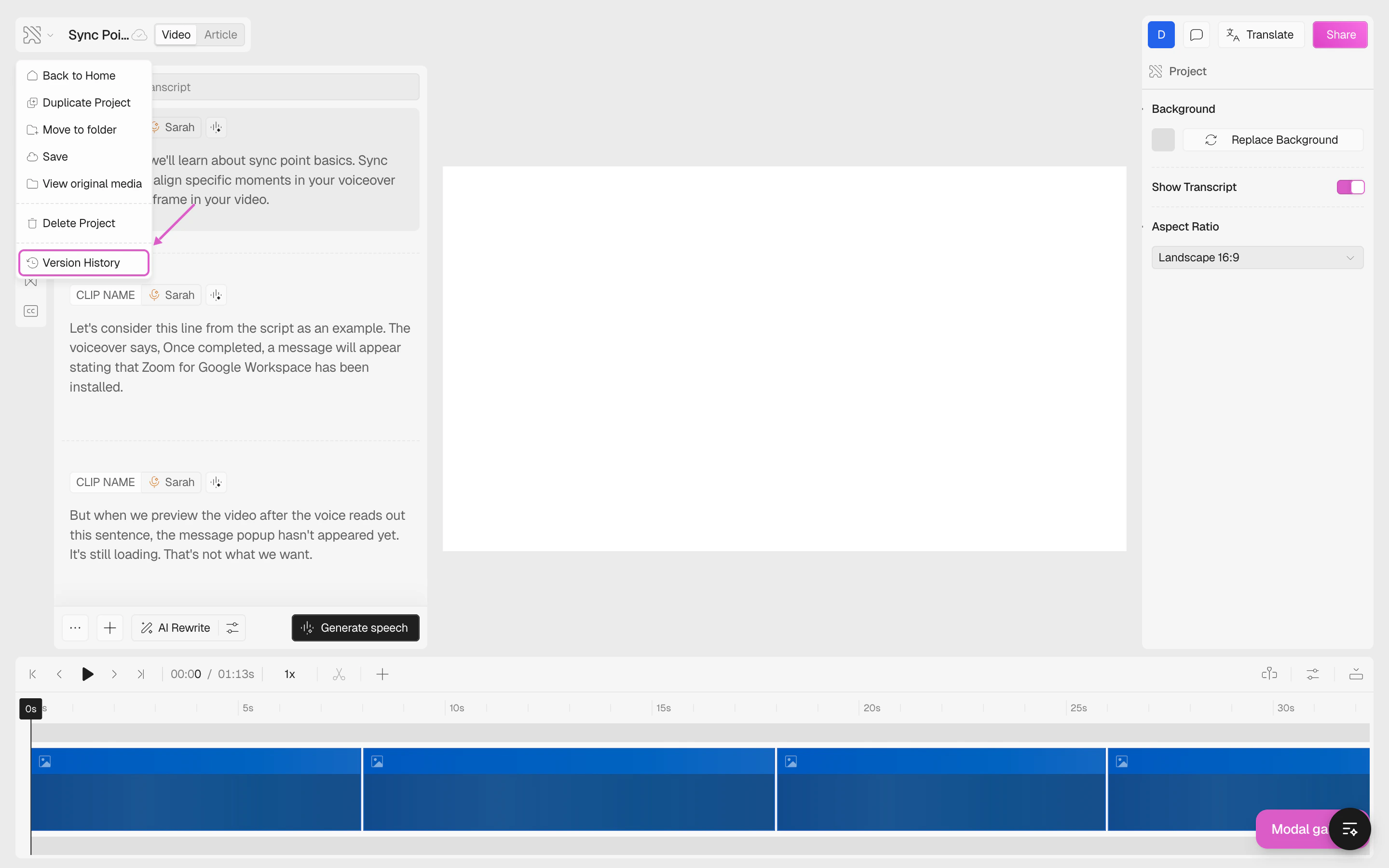
Start by navigating to the **File** menu in the top-left corner of the editor.
From there, click on **Version History**.
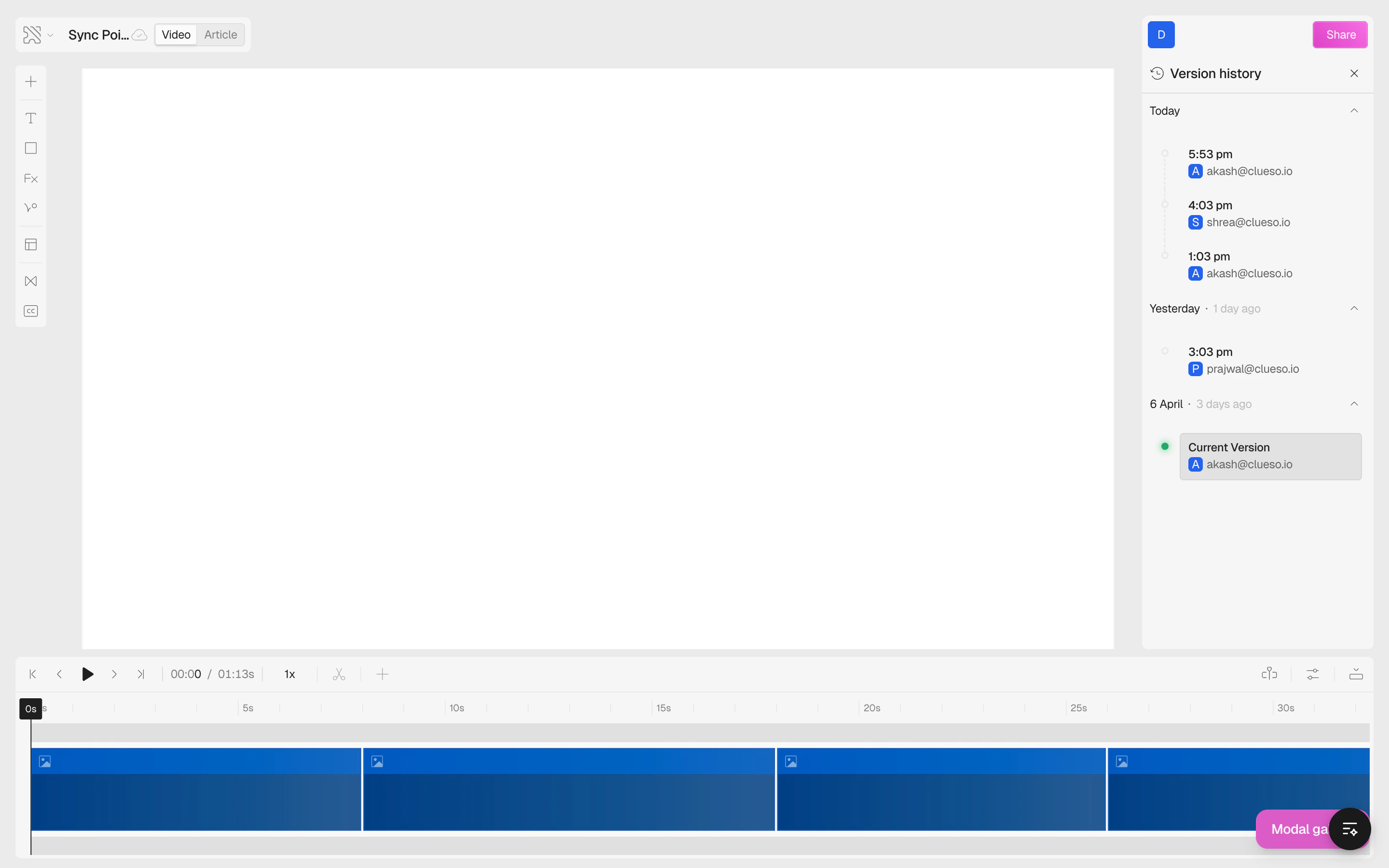
 On the right side, you'll see all the previous versions of your project, grouped by date (Today, Yesterday, etc.).
Clueso keeps saving all your changes automatically.
Each version shows the time it was saved and who made the change. Your current version is marked with a green dot.
On the right side, you'll see all the previous versions of your project, grouped by date (Today, Yesterday, etc.).
Clueso keeps saving all your changes automatically.
Each version shows the time it was saved and who made the change. Your current version is marked with a green dot.
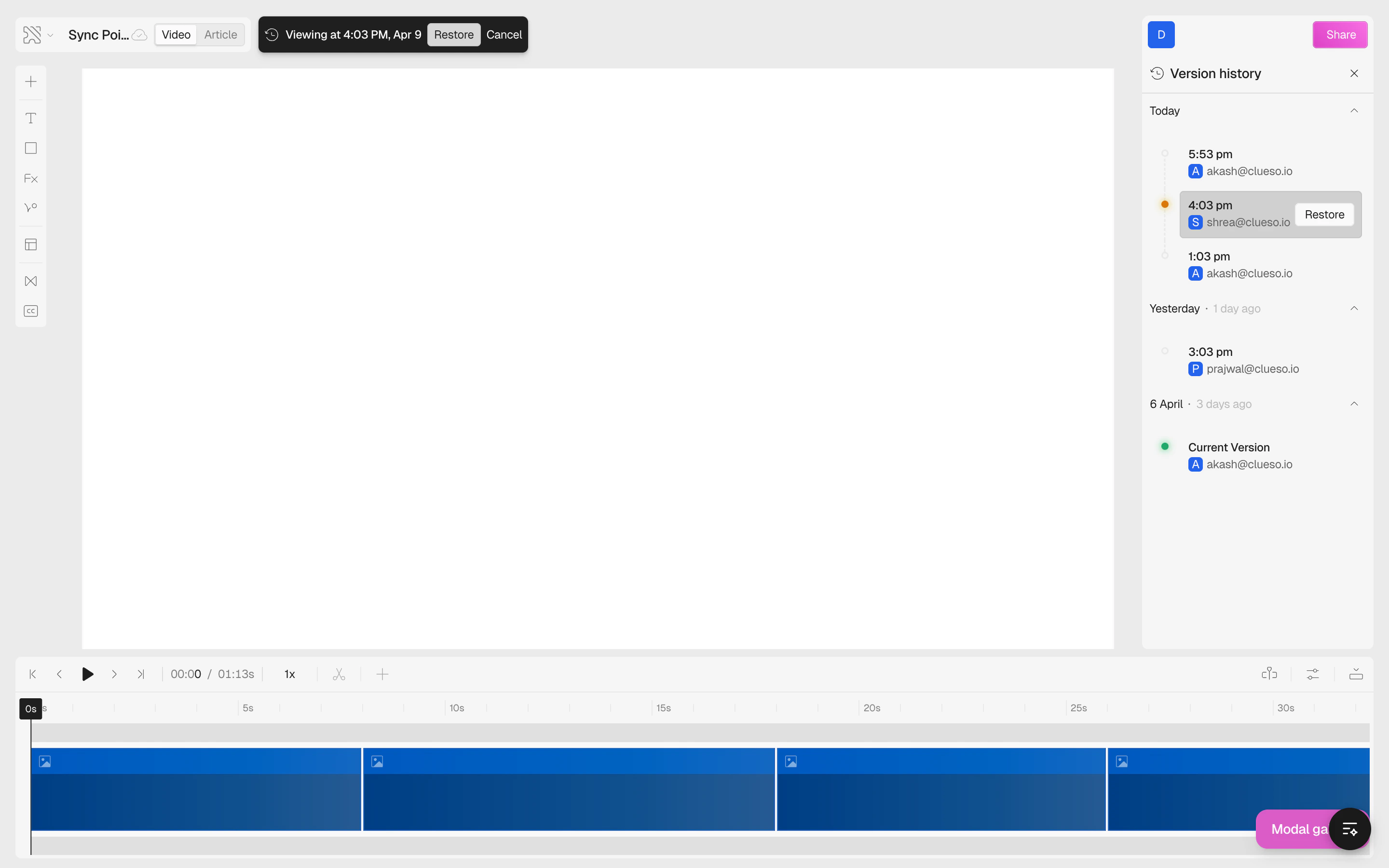
 To check an older version of your preference, simply click on it. Clueso
will load the video and step-by-step article from the selected version.
The selected version is highlighted with a yellow dot, and a banner at the top shows which version you're viewing.
To check an older version of your preference, simply click on it. Clueso
will load the video and step-by-step article from the selected version.
The selected version is highlighted with a yellow dot, and a banner at the top shows which version you're viewing.
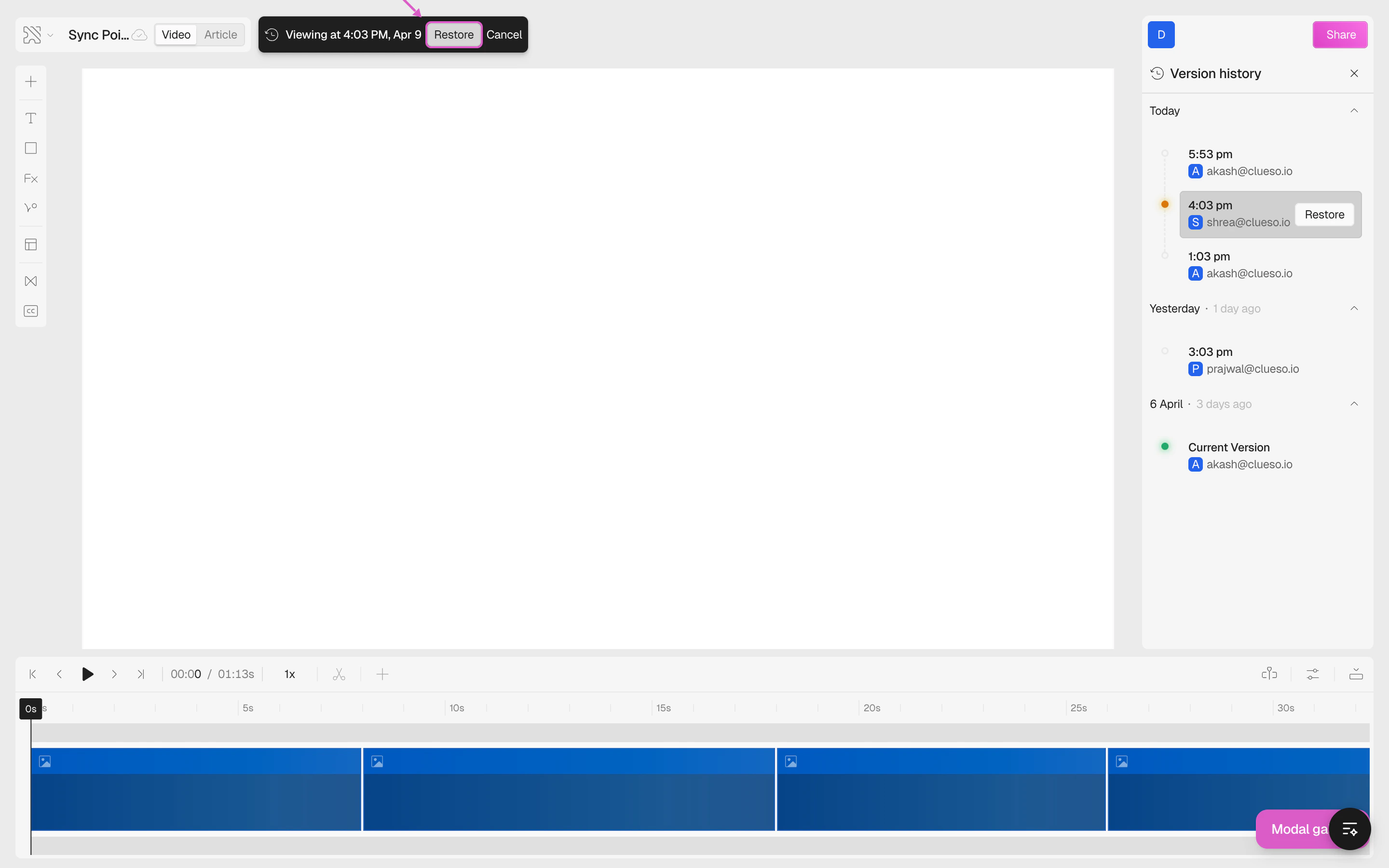
 If you want to restore a particular version, simply select and open that
version, then click on **Restore**. You can click Restore either in the version panel or in the banner at the top.
If you want to restore a particular version, simply select and open that
version, then click on **Restore**. You can click Restore either in the version panel or in the banner at the top.
 After clicking on **Restore**, Clueso will restore the version you selected.
Now, your current version is the selected restored version of the project.
That's how you check and restore a previous version.
## FAQs
If you can't undo, try to revert from the version history. You won't be able
to undo after an AI operation like AI rewrite or Generate speech. In such
cases revert back to the previous version.
After clicking on **Restore**, Clueso will restore the version you selected.
Now, your current version is the selected restored version of the project.
That's how you check and restore a previous version.
## FAQs
If you can't undo, try to revert from the version history. You won't be able
to undo after an AI operation like AI rewrite or Generate speech. In such
cases revert back to the previous version.