> ## Documentation Index
> Fetch the complete documentation index at: https://help.clueso.io/llms.txt
> Use this file to discover all available pages before exploring further.

# Trim

> Trim out portions of your video

In this guide, you’ll learn how to trim out any portion of your video in Clueso. Trimming is useful for cutting out visuals that you don’t want to include in your final video.

<iframe src="https://staging.watchclueso.com/embed/k4mzn1tqiw8x4nax" title="Trim" frameBorder="0" style={{ width: "100%", aspectRatio: "16 / 9", border: "0" }} allow="accelerometer; autoplay; clipboard-write; encrypted-media; gyroscope; picture-in-picture; web-share" allowFullScreen />

<Steps>
  <Step title="Mark the start point">
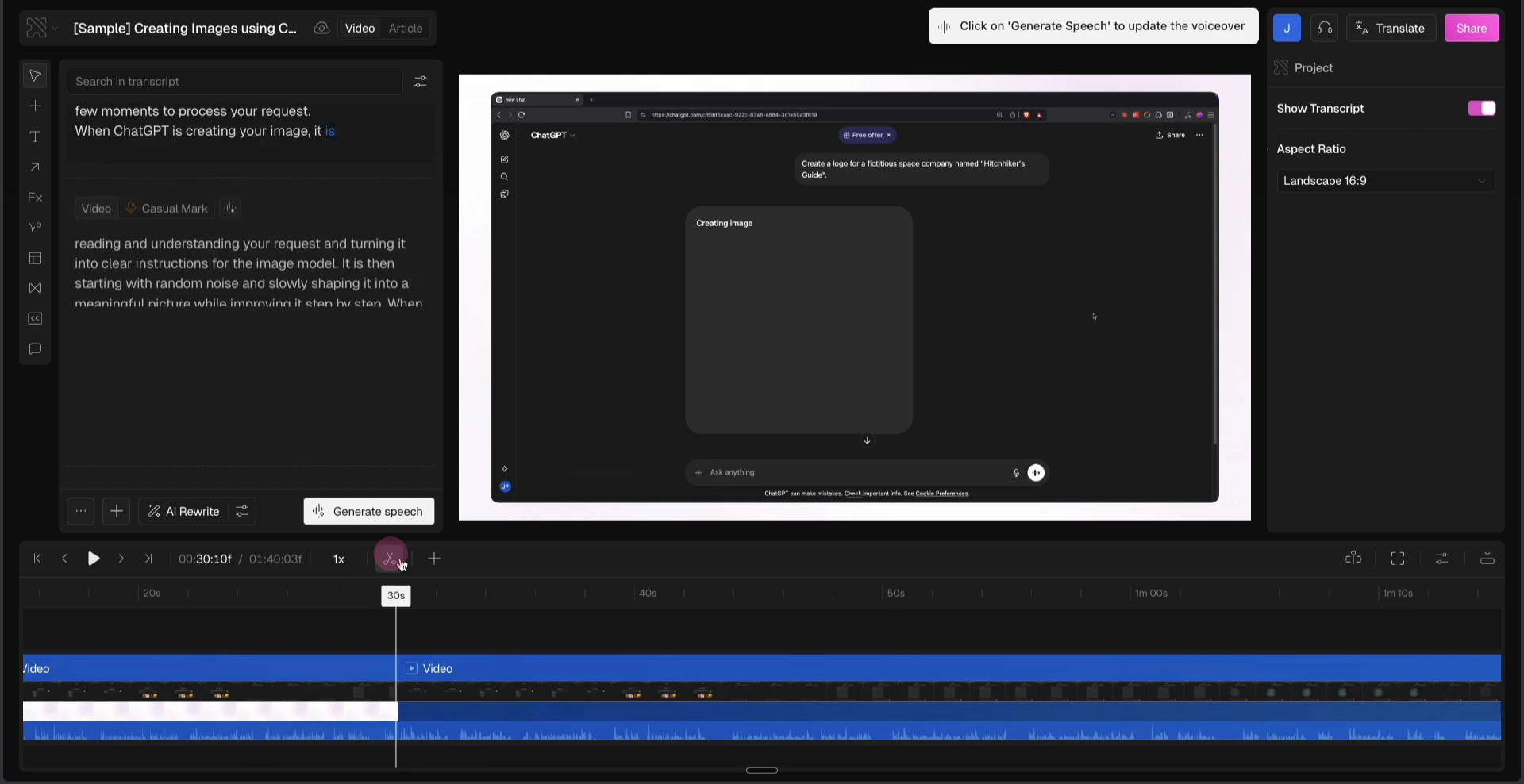
    Play through your video and pause at the moment where the section you want to trim begins. Place your cursor here.
    <img src="https://mintcdn.com/clueso/vWh2bZa83tZdC4jL/images/trim1.png?fit=max&auto=format&n=vWh2bZa83tZdC4jL&q=85&s=767d145ef81287747d263da7d1bbd2cf" alt="download (54).png" lightAlt="trim1.png" darkAlt="trim1.png" className="dark:hidden" width="1913" height="987" data-path="images/trim1.png" />

    <img src="https://mintcdn.com/clueso/vWh2bZa83tZdC4jL/images/trim1-1.png?fit=max&auto=format&n=vWh2bZa83tZdC4jL&q=85&s=4ce2a3c1521490631a27650d1f869055" alt="download (54).png" lightAlt="trim1.png" darkAlt="trim1.png" className="hidden dark:block" width="1913" height="987" data-path="images/trim1-1.png" />
  </Step>

  <Step title="Split at the start point">
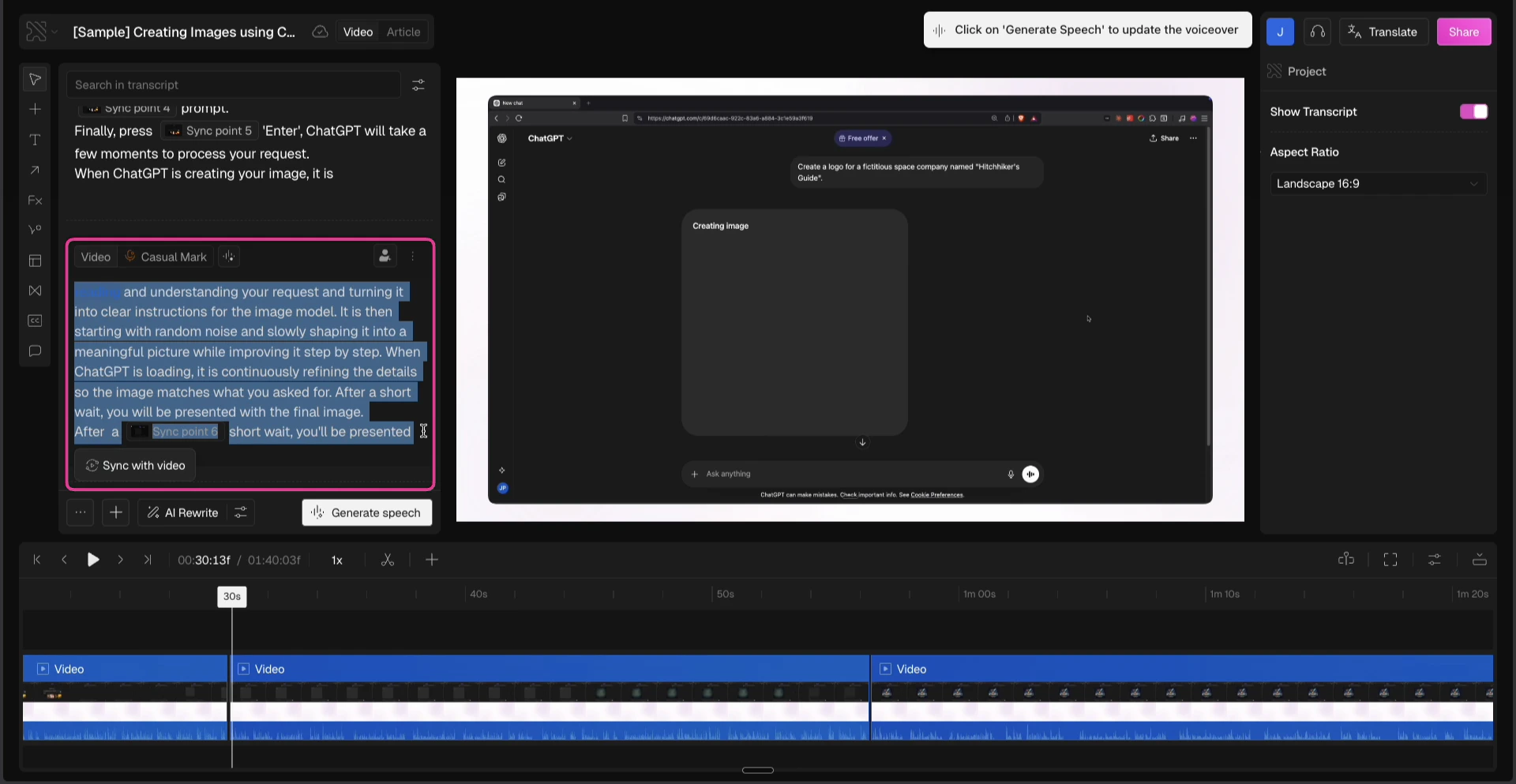
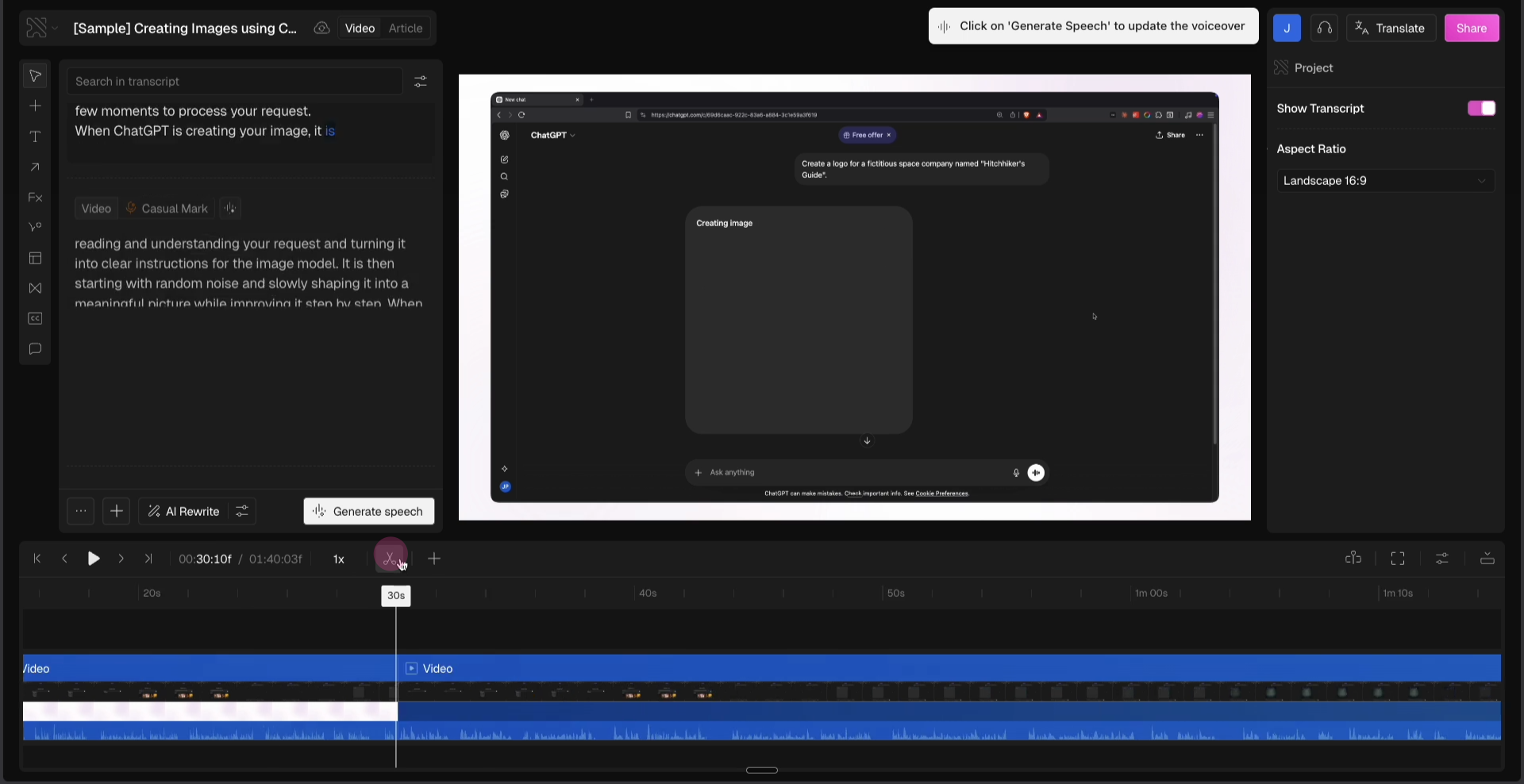
    Click **Split** to divide the video at this point.
    <img src="https://mintcdn.com/clueso/vWh2bZa83tZdC4jL/images/trim2.png?fit=max&auto=format&n=vWh2bZa83tZdC4jL&q=85&s=d2250920344b563a3e9ae9901f27cac5" alt="download (56).png" lightAlt="trim2.png" darkAlt="trim2.png" className="dark:hidden" width="1920" height="988" data-path="images/trim2.png" />

    <img src="https://mintcdn.com/clueso/vWh2bZa83tZdC4jL/images/trim2-1.png?fit=max&auto=format&n=vWh2bZa83tZdC4jL&q=85&s=26f18fc42d249db33a2049d449cfddd7" alt="download (56).png" lightAlt="trim2.png" darkAlt="trim2.png" className="hidden dark:block" width="1920" height="988" data-path="images/trim2-1.png" />
  </Step>

  <Step title="Split at the end point">
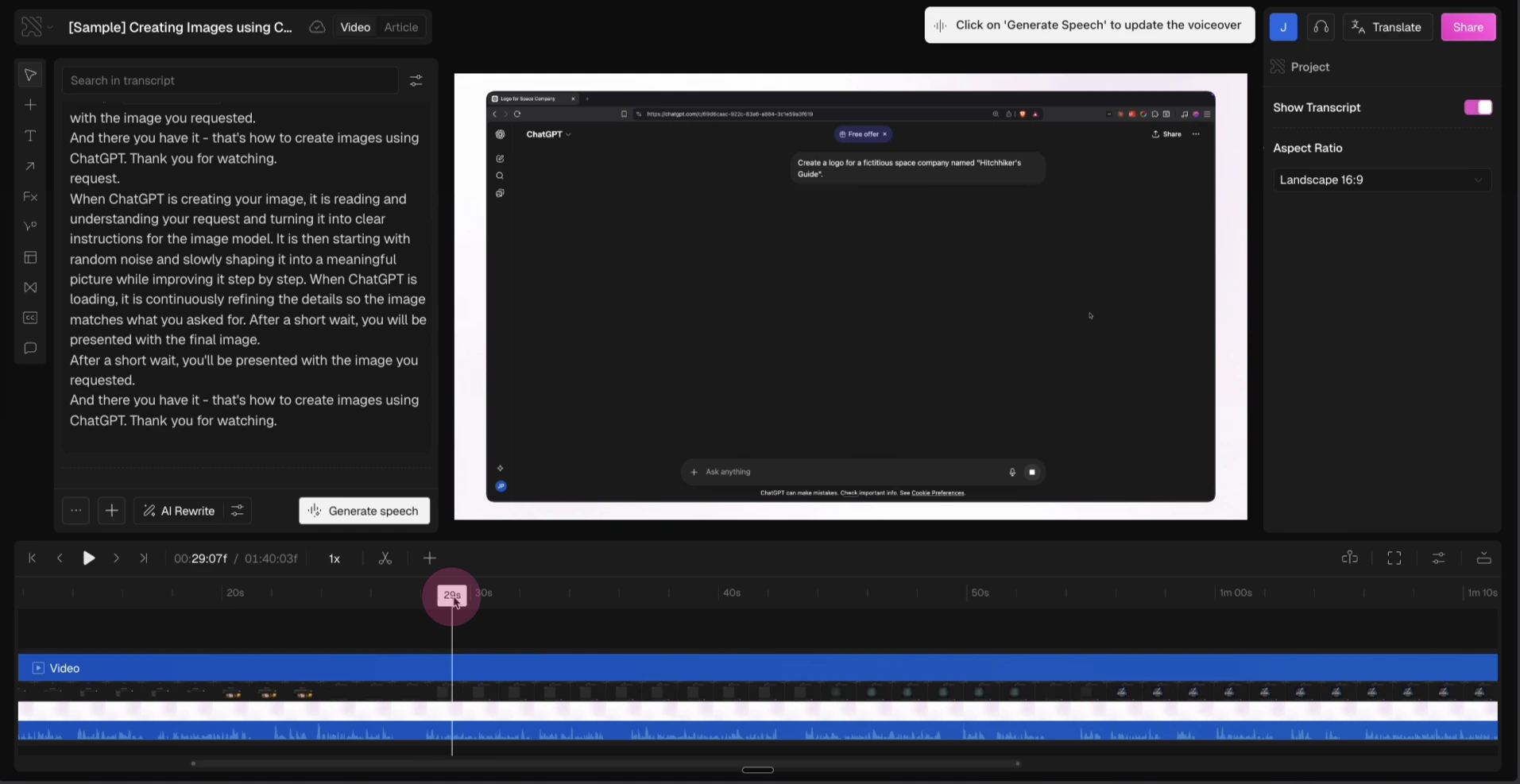
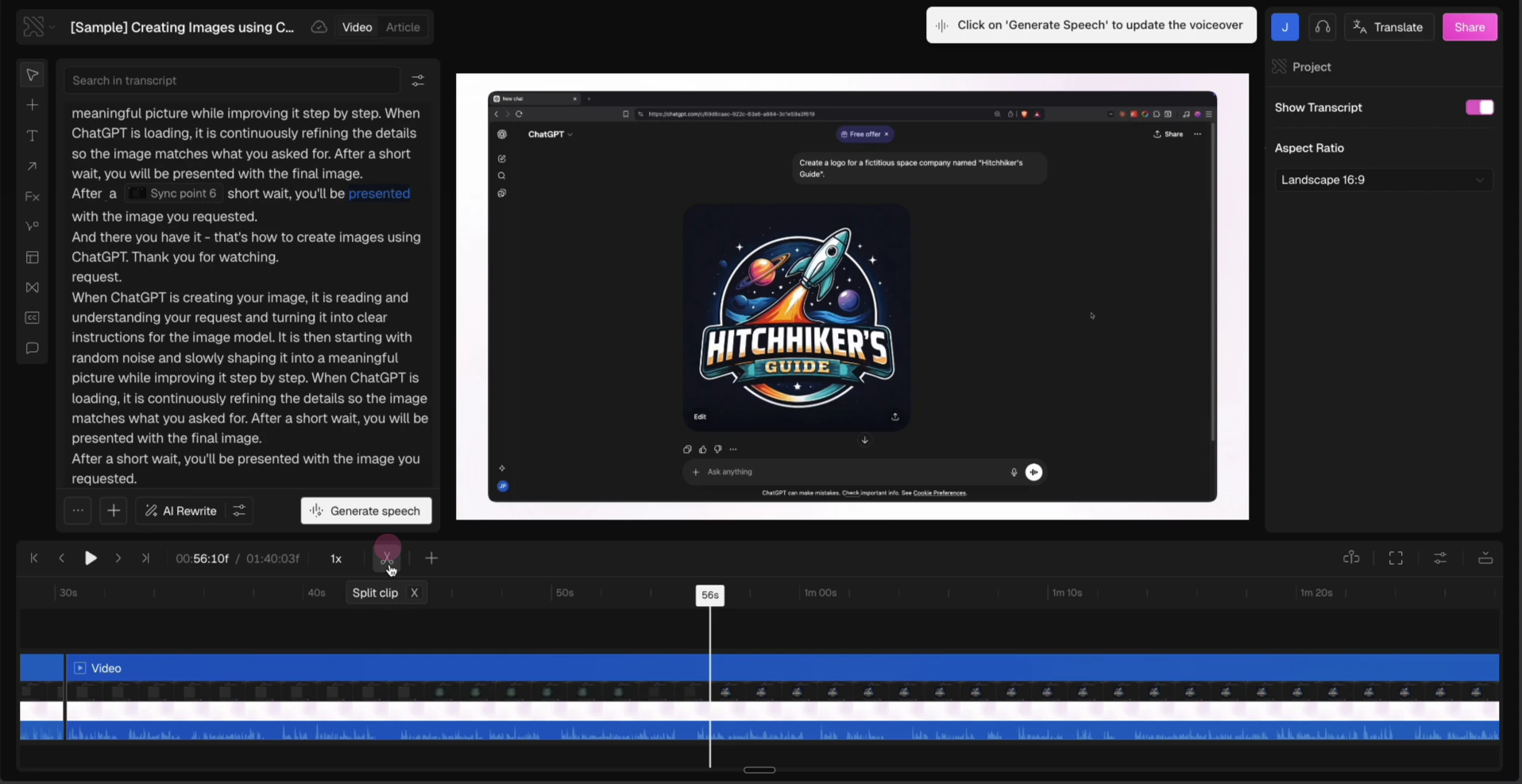
    Now, play forward until the section you want to cut ends. Place your cursor here and click **Split** again.
    <img src="https://mintcdn.com/clueso/vWh2bZa83tZdC4jL/images/trim3.png?fit=max&auto=format&n=vWh2bZa83tZdC4jL&q=85&s=15192ff26cd2f9cae4ab56f2d7e9eda3" alt="e932458c-c980-43f2-8989-7fb2a20a9e45.gif" lightAlt="trim3.png" darkAlt="trim3.png" className="dark:hidden" width="1916" height="987" data-path="images/trim3.png" />

    <img src="https://mintcdn.com/clueso/vWh2bZa83tZdC4jL/images/trim3-1.png?fit=max&auto=format&n=vWh2bZa83tZdC4jL&q=85&s=7405011bda86b25fc05dac85604482cf" alt="e932458c-c980-43f2-8989-7fb2a20a9e45.gif" lightAlt="trim3.png" darkAlt="trim3.png" className="hidden dark:block" width="1916" height="987" data-path="images/trim3-1.png" />

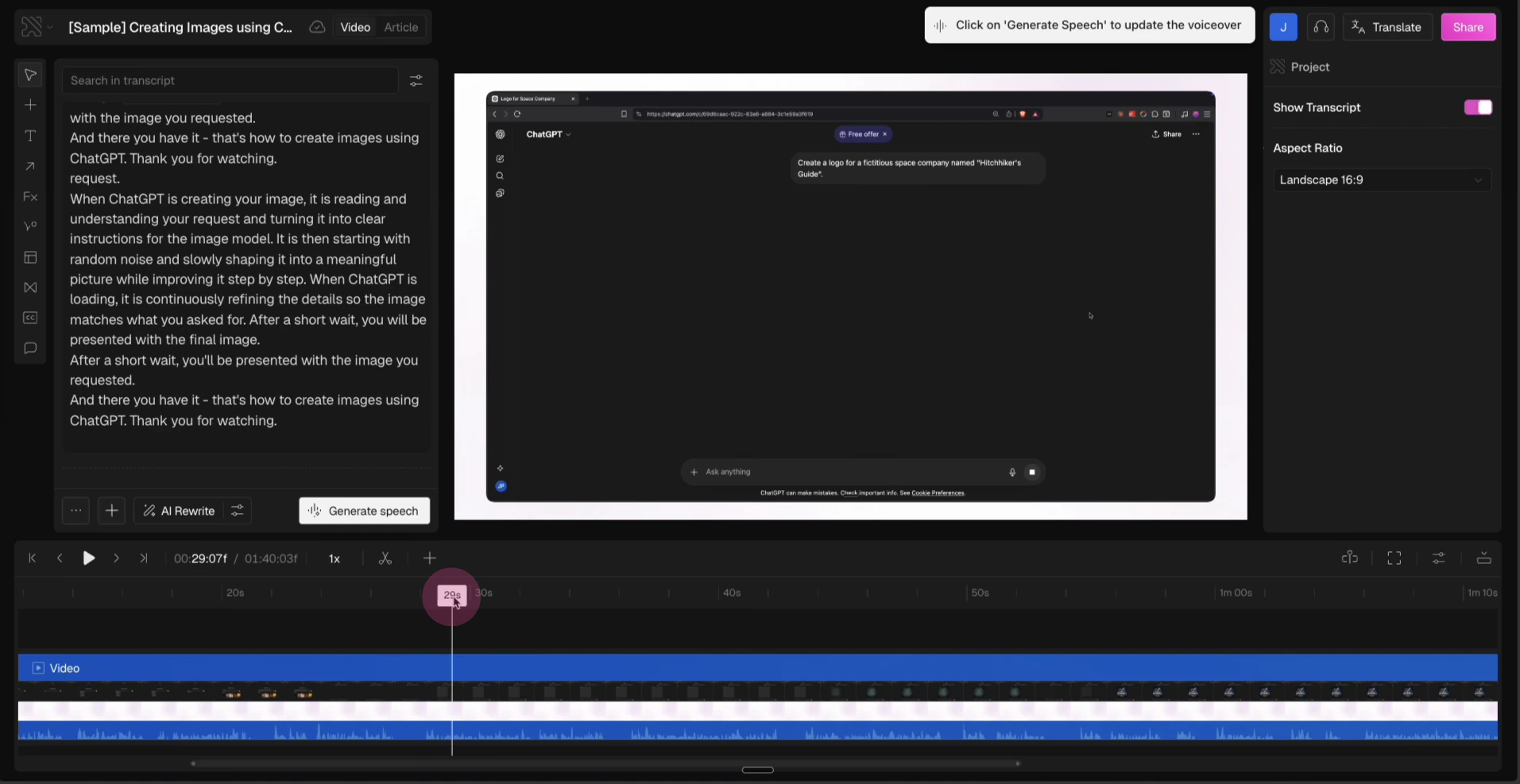
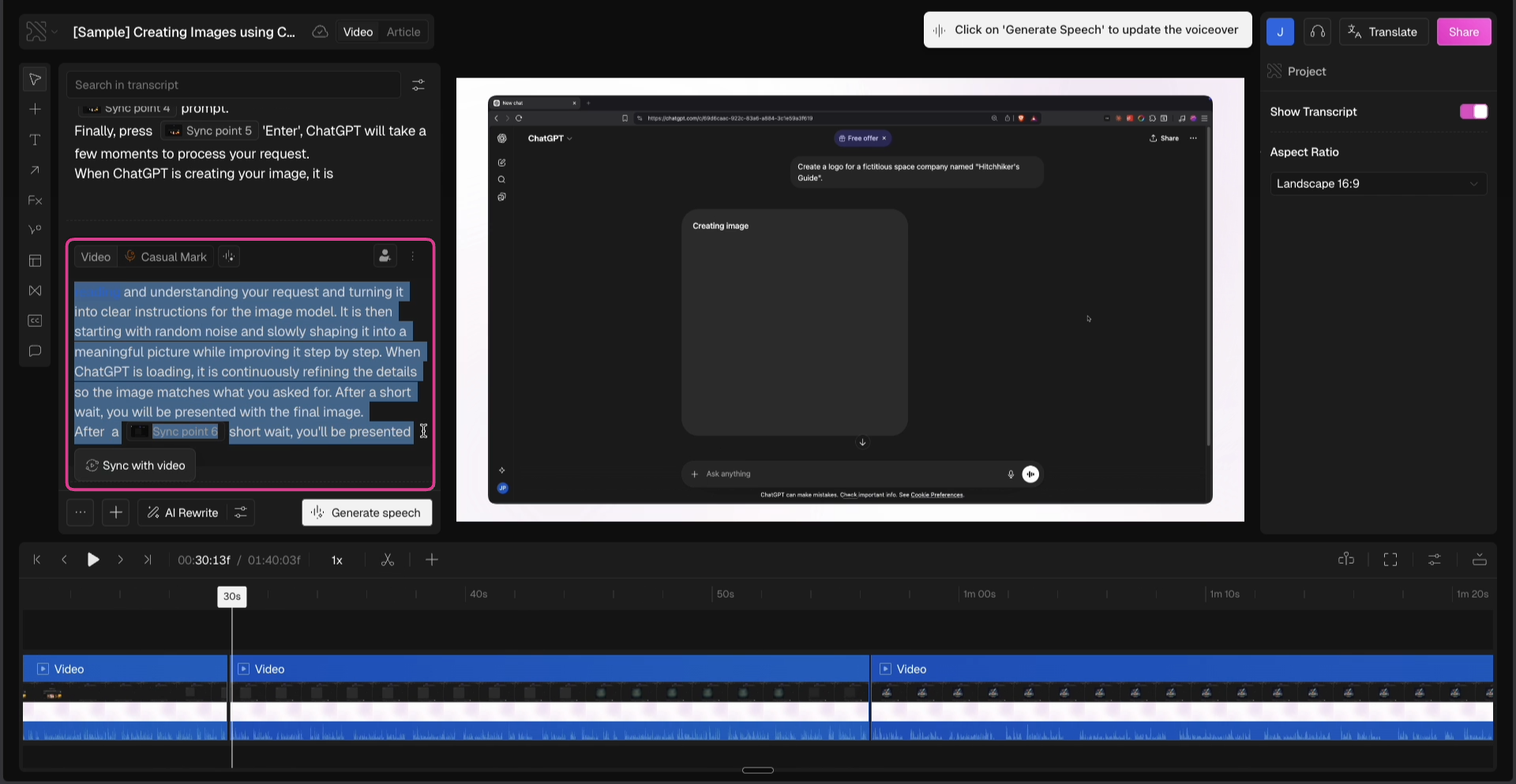
    You'll notice that the script for that clip also gets divided in the left side menu.
    <img src="https://mintcdn.com/clueso/vWh2bZa83tZdC4jL/images/trim4.png?fit=max&auto=format&n=vWh2bZa83tZdC4jL&q=85&s=e38e502acced050de9c7386902946503" alt="download (58).png" lightAlt="trim4.png" darkAlt="trim4.png" className="dark:hidden" width="1920" height="993" data-path="images/trim4.png" />

    <img src="https://mintcdn.com/clueso/vWh2bZa83tZdC4jL/images/trim4-1.png?fit=max&auto=format&n=vWh2bZa83tZdC4jL&q=85&s=e101184a023f001e142bd77cd863a1ac" alt="download (58).png" lightAlt="trim4.png" darkAlt="trim4.png" className="hidden dark:block" width="1920" height="993" data-path="images/trim4-1.png" />
  </Step>

  <Step title="Delete the unwanted section">
    To delete a clip, either right-click it in the timeline and choose **Delete Clip**, or open the three-dot menu next to the clip in the script panel and select **Delete Clip.**

    <Tip>
      **Note**: If you want to preserve the script from the deleted clip, copy and paste it into the clip above or below before trimming. If you don’t need the script, simply continue with the trim.
    </Tip>
  </Step>
</Steps>

And that's it! You've successfully trimmed a section of your video.