> ## Documentation Index
> Fetch the complete documentation index at: https://help.clueso.io/llms.txt
> Use this file to discover all available pages before exploring further.
# Transitions
> Add transitions between clips
Transitions make your videos smoother and more engaging by adding visual effects between two clips. Instead of jumping abruptly from one clip to the next, you can apply a transition to create a seamless flow — whether it’s a dissolve, wipe, slide, or color fade.
## Adding a Transition
Click the **Transitions** button in the left-side toolbar to open the transitions panel. You’ll see all available transition effects with preview thumbnails.
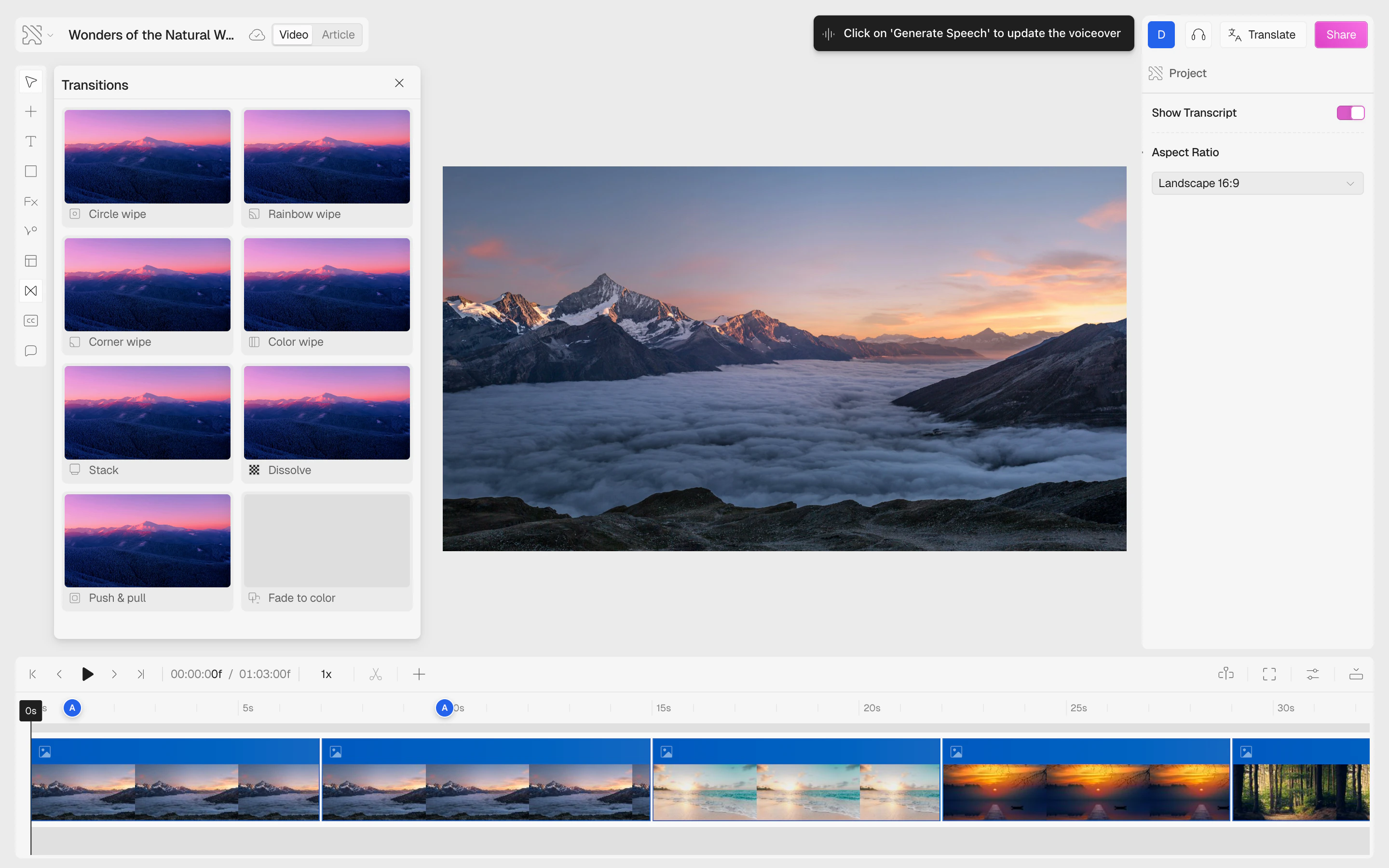 Click on the transition you want to apply. The available styles are:
| Transition | Effect |
| ----------------- | -------------------------------------------------------------- |
| **Circle wipe** | Circle expands from the center to reveal the next clip |
| **Rainbow wipe** | Colored circle wipe from a corner |
| **Corner wipe** | Circle wipe from a selected corner |
| **Color wipe** | Multi-colored horizontal or vertical wipe |
| **Stack** | Next clip slides in from an edge (top, bottom, left, or right) |
| **Dissolve** | Cross-fade between both clips |
| **Push & pull** | Current clip zooms out and slides away, next clip slides in |
| **Fade to color** | Fades to a solid color, then fades into the next clip |
Hover over any transition card to preview the effect before selecting it.
Click on the transition you want to apply. The available styles are:
| Transition | Effect |
| ----------------- | -------------------------------------------------------------- |
| **Circle wipe** | Circle expands from the center to reveal the next clip |
| **Rainbow wipe** | Colored circle wipe from a corner |
| **Corner wipe** | Circle wipe from a selected corner |
| **Color wipe** | Multi-colored horizontal or vertical wipe |
| **Stack** | Next clip slides in from an edge (top, bottom, left, or right) |
| **Dissolve** | Cross-fade between both clips |
| **Push & pull** | Current clip zooms out and slides away, next clip slides in |
| **Fade to color** | Fades to a solid color, then fades into the next clip |
Hover over any transition card to preview the effect before selecting it.
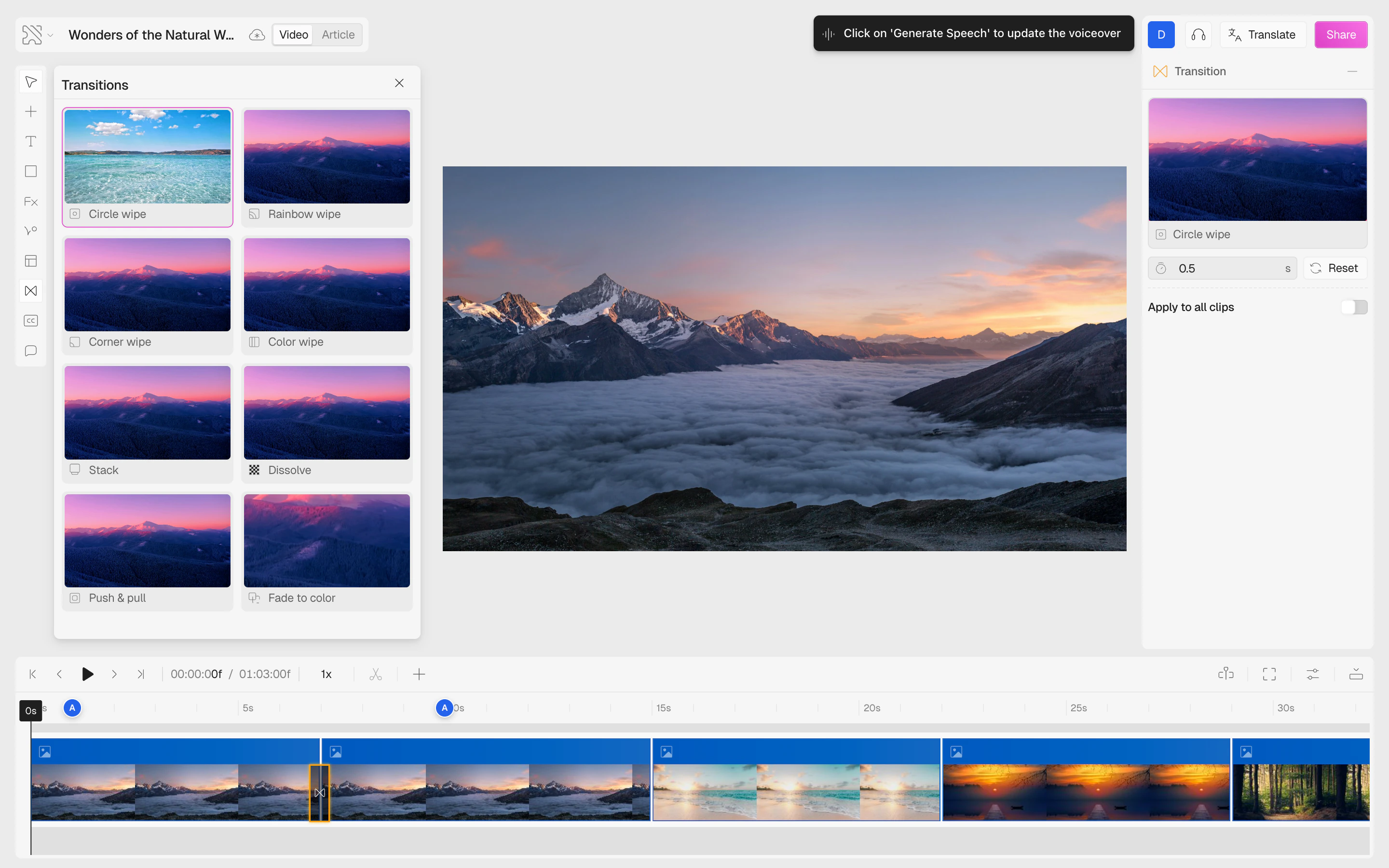
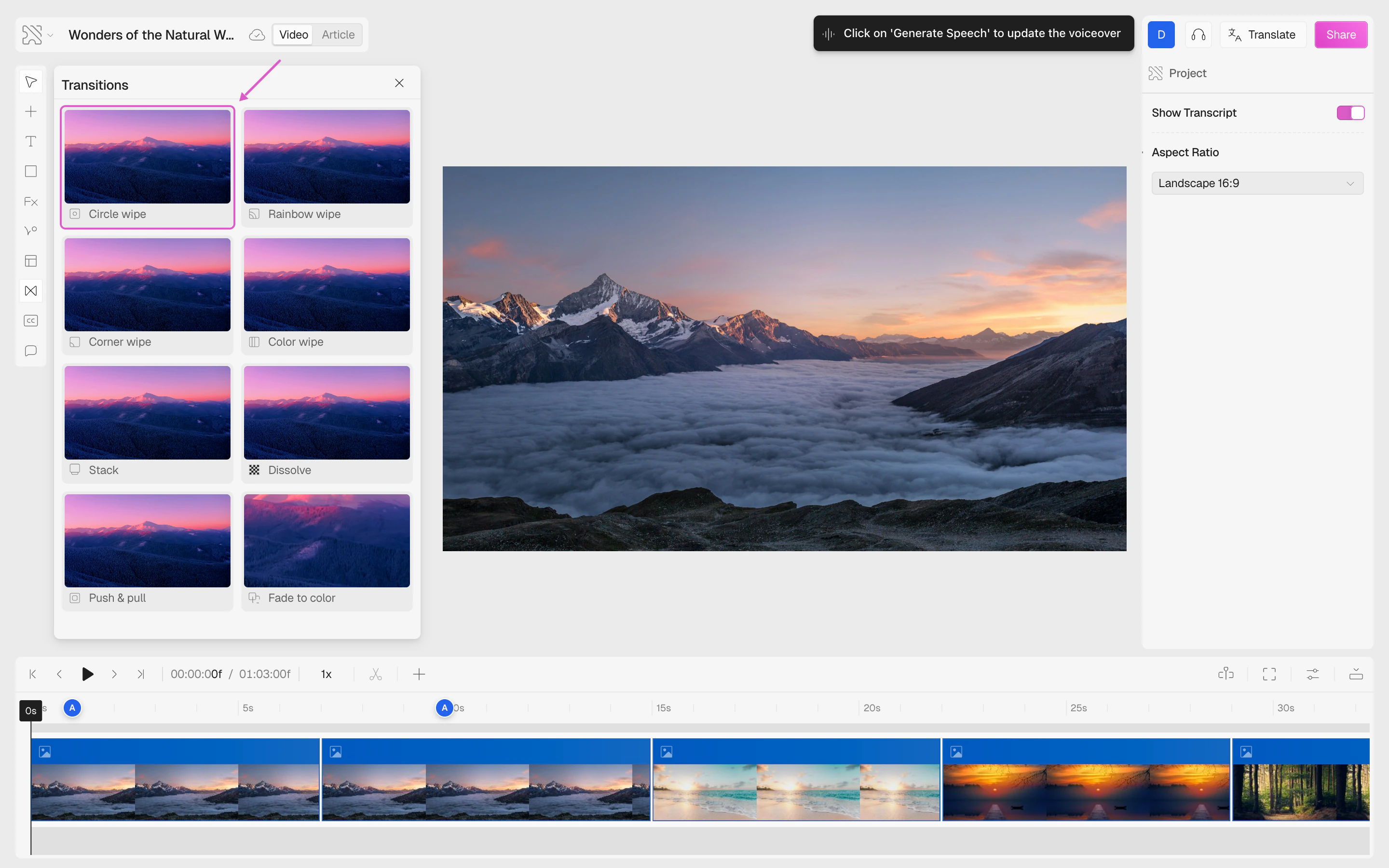 After selecting a transition, the settings panel appears on the right with controls to customize it.
 ## Transition Settings
Once a transition is applied, you can fine-tune it in the right panel:
* **Duration** — set how long the transition lasts, from **0.1** to **5 seconds** (default is 0.5s). Use the input field or click **Reset** to restore the default.
* **Direction** — for transitions that support it (Stack, Corner wipe, Color wipe), choose the direction:
* **Corner directions**: top-left, top-right, bottom-left, bottom-right
* **Side directions**: left, right, top, bottom
* **Horizontal**: left, right
* **Color** — for Color wipe and Fade to color, pick a custom color using the color picker.
* **Apply to all clips** — toggle this on to apply the same transition between every clip in the video at once.
## Timeline Indicator
When a transition is applied, it appears as a small visual indicator between clips in the timeline. You can click on it to re-open the settings panel.
## Transition Settings
Once a transition is applied, you can fine-tune it in the right panel:
* **Duration** — set how long the transition lasts, from **0.1** to **5 seconds** (default is 0.5s). Use the input field or click **Reset** to restore the default.
* **Direction** — for transitions that support it (Stack, Corner wipe, Color wipe), choose the direction:
* **Corner directions**: top-left, top-right, bottom-left, bottom-right
* **Side directions**: left, right, top, bottom
* **Horizontal**: left, right
* **Color** — for Color wipe and Fade to color, pick a custom color using the color picker.
* **Apply to all clips** — toggle this on to apply the same transition between every clip in the video at once.
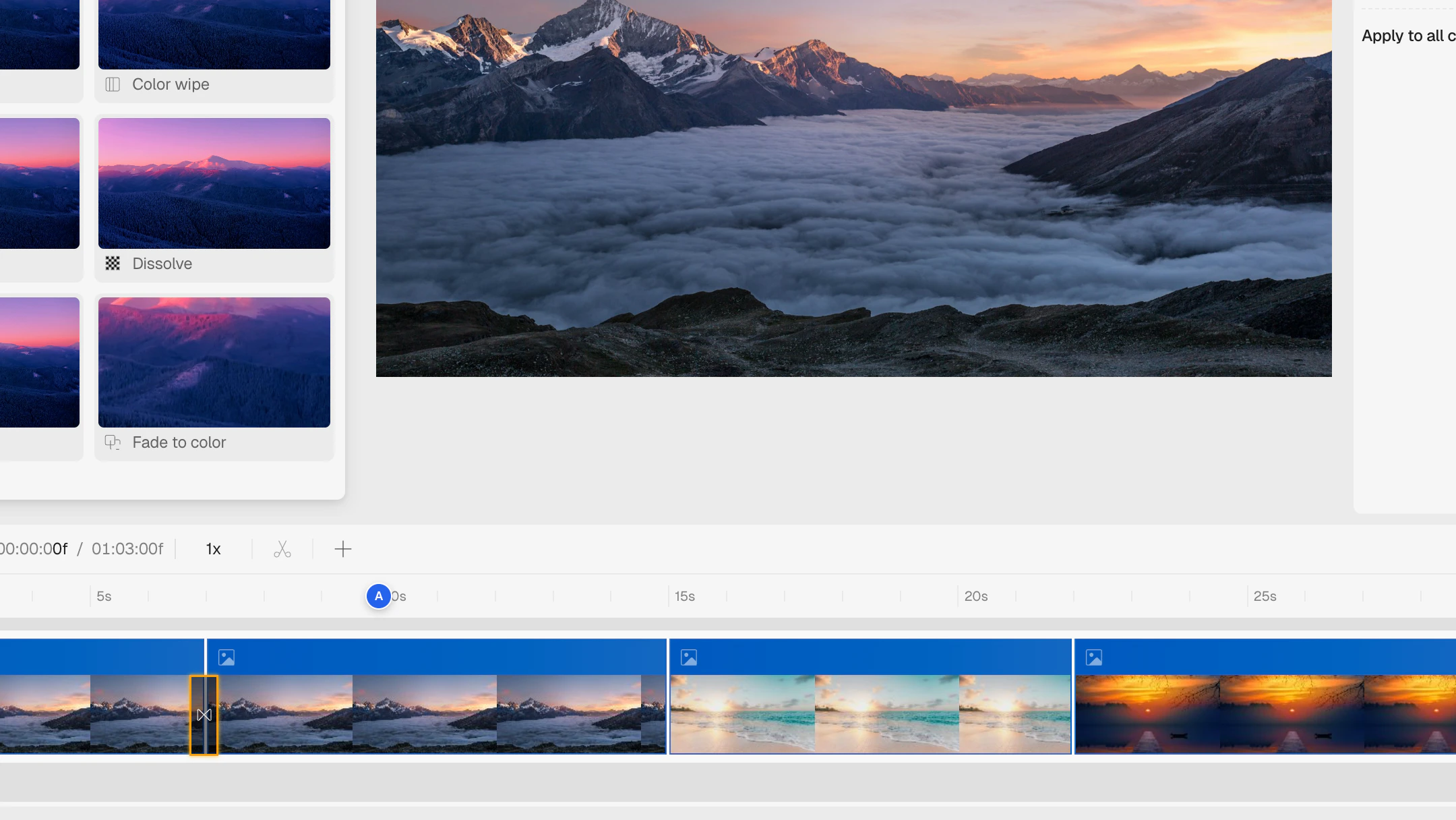
## Timeline Indicator
When a transition is applied, it appears as a small visual indicator between clips in the timeline. You can click on it to re-open the settings panel.
 ## Removing a Transition
To remove a transition, click on the transition indicator in the timeline to open the settings panel, then click the **delete button** (minus icon) in the panel header.
## Tips
You can **drag and drop** transition cards directly from the transitions panel onto the timeline between two clips.
Use **Dissolve** for a subtle, professional look. Use **Push & pull** or **Color wipe** for more dynamic, energetic transitions.
## Removing a Transition
To remove a transition, click on the transition indicator in the timeline to open the settings panel, then click the **delete button** (minus icon) in the panel header.
## Tips
You can **drag and drop** transition cards directly from the transitions panel onto the timeline between two clips.
Use **Dissolve** for a subtle, professional look. Use **Push & pull** or **Color wipe** for more dynamic, energetic transitions.