> ## Documentation Index
> Fetch the complete documentation index at: https://help.clueso.io/llms.txt
> Use this file to discover all available pages before exploring further.
# Set a default template
> Set default intro and outro templates that are automatically added to every new video.
Setting a default template helps you save time by automatically applying your chosen Intro or Outro to every new video made by your team.
Go to the **Templates** section from the left panel.
Click **View all** next to **Intro** or **Outro** to see all of your saved templates in that category.
Hover over the template you want to use, click the **three dots** (•••) menu, and select **Set as default**.
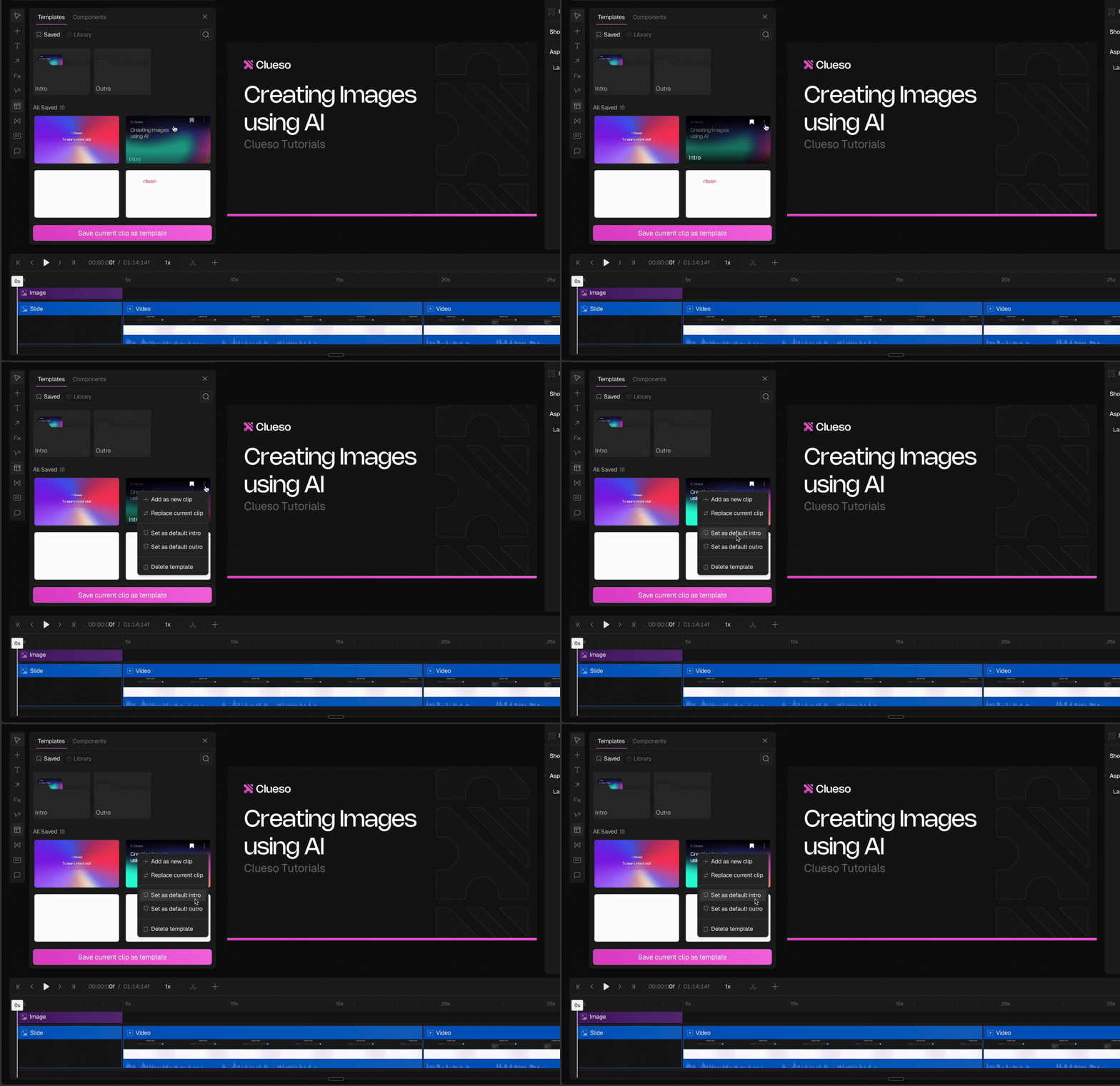 Your selected template is now set as the default and will automatically apply to new videos.
Only templates labeled as **Intro** and **Outro** can be set as default, because these are the only ones automatically added when you create a new video.
Your selected template is now set as the default and will automatically apply to new videos.
Only templates labeled as **Intro** and **Outro** can be set as default, because these are the only ones automatically added when you create a new video.