> ## Documentation Index
> Fetch the complete documentation index at: https://help.clueso.io/llms.txt
> Use this file to discover all available pages before exploring further.
# Grouping & Components
> Learn how to group elements, nest layouts, apply bulk updates, and create reusable components.
This guide explains how to group elements so they move and scale as a single unit. It also covers nesting groups, applying bulk updates to similar elements, and saving components that can be reused across projects.
## Create Groups
Grouping allows multiple elements to move, scale, and behave as a single unit.
Drag to select the elements you want to group.
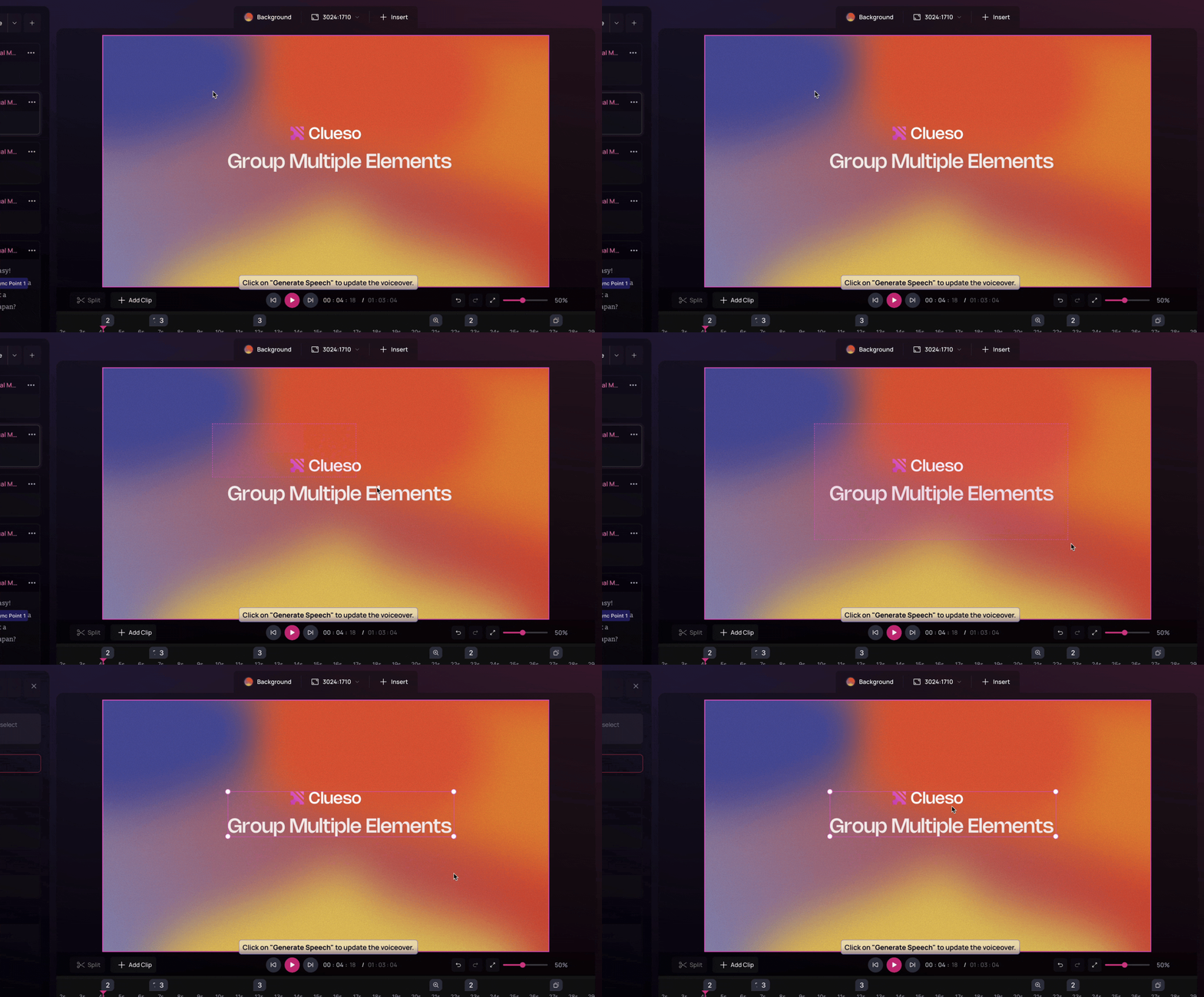 Right-click and choose **Group selection** to combine them into a single unit.
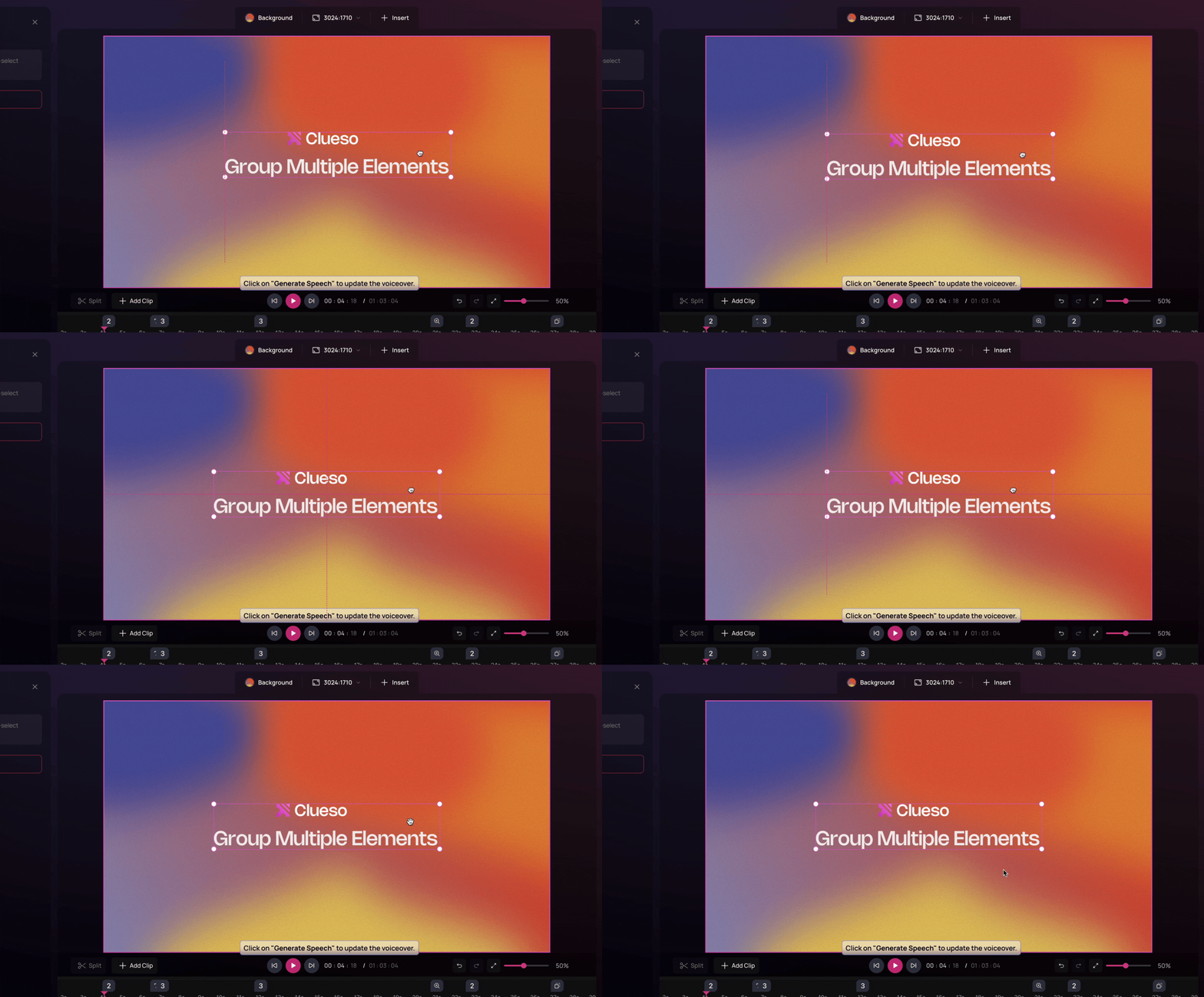
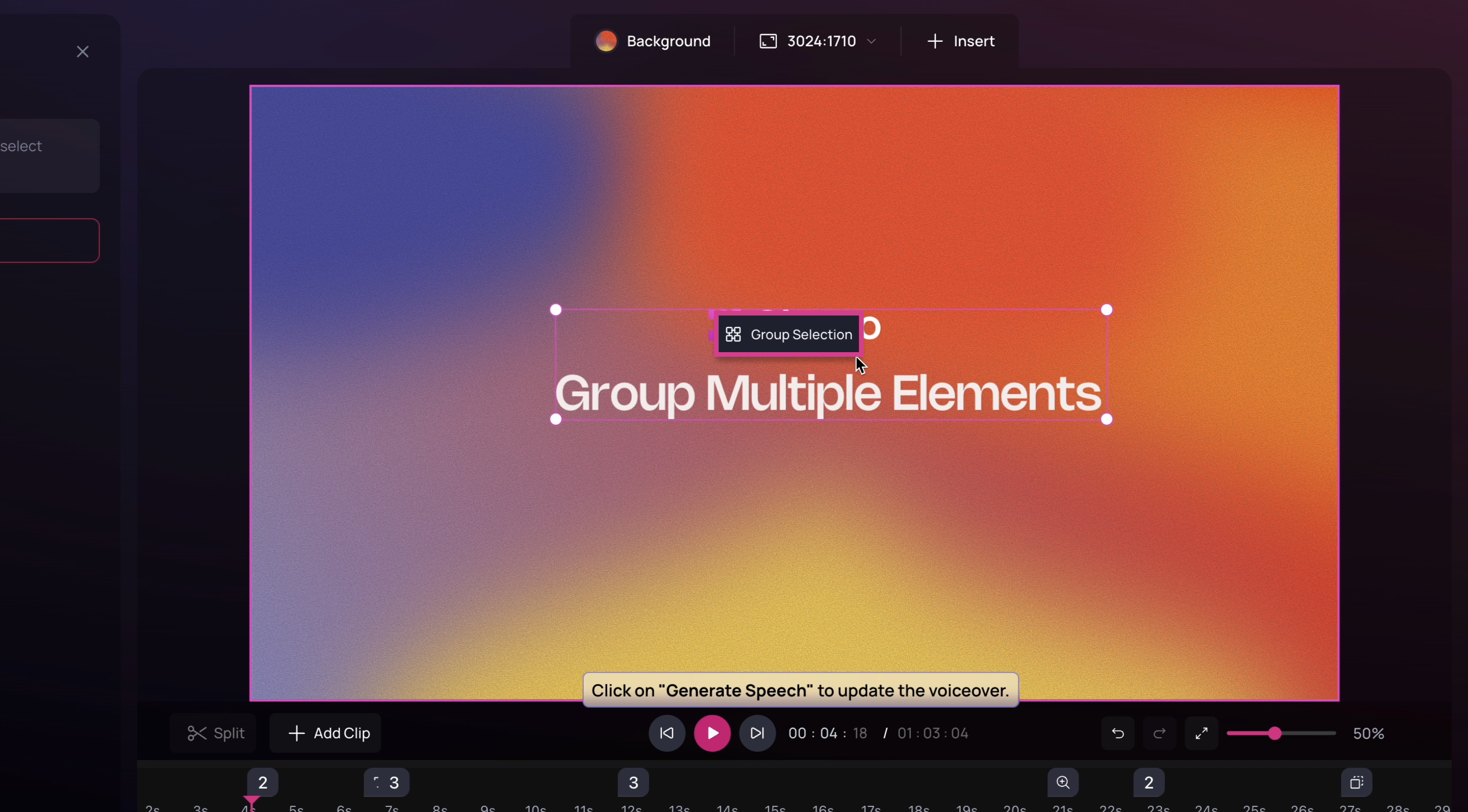 Once grouped, the elements move and scale together while keeping their alignment intact.
 ## Nest Groups
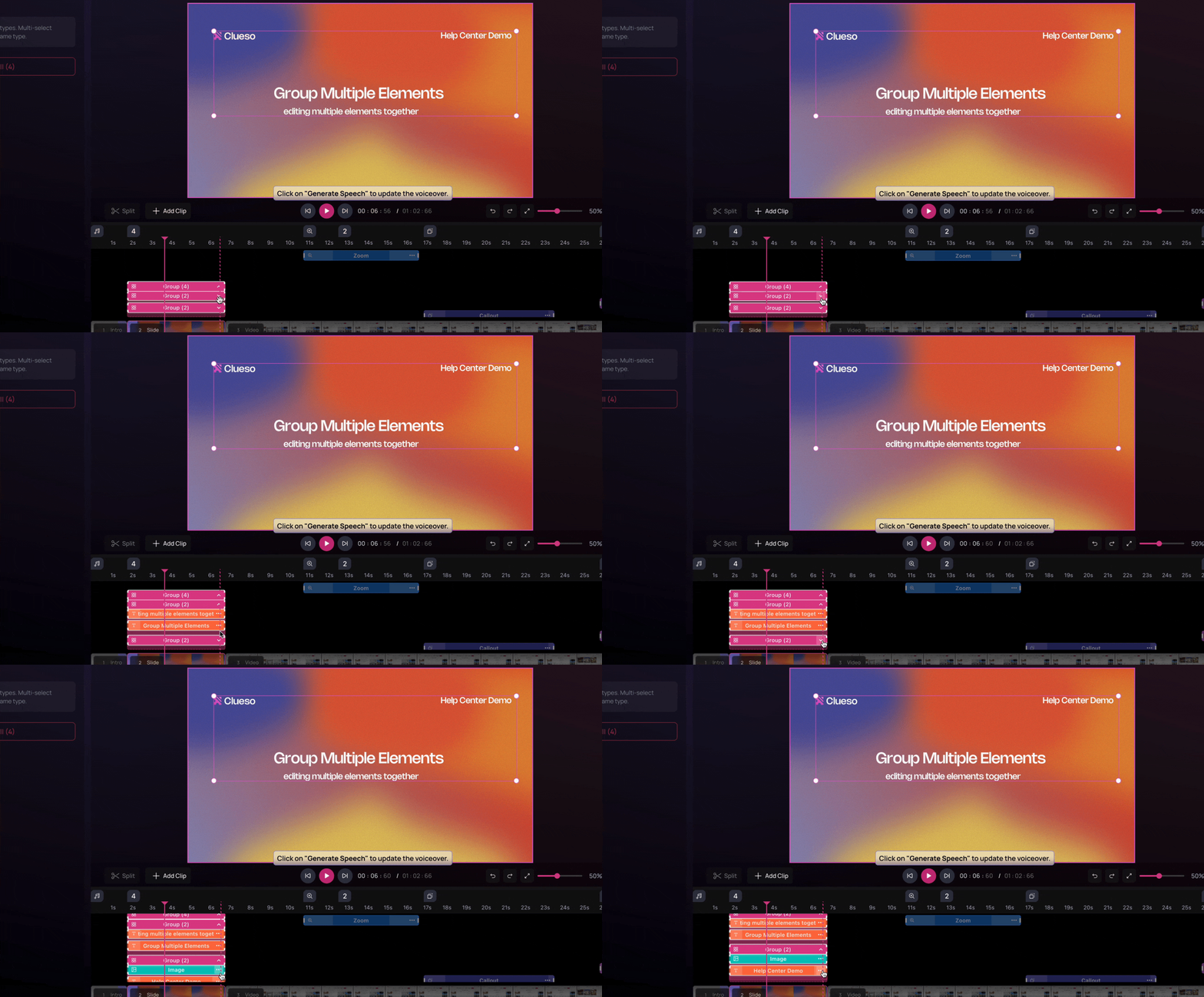
Groups can also be nested to help organize more complex layouts.
Select existing groups and group them again to create a parent group.
## Nest Groups
Groups can also be nested to help organize more complex layouts.
Select existing groups and group them again to create a parent group.
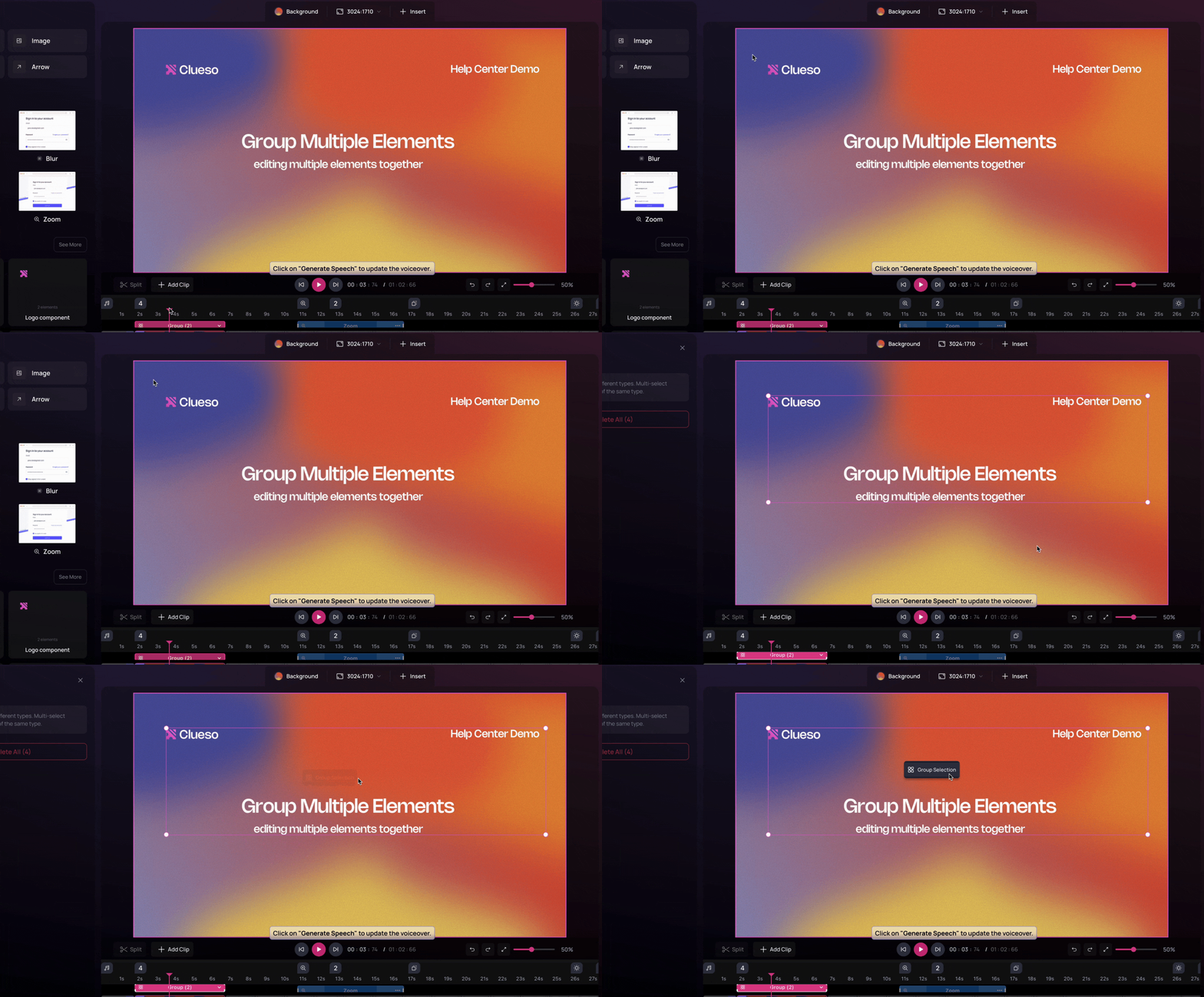 In the timeline, you can see each group and what it contains, making it easier to manage larger layouts.
 ## Make Bulk Updates
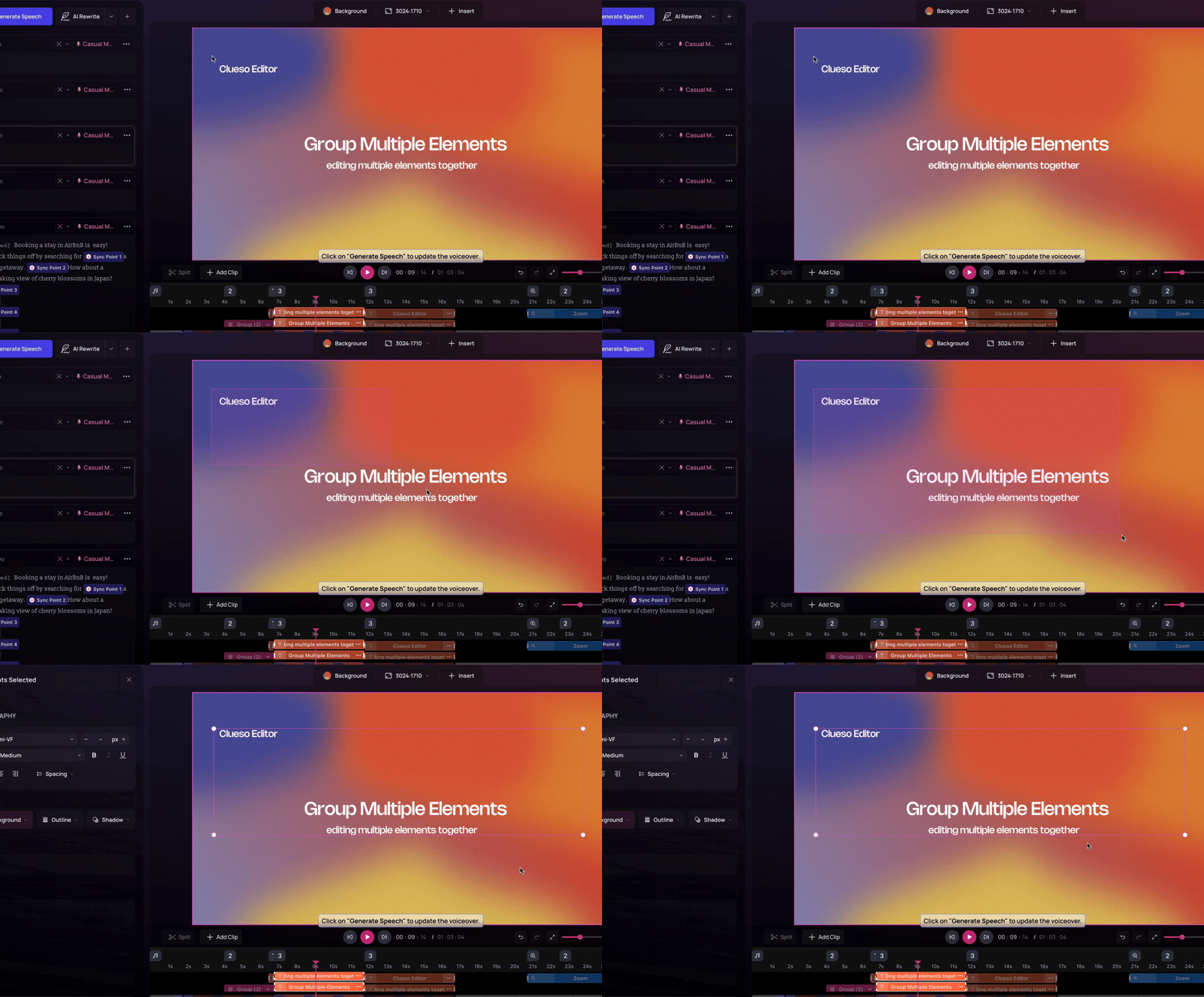
Bulk editing allows you to update similar elements inside a group at once.
Select a group to access similar elements inside it.
## Make Bulk Updates
Bulk editing allows you to update similar elements inside a group at once.
Select a group to access similar elements inside it.
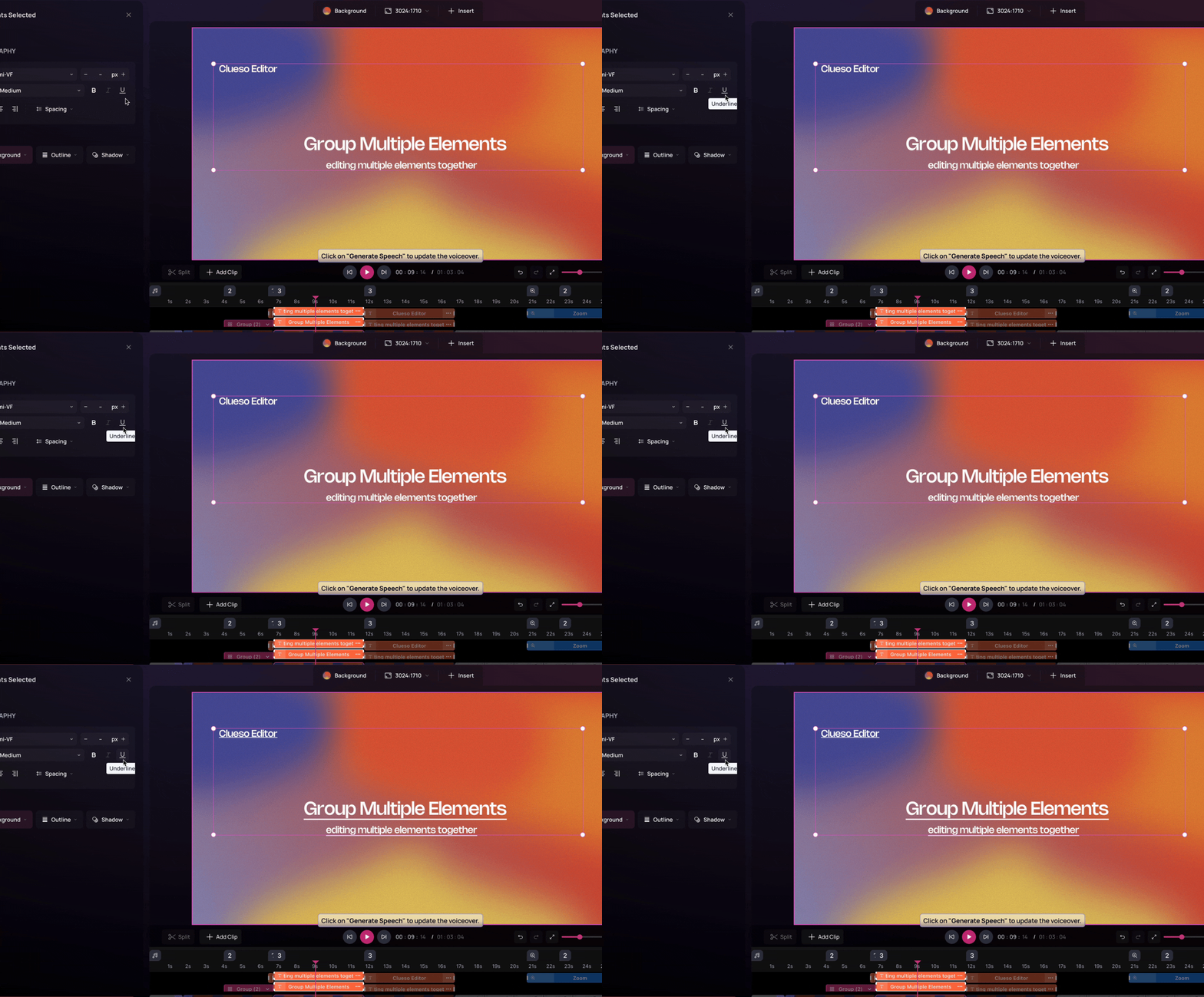
 Apply updates such as underline, font changes, or spacing adjustments across all matching elements. Bulk editing works for similar element types within the selected group.
 ## Create Components
Save frequently used layouts as reusable components.
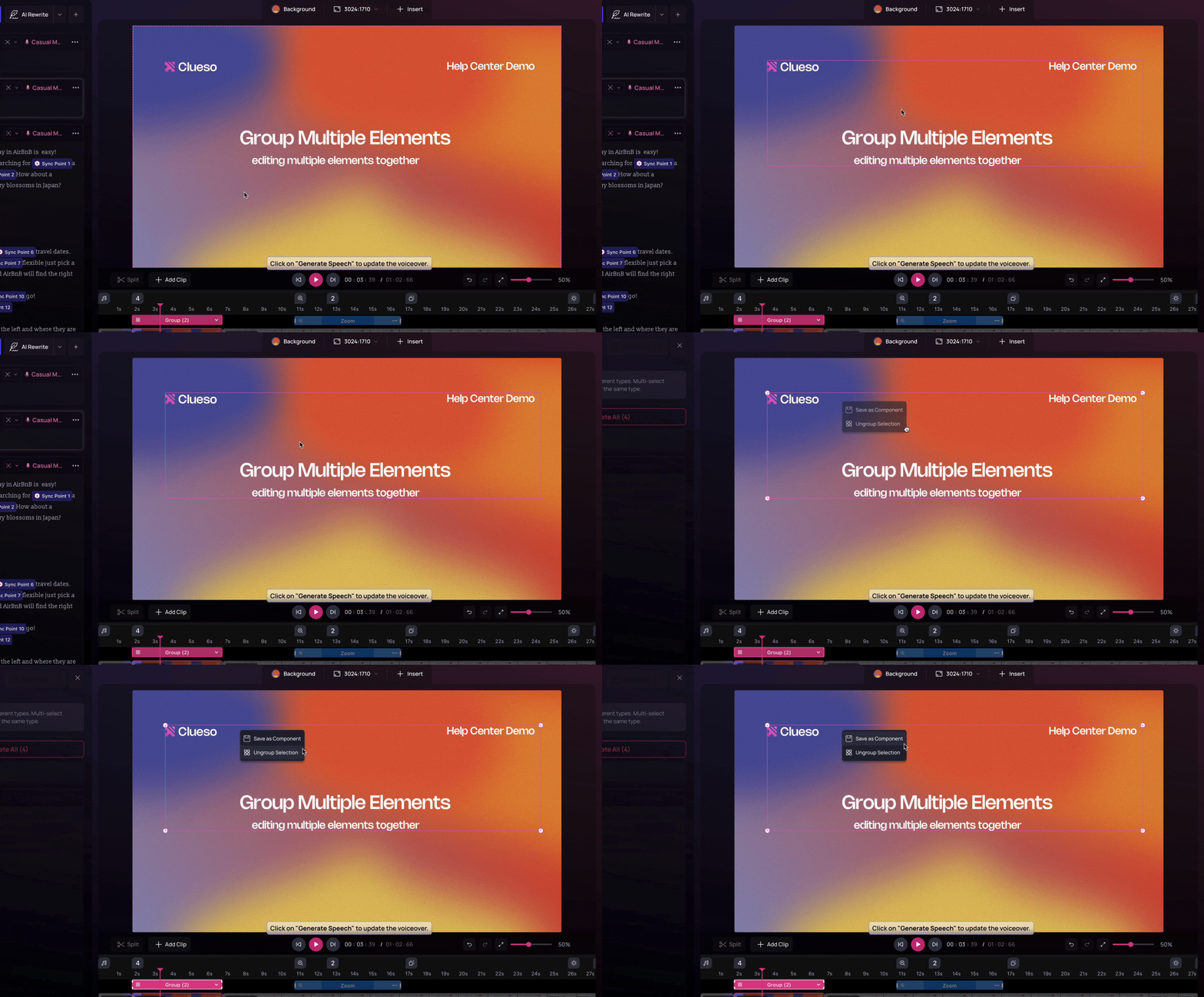
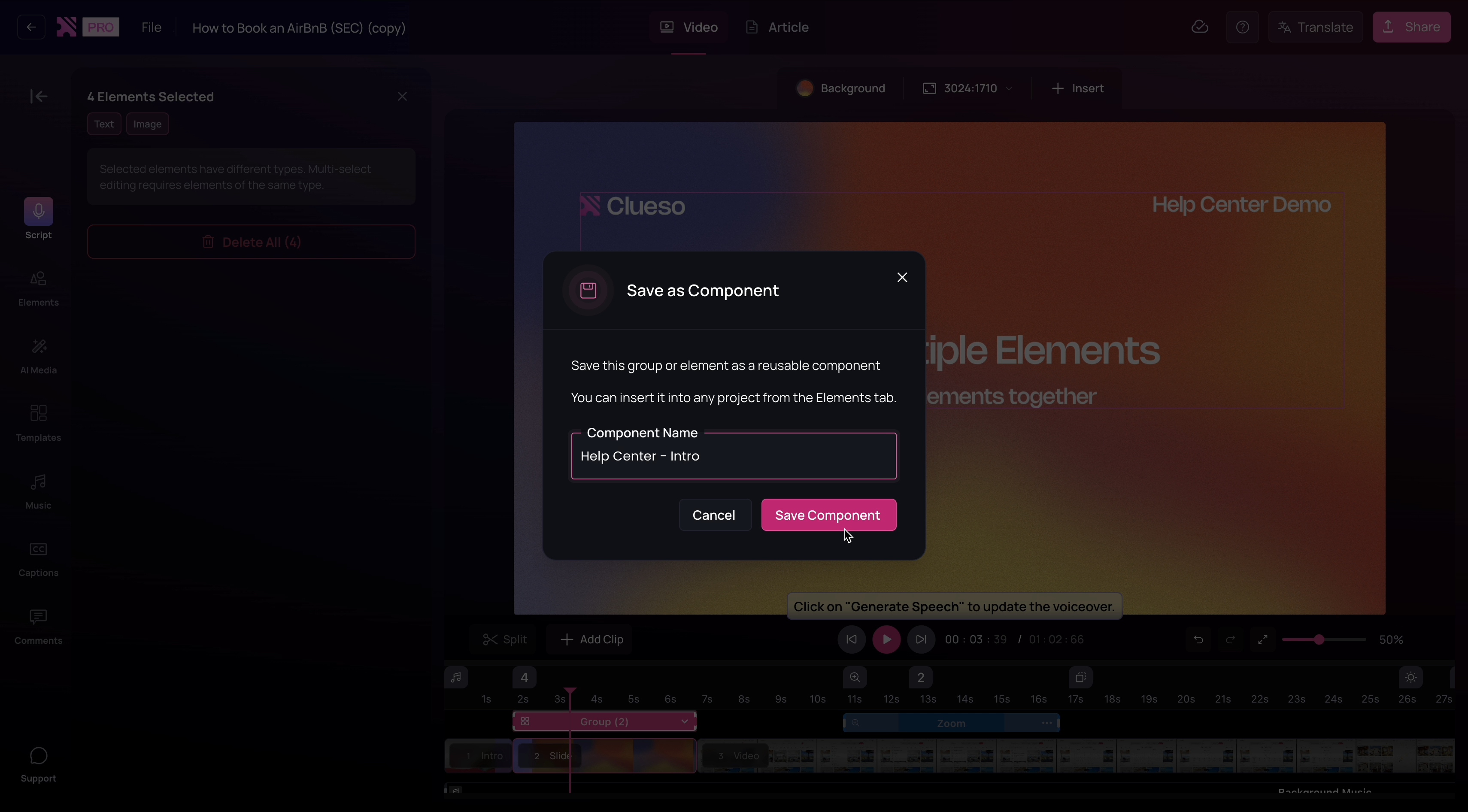
Once your layout is ready, select the group and choose **Save as Component**.
## Create Components
Save frequently used layouts as reusable components.
Once your layout is ready, select the group and choose **Save as Component**.
 Give it a clear name and click **Save Component**.
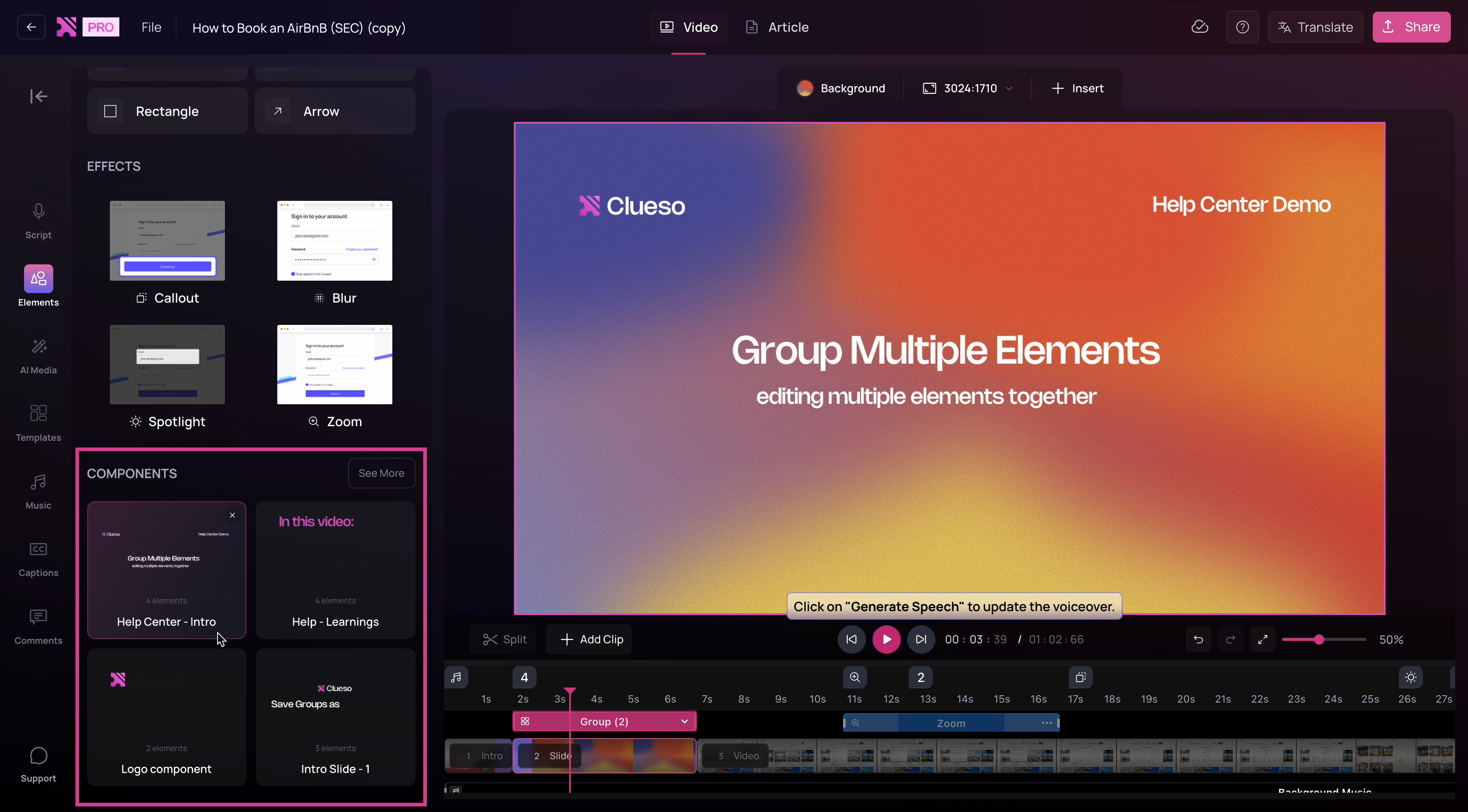
 The saved component will appear under the **Elements** tab and can be reused across projects to maintain consistency.
 That’s how you group elements, organize layouts, and create reusable components to work faster and stay consistent.