> ## Documentation Index
> Fetch the complete documentation index at: https://help.clueso.io/llms.txt
> Use this file to discover all available pages before exploring further.
# Crop
> Learn how to crop videos and images to remove unwanted areas in Clueso
The crop tool allows you to remove unwanted areas from your videos and images, focusing attention on the most important parts of your content. This is especially useful for removing browser tab bars, OS taskbars, or any other distracting parts of a screen recording.
## Cropping Your Video
Follow these steps to crop unwanted areas from your video:
Start by clicking anywhere on the video clip you want to crop. The toolbar options will change to show video-specific controls.
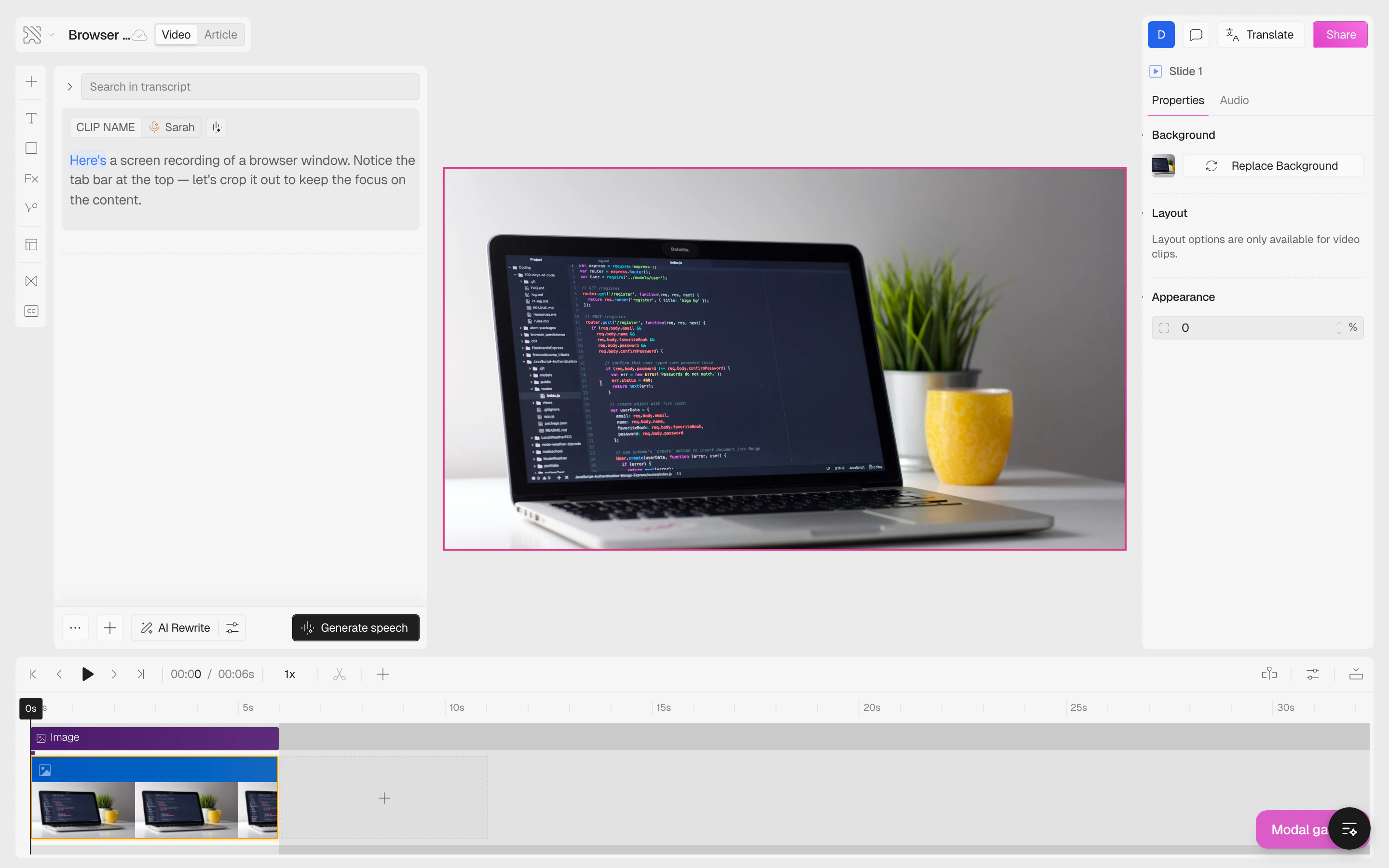 Navigate to the **Crop** button in the toolbar and click on it.
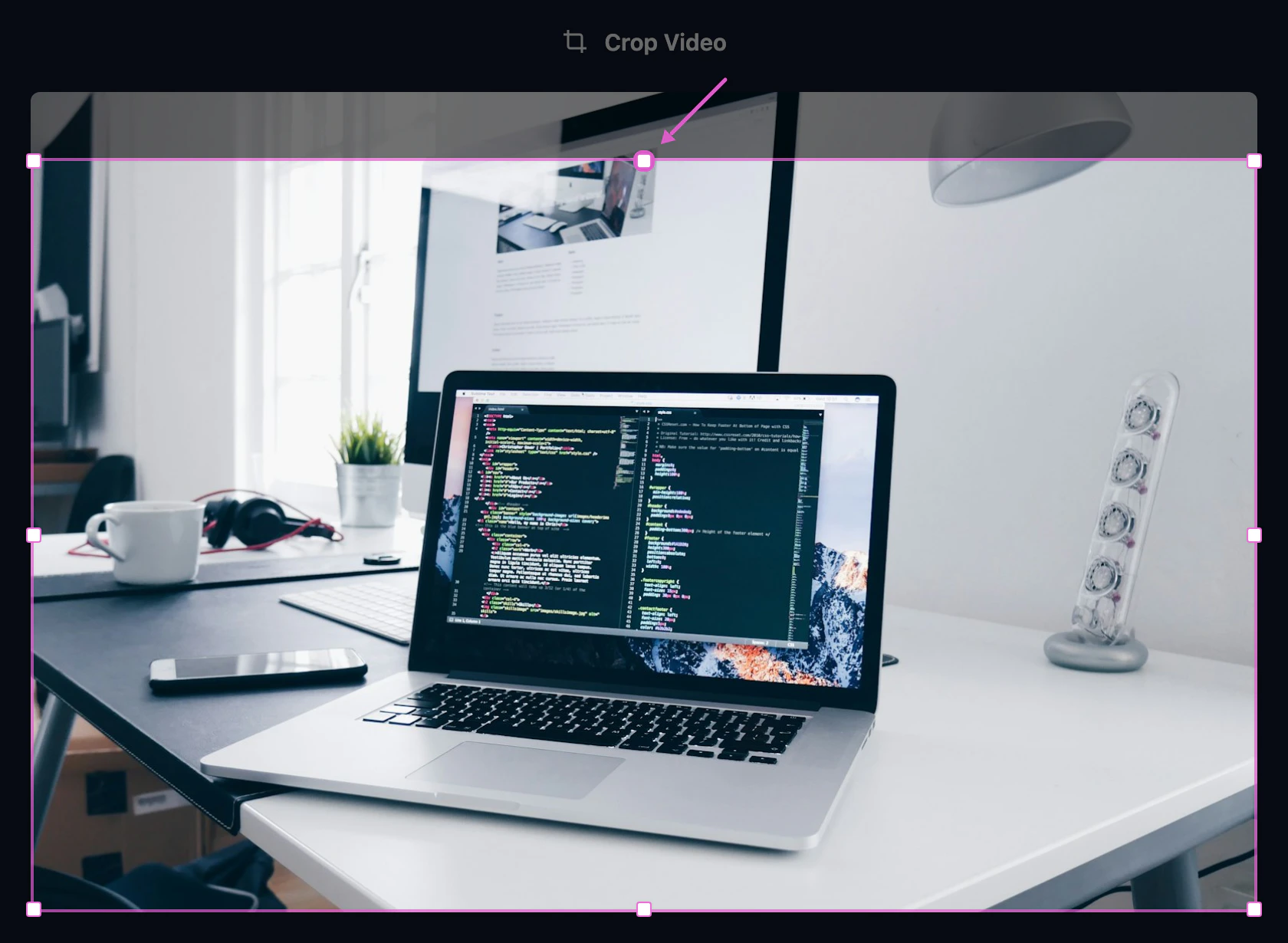
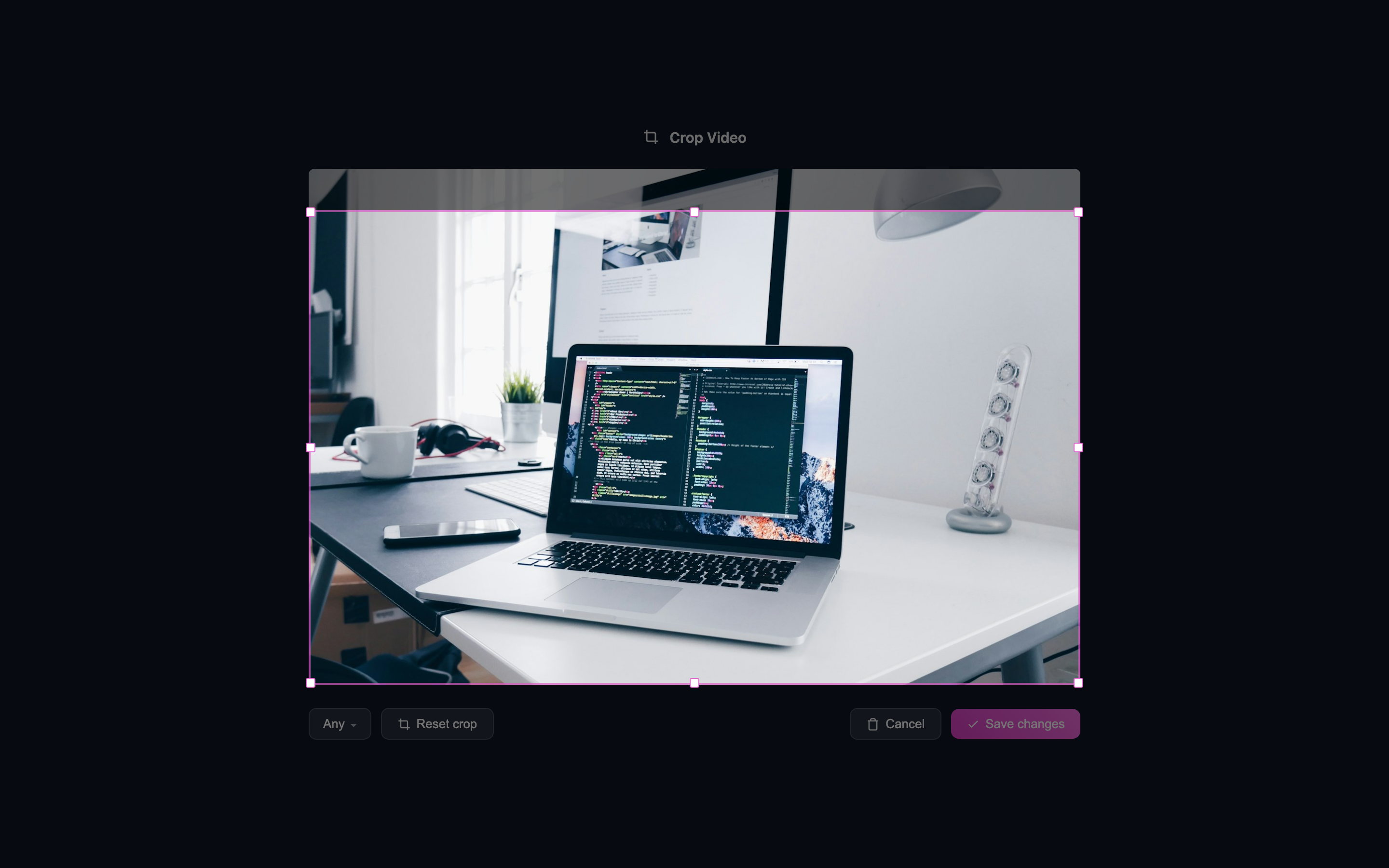 A selection box appears over your video. Drag the **edges** or **corners** to resize the crop area, or drag the **center** to reposition it. The area outside the selection will be removed from the final output.
 Use the **aspect ratio dropdown** to constrain the crop to a specific ratio:
* **Free** — drag freely in any direction
* **16:9** — standard widescreen
* **4:3** — classic monitor ratio
* **1:1** — square, great for social media
* **3:4** / **9:16** — portrait orientations
When a fixed ratio is selected, only the corner handles are available and the proportions stay locked.
Use the **aspect ratio dropdown** to constrain the crop to a specific ratio:
* **Free** — drag freely in any direction
* **16:9** — standard widescreen
* **4:3** — classic monitor ratio
* **1:1** — square, great for social media
* **3:4** / **9:16** — portrait orientations
When a fixed ratio is selected, only the corner handles are available and the proportions stay locked.
 Changed your mind? Click **Reset crop** to go back to the full, uncropped frame.
Once you're happy with the crop, click **Save Changes**.
Changed your mind? Click **Reset crop** to go back to the full, uncropped frame.
Once you're happy with the crop, click **Save Changes**.
 ## Cropping an Image Element
Image elements on your slides can be cropped the same way:
1. **Click** the image element on the canvas to select it.
2. Click **Crop** in the image toolbar — or **right-click** the image and choose **Crop** from the context menu.
3. Adjust the crop area, pick an aspect ratio if needed, and click **Done**.
When you crop a video clip that contains overlaid elements (text, shapes, etc.), those elements are automatically repositioned to stay within the new crop boundaries. Any element fully outside the crop area is removed.
## Common Use Cases
| Scenario | Suggested crop |
| ---------------------------------------------- | ---------------------------------------------- |
| Remove browser tab bar from a screen recording | Drag the **top edge** down to hide the tab bar |
| Remove OS taskbar / dock | Drag the **bottom edge** up |
| Focus on a specific section of the screen | Drag all four sides inward |
| Reformat a landscape recording for mobile | Select the **9:16** aspect ratio |
| Create a square clip for social media | Select the **1:1** aspect ratio |
## Cropping an Image Element
Image elements on your slides can be cropped the same way:
1. **Click** the image element on the canvas to select it.
2. Click **Crop** in the image toolbar — or **right-click** the image and choose **Crop** from the context menu.
3. Adjust the crop area, pick an aspect ratio if needed, and click **Done**.
When you crop a video clip that contains overlaid elements (text, shapes, etc.), those elements are automatically repositioned to stay within the new crop boundaries. Any element fully outside the crop area is removed.
## Common Use Cases
| Scenario | Suggested crop |
| ---------------------------------------------- | ---------------------------------------------- |
| Remove browser tab bar from a screen recording | Drag the **top edge** down to hide the tab bar |
| Remove OS taskbar / dock | Drag the **bottom edge** up |
| Focus on a specific section of the screen | Drag all four sides inward |
| Reformat a landscape recording for mobile | Select the **9:16** aspect ratio |
| Create a square clip for social media | Select the **1:1** aspect ratio |