> ## Documentation Index
> Fetch the complete documentation index at: https://help.clueso.io/llms.txt
> Use this file to discover all available pages before exploring further.
# Comments
> Learn how to add contextual feedback directly inside your video
This guide shows you how to use Comments to review, collaborate, and share feedback without leaving the editor. Comments help keep feedback clear, organized, and directly tied to specific moments in your video.
## Adding Comments
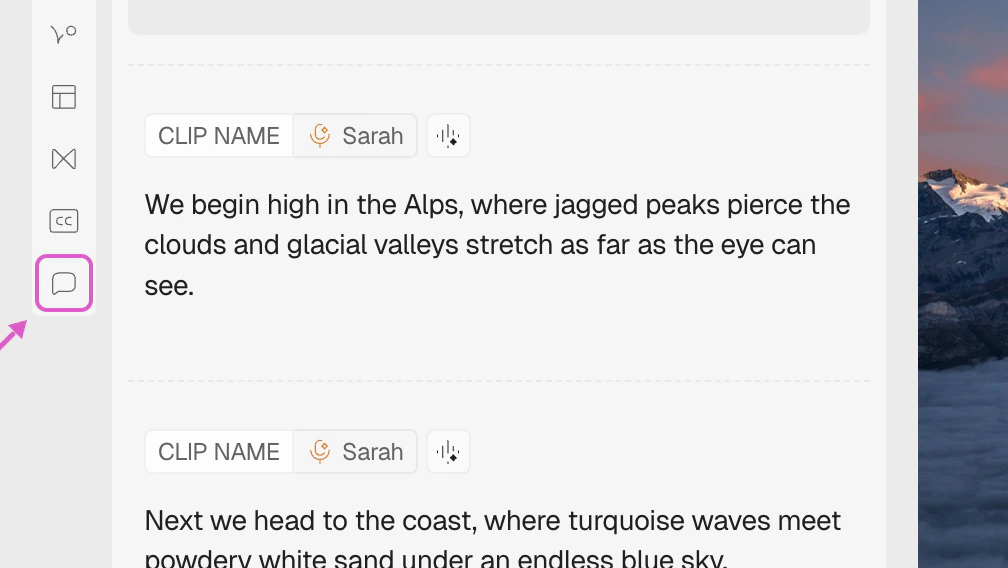
Click on the **Comments** icon in the left-side toolbar to open the Comments panel. The editor enters **Comment mode**, which locks the timeline and transcript so you can focus on giving feedback.
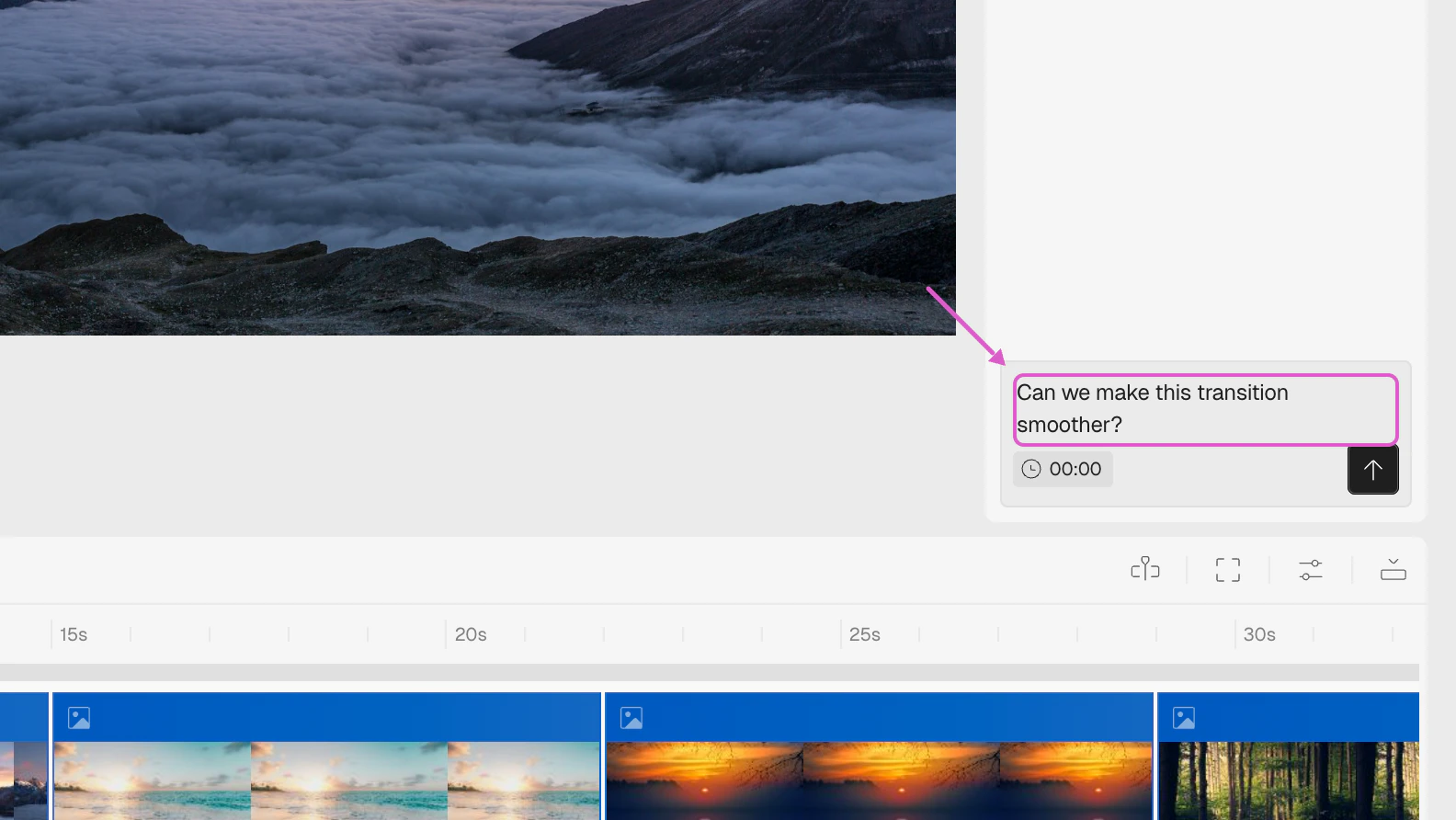
 Pause the video at the exact moment where feedback is needed, type your comment in the input at the bottom of the panel, and press **Send** (or hit Enter).
The comment will automatically attach to that timestamp.
Pause the video at the exact moment where feedback is needed, type your comment in the input at the bottom of the panel, and press **Send** (or hit Enter).
The comment will automatically attach to that timestamp.
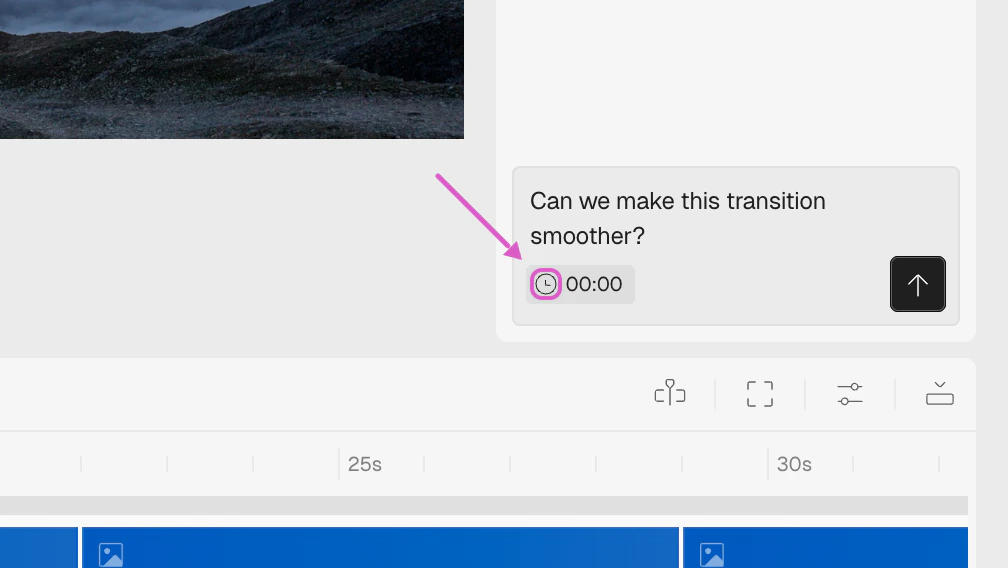
 The **clock icon** next to the input controls whether a timestamp is attached. When active, a timestamp badge shows the current playhead time. Click the clock to toggle it off if your feedback applies to the entire video instead of a specific moment.
 To make feedback more visual, drag over a section of the canvas you want to highlight while adding a comment. A **pin** will appear on the canvas at that location, and the highlighted area will be shown when the comment is selected.
## Viewing and Searching
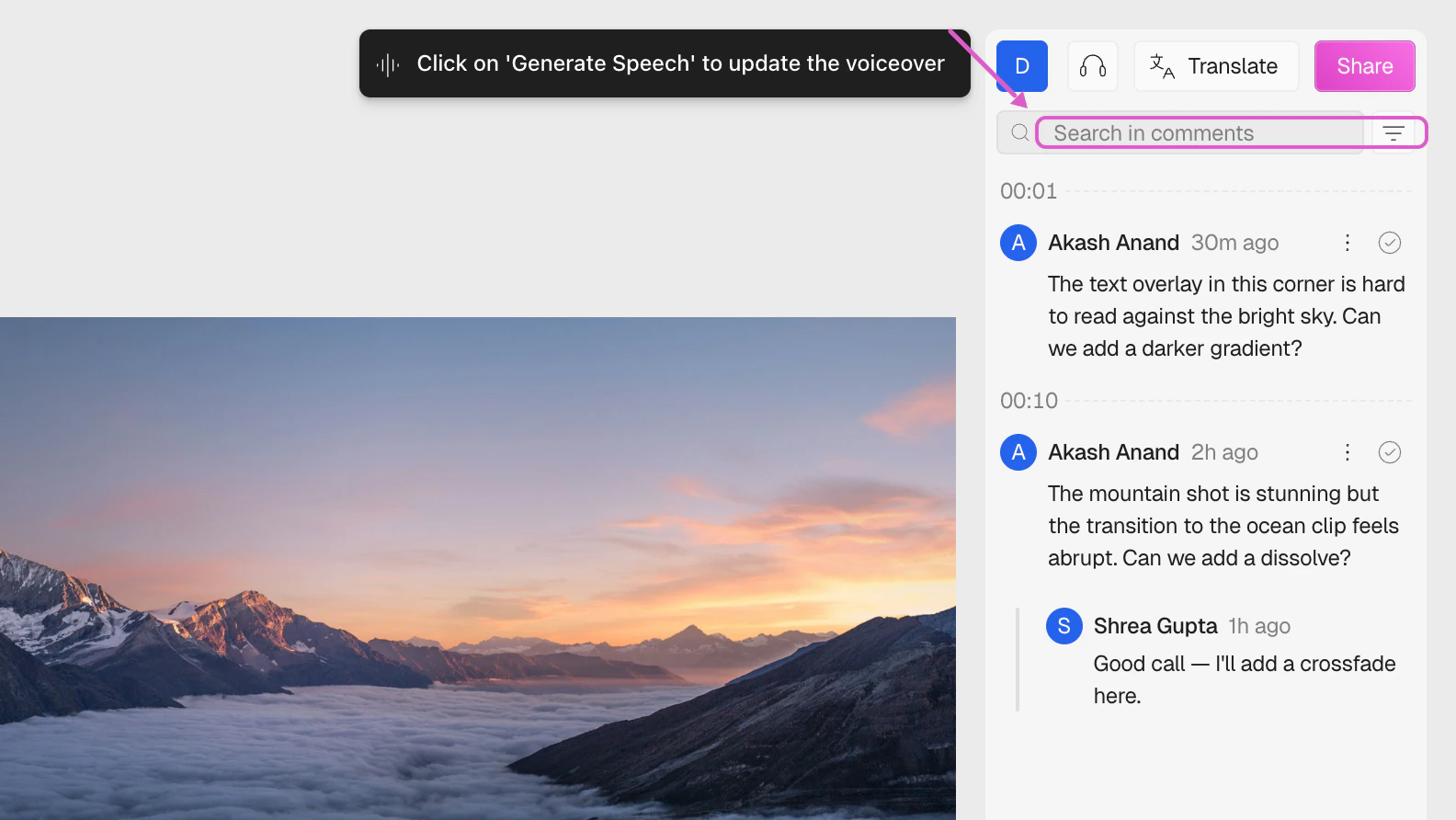
The Comments panel shows all feedback on the project. Each comment displays the **author**, **timestamp**, and **time since posting**.
To make feedback more visual, drag over a section of the canvas you want to highlight while adding a comment. A **pin** will appear on the canvas at that location, and the highlighted area will be shown when the comment is selected.
## Viewing and Searching
The Comments panel shows all feedback on the project. Each comment displays the **author**, **timestamp**, and **time since posting**.
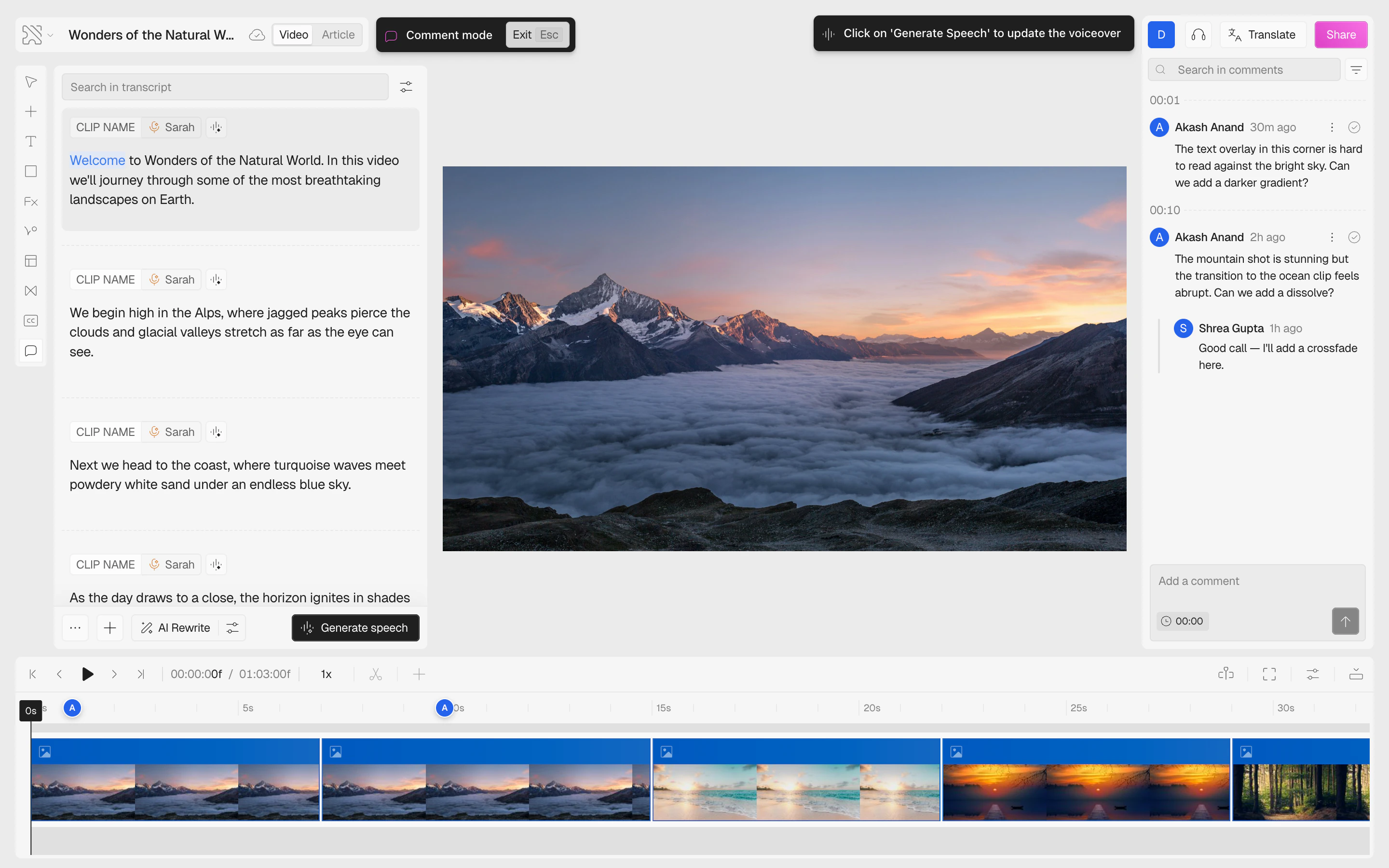 Use the **search bar** at the top to find comments by text or author name. Click the **filter icon** to reveal additional controls:
* **Status filter** — switch between **All**, **Open**, and **Resolved** comments
* **Sort order** — sort by **timeline position** (default), **newest**, or **oldest**
Use the **search bar** at the top to find comments by text or author name. Click the **filter icon** to reveal additional controls:
* **Status filter** — switch between **All**, **Open**, and **Resolved** comments
* **Sort order** — sort by **timeline position** (default), **newest**, or **oldest**
 ## Replying and Resolving
* **Reply** — click the **three-dot menu** (⋮) on any comment and select **Reply** to start a threaded conversation. Replies appear indented below the parent comment.
* **Resolve** — click the **checkmark icon** on a comment to mark it as resolved. Resolved comments are dimmed and can be filtered out.
* **Reopen** — if someone replies to a resolved comment, it automatically reopens.
## Editing and Deleting
You can manage your own comments via the **three-dot menu** (⋮):
* **Edit** — update the comment text. Press **Enter** to save or **Esc** to cancel. Edited comments show an "(edited)" badge.
* **Delete** — permanently remove the comment.
## Canvas Pins
Comments with a marked area appear as circular **pins** on the canvas:
* Pins show the author’s avatar or initials
* **Hover** a pin to see the highlighted area; **click** to open the full thread
* Pins are visible when the video is **paused** at the comment’s timestamp (±0.5 seconds)
* **Resolved** comment pins appear faded
* Pins can be **dragged** to reposition them on the canvas
## Tips
Clicking a comment in the panel automatically seeks the video to the matching timestamp, so you can see exactly what the feedback refers to.
Use **Shift+Enter** to add a new line inside a comment without sending it.
That’s how you use Comments to give clear, contextual feedback directly inside your video.
## Replying and Resolving
* **Reply** — click the **three-dot menu** (⋮) on any comment and select **Reply** to start a threaded conversation. Replies appear indented below the parent comment.
* **Resolve** — click the **checkmark icon** on a comment to mark it as resolved. Resolved comments are dimmed and can be filtered out.
* **Reopen** — if someone replies to a resolved comment, it automatically reopens.
## Editing and Deleting
You can manage your own comments via the **three-dot menu** (⋮):
* **Edit** — update the comment text. Press **Enter** to save or **Esc** to cancel. Edited comments show an "(edited)" badge.
* **Delete** — permanently remove the comment.
## Canvas Pins
Comments with a marked area appear as circular **pins** on the canvas:
* Pins show the author’s avatar or initials
* **Hover** a pin to see the highlighted area; **click** to open the full thread
* Pins are visible when the video is **paused** at the comment’s timestamp (±0.5 seconds)
* **Resolved** comment pins appear faded
* Pins can be **dragged** to reposition them on the canvas
## Tips
Clicking a comment in the panel automatically seeks the video to the matching timestamp, so you can see exactly what the feedback refers to.
Use **Shift+Enter** to add a new line inside a comment without sending it.
That’s how you use Comments to give clear, contextual feedback directly inside your video.