> ## Documentation Index
> Fetch the complete documentation index at: https://help.clueso.io/llms.txt
> Use this file to discover all available pages before exploring further.
# Custom prompts
> Create and customize prompts to tailor how the AI co-pilot writes your articles
Custom prompts let you control how Clueso's AI co-pilot writes, rewrites, and structures your articles. Each prompt contains instructions that guide the AI's tone, style, and formatting. You can create multiple prompts for different documentation needs and switch between them at any time.
## Opening the Article Prompt Hub
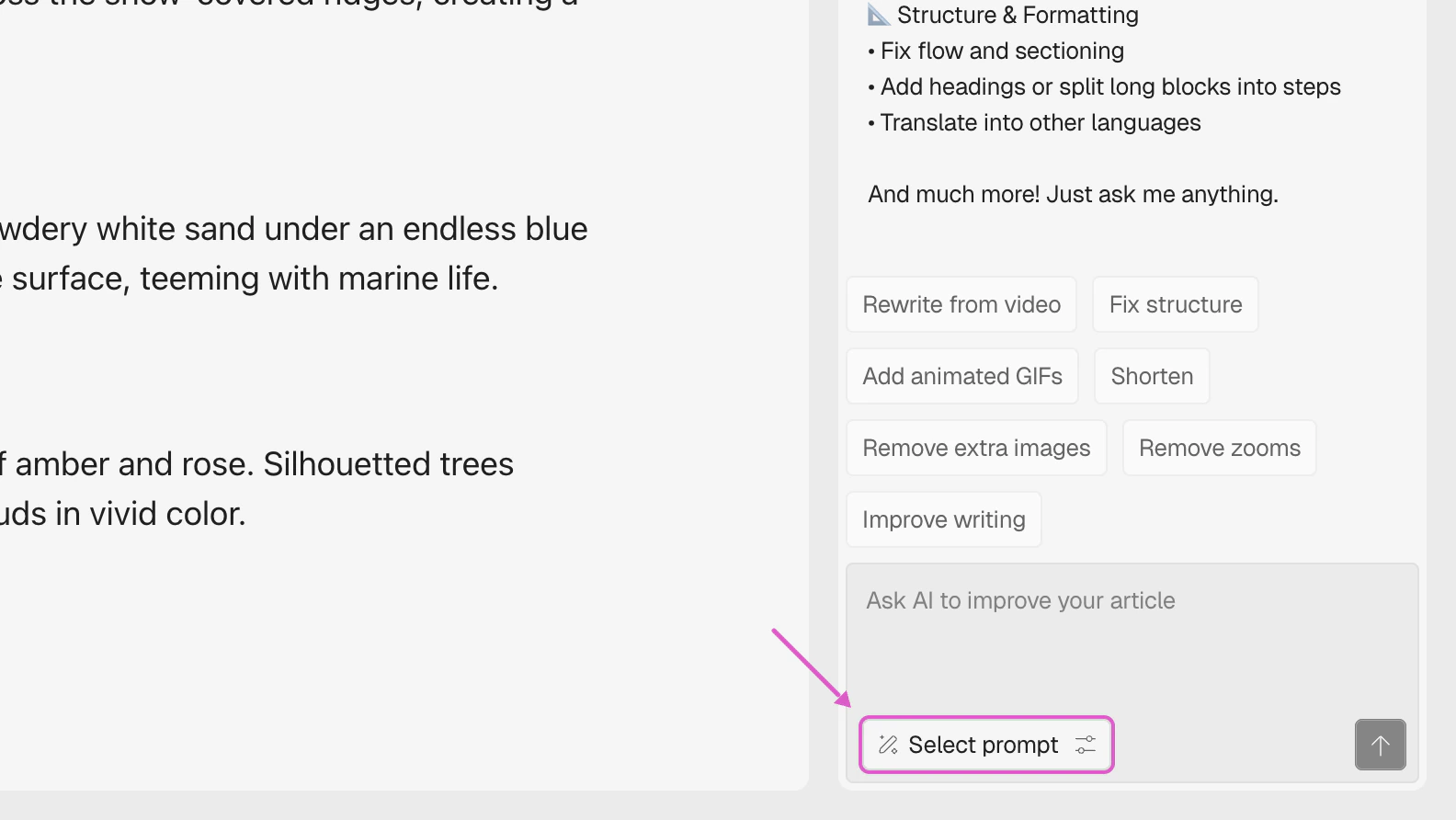
In the article editor, click the **Select prompt** button at the bottom of the Clueso AI chat panel. This opens the **Prompt hub: articles** modal.
 ## Using Prompts
The Prompt Hub shows all available prompts as cards. The currently selected prompt has a blue border. Clueso provides a **default prompt** (marked with a "Default" badge) that produces clear, well-structured articles.
## Using Prompts
The Prompt Hub shows all available prompts as cards. The currently selected prompt has a blue border. Clueso provides a **default prompt** (marked with a "Default" badge) that produces clear, well-structured articles.
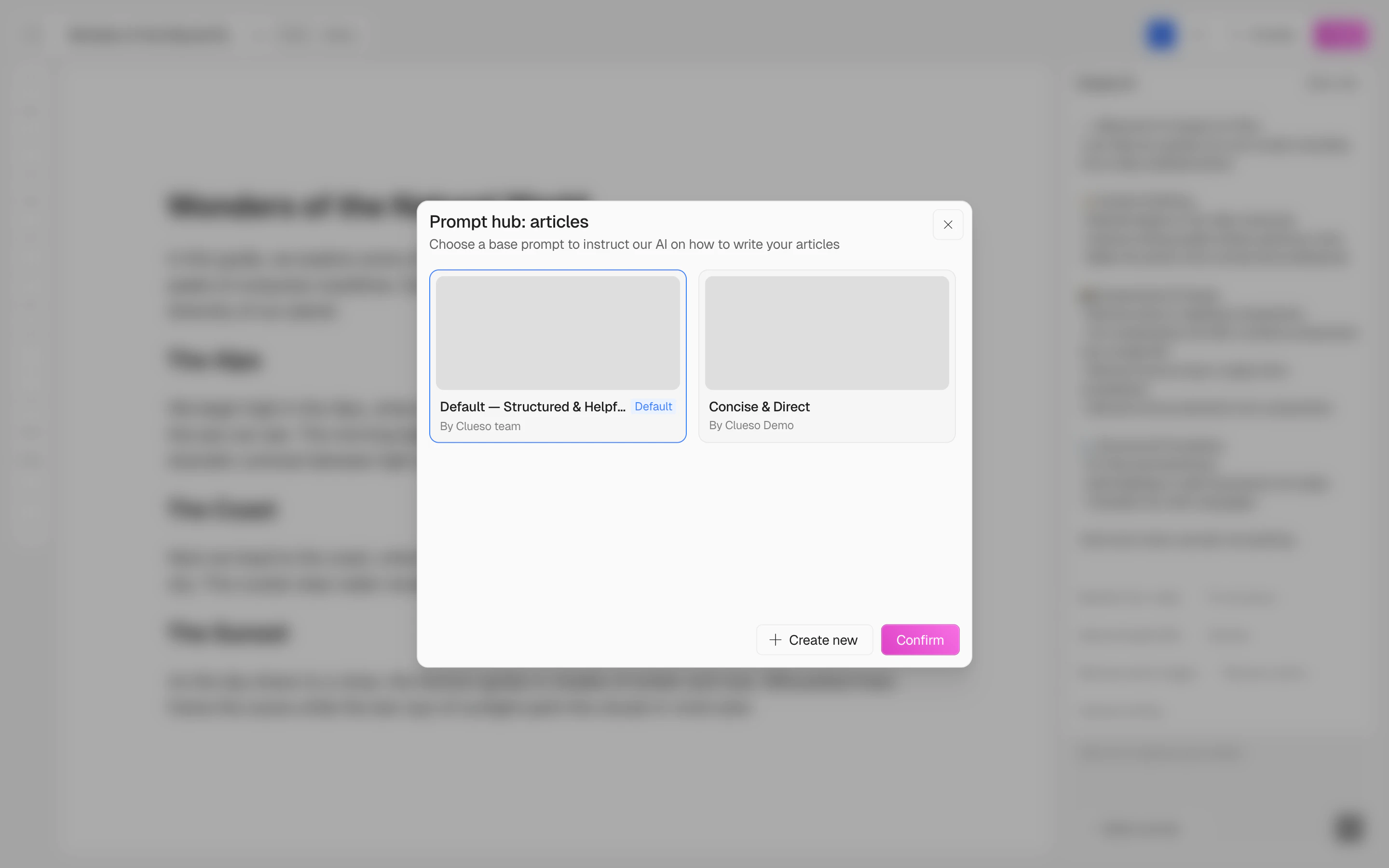 Click on any prompt card to select it, then click **Confirm** to apply. The AI co-pilot will now follow that prompt's instructions for all future responses in the chat.
When you change the active prompt, the co-pilot automatically updates its approach — you don't need to restart the conversation.
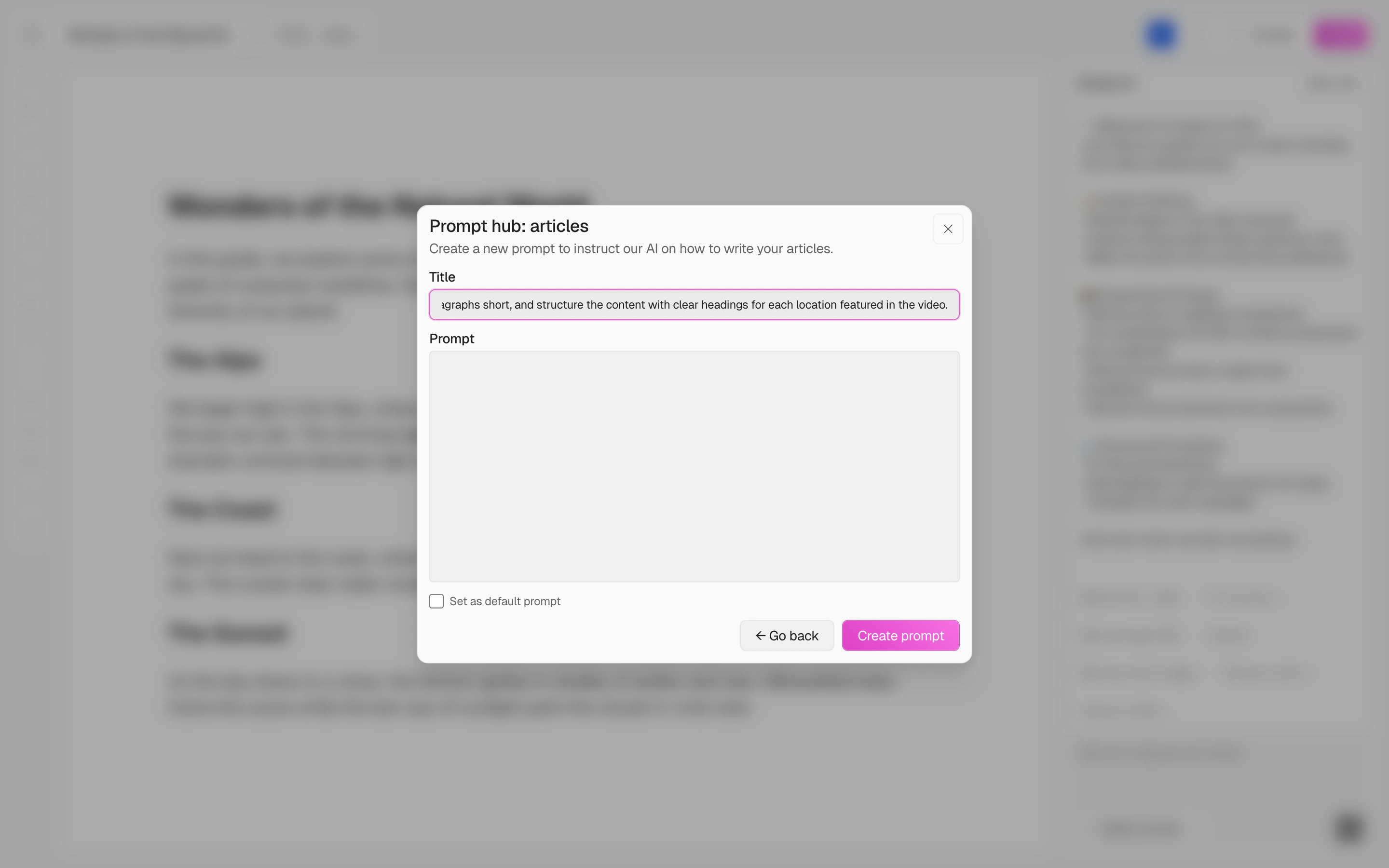
Click **+ Create new** to open the prompt editor. Fill in:
* **Title** — a name to identify when this prompt should be used (e.g., "Newsletter Style" or "API Reference")
* **Prompt** — the instructions that guide the AI (tone, structure, formatting rules, etc.)
* **Set as default prompt** (optional) — makes this the default for all new articles
Click **Create prompt** to save.
Click on any prompt card to select it, then click **Confirm** to apply. The AI co-pilot will now follow that prompt's instructions for all future responses in the chat.
When you change the active prompt, the co-pilot automatically updates its approach — you don't need to restart the conversation.
Click **+ Create new** to open the prompt editor. Fill in:
* **Title** — a name to identify when this prompt should be used (e.g., "Newsletter Style" or "API Reference")
* **Prompt** — the instructions that guide the AI (tone, structure, formatting rules, etc.)
* **Set as default prompt** (optional) — makes this the default for all new articles
Click **Create prompt** to save.
 ## How Prompts Work with the Co-Pilot
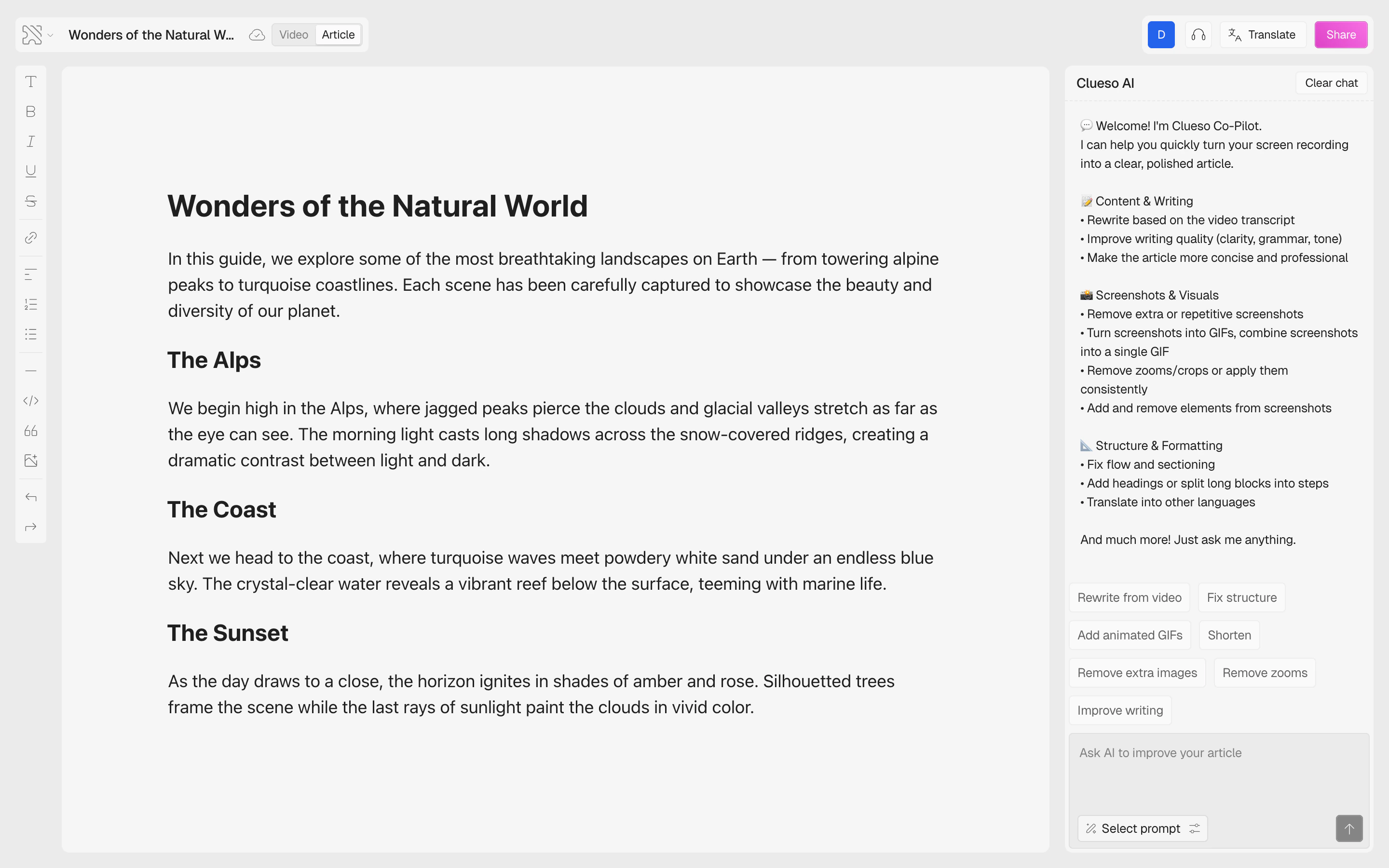
The Clueso AI co-pilot in the article editor uses your selected prompt as a baseline for all interactions. When you:
* Click a **suggestion pill** (e.g., "Rewrite from video", "Fix structure", "Shorten")
* Type a message in the chat
* Ask the AI to improve or restructure content
...the co-pilot combines your request with the active prompt to produce results that match your desired style.
## How Prompts Work with the Co-Pilot
The Clueso AI co-pilot in the article editor uses your selected prompt as a baseline for all interactions. When you:
* Click a **suggestion pill** (e.g., "Rewrite from video", "Fix structure", "Shorten")
* Type a message in the chat
* Ask the AI to improve or restructure content
...the co-pilot combines your request with the active prompt to produce results that match your desired style.
 ## Managing Prompts
* **Edit** — click on a custom prompt card to modify its title or content. Pre-made prompts from Clueso are read-only.
* **Delete** — remove a custom prompt you no longer need
* **Switch** — change the active prompt at any time by opening the Prompt Hub and selecting a different card
Pre-made prompts (created by the Clueso team) cannot be edited or deleted, but you can always create your own to override them.
## Best Practices
* **Be specific about the style and structure** — describe the formatting, heading style, paragraph length, and tone you want
* **Write prompts like you'd brief a teammate** — natural language works better than overly formal phrasing
* **Create separate prompts** for different documentation types (e.g., one for release notes, one for how-to guides)
* **Focus on reusable rules** — prompts work best for instructions you want applied consistently across articles
### Example article prompts
| Use case | Example prompt |
| ----------------------- | ----------------------------------------------------------------------------------------------------------------------------------------------- |
| Help center articles | "Write clear, step-by-step instructions. Use short paragraphs, numbered lists, and screenshots. Keep the tone helpful and direct." |
| Release notes | "Write concise release notes grouped by feature. Use bullet points. Start each item with a verb (Added, Fixed, Improved)." |
| API documentation | "Write in a technical, precise tone. Include code examples where relevant. Use consistent formatting for endpoints, parameters, and responses." |
| Internal knowledge base | "Write in a casual, conversational tone. Use headings to break up content. Assume the reader has basic product knowledge." |
## Managing Prompts
* **Edit** — click on a custom prompt card to modify its title or content. Pre-made prompts from Clueso are read-only.
* **Delete** — remove a custom prompt you no longer need
* **Switch** — change the active prompt at any time by opening the Prompt Hub and selecting a different card
Pre-made prompts (created by the Clueso team) cannot be edited or deleted, but you can always create your own to override them.
## Best Practices
* **Be specific about the style and structure** — describe the formatting, heading style, paragraph length, and tone you want
* **Write prompts like you'd brief a teammate** — natural language works better than overly formal phrasing
* **Create separate prompts** for different documentation types (e.g., one for release notes, one for how-to guides)
* **Focus on reusable rules** — prompts work best for instructions you want applied consistently across articles
### Example article prompts
| Use case | Example prompt |
| ----------------------- | ----------------------------------------------------------------------------------------------------------------------------------------------- |
| Help center articles | "Write clear, step-by-step instructions. Use short paragraphs, numbered lists, and screenshots. Keep the tone helpful and direct." |
| Release notes | "Write concise release notes grouped by feature. Use bullet points. Start each item with a verb (Added, Fixed, Improved)." |
| API documentation | "Write in a technical, precise tone. Include code examples where relevant. Use consistent formatting for endpoints, parameters, and responses." |
| Internal knowledge base | "Write in a casual, conversational tone. Use headings to break up content. Assume the reader has basic product knowledge." |