> ## Documentation Index
> Fetch the complete documentation index at: https://help.clueso.io/llms.txt
> Use this file to discover all available pages before exploring further.
# Clueso Cuts
> Learn how to split long videos into smaller clips using Clueso
This guide shows you how to break long videos into smaller, bite-sized clips using Clueso. Follow these steps to split your videos:
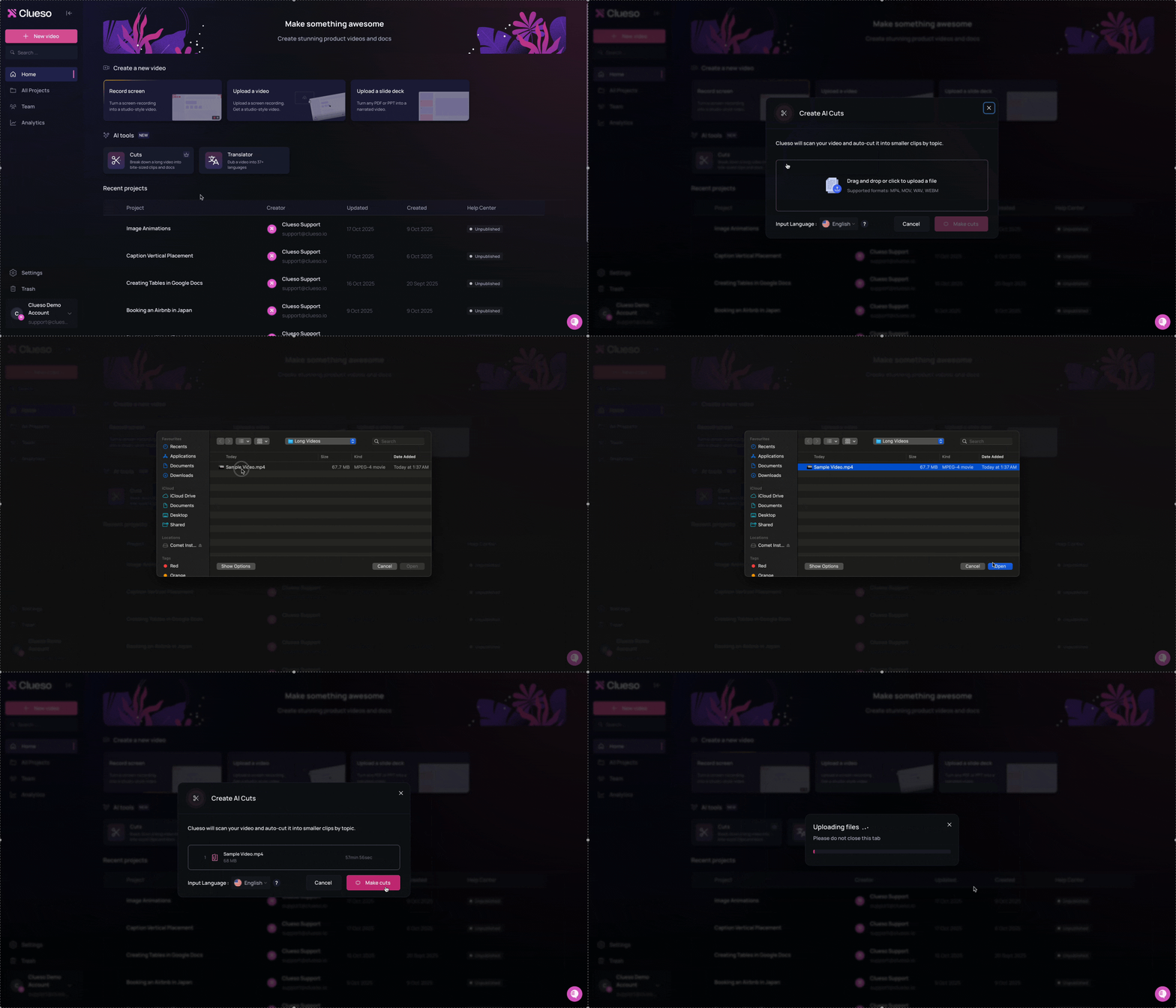
Click on the **Cuts** button on the home screen. Upload your long video recording, then click **Make Cuts**.
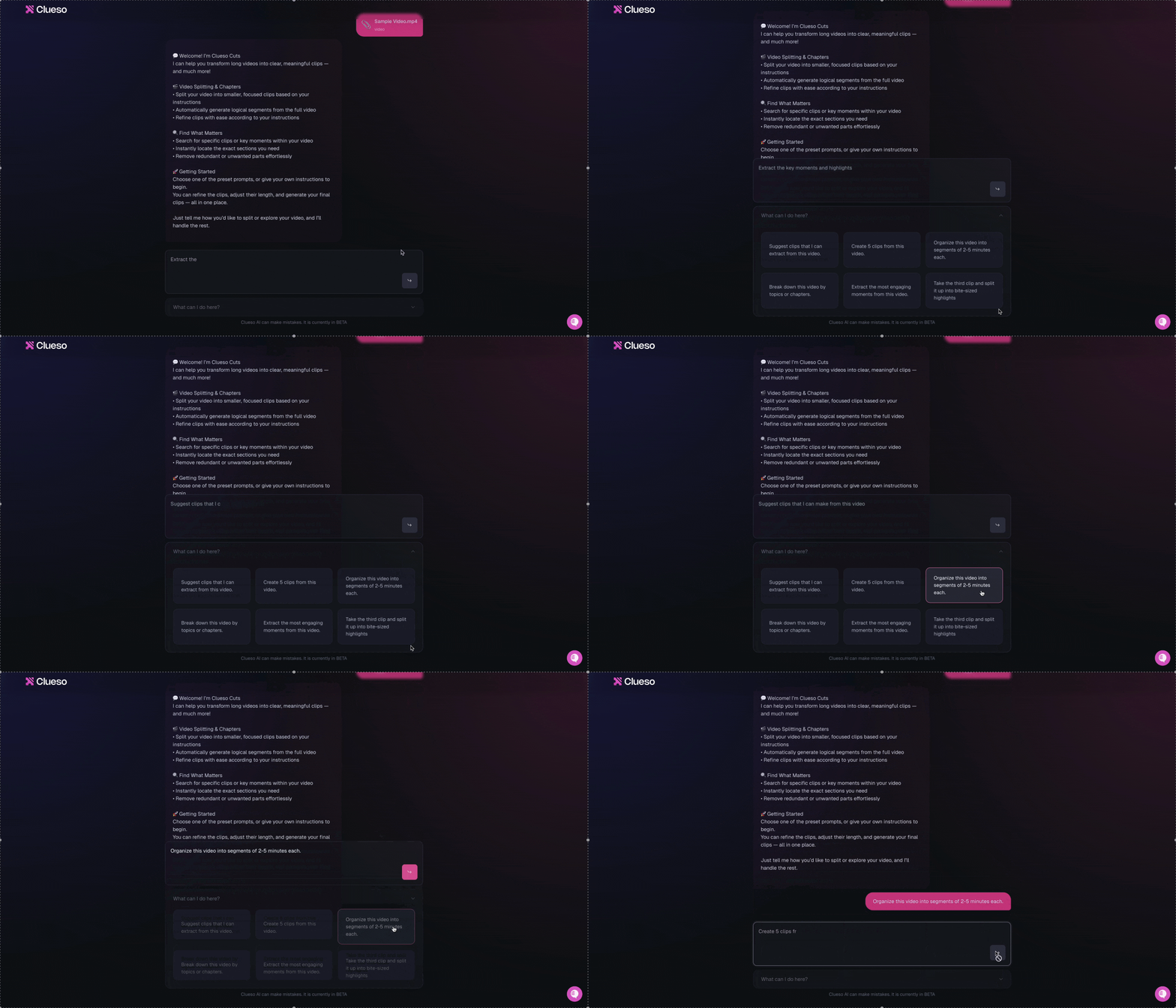
 Wait for the chat interface to open. Here, give instructions to Clueso on how to split the video. You can either:
* Type your instructions directly into the chat
* Select from preset prompts by clicking the button below the chat
Wait for the chat interface to open. Here, give instructions to Clueso on how to split the video. You can either:
* Type your instructions directly into the chat
* Select from preset prompts by clicking the button below the chat
 Review the breakdown of each clip Clueso generates. Each clip shows:
* **Title** – a clear name describing the clip's content
* **Description** – a short summary of the clip
* **Duration** – timestamps from the original video
Review the breakdown of each clip Clueso generates. Each clip shows:
* **Title** – a clear name describing the clip's content
* **Description** – a short summary of the clip
* **Duration** – timestamps from the original video
.png?fit=max&auto=format&n=FDjd9vxorUtiIOjy&q=85&s=a6afdf4a5e5b580e2d350e09d9d74dd8) Continue using the chat to edit or refine clips if needed. Click **Create Clips** to finalize.
Continue using the chat to edit or refine clips if needed. Click **Create Clips** to finalize.
.png?fit=max&auto=format&n=FDjd9vxorUtiIOjy&q=85&s=2f19506e99fac4198582accaa5b85f1f) Clueso automatically creates a separate folder with all clips as individual projects. Select any project from the folder to edit individually.
This feature is available only for Enterprise plan users. If you'd like to access it, fill out this [form](https://tally.so/r/mVk6Jy).
Clueso automatically creates a separate folder with all clips as individual projects. Select any project from the folder to edit individually.
This feature is available only for Enterprise plan users. If you'd like to access it, fill out this [form](https://tally.so/r/mVk6Jy).