> ## Documentation Index
> Fetch the complete documentation index at: https://help.clueso.io/llms.txt
> Use this file to discover all available pages before exploring further.
# SSO
> Set up SSO login for your organization on Clueso
SSO is only available for enterprise customers.
Clueso supports **SAML-based Single Sign-On (SSO)** to secure access for your organization.
## Setting up SSO
Let the Clueso team know (through your official support channel) that you wish to enable SSO login.
Our team will share a **SAML setup link** via the secure support channel.
This link does not require authentication and should only be shared with your internal security team.
Your internal team should use the setup link to complete the SAML configuration process.
Once setup is complete, notify us. The Clueso team will then **enforce SAML authentication** for your organization's account.
## Inviting users with SSO
For a user to access Clueso after SSO is enabled, they must be added in **two places**:
1. **Internal SSO portal** — The SSO administrator grants access to the user in your identity provider.
2. **Clueso workspace** — The Admin [invites](/administration/admin/invite-members) the same user via the Members page.
A user will only be able to log in if they are added to both systems.
## Existing user logins after enabling SSO
When SSO enforcement is turned on, existing users can login using the SSO option on the login screen.
Select the **SSO** from the available methods.
Enter your organization email address. You will be redirected to your company's identity provider login page.
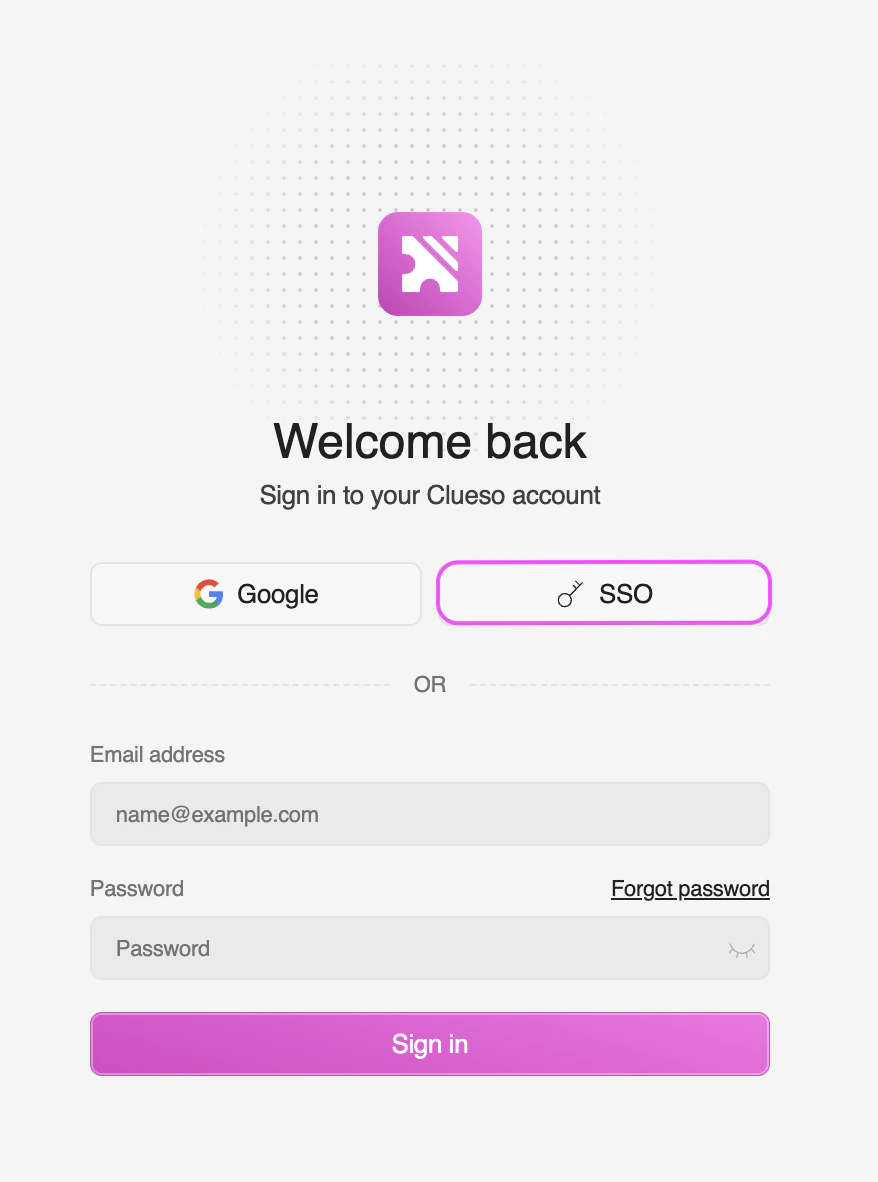 For existing users logging in with email and password, please follow the steps below:
On the login screen, click the link to sign in with a different method.
Select the **SSO login option** from the available methods.
Enter your organization email address. You will be redirected to your company's identity provider login page.
Once authenticated, you'll continue to use Clueso as usual.
All existing data, projects, and settings are retained. Switching to SSO does not affect the user's content or profile.
## FAQs
No. All videos, templates, and workspace settings remain unchanged. SSO only changes how users authenticate.
Once SSO enforcement is enabled, all users in the organization must use SSO. Email/password login will be disabled for the workspace.
Clueso supports any SAML 2.0 compliant identity provider, including Okta, Azure AD, OneLogin, and Google Workspace.
For existing users logging in with email and password, please follow the steps below:
On the login screen, click the link to sign in with a different method.
Select the **SSO login option** from the available methods.
Enter your organization email address. You will be redirected to your company's identity provider login page.
Once authenticated, you'll continue to use Clueso as usual.
All existing data, projects, and settings are retained. Switching to SSO does not affect the user's content or profile.
## FAQs
No. All videos, templates, and workspace settings remain unchanged. SSO only changes how users authenticate.
Once SSO enforcement is enabled, all users in the organization must use SSO. Email/password login will be disabled for the workspace.
Clueso supports any SAML 2.0 compliant identity provider, including Okta, Azure AD, OneLogin, and Google Workspace.